
If your tablet was once snappy and responsive but now takes forever to open apps or even scroll through menus, you're not alone. Sudden slowdowns are common—and often fixable without professional help. The good news? Most performance issues stem from software clutter, background processes, or outdated systems rather than hardware failure. Understanding the root causes and knowing exactly what to delete can restore speed and extend your device’s lifespan.
Common Reasons Tablets Slow Down Suddenly
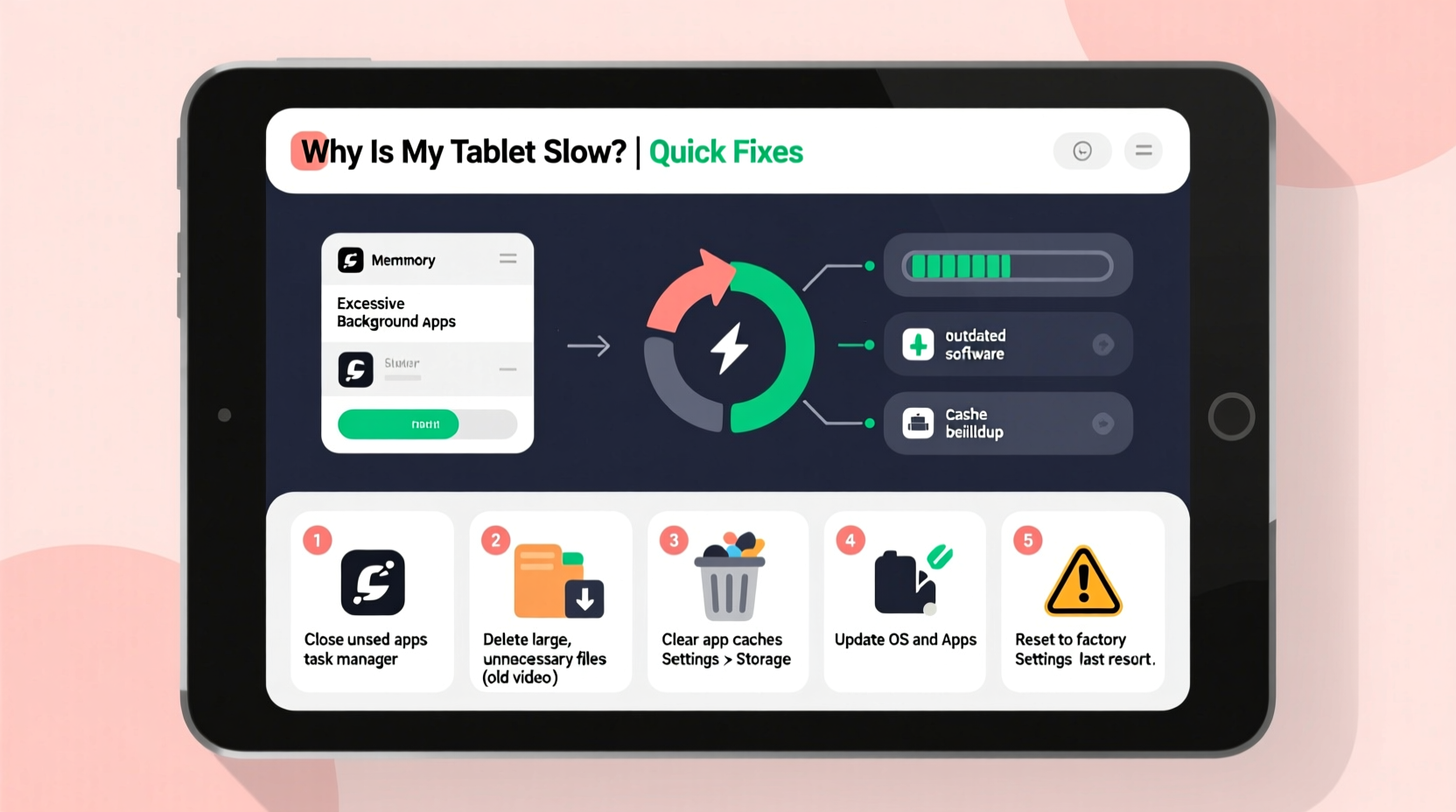
A tablet doesn’t just \"decide\" to run slowly overnight. There’s almost always a trigger. Identifying the cause helps you apply the right solution instead of randomly deleting files.
- App bloat: Over time, apps accumulate cache, logs, and temporary files that consume storage and memory.
- Background processes: Apps running in the background—especially social media, email, or cloud sync tools—can eat up CPU and RAM.
- Low storage space: When internal storage drops below 10%, Android and iOS systems throttle performance to manage resources.
- Outdated operating system: Older OS versions may struggle with newer app demands or contain unpatched bugs.
- Too many widgets or live wallpapers: These constantly refresh data and graphics, taxing system resources.
- Malware or rogue apps: Rare but possible, especially on Android devices with third-party app installations.
What to Delete to Speed Up Your Tablet
You don’t need to factory reset your device immediately. Start by removing unnecessary files and apps that drain performance.
1. Clear App Cache and Data
Every app stores temporary data (cache) to load faster next time. But over months, this cache grows and can conflict with app functionality.
- Go to Settings > Apps (or Application Manager).
- Select an app known to use heavy resources (e.g., Facebook, Chrome, Instagram).
- Tap Storage, then Clear Cache.
- For problematic apps, tap Clear Data (note: this resets the app to default settings).
Repeat for top five storage-hogging apps. This alone can free hundreds of MB and improve responsiveness.
2. Uninstall Unused or Duplicate Apps
Many users install apps “just to try” and forget about them. These dormant apps still receive updates, run background services, and occupy valuable space.
Ask yourself: Have I used this app in the last 30 days? Does it have a duplicate function (e.g., two note-taking apps)?
Remove these safely through Settings or long-pressing the app icon on the home screen.
3. Delete Old Downloads and Media Files
Photos, videos, downloaded documents, and APK files pile up quickly. A single 4K video can take up 500MB or more.
Navigate to your Downloads folder using the built-in file manager. Sort by size and delete:
- Old PDFs or e-books you’ve already read
- Duplicate screenshots
- Large video files backed up elsewhere
- APK installers after app installation
4. Remove Offline Content from Streaming Apps
Streaming apps like Netflix, Spotify, or YouTube Music allow offline viewing, but downloaded episodes or playlists consume significant storage.
Check within each app:
- Netflix: App > Menu > My Downloads > Delete individual shows.
- Spotify: Library > Playlists > Tap download icon to remove offline save.
- YouTube: Library > Downloaded videos > Manage downloads.
5. Wipe Browser Data
Browsers collect cookies, history, cached images, and site data that slow page loading and increase memory use.
In Chrome or your default browser:
- Tap the three-dot menu > History.
- Select Clear browsing data.
- Choose time range (select “All time”), check all boxes, and confirm.
This can reclaim hundreds of MB and resolve sluggish web performance.
Step-by-Step Guide to Restore Tablet Speed
Follow this sequence for maximum impact without risking data loss.
- Restart your tablet. Sounds simple, but it clears RAM and stops frozen processes.
- Check storage usage. Go to Settings > Storage. Identify which category uses the most space (Apps, Photos, Downloads, etc.).
- Delete large, unnecessary files. Use the file manager to sort by size and remove obsolete items.
- Clear cache for top 5 apps. Focus on social media, browsers, and messaging apps.
- Uninstall unused apps. Remove at least 3–5 apps you no longer need.
- Disable or remove widgets. Especially animated or real-time ones on the home screen.
- Update the OS and apps. Outdated software often contains performance bugs.
- Monitor battery usage. Settings > Battery shows which apps drain power—and typically, those also strain performance.
- Reboot again. Let the system reorganize after cleanup.
After completing these steps, test core functions: opening the camera, switching between apps, and browsing the web. Most users notice improvement within minutes.
Do’s and Don’ts: What to Keep and What to Delete
| Do | Don’t |
|---|---|
| Clear app cache regularly (monthly) | Delete system apps unless you’re certain they’re safe to remove |
| Uninstall apps you haven’t used in 60+ days | Store photos/videos permanently on internal storage without backup |
| Use cloud storage (Google Drive, iCloud) for documents | Install apps from unknown sources (Android) |
| Enable automatic app updates | Keep multiple file manager or cleaner apps—they often conflict |
| Restart your tablet weekly | Ignore OS update notifications for extended periods |
Mini Case Study: Recovering a Sluggish Samsung Galaxy Tab
Sarah, a freelance graphic designer, relied on her Samsung Galaxy Tab A7 for client meetings and sketching. After six months, the tablet began lagging—apps crashed, zooming in design apps froze, and startup took over a minute.
She checked storage: only 1.2 GB free out of 32 GB total. Her file manager revealed 8.3 GB in Downloads, mostly old project exports and sample textures. She also had three photo editing apps doing similar tasks.
Following the cleanup steps above, Sarah:
- Deleted 6.8 GB of redundant downloads
- Uninstalled two redundant design apps
- Cleared cache for Adobe Illustrator Draw and Chrome
- Removed live wallpaper and home screen widgets
- Updated her OS to the latest One UI version
Result: Available storage jumped to 9.5 GB, app launch times improved by 60%, and the tablet felt like new. No factory reset needed.
Expert Insight: Why Storage Impacts Performance
“Modern tablets use unified memory architecture and dynamic resource allocation. When storage is nearly full, the system has less room for virtual memory and temp files, forcing constant disk thrashing. Even if RAM is sufficient, low storage can mimic hardware limitations.” — Dr. Alan Zhou, Mobile Systems Engineer at TechInsight Labs
This explains why a tablet with 4GB RAM can feel slower than one with 3GB RAM but ample free space. The operating system needs breathing room to operate efficiently.
Frequently Asked Questions
Will clearing cache delete my app login information?
Clearing cache usually does not log you out. However, clearing data will erase login credentials, preferences, and saved states. Always choose “Clear Cache” unless you’re troubleshooting a specific app issue.
Is it safe to use third-party cleaner apps?
Most built-in storage managers (like Google Files or Samsung’s Device Care) are safer and more effective. Third-party cleaners often exaggerate scan results, push premium features, or display ads. Some may even collect data. Stick to trusted tools from Google, Apple, or your device manufacturer.
How often should I perform a tablet speed cleanup?
Perform a light maintenance routine monthly—clear cache, delete recent junk files. Do a deeper cleanup every 3–4 months, especially if you frequently download content or use media-heavy apps.
Final Checklist: Regain Your Tablet’s Speed
Use this checklist as a quick reference whenever your tablet feels sluggish:
- ✅ Restart the device
- ✅ Check available storage (aim for >15% free)
- ✅ Clear cache for top 5 apps
- ✅ Delete large files in Downloads and DCIM folders
- ✅ Uninstall unused or duplicate apps
- ✅ Remove offline content from streaming apps
- ✅ Wipe browser history and cached data
- ✅ Update operating system and critical apps
- ✅ Disable unnecessary home screen widgets
- ✅ Reboot after cleanup
Conclusion: Take Control of Your Tablet’s Performance
A slow tablet isn’t a life sentence. In most cases, the issue lies in manageable digital clutter—not failing hardware. By understanding what files and processes sap performance, you can take targeted action to restore speed and reliability. Regular maintenance prevents future slowdowns and extends your device’s useful life, saving money and reducing electronic waste.




 浙公网安备
33010002000092号
浙公网安备
33010002000092号 浙B2-20120091-4
Comments
No comments yet. Why don't you start the discussion?