
If your phone, laptop, or tablet have no problem loading websites or streaming videos, but your smart TV buffers constantly, you're not alone. This frustrating scenario affects millions of households where the internet seems fine—except on the big screen. The issue isn't always with your ISP or overall bandwidth. Often, it's a combination of device-specific limitations, network misconfigurations, or overlooked hardware quirks. Understanding why your smart TV suffers from sluggish speeds while other devices perform well is the first step toward restoring smooth 4K streaming.
Smart TVs are designed for entertainment, not high-performance networking. Their built-in Wi-Fi chips are often older or less powerful than those in smartphones or laptops. Additionally, software bloat, outdated firmware, or distance from the router can further degrade performance. This guide breaks down the most common causes and offers actionable solutions so you can stop staring at spinning wheels and start enjoying uninterrupted content.
Understanding the Root Causes
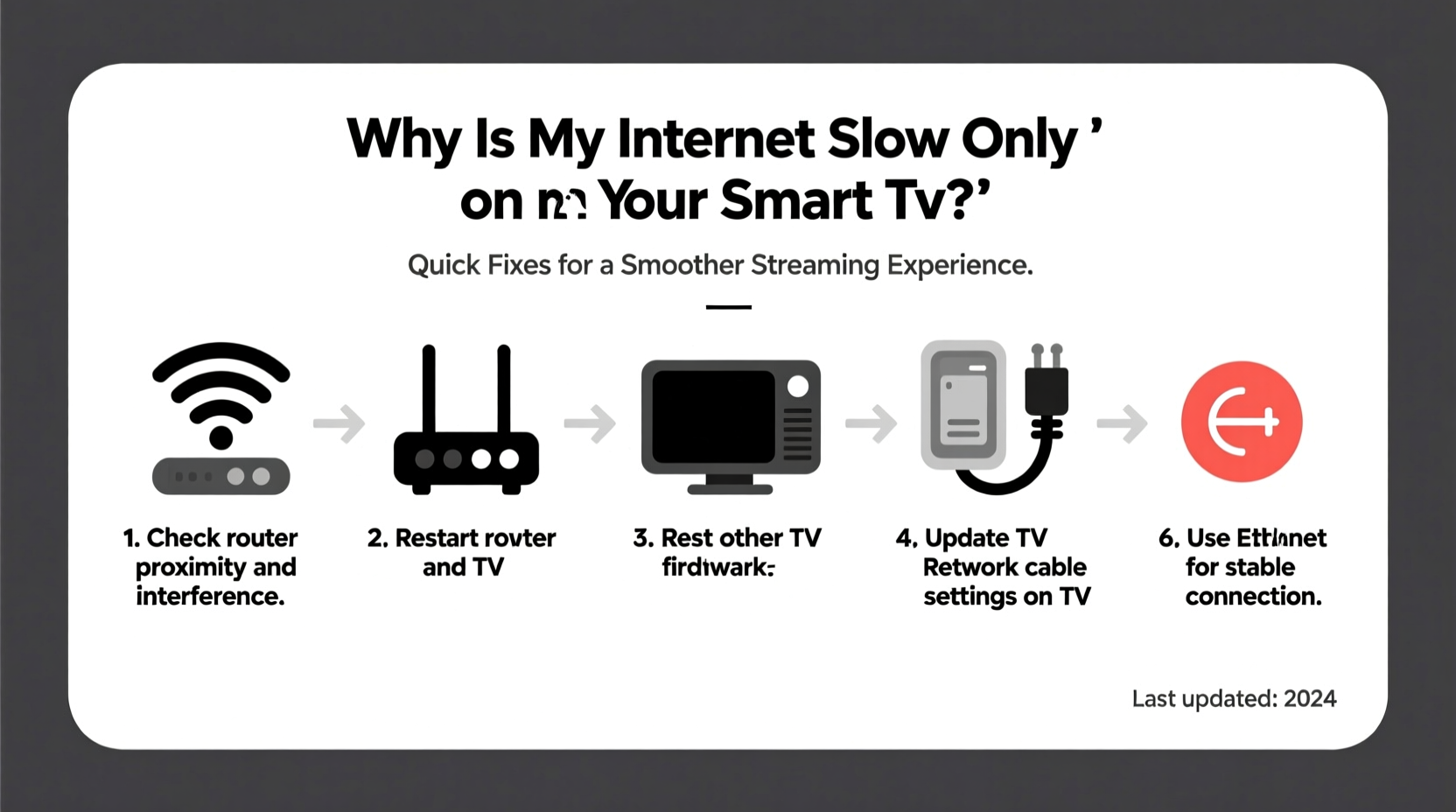
The fact that only your smart TV experiences slow internet suggests the issue lies within one or more of the following categories:
- Limited hardware capabilities: Many smart TVs use older Wi-Fi standards (like 802.11n) or single-band 2.4 GHz connections, which struggle with modern streaming demands.
- Network congestion during peak times: While all devices share the same connection, high-resolution video on a large screen consumes significantly more bandwidth, making slowdowns more noticeable.
- Router placement and signal interference: Thick walls, appliances, or competing signals can weaken Wi-Fi specifically where the TV is located.
- Outdated firmware or app bugs: Streaming apps like Netflix or Hulu may have unresolved glitches, and TV operating systems rarely update as frequently as mobile platforms.
- Background processes: Smart TVs often run hidden updates, ads, or voice assistants that consume bandwidth without user awareness.
“Most smart TVs are optimized for picture quality, not network efficiency. That imbalance becomes obvious when bandwidth demand spikes.” — David Lin, Senior Network Engineer at Broadband Insights Group
Step-by-Step Troubleshooting Guide
Follow this logical sequence to isolate and resolve the cause of your smart TV’s slow internet.
- Confirm the issue is isolated to the TV. Test internet speed on multiple devices (phone, laptop, tablet) using the same network. If they’re fast, the problem is likely TV-specific.
- Reboot your smart TV and router. A simple restart clears temporary glitches. Unplug both devices for 60 seconds before powering them back on.
- Check current internet speed on the TV. Use a built-in speed test tool if available (e.g., Samsung’s “Network Diagnosis”) or install a browser-based tester via an external device connected to the same network.
- Compare wired vs. wireless performance. If possible, connect your TV to the router via Ethernet cable. If speed improves dramatically, Wi-Fi is the bottleneck.
- Move closer to the router or reduce interference. Eliminate physical obstructions and keep the TV away from microwaves, cordless phones, or Bluetooth speakers.
- Switch Wi-Fi bands if dual-band is available. Connect your TV to the 5 GHz network instead of 2.4 GHz for faster speeds and less interference (though range is shorter).
- Update your TV’s firmware and apps. Navigate to Settings > Support > Software Update to ensure everything is current.
- Forget and re-add the Wi-Fi network. This resets network settings and can resolve authentication or handshake issues.
- Limit background activity. Disable automatic updates, personalized ads, and voice assistant features that run in the background.
- Use a Wi-Fi extender or mesh system. If the TV is far from the router, consider upgrading your network infrastructure.
Do’s and Don’ts: Common Pitfalls to Avoid
| Do’s | Don’ts |
|---|---|
| Use a wired Ethernet connection whenever possible for maximum stability. | Assume your router is at fault without testing other variables. |
| Position your router centrally and elevated, away from metal objects. | Ignore firmware updates—even if they’re infrequent, they matter. |
| Set up Quality of Service (QoS) on your router to prioritize the TV during streaming. | Stream 4K content on a connection that consistently delivers less than 25 Mbps. |
| Restart your network equipment weekly to prevent memory leaks. | Use long HDMI cables as substitutes for network extenders—they don’t solve Wi-Fi issues. |
| Factory reset the TV only after exhausting all other options. | Blame your ISP immediately—many issues are local and fixable. |
Tips for Long-Term Performance Improvement
Once you’ve restored acceptable speeds, take steps to maintain consistent performance over time.
- Invest in a Wi-Fi 6 mesh system: Systems like Google Nest Wifi Pro or Eero 6 provide seamless coverage and better handle multiple high-bandwidth devices.
- Assign static IP addresses: For advanced users, assigning a fixed IP to your TV can improve connection reliability and make QoS rules easier to manage.
- Monitor bandwidth usage: Use your router’s admin interface to see which devices are consuming the most data. Some routers even allow you to set usage limits.
- Disable unnecessary smart features: Turn off automatic content recognition (ACR), voice listening, and ad personalization unless actively used.
- Use a streaming stick or console: Devices like Apple TV, Roku Ultra, or NVIDIA Shield often have superior Wi-Fi hardware and software optimization compared to built-in smart TV platforms.
Real-World Example: Solving a Persistent Buffering Issue
Sarah in Denver had a two-year-old LG OLED TV that constantly stalled during evening Netflix sessions, despite her fiber-optic connection showing 150 Mbps on her laptop. Her kids’ tablets worked fine, and Zoom calls were stable. After trying several quick fixes, she decided to dig deeper.
She began by connecting the TV directly via Ethernet—speed jumped to 130 Mbps with zero buffering. This confirmed Wi-Fi was the weak link. Her router was in the basement, and the TV was on the second floor, separated by a concrete wall.
Instead of buying new equipment immediately, Sarah tried relocating her existing Wi-Fi extender closer to the TV. She also changed her router settings to assign the TV a higher QoS priority. When that didn’t fully resolve the issue, she purchased a budget-friendly mesh node and placed it halfway between the router and the living room.
Result: Wi-Fi speed on the TV improved from 8 Mbps to 65 Mbps, and 4K streaming became smooth. The total cost was under $100—far less than replacing the TV or upgrading her internet plan unnecessarily.
Essential Checklist for Immediate Action
Use this checklist the next time your smart TV slows down:
- ✅ Reboot the TV and router
- ✅ Test internet speed on other devices
- ✅ Run a speed test on the TV itself
- ✅ Check for firmware and app updates
- ✅ Switch from 2.4 GHz to 5 GHz Wi-Fi (if supported)
- ✅ Move closer to the router or reduce obstacles
- ✅ Forget and reconnect to the Wi-Fi network
- ✅ Disable background services and ads
- ✅ Try a wired Ethernet connection
- ✅ Consider a mesh Wi-Fi upgrade for larger homes
Frequently Asked Questions
Can my smart TV’s age affect internet speed?
Yes. Older smart TVs often support only 802.11n Wi-Fi and single-band 2.4 GHz, limiting maximum speeds to around 150 Mbps under ideal conditions. Real-world performance is usually much lower. Newer models support Wi-Fi 5 (802.11ac) or Wi-Fi 6, offering faster, more stable connections.
Why does my TV disconnect from Wi-Fi randomly?
This can be caused by weak signal strength, outdated firmware, IP address conflicts, or power-saving settings that put the Wi-Fi adapter to sleep. Disabling eco-mode or auto-sleep features in the network settings may help maintain a persistent connection.
Is it better to use a streaming device instead of the built-in smart system?
Often, yes. External devices like Roku, Amazon Fire Stick 4K, or Apple TV typically receive more frequent updates, have better processors, and include newer Wi-Fi chips. They also offer cleaner interfaces and broader app support than many built-in platforms.
Final Thoughts and Next Steps
Slow internet on your smart TV doesn’t have to be a permanent annoyance. By methodically testing connections, updating software, and optimizing your home network layout, you can achieve reliable, high-speed streaming. The key is recognizing that the TV is just one node in a larger ecosystem—its performance depends heavily on router quality, placement, and configuration.
Start with the simplest fixes—restarting devices and checking for updates—before moving to hardware upgrades. In many cases, a modest investment in a mesh Wi-Fi system or a better streaming device pays off in years of frustration-free viewing.




 浙公网安备
33010002000092号
浙公网安备
33010002000092号 浙B2-20120091-4
Comments
No comments yet. Why don't you start the discussion?