
Laptop fans are designed to keep internal components cool, but when they start running at full speed shortly after a software update, it's more than just an annoyance—it’s a signal. Sudden increases in fan noise often point to underlying system changes triggered by the update. While some level of background activity is normal post-update, persistent or excessive fan noise suggests something has gone awry. The good news: in most cases, this issue is fixable without professional repair.
Software updates—whether from Windows, macOS, Linux, or third-party applications—are meant to improve security, functionality, and performance. But sometimes, they introduce bugs, alter power settings, or increase CPU load unintentionally. These changes can cause your laptop’s processor to work harder, generating more heat and forcing the cooling system into overdrive. Understanding why this happens and how to address it empowers you to regain control over your device’s performance and acoustics.
What Causes Fan Noise After a Software Update?
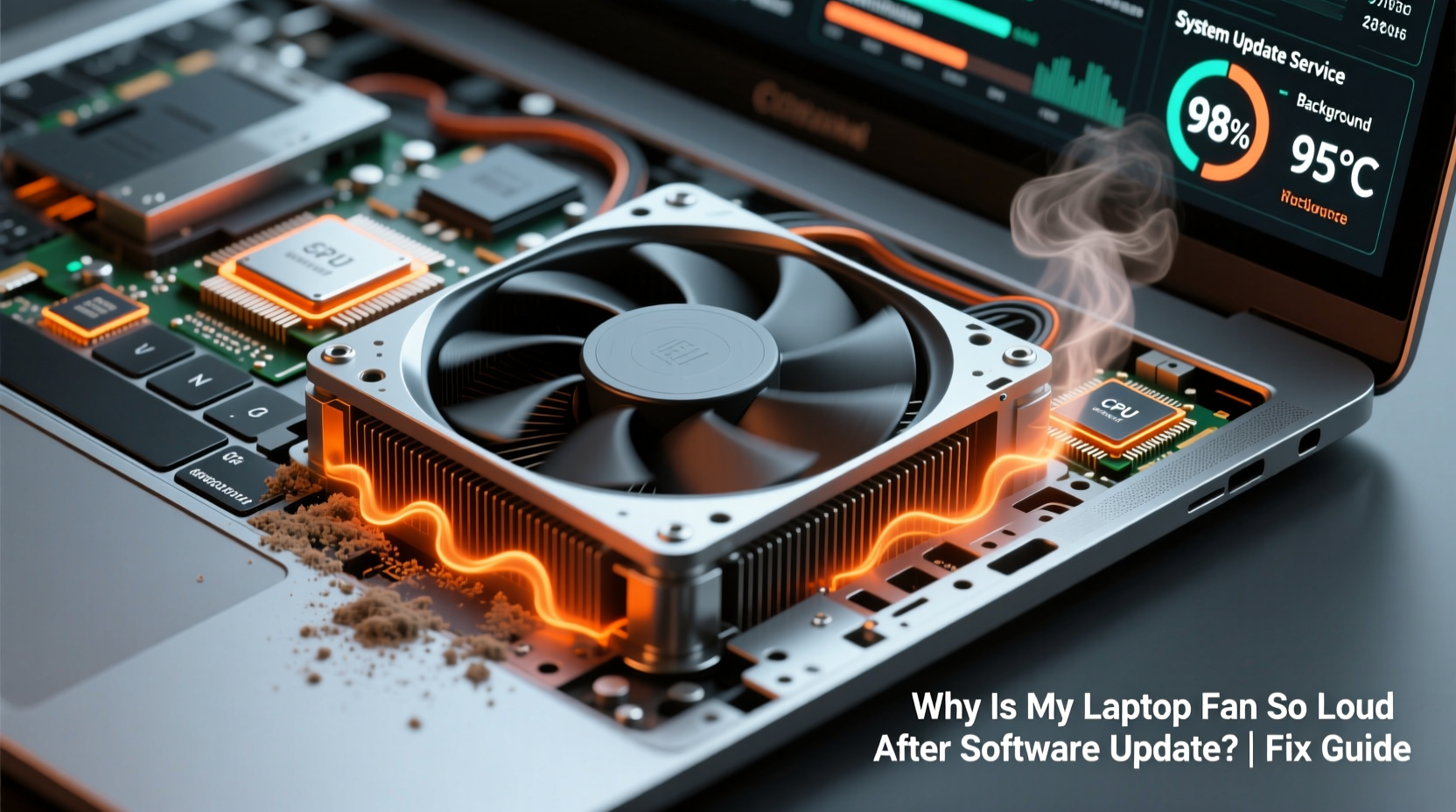
A sudden spike in fan activity following an update usually stems from increased thermal output due to higher CPU or GPU usage. This doesn’t mean the hardware is faulty; rather, the software is asking more of the system than before. Common culprits include:
- Background processes consuming excessive resources – Some updates install services that run continuously, such as telemetry tools, indexing agents, or synchronization daemons.
- Bug-ridden drivers or firmware – An incompatible or poorly optimized driver for graphics, chipset, or power management can lead to inefficient processing and heat buildup.
- Changed power plan settings – Updates may reset your power profile to \"High Performance,\" which prioritizes speed over energy efficiency and cooling.
- Aggressive background updates – Operating systems often continue downloading patches or feature packs in the background after the main update completes.
- Malware exploiting update windows – Though rare, malicious software can piggyback on update installations or disguise itself as legitimate system activity.
These factors don’t operate in isolation. A combination of misconfigured settings and resource-heavy processes can create a perfect storm for overheating and fan overuse.
Step-by-Step Guide to Diagnose and Fix the Issue
Resolving loud fan noise requires methodical troubleshooting. Follow this timeline-based approach to identify and eliminate the root cause:
- Wait 24–48 hours post-update
Some updates trigger background optimization tasks like file indexing, cache rebuilding, or driver installation. Allow time for these to complete before taking action. - Check Task Manager (Windows) or Activity Monitor (macOS)
Open the system monitor and sort processes by CPU usage. Look for any single application or service consuming more than 30% CPU consistently. Note down suspicious entries. - Restart your laptop
A reboot clears temporary glitches, stops rogue processes, and reinitializes drivers. Do this after confirming no critical background tasks are mid-process. - Review recent startup programs
Updates can add new apps to auto-start. Disable non-essential entries via System Preferences > Users & Groups > Login Items (macOS), or Task Manager > Startup tab (Windows). - Adjust power settings
Switch from “High Performance” to “Balanced” or “Power Saver” mode. On Windows, go to Control Panel > Power Options. On macOS, adjust settings in System Settings > Battery. - Update or roll back drivers
If the issue began immediately after a driver update (e.g., graphics), consider rolling back. In Device Manager (Windows), right-click the device and select “Roll Back Driver.” Alternatively, download the latest stable version from the manufacturer’s website. - Scan for malware
Run a full system scan using Windows Defender, Malwarebytes, or another trusted antivirus tool. Malicious scripts can mimic system processes and max out CPU cycles. - Reset BIOS/UEFI settings (if applicable)
In rare cases, firmware updates bundled with OS upgrades can disrupt thermal regulation. Resetting BIOS to default values may help. Access this during boot (usually via F2, Del, or Esc key).
When to Consider a System Restore
If none of the above steps resolve the issue, and you’re certain the problem started right after the update, a system restore can return your laptop to its pre-update state. This removes recently installed files and settings while preserving personal data.
Windows: Go to Settings > System > Recovery > Advanced Startup > System Restore.
macOS: Boot into Recovery Mode (Command + R), then use Time Machine if a backup exists.
Be cautious: restoring will undo all changes made since the restore point, including app installations and configuration tweaks.
Do’s and Don’ts: Managing Post-Update Fan Behavior
| Do | Don't |
|---|---|
| Monitor CPU usage regularly after major updates | Ignore persistent high fan speeds lasting beyond two days |
| Keep your laptop on a hard, flat surface for proper airflow | Use your laptop on soft surfaces like beds or couches that block vents |
| Update firmware and drivers directly from manufacturer websites | Rely solely on automatic updates without verifying stability |
| Clean dust from vents gently with compressed air every few months | Disassemble the laptop unless experienced—this can void warranties |
| Use built-in diagnostics tools (e.g., Dell SupportAssist, HP PC Hardware Diagnostics) | Assume hardware failure immediately—software is more likely the culprit |
Real Example: How Sarah Fixed Her Overheating MacBook
Sarah, a freelance graphic designer, updated her MacBook Pro to the latest macOS version to access new design features. Within hours, she noticed the fan spinning loudly even when only browsing email. At first, she assumed it was temporary, but after two days of constant whirring, productivity dropped due to distraction and heat discomfort.
She opened Activity Monitor and found a process called “kernel_task” using over 70% CPU. Research revealed this system function ramps up when thermal sensors detect overheating—often caused by other processes hogging resources. Further digging showed Adobe Creative Cloud was stuck in a sync loop, repeatedly scanning thousands of project files.
Sarah quit the Creative Cloud app, cleared its cache, and relaunched it. She also disabled automatic syncing for large folders. Within minutes, CPU usage dropped to 15%, kernel_task calmed down, and the fan returned to near-silent operation. The root cause wasn’t the OS update itself, but how it interacted with existing software behavior.
This case illustrates how updates can expose inefficiencies in third-party applications or configurations that were previously manageable but become problematic under new system conditions.
Expert Insight: What Engineers Say About Thermal Management
“Modern operating systems are increasingly aggressive about background optimization after updates. While intended to improve responsiveness, these tasks can overwhelm thermal design power limits, especially on ultrabooks with limited cooling headroom.” — Dr. Rajiv Mehta, Senior Systems Engineer at TechTherm Labs
“The key is visibility. Users need real-time feedback on what’s driving CPU load. Too many rely on symptom-based fixes instead of diagnosing actual process behavior.” — Lena Park, Firmware Optimization Specialist
Experts emphasize proactive monitoring and selective control over background services. Blindly accepting all default behaviors post-update can lead to suboptimal performance and reduced component lifespan.
Preventive Checklist: Avoid Future Fan Issues After Updates
To minimize the risk of recurring fan problems, follow this checklist each time you install a major software update:
- ✅ Schedule updates during low-usage periods (e.g., overnight)
- ✅ Backup important data before proceeding
- ✅ Check release notes for known issues related to performance or drivers
- ✅ Temporarily disable non-critical startup apps before updating
- ✅ Monitor system performance closely for the first 48 hours
- ✅ Clean ventilation ports monthly with a soft brush or compressed air
- ✅ Keep ambient room temperature below 25°C (77°F) for optimal cooling
- ✅ Use a laptop cooling pad if working under sustained loads
Frequently Asked Questions
Can a software update permanently damage my laptop’s fan?
No, a software update cannot physically damage the fan. However, prolonged high-speed operation due to sustained overheating may reduce the fan’s lifespan over time. Addressing the software cause early prevents unnecessary wear.
Is it safe to manually control fan speed?
It depends on your system. Some laptops allow fan control through utilities like SpeedFan (Windows) or Macs Fan Control (macOS). However, setting speeds too low risks overheating, while excessively high speeds increase noise and mechanical stress. Only adjust if you understand thermal thresholds and have monitoring tools in place.
Why does my laptop get hotter after an update even when idle?
This typically indicates a background process is active—such as Windows Search indexing, iCloud syncing, or a misbehaving driver. Use your system monitor to identify which process is consuming CPU cycles during idle periods. Disabling or updating that component usually resolves the issue.
Conclusion: Take Control of Your Laptop’s Performance
A loud laptop fan after a software update isn’t something you should simply endure. It’s a diagnostic signal—one that, when interpreted correctly, reveals opportunities to optimize your system for better efficiency, longevity, and user comfort. Most causes are software-related and reversible, requiring only careful observation and informed adjustments.
By understanding how updates affect system behavior, monitoring resource usage, and applying targeted fixes, you can restore quiet operation and ensure your laptop runs smoothly. Don’t wait for symptoms to worsen. Act now to diagnose the cause, implement solutions, and protect your investment.




 浙公网安备
33010002000092号
浙公网安备
33010002000092号 浙B2-20120091-4
Comments
No comments yet. Why don't you start the discussion?