
A sudden or persistent whirring sound from your laptop can be unsettling. While some noise is normal during operation, certain types of sounds signal potential problems. Understanding the source of the noise—whether it’s your fan, hard drive, or another internal component—can help you determine if immediate action is needed. This guide breaks down the common causes, signs of serious issues, and practical steps to diagnose and resolve the problem before it leads to hardware failure.
Common Causes of Whirring Noises in Laptops
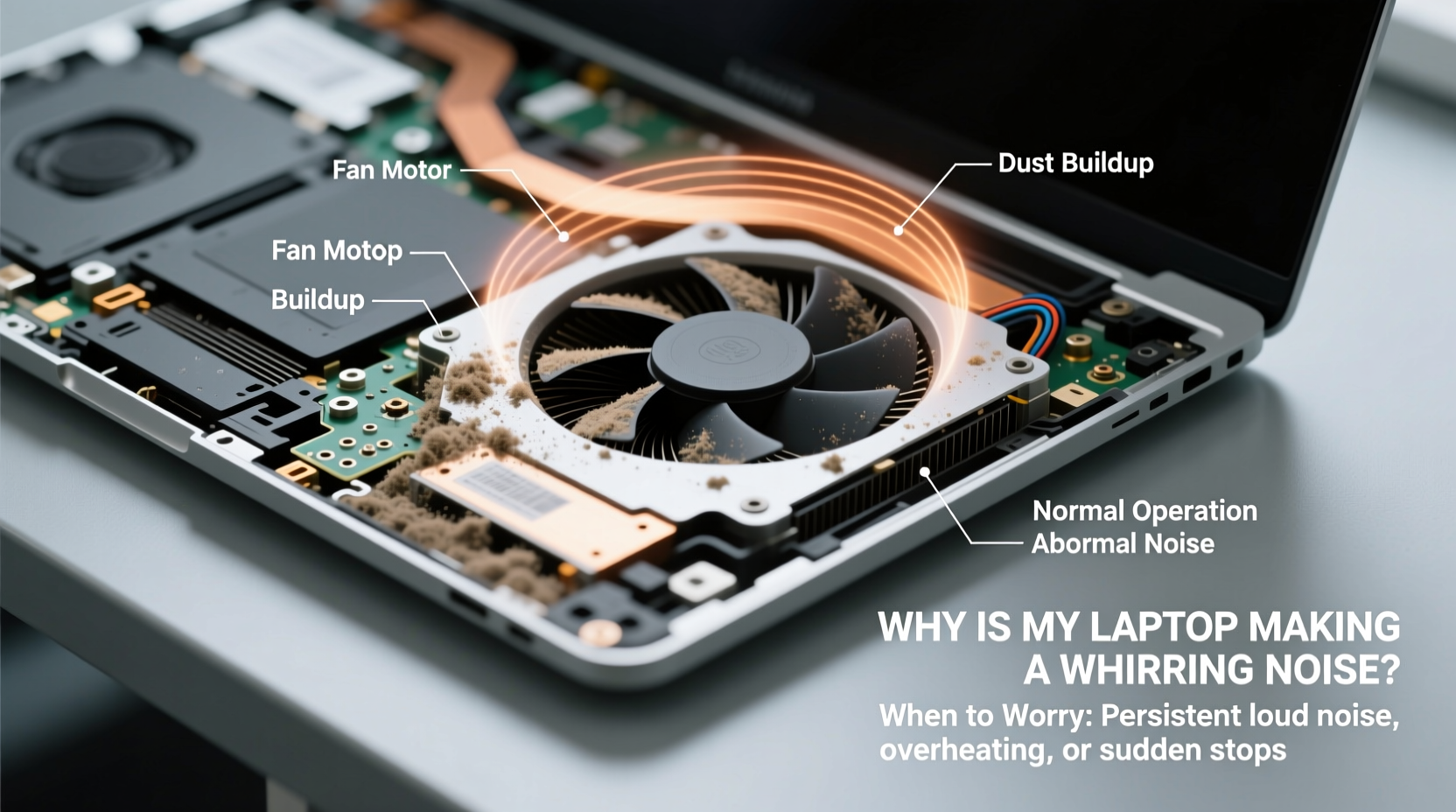
Laptops generate various operational sounds due to their compact design and moving parts. The most frequent sources of whirring noises include cooling fans, hard disk drives (HDDs), and occasionally, optical drives. Each has distinct characteristics that can help identify the root cause.
Cooling Fan Activity
The most common source of a whirring or humming sound is the cooling fan. Laptops rely on internal fans to dissipate heat generated by the CPU and GPU. When you run demanding applications—such as video editing software, games, or multiple browser tabs—the processor works harder and generates more heat, causing the fan to spin faster.
This increased speed often results in a noticeable rise in noise, ranging from a soft hum to a louder whir. In most cases, this is completely normal and indicates the thermal management system is functioning correctly.
Hard Disk Drive (HDD) Operation
If your laptop uses a traditional spinning hard drive instead of a solid-state drive (SSD), mechanical activity inside the HDD can produce rhythmic clicking or low-pitched whirring sounds. These occur as the read/write head moves across the spinning platters to access data.
Short bursts of noise during file access or system boot-up are typical. However, repetitive grinding, screeching, or irregular clicking may indicate the drive is failing.
Optical Drive (if present)
Some older laptops still include DVD or CD drives. Inserting or ejecting a disc triggers motorized mechanisms that create a brief whirring or spinning noise. Once the disc stops spinning, the sound should cease. Persistent noise after ejection could suggest a malfunction, though optical drives are increasingly rare in modern devices.
When Should You Be Concerned?
Not all whirring noises require intervention. Context matters: consider the timing, intensity, and accompanying symptoms. Here’s how to differentiate between benign and alarming sounds.
Normal vs. Abnormal Noise Patterns
| Scenario | Sound Type | Is It Normal? | Action Required |
|---|---|---|---|
| After opening several browser tabs | Gradual increase in fan hum | Yes | No |
| During startup or shutdown | Brief high-pitch whir | Yes | No |
| Laptop shuts down unexpectedly | Fan running at max speed constantly | No | Yes – check for overheating |
| Clicking or grinding with whirring | Intermittent scraping sound | No | Yes – possible HDD failure |
| Noise continues after shutdown | Fan still spinning | No | Yes – firmware or power issue |
Continuous, loud, or erratic noises—especially those accompanied by performance drops, screen freezes, or unexpected restarts—are red flags. These may point to hardware degradation or imminent failure.
“Persistent abnormal noise, particularly grinding or rhythmic ticking from the lower left side of the laptop, often precedes hard drive failure. Early detection can save critical data.” — Dr. Alan Reyes, Senior Hardware Engineer at TechShield Diagnostics
Troubleshooting Steps to Identify the Source
Before assuming the worst, perform a systematic check to isolate the noise source. Follow these steps in order:
Step-by-Step Diagnostic Process
- Observe when the noise occurs: Note whether it happens during startup, under load, at idle, or randomly.
- Check task manager: Open Task Manager (Ctrl+Shift+Esc) and look for high CPU or disk usage. Sustained 90–100% usage suggests resource-heavy processes triggering fan activity.
- Feel for heat: Gently touch the bottom and sides near ventilation grills. Excessive heat combined with loud fan noise indicates poor airflow or dust buildup.
- Listen closely: Use a cardboard tube or rolled paper held near vents to amplify sound direction. A central or rear whir typically points to the fan; a lower-left buzz may come from an HDD.
- Boot into BIOS/UEFI: Restart and enter BIOS (usually by pressing F2, F12, or Del). If the noise persists here, it’s hardware-related, not software-driven.
- Run diagnostics: Use built-in tools like Dell SupportAssist, HP PC Hardware Diagnostics, or third-party apps such as CrystalDiskInfo for drive health.
Software vs. Hardware Noise Triggers
Sometimes, background programs or malware cause high CPU usage, forcing fans to work overtime. Malware scanners, cloud sync tools, or outdated drivers can silently consume resources. Uninstall unnecessary startup apps via Task Manager > Startup tab to reduce load.
If the noise disappears after a clean boot (starting Windows with minimal drivers and programs), the issue is likely software-based. Update your OS and drivers, then monitor behavior.
Mini Case Study: Recovering Data Before Failure
Jamal, a freelance photographer, noticed his five-year-old laptop began emitting a rhythmic “tick-tick-whir” sound when opening large image files. Initially dismissing it as normal wear, he soon experienced slow boot times and file corruption warnings.
He ran CrystalDiskInfo, which reported “Reallocated Sector Count” and “Seek Error Rate” as “Caution.” Acting quickly, he backed up over 200GB of client photos to an external drive. Within two days, the drive failed completely. Thanks to early detection, Jamal avoided permanent data loss and replaced the HDD with an SSD, eliminating both noise and performance lag.
This case underscores the importance of proactive monitoring. Mechanical components do not fail silently—they often provide audible and diagnostic warnings first.
Preventive Maintenance Checklist
Regular maintenance extends your laptop’s lifespan and reduces noise-related risks. Use this checklist monthly or quarterly:
- ✅ Clean air vents with compressed air every 3 months
- ✅ Check for firmware and driver updates weekly
- ✅ Avoid using the laptop on soft surfaces like beds or couches
- ✅ Keep at least 15% of your hard drive free to prevent fragmentation and overheating
- ✅ Run disk cleanup and defragmentation (for HDDs only) monthly
- ✅ Monitor temperature using tools like Core Temp or Macs Fan Control (Mac)
- ✅ Replace thermal paste every 2–3 years on high-performance models
- ✅ Upgrade to an SSD if still using an HDD—quieter, faster, and more reliable
When to Seek Professional Help
While basic cleaning and software fixes can resolve mild issues, some situations demand expert intervention:
- Physical damage: If your laptop was dropped or exposed to liquid, internal misalignment could cause friction or motor strain.
- Unusual vibrations: A wobbling fan blade creates imbalance, leading to louder noise and potential motor burnout.
- Smoke or burning smell: Immediate shutdown and professional repair are critical—this indicates electrical or component failure.
- Clicking combined with data errors: Likely sign of HDD head crash. Continued use may destroy recoverable data.
Authorized service centers have specialized tools to disassemble devices safely, test individual components, and replace faulty parts without voiding warranties. Attempting DIY repairs on sealed units (e.g., MacBooks or ultrabooks) can lead to further damage.
“The cost of a $60 fan replacement pales in comparison to losing irreplaceable family photos or business documents due to ignored warning signs.” — Lena Park, Certified Repair Technician at FixHub Labs
Frequently Asked Questions
Is it safe to use my laptop if it’s making a whirring noise?
Most whirring noises during normal use are harmless. However, if the sound is new, worsening, or paired with overheating or crashes, stop intensive tasks and investigate. Continuous high-speed fan operation can shorten its lifespan, so addressing underlying causes is wise.
Can dust really cause loud fan noise?
Yes. Dust accumulation acts as insulation, trapping heat inside the chassis. This forces the fan to run longer and faster to compensate. Even a thin layer inside heatsinks or on fan blades can significantly impair cooling efficiency. Regular cleaning with compressed air prevents this buildup.
Will switching to an SSD eliminate the noise?
An SSD eliminates mechanical hard drive noise entirely since it has no moving parts. It also reduces overall system heat, indirectly lowering fan workload. Many users report their laptops become noticeably quieter and faster after upgrading from HDD to SSD.
Conclusion: Listen Closely, Act Wisely
Your laptop communicates through sound. A temporary whir under heavy load is normal engineering in action. But persistent, unusual, or escalating noise deserves attention. By understanding the difference between routine operation and warning signs, you gain control over your device’s health and longevity.
Simple habits—like keeping vents clean, monitoring system performance, and backing up data regularly—can prevent minor issues from becoming major failures. Don’t wait for complete breakdowns. Address strange sounds early, use diagnostic tools, and upgrade aging components when needed.




 浙公网安备
33010002000092号
浙公网安备
33010002000092号 浙B2-20120091-4
Comments
No comments yet. Why don't you start the discussion?