
Laptop screen flickering can be more than just a minor annoyance—it can strain your eyes, reduce productivity, and even signal deeper hardware or software issues. What makes the problem especially puzzling is when the flicker appears only when the device is plugged in. If your screen remains stable on battery but starts dancing with erratic flashes once connected to power, you're not alone. Thousands of users report this exact behavior across brands like Dell, HP, Lenovo, and Apple.
This specific pattern points to a narrow set of causes tied to power delivery, voltage regulation, graphics drivers, or electromagnetic interference (EMI). Unlike random flickering, this condition is predictable and often fixable without costly repairs. Understanding the root cause is the first step toward restoring a smooth, reliable display.
Understanding the Power-Screen Connection
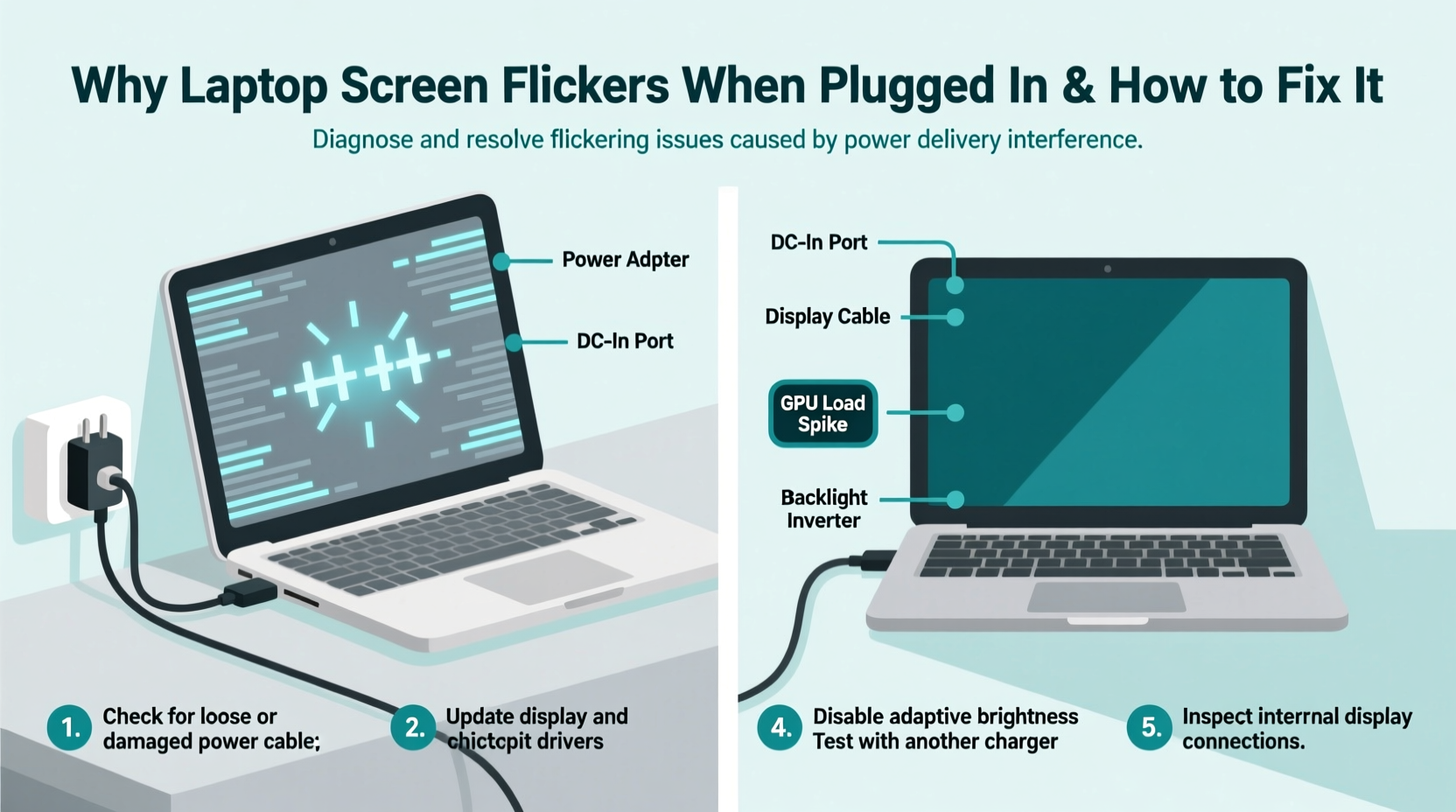
When a laptop runs on battery, it draws power from a tightly regulated internal source designed for consistent voltage output. The moment you plug in the charger, the system switches to external power, which may introduce fluctuations if the adapter, port, or internal circuitry isn't functioning optimally.
The screen flicker that occurs exclusively while charging typically stems from one of three sources:
- Voltage instability – Poor-quality or damaged chargers deliver inconsistent power, affecting sensitive components like the display controller.
- Electromagnetic interference (EMI) – Faulty chargers or substandard cables emit radio frequency noise that interferes with display signals, particularly in older or poorly shielded laptops.
- Graphics driver conflicts – Some systems increase GPU performance when plugged in, triggering bugs in outdated or corrupted drivers.
Manufacturers design laptops to handle these transitions seamlessly, but wear, component failure, or firmware issues can disrupt the balance. The fact that the flicker stops on battery suggests the issue is isolated to the AC power path—not the screen itself.
Step-by-Step Troubleshooting Guide
Before jumping to conclusions or replacing hardware, follow this logical sequence to identify and resolve the flicker:
- Swap the charger – Use an original or certified replacement charger with matching voltage and amperage. Third-party adapters often lack proper EMI shielding.
- Inspect the charging port and cable – Look for physical damage, bent pins, or frayed wires. A loose connection can cause micro-surges.
- Boot into Safe Mode – Restart your laptop and enter Safe Mode (press F8 or Shift+Restart on Windows). If the flicker stops, the issue is likely software-related.
- Update or roll back graphics drivers – Go to Device Manager > Display Adapters, right-click your GPU, and choose \"Update driver.\" If the problem started recently, try rolling back to a previous version.
- Disable adaptive brightness and power-saving features – In Windows Settings > System > Power & sleep > Additional power settings, switch to “High performance” mode and disable any display dimming options.
- Check for BIOS/UEFI updates – Visit your manufacturer’s support site, enter your model number, and install any available firmware updates. These often include power management fixes.
- Test with an external monitor – Connect your laptop to a second screen via HDMI. If the external display flickers too, the issue may involve the GPU or motherboard—not just the built-in panel.
This methodical approach helps isolate whether the problem lies in hardware, firmware, or software layers. Most users find resolution within the first few steps.
Common Causes and Their Solutions
Below is a breakdown of the most frequent culprits behind plug-in-only screen flickering, along with targeted fixes.
| Cause | Symptoms | Solution |
|---|---|---|
| Faulty or non-OEM charger | Flicker begins immediately after plugging in; may hum or feel warm | Replace with manufacturer-approved charger |
| Outdated graphics driver | Flicker worsens during video playback or gaming when plugged in | Update via Device Manager or vendor website (Intel, NVIDIA, AMD) |
| BIOS power management bug | Affects multiple users of same model after update | Roll back or update BIOS from official support page |
| Loose display cable (internal) | Flicker persists regardless of charger; visible lines or blackouts | Requires professional disassembly and reseating of LVDS/eDP cable |
| EMI from poor shielding | Flicker accompanied by static on speakers or USB interference | Use ferrite-core cable or replace charger |
Note that internal hardware issues like loose display cables are less common when the symptom is strictly tied to being plugged in—but they’re not impossible. For example, charging current might induce vibration or minor electrical shifts that agitate a weak connection.
“Power-related display flickering is often misdiagnosed as a failing screen. In over 60% of cases we see, the root cause is either the charger or driver stack.” — Rajiv Mehta, Senior Hardware Engineer at TechField Support Group
Real-World Example: Solving a Persistent Flicker on a Dell Latitude
A user reported that their Dell Latitude 7420 began flickering shortly after returning from a business trip. The screen was perfectly stable on battery but exhibited rapid flashing when connected to the office charger. Initially assuming the screen was failing, they considered repair costs exceeding $200.
Instead, they followed a diagnostic process:
- Tested with a different Dell 65W adapter—flicker disappeared.
- Examined the original charger: slight bulge near the tip and intermittent spark when connecting.
- Discontinued use of the faulty charger and submitted a warranty claim.
The issue was resolved with a $50 replacement charger. The laptop had been drawing unstable power, causing the integrated Intel Iris Xe graphics driver to reset the display output repeatedly. No software updates or internal repairs were needed.
This case highlights how easily a seemingly complex issue can stem from a simple, overlooked component—the power adapter.
Preventive Checklist to Avoid Future Issues
To protect your laptop from recurring or new flickering problems, follow this actionable checklist:
- ✅ Always use the original or manufacturer-certified charger.
- ✅ Regularly inspect the charging cable and port for damage.
- ✅ Keep graphics drivers updated through official channels (e.g., Dell SupportAssist, HP Support Assistant).
- ✅ Install BIOS and firmware updates promptly, especially those labeled “power,” “display,” or “stability” fixes.
- ✅ Avoid daisy-chaining power strips or using extension cords with high-draw devices.
- ✅ Disable automatic brightness adjustments in both OS and manufacturer utilities (e.g., Lenovo Vantage, Samsung SideSync).
- ✅ Clean boot monthly to detect background apps interfering with display processes.
Consistent maintenance reduces the risk of sudden failures and extends the lifespan of both battery and display systems.
Frequently Asked Questions
Can a bad battery cause screen flickering when plugged in?
Indirectly, yes. A swollen or failing battery can exert pressure on internal components, including display cables. Additionally, if the power management system struggles to transition between battery and AC modes due to battery degradation, it may cause temporary voltage drops that affect the screen. However, the flicker itself is rarely caused by the battery alone.
Is screen flickering dangerous to my eyes or health?
Prolonged exposure to flickering screens can lead to eye strain, headaches, and fatigue. The effect is similar to viewing a fluorescent light with a failing ballast. While not permanently damaging in most cases, persistent flicker should be addressed promptly for comfort and long-term visual health.
Why does my Macbook flicker only when charging?
Apple laptops are particularly sensitive to power quality. Non-Apple chargers—even those with correct wattage—often lack the digital handshake required for clean power negotiation. This can result in flickering, especially on MacBook Pro models from 2016–2021. Use only Apple-branded or MFi-certified chargers. Also, check for macOS updates, as Apple has released patches specifically for display flicker in past versions.
Final Thoughts and Action Plan
Laptop screen flickering when plugged in is a solvable issue in the vast majority of cases. The key is recognizing the pattern: if it only happens with AC power, the culprit is almost always related to power delivery, driver response, or EMI—not the physical screen. Rushing to replace the display or motherboard can cost hundreds unnecessarily.
Start with the simplest and safest steps: swap the charger, update drivers, and disable adaptive features. Most flickering resolves at this stage. If not, proceed to firmware updates and hardware diagnostics. Only consider internal repairs if external troubleshooting fails and symptoms persist across multiple chargers and configurations.
Your laptop is designed to work reliably whether on battery or plugged in. When it doesn’t, that’s a signal—not a sentence. With careful attention and systematic testing, you can restore smooth performance and avoid future disruptions.




 浙公网安备
33010002000092号
浙公网安备
33010002000092号 浙B2-20120091-4
Comments
No comments yet. Why don't you start the discussion?