
If your laptop used to boot in seconds and now takes minutes just to open a browser, you're not imagining things. A sudden drop in performance can be frustrating, especially when you rely on your device for work, school, or entertainment. The good news? Most slowdowns aren’t permanent hardware failures. More often than not, they stem from software clutter, background processes, or easily correctable system issues. With the right approach, you can restore your laptop’s responsiveness—without spending a dime on upgrades.
This guide breaks down the most common causes of sudden laptop sluggishness and provides practical, tested solutions. These aren’t generic tips pulled from outdated forums—they’re real-world fixes used by IT professionals and power users alike.
Why Laptops Suddenly Slow Down
Laptops don’t usually degrade overnight. However, certain events can trigger an immediate performance drop:
- Software updates: Operating system or application updates can introduce bloat or compatibility issues.
- Background programs: New apps may auto-start at boot, consuming memory and CPU.
- Disk space exhaustion: When your drive is nearly full, especially on older HDDs or low-capacity SSDs, performance plummets.
- Virus or malware infection: Malicious software runs hidden processes that drain resources.
- Driver conflicts: Updated or corrupted drivers can cause system instability.
- Thermal throttling: Dust buildup or failing cooling systems force the CPU to slow down to prevent overheating.
Understanding these triggers helps pinpoint the root cause instead of blindly trying random fixes.
Step-by-Step Fixes That Actually Work
The following sequence of actions has resolved performance issues for thousands of users. Follow them in order for best results.
1. Restart Your Laptop (Yes, Really)
It sounds too simple, but restarting clears temporary files, resets memory usage, and stops runaway processes. Many performance hiccups are caused by software glitches that a reboot resolves instantly.
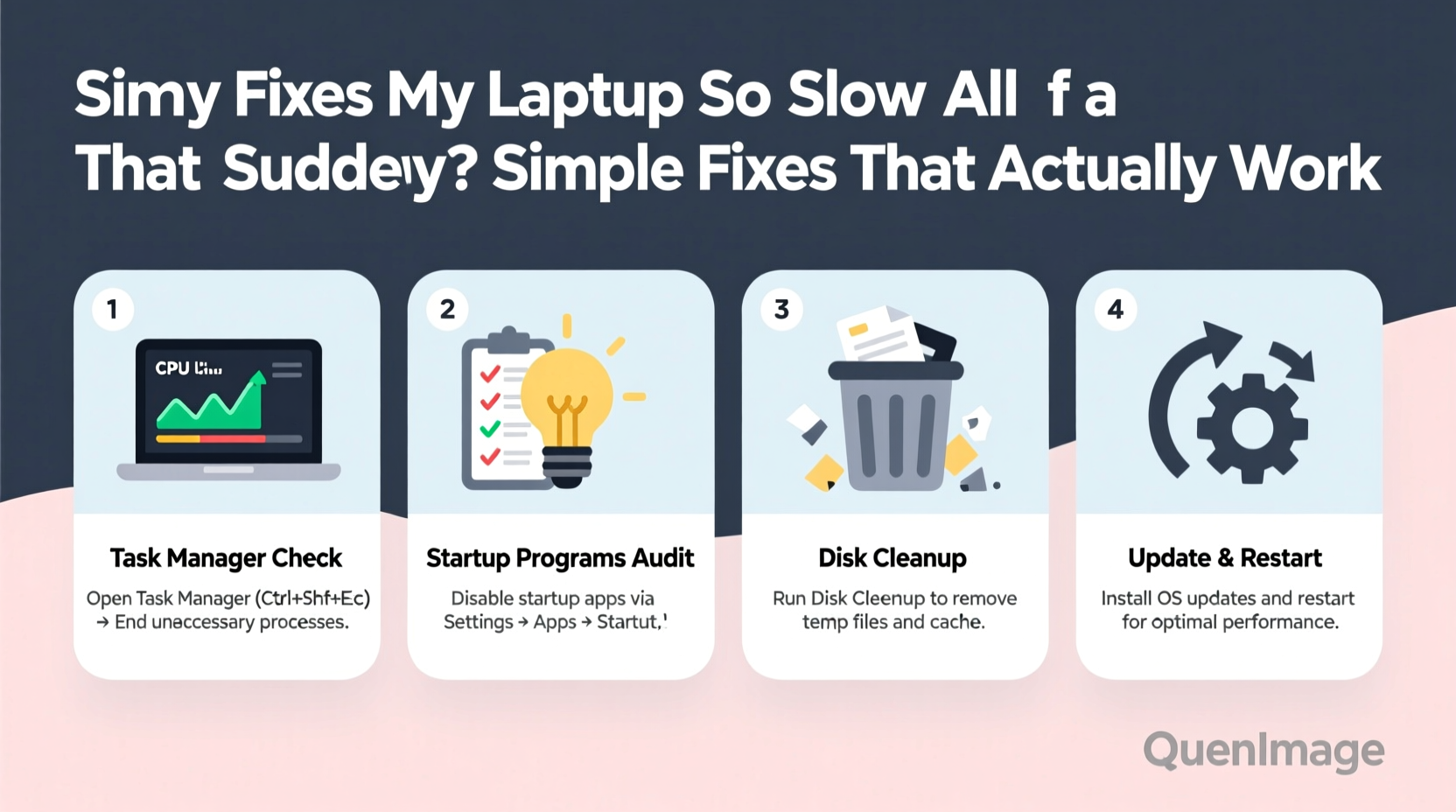
2. Check Task Manager for Resource Hogs
Open Task Manager (Ctrl+Shift+Esc) and sort processes by CPU, Memory, and Disk usage.
- Look for any process using over 50% CPU consistently without user input.
- Identify unfamiliar programs—search them online to confirm legitimacy.
- End tasks safely if they’re non-essential and consuming excessive resources.
Common culprits include updaters (e.g., Adobe, Java), cryptocurrency miners (malware), and bloated antivirus tools.
3. Disable Startup Programs
Too many apps launching at startup can turn a quick boot into a five-minute wait. In Task Manager, go to the Startup tab and disable unnecessary entries like:
- Skype, Spotify, or Steam auto-launchers
- Printer utilities that run in the background
- Cloud storage apps unless actively syncing
Keep only essential services like security software and hardware drivers.
4. Free Up Disk Space
A full drive—especially below 10% free space—can cripple performance. Use the built-in Disk Cleanup tool:
- Type “Disk Cleanup” in the Start menu.
- Select your main drive (usually C:).
- Check boxes for Temporary Files, Recycle Bin, Downloaded Program Files, and Windows Update Cleanup.
- Click “Clean up system files” for deeper removal (including old Windows installations).
For advanced users: Manually delete large, unused files from Downloads, Videos, and Temp folders.
5. Run a Malware Scan
Malware often operates silently, mining cryptocurrency or logging keystrokes. Use Windows Security (built into Windows 10/11) for a full scan:
- Go to Settings > Update & Security > Windows Security.
- Run a “Full scan” under Virus & threat protection.
For extra assurance, use Malwarebytes (free version) as a second opinion scanner.
6. Update Drivers and OS
Outdated drivers—especially graphics and chipset—can cause lag. Go to:
- Settings > Windows Update > Check for updates.
- Visit your laptop manufacturer’s support site to download the latest BIOS, audio, and network drivers.
Avoid third-party driver updater tools; they often install incorrect or bloatware versions.
7. Adjust Power Settings
Power-saving modes limit CPU performance. Switch to High Performance:
- Go to Control Panel > Hardware and Sound > Power Options.
- Select “High performance.”
- Click “Change plan settings” and set “Turn off the display” to 15 minutes or more.
Note: This reduces battery life but maximizes speed during use.
Hardware Considerations: When Software Isn’t Enough
Sometimes, the issue isn’t software—it’s aging hardware. Here’s how to tell if an upgrade is necessary:
| Symptom | Possible Cause | Solution |
|---|---|---|
| Laptop freezes even after restart | RAM exhaustion or failing SSD | Upgrade RAM or replace SSD |
| Fan runs loudly constantly | Dust buildup or thermal paste degradation | Clean internals or reapply thermal paste |
| Long file access times | Fragmented HDD or dying drive | Defragment HDD or switch to SSD |
| Blue screens or crashes | Driver conflict or hardware failure | Test RAM with MemTest86, check disk health |
Upgrading from a traditional hard drive (HDD) to a solid-state drive (SSD) is one of the most impactful improvements you can make—even on a 10-year-old laptop. Boot times can drop from 2+ minutes to under 15 seconds.
“An SSD upgrade is the single most cost-effective way to breathe new life into an old laptop. It’s not magic—it’s physics.” — David Lin, Senior Systems Engineer at TechFlow Solutions
Real Example: Sarah’s Sudden Slowdown
Sarah, a freelance writer, noticed her three-year-old laptop started freezing during video calls. She couldn’t save documents without delays, and Chrome tabs took 30 seconds to load. She assumed she needed a new machine.
After running Task Manager, she found “Google Update” was using 85% of her CPU continuously. She disabled it and cleared her startup list. Next, she ran Disk Cleanup and freed 18 GB of space. Finally, she updated her Intel graphics driver.
Result: Her laptop booted in 22 seconds (down from 3 minutes), and applications responded instantly. No hardware changes were needed—just targeted software fixes.
Essential Maintenance Checklist
Prevent future slowdowns with this monthly checklist:
- ✅ Reboot your laptop at least once a week.
- ✅ Review Task Manager for unusual activity.
- ✅ Delete temporary and downloaded files.
- ✅ Run a malware scan.
- ✅ Check for Windows and driver updates.
- ✅ Clean dust from vents using compressed air.
- ✅ Backup important files to external drive or cloud.
Sticking to this routine keeps your system lean and responsive.
Frequently Asked Questions
Can too many browser tabs really slow down my laptop?
Yes. Each tab runs as a separate process and consumes RAM. Having 20+ tabs open can use over 4 GB of memory, especially with video or ads. Use a tab suspender extension (like The Great Suspender) to reduce load.
Is it safe to clean my laptop’s fan myself?
If you’re comfortable opening the case, yes. Use compressed air to blow dust from vents and fans. Avoid touching internal components unless necessary. If unsure, take it to a repair shop—cleaning typically costs $30–$50.
How do I know if my SSD is failing?
Signs include frequent crashes, slow file access, missing files, or error messages like “Disk read error.” Use tools like CrystalDiskInfo (free) to check drive health and SMART status.
Conclusion: Take Back Control of Your Laptop’s Speed
A slow laptop doesn’t mean it’s time to buy a new one. In most cases, a few strategic adjustments can restore near-original performance. The key is diagnosing the real cause—not guessing. By checking resource usage, managing startup programs, freeing disk space, and scanning for threats, you address the actual bottlenecks.
Don’t accept sluggish performance as inevitable. Whether your laptop is two years old or seven, these fixes apply across models and brands. Implement them today, and you might just rediscover the speed you thought was gone for good.




 浙公网安备
33010002000092号
浙公网安备
33010002000092号 浙B2-20120091-4
Comments
No comments yet. Why don't you start the discussion?