
Laptop touchpads are essential for smooth navigation, but when they start jumping, freezing, or misreading inputs, productivity grinds to a halt. An erratic touchpad can make simple tasks—like scrolling through a document or clicking a link—frustratingly difficult. The good news is that most touchpad issues stem from fixable causes: driver problems, software conflicts, physical interference, or calibration errors. Understanding the root cause is half the battle; the other half is knowing how to respond effectively. This guide walks you through diagnosing the problem, recalibrating your touchpad, and implementing long-term solutions to keep your device responsive and reliable.
Common Causes of Erratic Touchpad Behavior
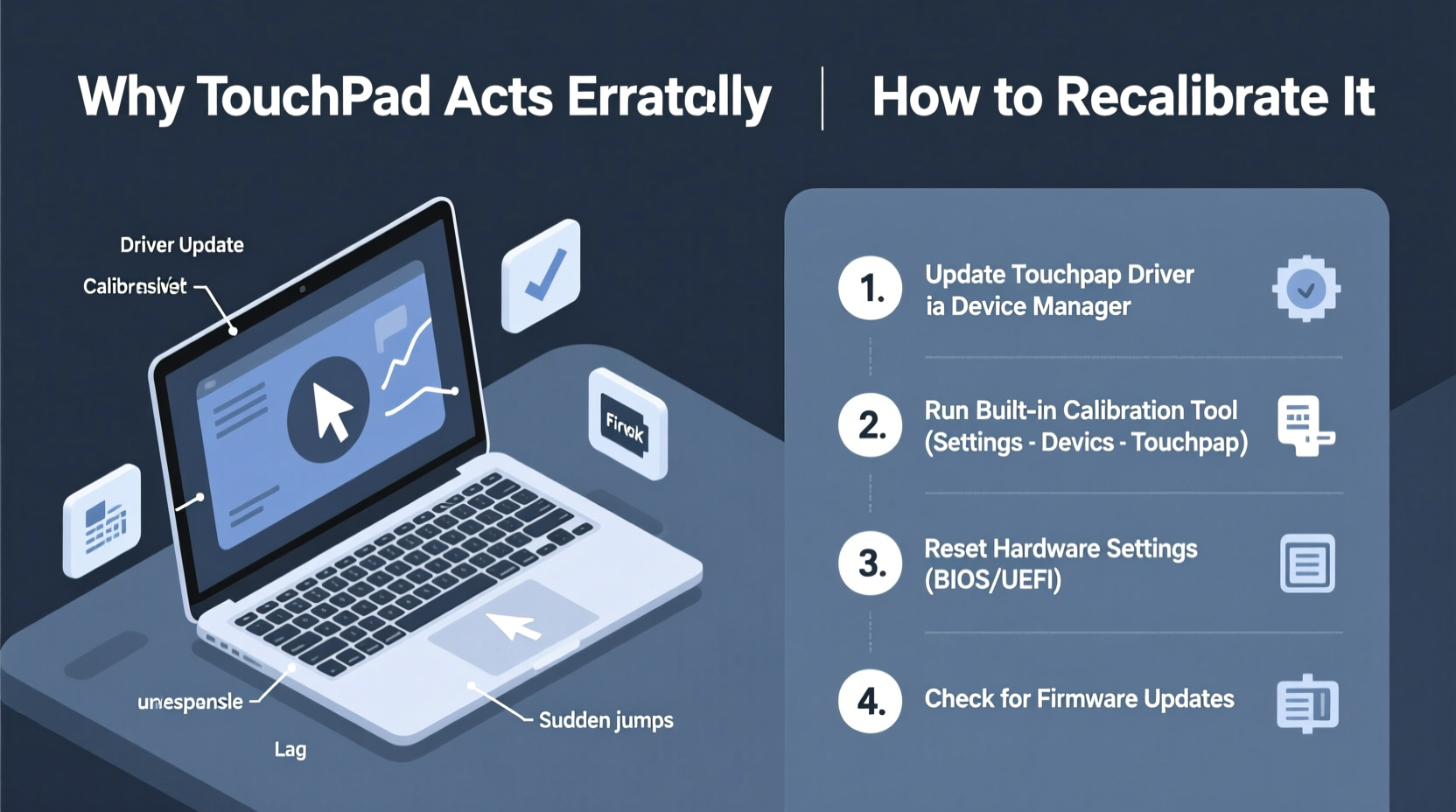
An unpredictable touchpad rarely indicates hardware failure right away. More often, the issue lies in software, settings, or environmental factors. Identifying the source helps determine whether recalibration is necessary or if another fix is more appropriate.
- Driver corruption or outdated drivers: Touchpad functionality depends on up-to-date drivers. Outdated or corrupted drivers can lead to lag, ghost clicks, or unresponsiveness.
- Accidental palm contact: Many users unknowingly rest their palms on the touchpad while typing, triggering unintended cursor movement.
- Dirt or moisture on the surface: Oils, sweat, or debris can interfere with capacitive sensors, causing erratic tracking.
- Software conflicts: Third-party mouse utilities, gesture apps, or system updates may disrupt touchpad behavior.
- Firmware issues: Some laptops require firmware updates for internal components like the touchpad controller.
- Poor calibration: If the touchpad isn’t properly calibrated, it may misinterpret light touches or fail to register deliberate input.
How to Recalibrate Your Laptop Touchpad (Step-by-Step)
Recalibration resets how your laptop interprets touch input, often resolving drift, over-sensitivity, or inconsistent tracking. While Windows doesn't offer a one-click \"recalibrate\" button, several indirect methods achieve the same result by resetting settings and reinitializing drivers.
- Restart your laptop: A simple reboot clears temporary glitches and reloads touchpad drivers.
- Access Touchpad Settings: Go to Settings > Devices > Touchpad. Note your current sensitivity and gesture settings before proceeding.
- Reset to default settings: Click “Reset” under the touchpad configuration section (available in Windows 10/11). This restores factory defaults and can eliminate misconfigurations.
- Uninstall and reinstall the driver:
- Press Win + X and select Device Manager.
- Expand “Mice and other pointing devices.”
- Right-click your touchpad (often labeled as Synaptics, ELAN, or HID-compliant mouse) and choose Uninstall device.
- Restart your laptop. Windows will automatically reinstall the default driver.
- Check for manufacturer-specific tools: Brands like Dell, HP, Lenovo, and ASUS often provide calibration utilities. For example:
- Lenovo: Use the Lenovo Vantage app to access touchpad diagnostics.
- HP: Run the HP Support Assistant to update touchpad firmware.
- Dell: Use Dell Peripheral Device Manager for recalibration options.
- Test after each step: After every change, use the touchpad for basic actions—clicking, dragging, scrolling—to assess improvement.
Do’s and Don’ts When Troubleshooting Touchpad Issues
| Do’s | Don’ts |
|---|---|
| Keep your hands and touchpad clean and dry | Use alcohol or harsh cleaners on the touchpad surface |
| Update your operating system regularly | Ignore touchpad issues hoping they’ll resolve themselves |
| Adjust touchpad sensitivity to match your usage | Install third-party mouse drivers without verifying compatibility |
| Disable palm detection temporarily to test accuracy | Apply excessive pressure when tapping or swiping |
| Back up custom touchpad settings before resetting | Disassemble the laptop to “fix” the touchpad unless qualified |
Real-World Example: Fixing a Jittery Touchpad on a Work Laptop
Sarah, a freelance graphic designer, noticed her Lenovo ThinkPad’s cursor would jump unpredictably during client calls, making screen sharing embarrassing. She first assumed it was user error, but after ruling out hand tremors and surface reflections, she investigated further. Cleaning the touchpad helped slightly, but the jitter persisted. She accessed Device Manager and discovered her Synaptics driver had a yellow warning icon. After uninstalling it and restarting, Windows reinstalled the driver—but the problem remained. She then downloaded the latest touchpad driver from Lenovo’s support site, installed it manually, and used the built-in calibration tool in the ThinkPad Settings app. Within minutes, the touchpad responded smoothly again. Sarah now schedules monthly driver checks and keeps her workspace clutter-free to avoid accidental touches.
“Most touchpad issues aren’t hardware-related. Over 70% of erratic behavior stems from outdated drivers or conflicting software.” — David Lin, Senior Hardware Technician at TechCare Solutions
Advanced Fixes and Preventive Maintenance
If recalibration and driver resets don’t resolve the issue, deeper intervention may be needed. These advanced strategies address less common but impactful causes.
Update Firmware
Some touchpad problems originate in the embedded firmware. Check your laptop manufacturer’s website for BIOS or system firmware updates. These often include touchpad controller improvements. For example, Dell has released firmware patches specifically addressing “cursor drift” on certain Inspiron models.
Disable Conflicting Software
Applications like third-party mouse accelerators, gaming macros, or clipboard managers can hijack input signals. Temporarily disable startup programs via Task Manager to see if the touchpad stabilizes. Re-enable them one by one to identify the culprit.
Adjust Power Management Settings
Windows sometimes disables USB or HID devices to save power. To prevent this:
- Open Device Manager.
- Right-click your touchpad under “Mice and other pointing devices.”
- Select Properties > Power Management.
- Uncheck “Allow the computer to turn off this device to save power.”
Enable Precision Touchpad Mode (if available)
If your laptop supports Precision Touchpad (PTP), ensure it’s enabled. PTP offers better gesture recognition, smoother scrolling, and improved calibration. In Device Manager, look for “HID-compliant touchpad” under “Human Interface Devices.” If present, your system likely supports PTP. Ensure no legacy drivers are overriding it.
Comprehensive Touchpad Troubleshooting Checklist
Follow this checklist systematically to isolate and fix touchpad issues:
- ✅ Clean the touchpad surface with a dry, lint-free cloth
- ✅ Wash and dry your hands before use
- ✅ Restart the laptop to clear temporary glitches
- ✅ Check for Windows updates (Settings > Windows Update)
- ✅ Open Touchpad settings and reset to default
- ✅ Uninstall and reinstall the touchpad driver via Device Manager
- ✅ Download and install the latest driver from the manufacturer’s website
- ✅ Disable “Tap to click” temporarily to test stability
- ✅ Run the Windows Hardware and Devices troubleshooter
- ✅ Check for BIOS/firmware updates
- ✅ Test with an external mouse to confirm the issue is touchpad-specific
- ✅ Boot into Safe Mode to rule out software conflicts
Frequently Asked Questions
Can I recalibrate my touchpad without installing new software?
Yes. While there’s no direct calibration menu in standard Windows settings, resetting touchpad preferences, updating drivers, and cleaning the surface often restore normal function without third-party tools. On some OEM laptops (e.g., HP, Lenovo), built-in utilities allow manual calibration without downloads.
Why does my touchpad work fine sometimes but act up at others?
Intermittent behavior often points to environmental factors like hand moisture, temperature changes, or power-saving modes disabling the device briefly. It could also indicate a loose internal connection or failing driver. Consistent symptoms after rebooting suggest a deeper issue needing driver or firmware attention.
Is it safe to uninstall my touchpad driver?
Yes. Uninstalling the driver is reversible and often beneficial. Windows automatically reinstalls a generic HID driver upon restart. If issues persist, you can manually reinstall the manufacturer’s version. Always back up critical data before major system changes, though driver removal poses minimal risk.
Conclusion: Take Control of Your Touchpad Experience
An erratic touchpad doesn’t have to derail your workflow. With methodical troubleshooting, most issues can be resolved in under 30 minutes. Start with simple fixes—cleaning, restarting, resetting settings—before progressing to driver updates and firmware upgrades. Pay attention to patterns: does the problem occur only when charging? After sleep mode? While using certain apps? These clues guide effective diagnosis. Regular maintenance, like keeping drivers updated and avoiding liquid exposure, prevents future disruptions. Your touchpad is a precision instrument; treating it as such ensures years of reliable use.




 浙公网安备
33010002000092号
浙公网安备
33010002000092号 浙B2-20120091-4
Comments
No comments yet. Why don't you start the discussion?