
If you’ve ever sat down to write an email, finish a report, or send a quick message, only to find your laptop suddenly typing random letters on its own, you’re not imagining things. This frustrating glitch can feel like your device has developed a mind of its own. The good news? It’s almost always fixable. Whether caused by hardware issues, software conflicts, or environmental factors, understanding the root cause is the first step toward a permanent solution.
This guide dives deep into the most common reasons behind erratic keyboard behavior and provides clear, actionable fixes—no technical degree required. From simple troubleshooting steps to advanced diagnostics, you’ll regain reliable use of your laptop’s keyboard in no time.
Common Causes of Random Letter Input
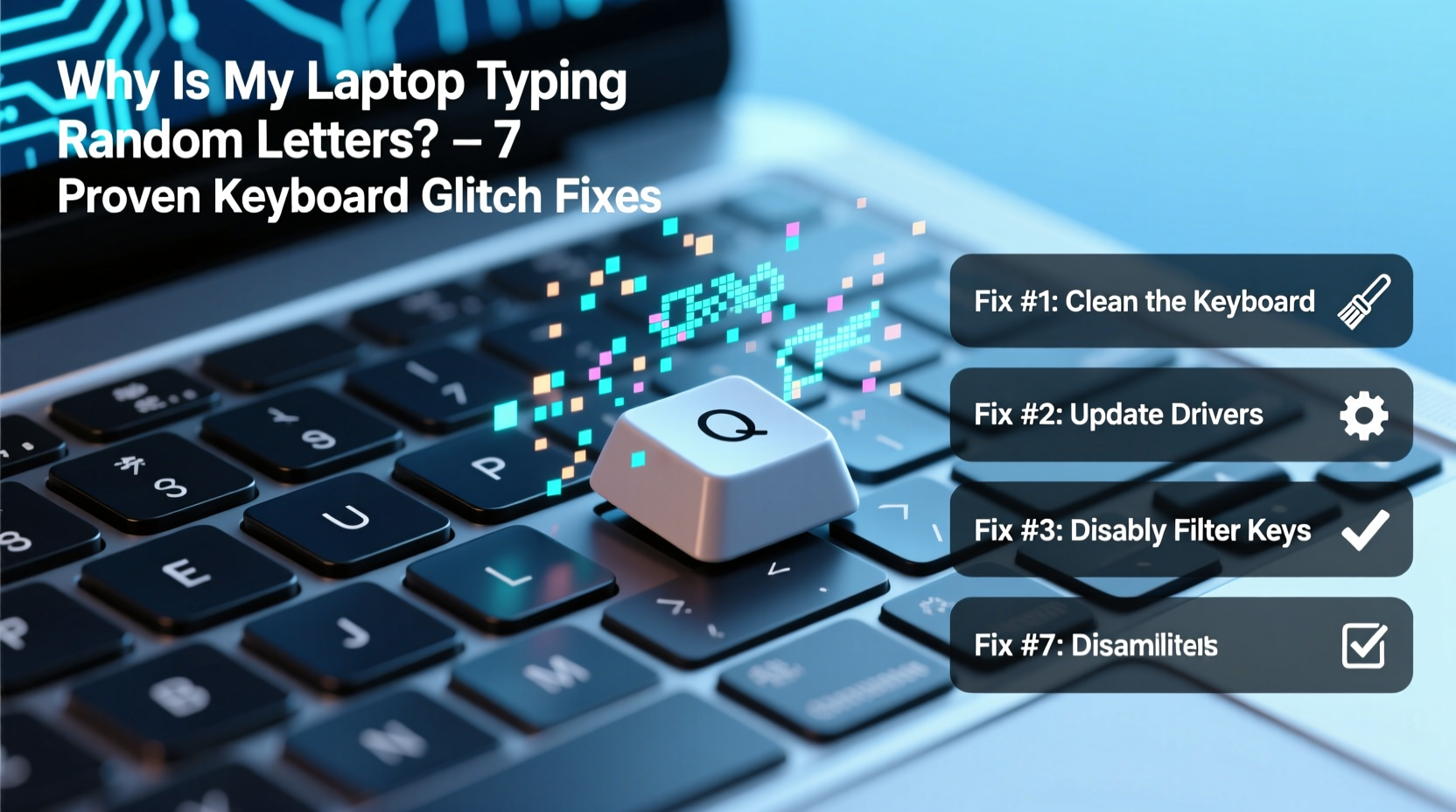
Before jumping into solutions, it’s essential to understand what might be triggering the issue. Random keystrokes aren’t typically a sign of impending hardware failure—they’re more often symptoms of specific, addressable problems.
- Sticky or debris-filled keys: Dust, crumbs, or liquid spills can cause keys to stick or register multiple inputs.
- Driver corruption or conflict: Outdated, corrupted, or incompatible keyboard drivers can lead to unpredictable input behavior.
- Malware or background processes: Some malicious software hijacks input systems, while certain apps may interfere with keyboard functions.
- Hardware malfunction: Damaged circuits, worn-out key mechanisms, or internal moisture damage can result in phantom typing.
- External peripherals: Connected USB keyboards, mice, or docking stations may introduce signal interference.
- Accessibility features: Settings like Filter Keys or Sticky Keys, if enabled accidentally, can alter how keystrokes are interpreted.
Step-by-Step Fixes for Keyboard Glitches
Follow this logical sequence of checks and corrections to isolate and resolve the problem efficiently.
- Restart your laptop – A reboot clears temporary software glitches and resets peripheral communication. Many random input issues disappear after a simple restart.
- Disconnect external devices – Unplug all USB devices, including keyboards, mice, and hubs. If the rogue typing stops, one of these accessories is likely at fault.
- Check for physical obstructions – Turn off the laptop and inspect the keyboard. Look for visible debris under keys. Gently tilt the device to dislodge particles.
- Test in Safe Mode – Boot into Safe Mode (hold Shift while clicking Restart on Windows) to rule out third-party software interference. If the keyboard behaves normally here, a background app is likely responsible.
- Update or reinstall keyboard drivers – Open Device Manager, expand “Keyboards,” right-click your keyboard, and select “Update driver.” If that fails, uninstall the driver and restart to let Windows reinstall it automatically.
- Scan for malware – Run a full system scan using Windows Security or a trusted antivirus program. Keyloggers and other malware can simulate keyboard input.
- Disable accessibility features – Go to Settings > Accessibility > Keyboard and ensure Filter Keys, Sticky Keys, and Toggle Keys are turned off.
- Check for OS updates – Install any pending system updates. Microsoft regularly patches bugs related to input handling.
When Software Isn’t the Issue: Hardware Diagnostics
If software fixes don’t resolve the issue, the problem may lie within the physical keyboard. Here’s how to test further:
- Use an external keyboard – Plug in a USB or Bluetooth keyboard. If it works without issues, the built-in keyboard is likely faulty.
- Try the laptop on another user account – Create a new local user profile and log in. If the problem persists across accounts, it's less likely to be profile-specific settings.
- Run built-in diagnostics – Many laptops (e.g., HP, Dell, Lenovo) include hardware self-tests accessible during boot (press F12, F2, or Esc repeatedly at startup). Use the keyboard test function to identify unresponsive or stuck keys.
“Over 70% of reported ‘phantom typing’ cases we see are resolved through driver updates or debris removal. True hardware failure is rarer than users assume.” — Jordan Lee, Senior Laptop Technician at TechCare Pro
Do’s and Don’ts: Keyboard Care Best Practices
Preventing future issues starts with proper maintenance. The following table outlines key habits to adopt—and avoid.
| Do | Don’t |
|---|---|
| Clean your keyboard monthly with compressed air | Use wet cloths or liquid cleaners directly on keys |
| Keep drinks away from your workspace | Eat over your laptop without a protective cover |
| Update drivers and OS regularly | Ignore repeated minor glitches—address them early |
| Use a silicone keyboard cover (if designed for airflow) | Press keys forcefully when they stick—this worsens damage |
| Back up data frequently in case hardware repair is needed | Attempt DIY soldering or circuit repairs unless qualified |
Real-World Example: Resolving a Persistent Typing Glitch
Sophie, a freelance writer using a three-year-old Dell Inspiron, began noticing her laptop would insert “llll” or “qqq” randomly while she typed. At first, she assumed it was fatigue or a typo. But when the behavior continued across documents and even in password fields, she knew something was wrong.
She started by restarting the laptop—no change. She disconnected her wireless mouse and USB hub; still no improvement. After reading online about possible causes, she checked Device Manager and found her keyboard driver had a yellow warning icon. She uninstalled it, restarted, and Windows reinstalled the driver automatically. The random typing stopped immediately.
A week later, the issue returned. This time, she inspected the keyboard closely and noticed a small crumb lodged beneath the “L” key. Using compressed air, she cleared the debris. Since then, her keyboard has worked flawlessly.
Sophie’s experience highlights a critical point: sometimes, multiple factors contribute to the same symptom. Solving it fully requires both software and physical inspection.
Advanced Solutions for Stubborn Cases
When basic fixes fall short, consider these deeper interventions:
Reset Keyboard Settings via Registry (Windows)
Corrupted registry entries can affect input behavior. Proceed with caution:
- Press Win + R, type
regedit, and press Enter. - Navigate to:
HKEY_LOCAL_MACHINE\\SYSTEM\\CurrentControlSet\\Services\\i8042prt\\Parameters - Look for a DWORD value named
LayerDriver IR. If present, delete it. - Restart the computer.
This resets legacy PS/2 keyboard driver settings, which occasionally interfere with modern input systems.
Firmware and BIOS Updates
Some manufacturers release firmware updates that correct known keyboard bugs. Visit your laptop maker’s support site, enter your model number, and check for available BIOS or system updates. Follow their instructions precisely—interrupting a BIOS update can permanently damage your device.
Keyboard Replacement Options
If all else fails and the internal keyboard remains faulty:
- Professional repair: Most authorized service centers can replace a laptop keyboard for $80–$150, depending on model.
- DIY replacement: For technically confident users, kits are available online. Be aware that disassembly risks damaging other components.
- Permanent external keyboard use: If repair isn’t feasible, use a compact Bluetooth keyboard as a long-term alternative.
FAQ: Common Questions About Keyboard Glitches
Can a virus make my laptop type by itself?
Yes, though it’s rare. Certain types of malware, particularly keyloggers or remote access tools, can simulate keystrokes to execute commands or inject text. A full antivirus scan and behavior monitoring in Safe Mode can help detect such threats.
Why does my laptop type letters when I’m not pressing keys?
This usually indicates either a stuck key, electrical short in the keyboard matrix, or driver malfunction. Test individual keys by opening Notepad and pressing each one slowly. If a letter appears without contact, that key’s circuit may be shorted.
Is it worth repairing a laptop keyboard?
Generally, yes—if the rest of the machine is in good condition. A new keyboard extends usability for years. However, if the laptop is outdated or has other performance issues, investing in a new device may be more cost-effective.
Final Checklist: Action Plan for Immediate Relief
Follow this concise checklist to diagnose and fix your keyboard issue quickly:
- ✅ Restart your laptop
- ✅ Disconnect all external devices
- ✅ Inspect keyboard for debris or damage
- ✅ Boot into Safe Mode and test typing
- ✅ Update or reinstall keyboard drivers
- ✅ Disable Filter Keys and other accessibility features
- ✅ Run a full malware scan
- ✅ Check for Windows and BIOS updates
- ✅ Test with an external keyboard
- ✅ Contact professional support if issues persist
Conclusion: Take Control of Your Keyboard Experience
Random letter input is more than just annoying—it disrupts productivity, damages work quality, and erodes trust in your device. But as you’ve seen, most causes are manageable with systematic troubleshooting. From cleaning debris to updating drivers and disabling misconfigured settings, the path to resolution is clearer than it may first appear.
Don’t accept glitchy behavior as inevitable. Apply these fixes in order, document what changes after each step, and restore your laptop to reliable performance. Your keyboard should serve you—not sabotage your efforts.




 浙公网安备
33010002000092号
浙公网安备
33010002000092号 浙B2-20120091-4
Comments
No comments yet. Why don't you start the discussion?