
A flickering monitor disrupts work, strains the eyes, and can make even simple tasks feel unbearable. Whether it’s a brief flash every few seconds or a constant shimmer across the screen, this issue often stems from easily correctable causes. While it might seem like a hardware failure at first glance, most flickering problems are resolved with minor adjustments to cables, settings, or software. Understanding the root cause saves time, prevents unnecessary replacements, and restores peace of mind quickly.
The good news? In over 80% of cases, monitor flickering isn’t a sign of permanent damage. It's frequently tied to refresh rates, cable integrity, power supply inconsistencies, or driver conflicts—all of which can be diagnosed and fixed within minutes using tools you already have.
Common Causes of Monitor Flickering
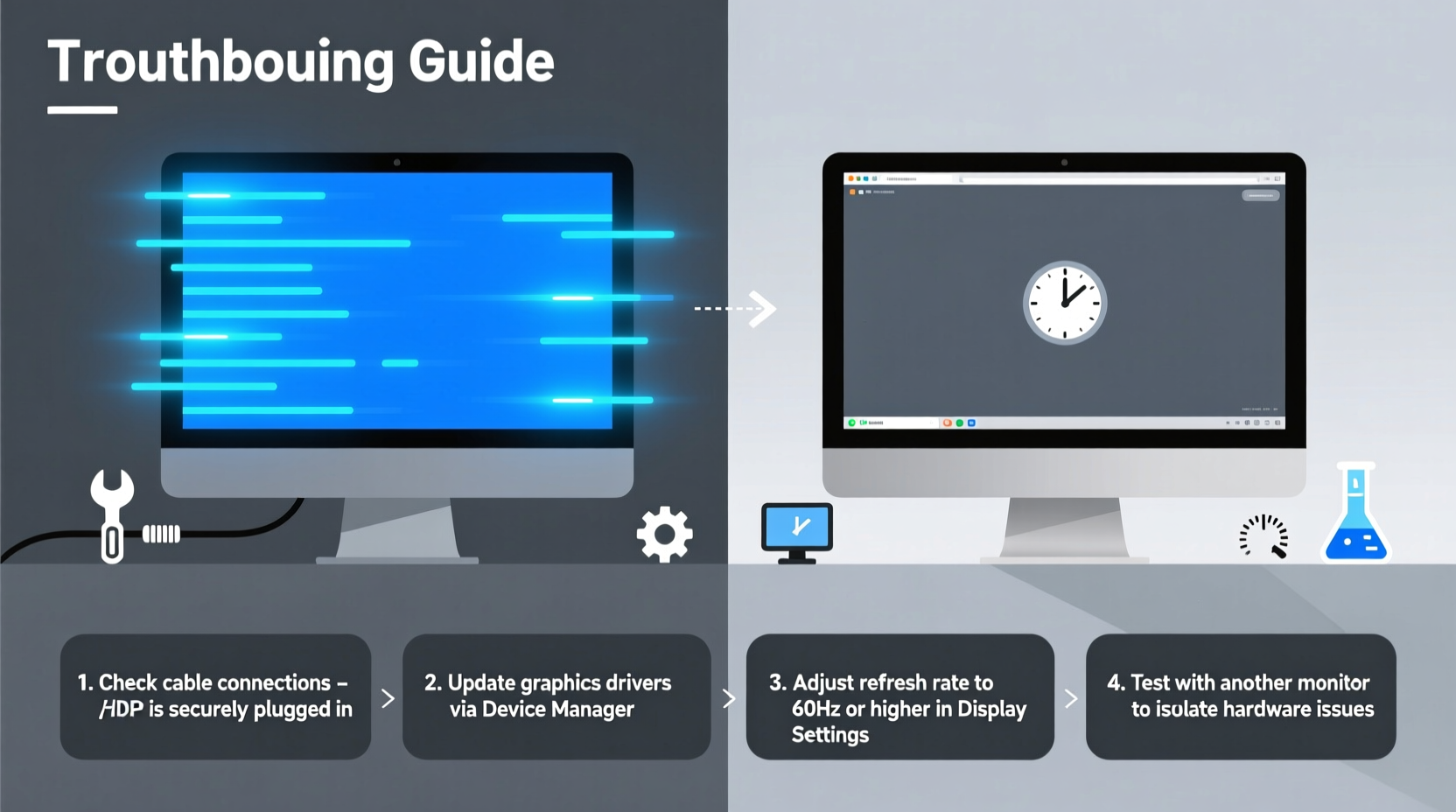
Flickering doesn’t happen randomly. Each symptom points to a specific underlying issue. Identifying the pattern helps narrow down the solution.
- Inconsistent refresh rate: When your monitor runs at a low or mismatched refresh rate (e.g., 50Hz instead of 60Hz), flickering becomes noticeable, especially during scrolling or video playback.
- Loose or damaged cables: HDMI, DisplayPort, or VGA cables that are frayed, bent, or poorly connected interrupt signal transmission, causing intermittent flickering.
- Outdated or corrupted graphics drivers: Drivers act as the communication bridge between your operating system and GPU. If outdated or malfunctioning, they may send unstable signals to the display.
- Power supply issues: Fluctuating voltage, faulty power strips, or failing internal power components in the monitor can lead to screen instability.
- Electromagnetic interference (EMI): Nearby devices such as routers, microwaves, or unshielded speakers emit frequencies that interfere with display signals, particularly on older monitors.
- FreeSync or G-Sync conflicts: Adaptive sync technologies improve gaming performance but can cause flicker if improperly configured or unsupported by the current setup.
- Failing backlight: Aging LCD panels sometimes develop flickering due to a weakening backlight—a problem more common in monitors over three years old.
Step-by-Step Guide to Fix Monitor Flickering
Follow this logical sequence to diagnose and resolve flickering efficiently. Most users complete these steps in under ten minutes.
- Check physical connections. Power off your computer and monitor. Unplug and reseat the video cable (HDMI, DisplayPort, etc.) at both ends. Inspect for visible damage. Try a different cable if available.
- Test on another device. Connect the monitor to a laptop or secondary PC. If flickering stops, the issue lies with your original system. If it persists, the monitor or its cable is likely at fault.
- Adjust the refresh rate. On Windows: Right-click desktop > Display Settings > Advanced Display Settings > Refresh Rate. Set to the highest supported option (usually 60Hz or higher). On macOS: System Settings > Displays > Resolution > choose \"Default for display\" or higher refresh option if available.
- Update graphics drivers. Press Win + X, select Device Manager, expand “Display adapters,” right-click your GPU, and choose “Update driver.” Alternatively, visit NVIDIA, AMD, or Intel’s website for the latest certified version.
- Disable adaptive sync temporarily. Enter your GPU control panel (NVIDIA Control Panel or AMD Radeon Software) and turn off FreeSync or G-Sync. Reboot and check if flickering stops.
- Perform a clean boot. Some background applications interfere with display output. Use MSConfig to disable non-Microsoft startup items and isolate software conflicts.
- Reset monitor settings. Use the on-screen menu to restore factory defaults. This clears any custom brightness, contrast, or eco-mode configurations that may contribute to instability.
Troubleshooting Table: Symptoms vs. Likely Fixes
| Symptom | Possible Cause | Recommended Fix |
|---|---|---|
| Flickers only when moving the mouse or scrolling | Low refresh rate | Increase refresh rate to 60Hz or higher |
| Flickers intermittently, especially after startup | Loose or damaged cable | Reseat or replace video cable |
| Flickering worsens in dark scenes | PWM (Pulse Width Modulation) dimming or adaptive sync conflict | Disable FreeSync/G-Sync; adjust brightness |
| Screen flashes black briefly | Driver crash or power-saving mode | Update GPU driver; disable sleep/hibernate modes |
| Flickering occurs on multiple devices | Monitor hardware issue (backlight, power board) | Professional repair or replacement advised |
| Flickers only when certain apps are open | Software-specific rendering issue | Update app; run in compatibility mode |
Real-World Example: Office Worker Resolves Daily Flicker
Sarah, a project manager in Toronto, began experiencing persistent flickering on her dual-monitor setup every morning. The issue disappeared after rebooting but returned within hours. She assumed it was a failing monitor and considered purchasing a replacement.
Instead, she followed the step-by-step guide above. First, she swapped the HDMI cable—no change. Then, she checked her refresh rate and discovered one monitor was running at 59.94Hz due to a previous docking station configuration. After manually setting it to 60Hz, the flickering stopped entirely. A five-minute fix saved her $300 and prevented electronic waste.
This case highlights how small configuration oversights can mimic serious hardware failure. Always rule out simple causes before escalating to replacements.
Expert Insight on Display Stability
“Most display flickering complaints we see in technical support trace back to cabling or driver issues—not defective panels. A systematic approach almost always reveals the culprit quickly.” — Mark Tran, Senior Support Engineer at Dell Technologies
“PWM-based dimming in budget monitors is a silent contributor to eye strain and perceived flicker. Users sensitive to light should look for DC dimming or high-frequency PWM models.” — Dr. Lena Choi, Vision Ergonomics Researcher, University of Waterloo
Prevention Checklist: Keep Your Monitor Stable
After resolving flickering, prevent recurrence with these proactive measures:
- ✅ Use high-quality, shielded video cables (preferably DisplayPort 1.4 or HDMI 2.0+).
- ✅ Set refresh rate to the monitor’s native maximum in display settings.
- ✅ Update graphics drivers quarterly or enable automatic updates.
- ✅ Avoid daisy-chaining power strips or using extension cords with monitors.
- ✅ Position the monitor away from strong electromagnetic sources (e.g., transformers, wireless speakers).
- ✅ Enable 'Hardware-accelerated GPU scheduling' in Windows (Settings > System > Display > Graphics) for smoother rendering.
- ✅ Clean dust from monitor vents monthly to prevent overheating-induced instability.
Frequently Asked Questions
Can a virus cause my monitor to flicker?
No, malware cannot directly cause physical screen flickering. However, malicious software might overload the GPU or alter display settings indirectly. If flickering coincides with unusual system behavior (slowdowns, pop-ups), run a full antivirus scan—but prioritize checking hardware and drivers first.
Is screen flickering harmful to my eyes?
Yes. Prolonged exposure to flickering screens—even subtle ones—can lead to eye strain, headaches, and fatigue. The human eye detects flicker up to 90Hz in some cases, especially with PWM dimming. Address flickering promptly to maintain visual comfort and productivity.
Should I replace my monitor if it flickers in dark rooms?
Not necessarily. This is often due to PWM (Pulse Width Modulation) used for brightness control. Try increasing brightness slightly or enabling any “flicker-free” mode in the monitor’s OSD menu. If unavailable, consider upgrading to a model with DC dimming for long-term comfort.
Final Thoughts: Act Fast, Save Time and Money
Monitor flickering is rarely a death sentence for your display. More often than not, it’s a solvable mismatch between hardware, software, and environment. By methodically checking cables, adjusting settings, and updating drivers, most users restore stability in minutes. The key is not to panic or assume the worst—start simple, document changes, and trust the process.
Modern monitors are built to last, but they depend on consistent signal quality and proper configuration. Taking just ten minutes to troubleshoot can extend your display’s life by years and protect your comfort during extended screen time.




 浙公网安备
33010002000092号
浙公网安备
33010002000092号 浙B2-20120091-4
Comments
No comments yet. Why don't you start the discussion?