
A flickering monitor that intermittently goes black can be more than just a nuisance—it disrupts productivity, strains your eyes, and raises concerns about hardware failure. While many users immediately suspect their graphics card or monitor, one of the most common yet overlooked causes lies in something far simpler: the HDMI cable. Poor-quality, damaged, or incompatible HDMI cables can create signal instability, leading to black screens, flashing displays, or intermittent disconnections. Understanding how HDMI cables influence display performance allows you to diagnose and resolve the issue efficiently—without unnecessary repairs or replacements.
The Role of HDMI Cables in Display Stability
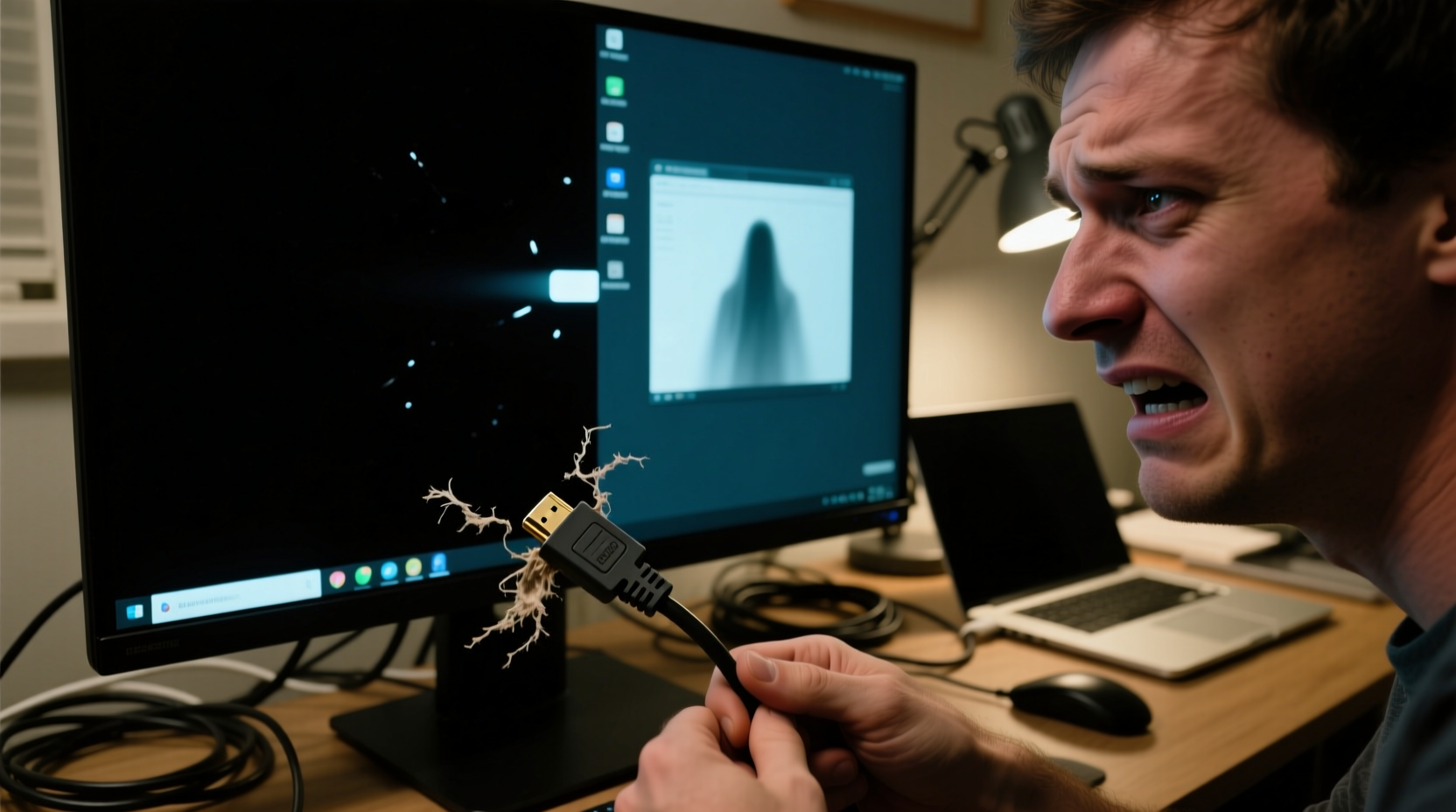
HDMI (High-Definition Multimedia Interface) cables are responsible for transmitting both audio and video signals from a source device—like a PC, laptop, gaming console, or media player—to a display. While they appear simple, these cables must maintain a consistent digital signal at high bandwidths, especially when handling 4K resolution, high refresh rates, or HDR content. Any disruption in this signal can result in visual anomalies, including momentary blackouts.
Digital signals don’t degrade gradually like analog ones. Instead, they operate on an “all or nothing” principle. When an HDMI cable fails to transmit data reliably due to damage, interference, or bandwidth limitations, the receiving device (your monitor) may lose synchronization, causing it to go black momentarily before attempting to re-establish the connection.
This behavior often occurs under specific conditions—such as when moving the cable slightly, during system load changes, or after waking from sleep mode—pointing directly to a physical or electrical inconsistency in the connection path.
Common HDMI-Related Causes of Flickering Black Screens
Not all HDMI issues stem from the same root cause. Several factors related to the cable, port, or configuration can contribute to screen flickering:
- Frayed or Damaged Cable: Physical wear, sharp bends, or repeated stress can break internal conductors, especially near the connectors.
- Poor Shielding: Low-quality cables may lack adequate shielding, making them vulnerable to electromagnetic interference (EMI) from nearby power sources, routers, or monitors.
- Incompatible HDMI Version: Older cables (e.g., HDMI 1.4) may not support higher resolutions or refresh rates required by modern GPUs and monitors, leading to unstable output.
- Loose Connections: A partially inserted or corroded HDMI plug can interrupt signal continuity.
- Cable Length: Longer cables (over 5 meters) without signal boosting may suffer from attenuation, weakening the signal strength.
- Port Contamination: Dust, lint, or oxidation in the HDMI port can interfere with conductivity.
Each of these issues compromises the integrity of the digital handshake between your source device and monitor, resulting in temporary blackouts as the display attempts to renegotiate the connection.
Step-by-Step Guide to Diagnosing HDMI Issues
Follow this systematic approach to determine whether your HDMI cable is responsible for the flickering:
- Observe the Pattern: Note when flickering occurs—is it during startup, under heavy GPU load, or randomly? Random blackouts suggest a loose or failing cable.
- Inspect the Cable Visually: Look for kinks, exposed wires, bent pins, or discoloration. Gently bend the cable near the ends while the system is running; if flickering increases, internal damage is likely.
- Test with Another Cable: Swap in a known high-quality HDMI 2.0 or 2.1 cable. Use one rated for your resolution and refresh rate (e.g., 4K@60Hz).
- Try a Different Port: Connect to another HDMI input on the monitor or use a different output on your computer. This helps isolate whether the issue is port-specific.
- Use Another Device: Plug a different source (like a laptop or game console) into the same monitor using the same cable. If the problem persists, the cable or monitor may be faulty.
- Check Monitor Settings: Disable features like HDMI UHD Color or Deep Color temporarily, as they can overload marginal connections.
- Update Graphics Drivers: Outdated drivers can mismanage display timing. Download the latest version from NVIDIA, AMD, or Intel.
- Boot into Safe Mode: If flickering stops in safe mode, software or driver conflicts—not hardware—are likely involved.
If replacing the HDMI cable resolves the flickering, you’ve identified the root cause. If not, further investigation into GPU health, power supply stability, or monitor firmware may be necessary.
Do’s and Don’ts of HDMI Cable Management
| Action | Recommended? | Reason |
|---|---|---|
| Use HDMI 2.0 or 2.1 for 4K/60Hz+ | ✅ Yes | Ensures sufficient bandwidth and reliability |
| Run HDMI cables parallel to power cords | ❌ No | Increases risk of electromagnetic interference |
| Bend cables sharply behind desks | ❌ No | Can damage internal wiring over time |
| Use active HDMI cables for runs over 5m | ✅ Yes | Maintains signal integrity over long distances |
| Plug and unplug frequently without securing | ❌ No | Wears out ports and connectors prematurely |
| Clean ports with compressed air | ✅ Yes | Removes dust and debris safely |
Mini Case Study: Resolving Persistent Flickering in a Home Office Setup
Mark, a freelance video editor, began experiencing frequent blackouts on his 4K monitor while rendering timelines. The screen would flicker every few minutes, disrupting playback and timeline scrubbing. Initially, he assumed his GPU was overheating or failing. He checked temperatures (normal), updated drivers (no change), and tested the monitor on another PC (still flickered). Frustrated, he considered returning the monitor under warranty.
On a colleague’s suggestion, Mark replaced his three-year-old HDMI cable—originally included with a budget TV—with a certified HDMI 2.0 cable designed for high-bandwidth applications. The flickering stopped immediately. Upon closer inspection, he noticed the original cable had a frayed section near the connector where it bent behind his desk. The intermittent contact caused signal loss during high-data transmission periods, such as video playback.
This case illustrates how a minor physical defect in an otherwise functional-looking cable can manifest as a severe technical issue under load. Replacing the cable cost $12 and saved Mark from unnecessary hardware replacement or service fees.
“Over 60% of reported ‘monitor failure’ cases we see in technical support turn out to be cabling issues—especially with HDMI. It’s always the first thing we recommend checking.” — Lena Patel, Senior Support Engineer at VisionEdge Displays
When It’s Not the HDMI Cable
While HDMI cables are a frequent culprit, persistent flickering may point to deeper issues:
- Failing GPU: Overheating or deteriorating components can cause erratic video output. Check event logs for display driver crashes (Code 43 in Windows).
- Power Supply Issues: Insufficient or unstable power delivery can affect GPU performance, indirectly impacting signal stability.
- Monitor Backlight Failure: Some users confuse backlight flickering with full blackouts. If you can faintly see the image in bright light, the backlight may be failing.
- Outdated Firmware: Monitors and GPUs sometimes require firmware updates to maintain compatibility with newer standards.
- Operating System Glitches: Windows updates or corrupted display profiles can trigger screen blanking. Try creating a new user profile or performing a clean boot.
To rule out non-cable causes, test your monitor with a different system using the same cable. If the problem follows the monitor, it may need servicing. If it follows the computer, investigate GPU or driver issues.
Preventive Checklist for Stable HDMI Performance
Keep your display connection reliable with this ongoing maintenance checklist:
- ✅ Use certified HDMI cables labeled for your resolution (e.g., \"Premium HDMI\" for 4K)
- ✅ Secure cables to prevent strain on connectors
- ✅ Avoid routing HDMI cables alongside power cables or transformers
- ✅ Clean HDMI ports every 3–6 months with compressed air
- ✅ Label cables to quickly identify and replace problematic ones
- ✅ Keep spare high-quality HDMI and DisplayPort cables on hand
- ✅ Update graphics drivers monthly or enable automatic updates
Frequently Asked Questions
Can a bad HDMI cable damage my monitor or PC?
No, a faulty HDMI cable cannot physically damage your monitor or computer. HDMI is a passive transmission standard—it carries signals but does not deliver power capable of harming devices. However, a poor connection can lead to data errors or unstable display behavior.
Is DisplayPort better than HDMI for avoiding flickering?
In many cases, yes. DisplayPort offers more robust error correction, supports higher refresh rates at 4K, and includes features like adaptive sync natively. If you experience recurring HDMI issues, switching to DisplayPort (if available) can provide a more stable connection, especially for gaming or creative work.
Why does my screen flicker only when my PC wakes from sleep?
This is often due to the HDMI handshake process failing during wake-up. The GPU and monitor must re-establish communication, and a weak cable or outdated driver may struggle with this negotiation. Updating drivers and using a high-quality cable usually resolves this issue.
Conclusion: Take Control of Your Display Experience
Screen flickering isn't something you should have to tolerate. While it's easy to assume the worst—faulty monitor, dying GPU, or complex software bug—the solution is often much simpler. In countless cases, a single degraded HDMI cable is the silent culprit behind frustrating blackouts. By understanding how HDMI works, recognizing the signs of cable failure, and following a clear diagnostic process, you can restore stable display performance quickly and affordably.
Don’t rush to replace expensive hardware. Start with the cable. Test, replace, and verify. Implement preventive habits like proper cable management and regular driver updates to avoid future disruptions. A smooth, flicker-free display isn’t a luxury—it’s essential for focus, comfort, and productivity.




 浙公网安备
33010002000092号
浙公网安备
33010002000092号 浙B2-20120091-4
Comments
No comments yet. Why don't you start the discussion?