
Monitor screen flickering is a frustrating issue that can disrupt productivity, strain your eyes, and interfere with everyday computing tasks. While flickering may stem from various sources—software glitches, GPU problems, or display settings—one of the most common yet overlooked culprits is the video cable. Damaged, loose, or incompatible cables are frequently responsible for erratic display behavior. Understanding how to identify and resolve cable-related flickering not only saves time but also prevents unnecessary hardware replacements.
This guide dives deep into the role of cables in display performance, offering practical steps to diagnose, test, and fix connection issues. Whether you're using HDMI, DisplayPort, DVI, or VGA, knowing what to look for—and when to act—can restore stability to your screen and extend the life of your setup.
Understanding How Cables Impact Monitor Performance
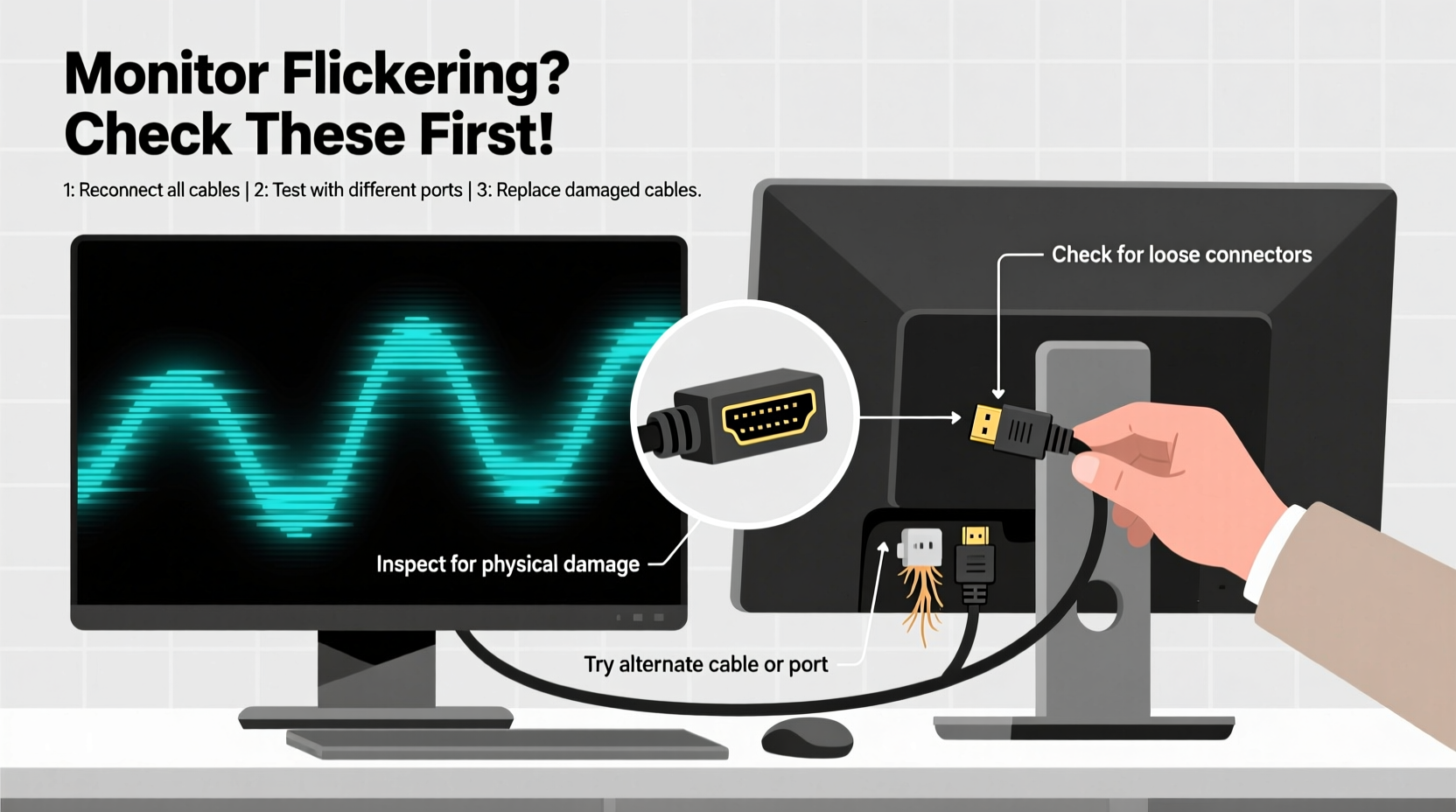
Video cables serve as the critical bridge between your computer’s graphics output and your monitor’s display input. Any disruption in this link can result in visual anomalies such as flickering, intermittent blackouts, color distortion, or signal dropouts. Unlike software-based issues, cable problems often manifest intermittently, making them harder to diagnose without systematic testing.
Digital signals (HDMI, DisplayPort) transmit data in packets. When a cable is damaged or poorly shielded, data corruption occurs, forcing the monitor to re-sync repeatedly—this appears as flickering. Analog signals (VGA) are even more sensitive to interference and degradation, where minor cable wear can introduce noise or sync instability.
The physical condition of the cable matters just as much as its specification. A frayed jacket, bent pins, or corrosion inside the connector can all interrupt signal integrity. Even tight bends or routing near power cables can induce electromagnetic interference, especially with lower-quality cables.
“Over 60% of reported monitor flickering cases I’ve diagnosed were resolved by simply replacing or reseating the video cable.” — Daniel Reyes, Senior Hardware Technician at VisionTech Support
Step-by-Step Guide to Diagnose Cable-Related Flickering
Flickering caused by cables often mimics symptoms of GPU failure or driver issues. Before diving into complex diagnostics, rule out the simplest explanation: a faulty cable. Follow this structured approach to isolate the problem.
- Observe the flickering pattern: Does it occur during boot-up, under load, or randomly? If flickering happens immediately upon powering on—even before the OS loads—it points to a hardware issue like a cable or port defect.
- Check physical connections: Power down your system. Unplug the video cable from both the PC and monitor. Inspect for bent pins, debris, or visible damage. Reconnect firmly, ensuring the latch (if present) clicks into place.
- Swap cables temporarily: Use a known working cable of the same type. If the flickering stops, the original cable is likely defective.
- Test different ports: Try connecting to another video output on your GPU and a different input on the monitor. This helps determine if the issue lies with a specific port.
- Bypass adapters or extenders: Remove any HDMI-to-DisplayPort converters or extension docks. These add points of failure and can degrade signal quality.
- Test on another system: Connect the suspect cable between two other devices (e.g., laptop and monitor). If flickering persists, the cable is compromised.
Common Cable Types and Their Vulnerabilities
Not all video cables are created equal. Each type has unique strengths and weaknesses that affect reliability and susceptibility to flickering.
| Cable Type | Max Resolution & Refresh Rate | Common Issues | Best For |
|---|---|---|---|
| HDMI 2.0/2.1 | 4K@120Hz / 8K@60Hz | Loose connectors, HDCP handshake failures, poor shielding | Gaming, home theater, modern monitors |
| DisplayPort 1.4/2.1 | 8K@60Hz / 4K@240Hz | Latch breakage, compatibility quirks with older GPUs | High-refresh gaming, multi-monitor setups |
| DVI-D (Dual Link) | 2560x1600@60Hz | Pins bending easily, limited cable length, analog interference | Legacy high-res displays |
| VGA (Analog) | 1920x1080@60Hz (max practical) | Signal noise, ground loop issues, sensitivity to EMI | Older projectors, office monitors |
For example, HDMI cables without proper shielding may pick up interference from nearby power cords, causing rhythmic flickering synchronized with device cycles (e.g., every few seconds). DisplayPort cables with broken latches can vibrate loose due to desk movement, leading to momentary signal loss.
Real-World Example: Resolving Persistent Flickering in a Home Office Setup
A freelance graphic designer reported intermittent flickering on her 27-inch 4K monitor connected via a 3-meter HDMI cable. The issue worsened during long editing sessions but disappeared when she rebooted. Initial troubleshooting included updating GPU drivers and adjusting refresh rate—all ineffective.
Upon inspection, the cable ran alongside a power strip under the desk. The HDMI connector showed no visible damage, but swapping it with a shorter, certified Premium High Speed HDMI cable immediately eliminated flickering. Further testing confirmed that the original cable lacked adequate ferrite cores and shielding, making it vulnerable to electromagnetic interference from adjacent AC wiring.
This case highlights how environmental factors and cable quality—not just physical damage—contribute to flickering. Using a properly rated, shorter cable routed away from power sources resolved the issue permanently.
Do’s and Don’ts When Handling Video Cables
Improper handling accelerates cable wear and increases the risk of flickering. Follow these best practices to maintain signal integrity over time.
| Do’s | Don’ts |
|---|---|
| Use cables with molded strain reliefs and locking mechanisms where available | Yank cables from the connector to unplug—pull from the head, not the cord |
| Choose certified cables (e.g., HDMI Premium Certified, VESA-certified DisplayPort) | Use excessively long cables without signal boosters (over 5m for HDMI) |
| Route cables neatly using clips or sleeves to avoid sharp bends | Coil tightly or knot cables, which can break internal wires |
| Label cables in multi-device setups to simplify troubleshooting | Ignore firmware updates for docking stations or USB-C hubs that affect video output |
Troubleshooting Checklist: Is Your Cable Causing the Flicker?
Use this actionable checklist to systematically eliminate cable issues as the source of monitor flickering:
- ✅ Visually inspect both ends of the cable for bent pins, corrosion, or cracked housing
- ✅ Ensure the cable is fully seated in both the GPU and monitor ports
- ✅ Try a different cable of the same type (preferably known-good)
- ✅ Test with a shorter cable to rule out signal attenuation
- ✅ Swap to a different video port on your GPU and monitor
- ✅ Remove any adapters, splitters, or switch boxes from the signal path
- ✅ Check for firmware updates for monitors, docks, or GPUs that affect display signaling
- ✅ Route the cable away from power cords, transformers, or motors
- ✅ Test the cable on another computer-monitor combination
- ✅ Confirm the cable meets the bandwidth standard required for your resolution and refresh rate
If flickering stops after any of these steps, you’ve identified the root cause. Replace or reroute the problematic component accordingly.
Frequently Asked Questions
Can a bad HDMI cable damage my monitor or GPU?
No, a defective HDMI cable will not physically damage your monitor or graphics card. However, repeated signal interruptions can cause stress on the display controller and lead to unstable operation. In rare cases, faulty cables with internal shorts could pose a risk, but modern devices include circuit protection to prevent harm.
Does cable length affect flickering?
Yes. Longer cables increase resistance and signal degradation, especially beyond 5 meters for HDMI without active boosting. Passive long cables may fail to maintain stable communication between devices, resulting in flickering or complete signal loss. For runs over 5 meters, consider active cables or fiber-optic HDMI.
Why does my screen flicker only when I move the cable?
This is a clear sign of internal wire breakage or poor soldering inside the connector. Movement causes intermittent contact, disrupting the data or power lines within the cable. Even if the outer jacket looks intact, internal damage can exist. Replace the cable immediately.
When to Consider Other Causes Beyond the Cable
While cables are a frequent cause, persistent flickering after eliminating cable issues suggests deeper problems. Consider these alternatives:
- Outdated or corrupt GPU drivers: Update to the latest version from NVIDIA, AMD, or Intel.
- Incompatible refresh rate: Set the monitor to its native refresh rate in display settings.
- Failing GPU: Test with integrated graphics or a different card.
- Power supply issues: Fluctuations can affect GPU stability and output.
- Monitor backlight failure: Flickering that persists across inputs may indicate an internal panel or inverter problem.
If you've replaced the cable, tested multiple ports, and still experience flickering, focus on software settings and hardware diagnostics. But always start with the cable—it's the most accessible and cost-effective fix.
Conclusion
Monitor screen flickering doesn't have to mean expensive repairs or replacement. In many cases, the solution lies in something as simple as a worn-out or poorly connected video cable. By understanding the types of cables, their limitations, and how to test them methodically, you can quickly restore a stable, flicker-free display.
Regular maintenance, proper cable management, and using high-quality, certified cables go a long way in preventing future issues. Don’t overlook the small details—like routing, shielding, and secure connections—they make a significant difference in daily performance.




 浙公网安备
33010002000092号
浙公网安备
33010002000092号 浙B2-20120091-4
Comments
No comments yet. Why don't you start the discussion?