
Waking up to a phone with less than half its charge — despite leaving it fully charged on the nightstand — is more than frustrating. It’s a silent drain on productivity, peace of mind, and device longevity. While some overnight battery loss is normal due to background processes, losing 20%, 30%, or even 50% while idle signals a deeper issue. The real problem? The culprit often hides in plain sight — buried within app behaviors, system settings, or unnoticed updates.
This isn’t just about convenience. Excessive overnight battery drain can indicate poor software optimization, rogue applications, or hardware inefficiencies that shorten your phone's lifespan. More importantly, it disrupts routines: missed alarms, dead devices during morning commutes, and the constant need to carry chargers. The good news is that most causes are fixable once identified. By understanding what happens when your phone sleeps, you can reclaim control and ensure your device lasts through the night — and well into the next day.
Understanding Normal vs. Abnormal Battery Drain
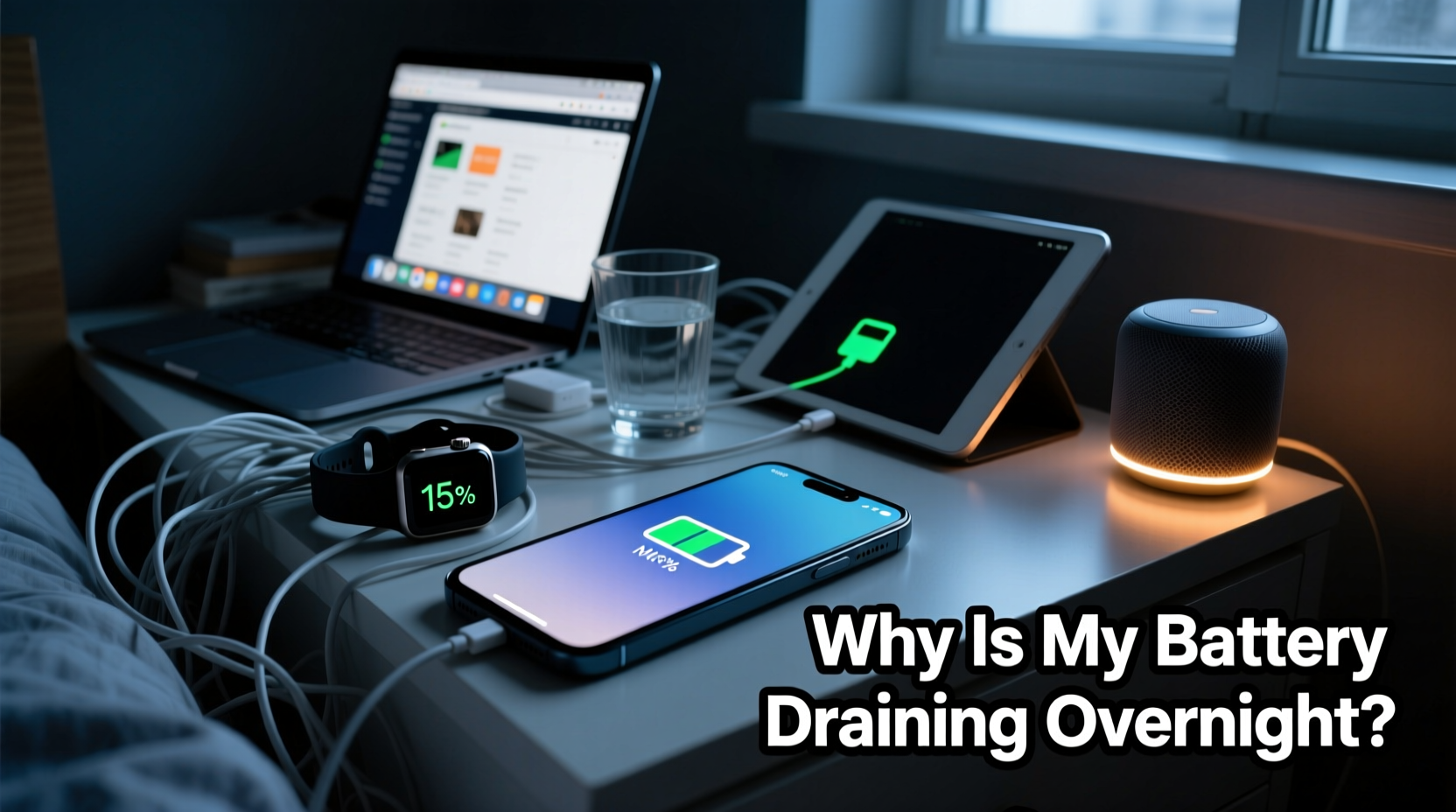
All smartphones consume a small amount of power overnight. Background tasks like checking for messages, syncing calendars, updating apps, and maintaining network connections require minimal energy. A typical modern phone should lose no more than 5–10% over eight hours of idle charging or standby use.
If your battery drops significantly beyond this range, something is amiss. For example:
- Losing 15–25%: Suggests moderate background activity, possibly from social media or email apps.
- Losing 30–40%: Indicates aggressive background syncing or a misbehaving app.
- Losing 50% or more: Almost certainly points to a software glitch, faulty update, or hardware issue.
The key is consistency. If your phone used to lose only 8% overnight and now regularly dips below 30%, that shift matters. Track this over several nights under similar conditions — same charge level, same Wi-Fi connection, no active usage — to establish a baseline.
“Battery health isn’t just about capacity — it’s about efficiency. Unexplained overnight drain often reflects poor app management or outdated firmware.” — Dr. Lena Patel, Mobile Systems Analyst at TechInsight Labs
Common Causes of Overnight Battery Drain
Battery drain rarely stems from one single cause. Instead, it’s usually a combination of factors working behind the scenes. Below are the most frequent offenders:
1. Background App Refresh & Syncing
Many apps continue to run in the background, refreshing content, checking for notifications, or uploading data. Social media platforms like Facebook, Instagram, and TikTok are notorious for aggressive background behavior. Email clients may sync every few minutes, and cloud storage apps (like Google Drive or Dropbox) might upload photos or documents without user input.
2. Poorly Optimized or Buggy Apps
Sometimes, an app update introduces inefficiencies. A new version might contain memory leaks or infinite loops that keep the CPU active, even when the screen is off. These issues aren’t always obvious until they manifest as rapid battery loss.
3. Location Services Running Constantly
Apps with persistent location access — such as fitness trackers, weather services, or delivery apps — can keep GPS active all night. Even if you’re not moving, continuous location polling consumes significant power.
4. Push Notifications and Cloud Backups
Push services constantly maintain a connection to servers. While lightweight individually, multiple apps doing this simultaneously create a cumulative drain. Similarly, automatic backups to iCloud or Google Photos may trigger at night, especially if connected to Wi-Fi and charging.
5. Software Bugs After OS Updates
Major operating system updates — whether iOS 17 or Android 14 — sometimes introduce unintended battery issues. Beta versions are especially prone, but even stable releases can have early bugs affecting power management.
6. Weak Signal or Network Searching
If your phone struggles to maintain a cellular or Wi-Fi signal overnight, it works harder to stay connected. This constant radio activity is one of the most power-intensive operations a phone performs.
Step-by-Step Guide to Diagnose the Hidden Culprit
Finding the source of battery drain requires methodical investigation. Follow this timeline across two to three nights to isolate the problem:
- Night 1 – Baseline Measurement: Charge your phone to 100%. Disable unnecessary features (Bluetooth, hotspot). Leave it idle on your nightstand for 8 hours. Note the final battery percentage in the morning.
- Morning Review: Go to Settings > Battery and review app usage from the past 24 hours. Pay attention to “Background Activity” or “Last 24 Hours” breakdowns. Identify any app using disproportionate power while the screen was off.
- Night 2 – Isolate Connectivity: Repeat the test, but enable Airplane Mode before sleeping. Keep Wi-Fi on manually if needed for alarms or smart home functions. Compare the morning battery level to Night 1.
- Night 3 – App Elimination: Based on Night 1 findings, disable background refresh or uninstall suspicious apps. Use the phone normally during the day, then repeat the overnight test with reduced background load.
- Final Analysis: Compare all three results. If drain improved in Airplane Mode, focus on network-related causes. If specific apps showed high usage, restrict their permissions or replace them with lighter alternatives.
This process helps distinguish between systemic issues (like OS bugs) and isolated problems (like a single greedy app).
Do’s and Don’ts: Managing Battery Health Overnight
| Action | Do | Don’t |
|---|---|---|
| Background App Refresh | Limit it to essential apps like messaging or navigation. | Allow all apps to refresh in the background. |
| Location Services | Set apps to “While Using” instead of “Always”. | Grant “Always” access to non-critical apps like games. |
| Software Updates | Install updates promptly; they often include battery fixes. | Delay updates for months, risking unpatched inefficiencies. |
| Charging Habits | Use original or certified chargers; avoid overheating. | Leave phone under pillows or on synthetic surfaces while charging. |
| Wi-Fi & Bluetooth | Turn off if not needed overnight. | Keep both enabled unnecessarily. |
Real-World Example: Sarah’s Mysterious Drain
Sarah, a freelance designer in Portland, noticed her iPhone dropping from 100% to 43% overnight — consistently. She wasn’t using her phone after 10 PM and kept it on her nightstand, charging. Alarmed, she checked her battery settings and saw “Google Photos” listed as the top consumer, despite not opening the app that day.
She discovered that Google Photos was set to back up high-resolution videos every night at 2 AM. Because her internet connection was slow, uploads would start but fail repeatedly, forcing the app to retry throughout the night. Each retry woke the CPU, drained power, and heated the device slightly — enough to degrade charging efficiency.
After changing her backup settings to “Only on Wi-Fi and Charging” with a minimum battery threshold of 80%, and switching to “Standard” quality uploads, her overnight drain dropped to 7%. The fix took five minutes but saved her weeks of frustration.
Checklist: How to Stop Overnight Battery Drain
Use this checklist to audit and optimize your phone’s overnight performance:
- ✅ Check battery usage stats in Settings for abnormal app consumption.
- ✅ Disable Background App Refresh for non-essential apps.
- ✅ Set Location Services to “While Using” for most apps.
- ✅ Turn off Push Email; switch to Fetch manually or hourly.
- ✅ Enable Low Power Mode or Battery Saver overnight.
- ✅ Update your operating system and all apps to latest versions.
- ✅ Restart your phone weekly to clear memory leaks.
- ✅ Test in Airplane Mode to rule out network-related drain.
- ✅ Avoid third-party chargers that don’t meet USB-PD or Qi standards.
- ✅ Consider disabling cloud backups during sleep hours.
Frequently Asked Questions
Is it bad to charge my phone overnight?
Modern smartphones are designed to stop charging at 100%, so occasional overnight charging is safe. However, keeping the battery at 100% for extended periods generates heat and accelerates long-term degradation. For best battery health, aim to charge between 20% and 80% when possible. Use features like “Optimized Battery Charging” (iOS) or “Adaptive Charging” (Android) to delay full charges until morning.
Why does my battery drain even when I’m not using the phone?
Even idle phones perform background tasks: syncing emails, updating widgets, checking location, receiving notifications, and maintaining network connections. Some apps are poorly optimized and consume excessive resources. Additionally, weak signal strength forces the phone to work harder to stay connected, increasing power draw significantly.
Can malware cause battery drain?
Yes, though rare on official app stores. Malicious apps — especially from third-party sources — can run hidden processes like cryptocurrency mining, data tracking, or ad fraud, which heavily tax the CPU and battery. Always download apps from trusted sources and monitor for unusual behavior, such as rapid heating or unexpected data usage.
Conclusion: Take Control of Your Phone’s Power Usage
Overnight battery drain doesn’t have to be a mystery. With a little detective work, you can pinpoint the hidden apps or settings sabotaging your charge. Most solutions require no technical expertise — just awareness and a few adjustments in your phone’s settings. Whether it’s tightening location permissions, disabling background refresh, or simply restarting your device weekly, small changes yield dramatic improvements.
Your phone should serve you, not frustrate you. Start tonight: check your battery usage, run a test in Airplane Mode, and apply the fixes outlined here. Share your experience or ask questions in the comments — your insight could help someone else solve their own battery puzzle.




 浙公网安备
33010002000092号
浙公网安备
33010002000092号 浙B2-20120091-4
Comments
No comments yet. Why don't you start the discussion?