
It’s frustrating when your phone dies by midday, especially when you haven’t been scrolling social media or streaming videos. You check the battery usage stats, see no obvious power-hungry apps, yet the percentage keeps dropping. If you're asking, “Why is my phone battery draining so fast even with low usage?” you’re not alone. Millions of users face this issue, often unaware of the silent energy vampires lurking in the background. The truth is, modern smartphones are designed to stay constantly connected—and that connectivity comes at a cost. From hidden app behaviors to system-level inefficiencies, several factors can sabotage battery life without showing up on your radar.
This article dives deep into the lesser-known causes behind rapid battery drain, backed by technical insights and real-world examples. Whether you're using an iPhone or Android device, understanding these hidden culprits is the first step toward reclaiming hours of screen time.
The Myth of \"Low Usage\"
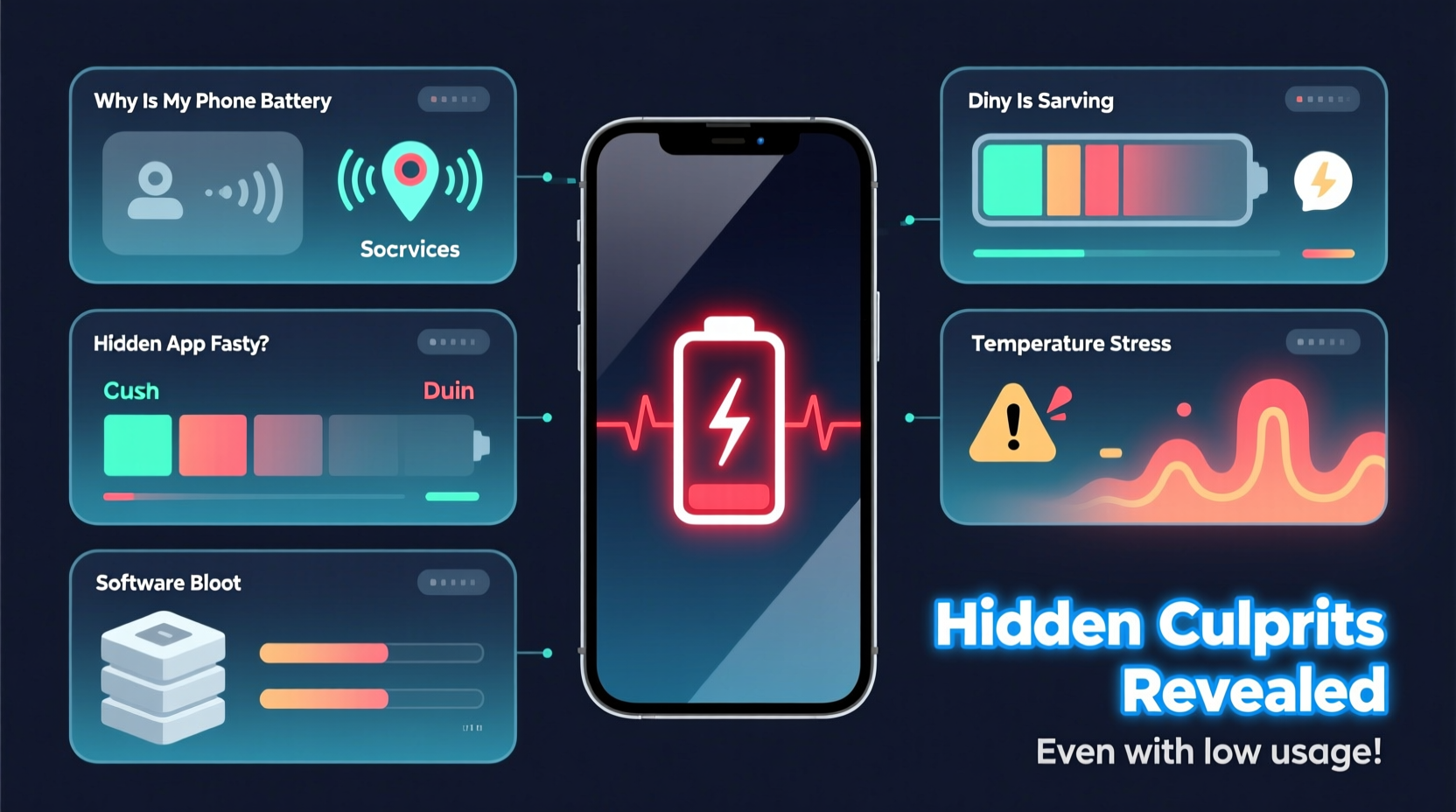
Many users assume that light phone use—occasional calls, messaging, and brief browsing—should preserve battery for a full day. However, “usage” isn’t just about what you do; it’s also about what your phone does behind the scenes. Modern operating systems run dozens of background processes: syncing emails, updating widgets, tracking location for weather or fitness apps, and maintaining cloud backups. These tasks consume power continuously, even when the screen is off.
Apple and Google have optimized their OSes (iOS and Android) for responsiveness, which means apps are kept alive longer in memory rather than being fully closed. While this improves performance, it increases energy consumption. A 2023 study by Battery University found that background activity accounts for up to 40% of daily battery drain on average devices, even among users who report minimal interaction.
Hidden Culprits Behind Rapid Battery Drain
Beyond common suspects like GPS or Bluetooth, several subtle issues contribute to unexpected battery loss. Below are the most frequently overlooked causes:
1. Poor Network Signal
When your phone struggles to maintain a cellular or Wi-Fi connection, it boosts its radio power to search for signals. This process, known as “signal hunting,” can increase power draw significantly. Being in basements, elevators, rural areas, or buildings with thick walls forces your phone to work harder, sometimes consuming more battery in an hour than normal browsing would in three.
2. Location Services Running in Background
Even if you’re not using maps, many apps request periodic location access. Social media platforms, weather widgets, and delivery services track your whereabouts to personalize content. On iOS, go to Settings > Privacy > Location Services to see which apps are accessing your location. Android users can check under Settings > Location > App Location Permissions.
3. Push Email and App Refresh
Having email set to “push” means your phone checks for new messages every few seconds. Similarly, background app refresh allows apps to update content while idle. Both features keep the processor and network radios active, leading to constant micro-drains. Disabling push in favor of fetch intervals (e.g., every 15 or 30 minutes) reduces this load dramatically.
4. Widgets and Live Wallpapers
Widgets on your home screen may look convenient, but they often pull live data from the internet—weather updates, news feeds, calendar events—all requiring regular background syncs. Animated or live wallpapers, while visually appealing, force the GPU to render motion continuously, increasing power consumption.
5. Outdated Apps or Operating System Bugs
Software bugs can cause apps to malfunction and run infinite loops or fail to suspend properly. For example, a 2022 Android bug caused Google Play Services to overuse location data, draining batteries within hours. Regularly updating your OS and apps ensures you benefit from performance patches and battery optimizations.
“Battery drain isn’t always about hardware aging. Often, it's inefficient software behavior that turns small tasks into major energy drains.” — Dr. Lena Patel, Mobile Systems Engineer at MIT
Step-by-Step Guide to Diagnose and Fix Battery Drain
Follow this systematic approach to identify and eliminate the root causes of fast battery depletion:
- Check Battery Usage Stats: On iPhone, go to Settings > Battery. On Android, navigate to Settings > Battery > Battery Usage. Look for apps consuming disproportionate power—even when not actively used.
- Review Background Activity: Identify apps running in the background. Disable background refresh for non-essential apps. On iOS: Settings > General > Background App Refresh. On Android: Settings > Apps > [App Name] > Battery > Background restriction.
- Limit Location Access: Set location permissions to “While Using” instead of “Always.” Disable location entirely for apps that don’t need it (e.g., games, calculators).
- Switch to Manual Email Fetch: Replace push notifications with scheduled fetch intervals. iOS: Settings > Mail > Accounts > Fetch New Data. Android: Email app settings > Sync Schedule.
- Reduce Widget Count: Remove unnecessary widgets from your home screen. Stick to static ones like clocks or notes.
- Enable Low Power Mode: Use built-in power-saving modes. On iPhone, activate Low Power Mode automatically at 20%. Android equivalents include Battery Saver and Adaptive Battery.
- Restart Weekly: A simple reboot clears stuck processes and resets network connections, often improving efficiency.
Real-World Example: Sarah’s Mystery Drain
Sarah, a freelance writer, noticed her iPhone 13 dying by 3 PM despite barely using it beyond email and occasional web searches. She checked battery usage and saw no single app exceeding 8%. Confused, she followed diagnostic steps and discovered that a weather widget was refreshing every 5 minutes and a note-taking app had background refresh enabled with “always update” settings. Additionally, a food delivery app was using “precise location” 24/7, tracking her movements across town.
After disabling background refresh for non-critical apps, switching location access to “while using,” and removing the live weather widget, Sarah gained nearly 5 extra hours of battery life. Her screen time remained unchanged, but background energy consumption dropped by 62%, according to iOS battery analytics.
Battery Health Best Practices: Do’s and Don’ts
| Do’s | Don’ts |
|---|---|
| Charge between 20% and 80% regularly to prolong lithium-ion lifespan | Leave your phone plugged in overnight frequently |
| Use original or MFi-certified chargers | Use cheap third-party chargers that lack voltage regulation |
| Keep software updated for bug fixes and efficiency gains | Ignore OS updates for months |
| Store your phone in moderate temperatures (16°C–22°C) | Leave your phone in hot cars or direct sunlight |
| Enable dark mode on OLED screens to reduce pixel power draw | Run bright white wallpapers at maximum brightness |
Expert Tips to Minimize Unseen Energy Loss
- Audit app permissions monthly: Revisit location, camera, microphone, and background data settings. Remove access for apps that no longer serve a purpose.
- Turn off Bluetooth and Wi-Fi when not needed: Even when not connected, these radios periodically scan for networks, consuming power.
- Use Airplane Mode in low-signal areas: If you’re in a basement or remote location, enabling airplane mode stops signal searching and saves significant battery.
- Disable haptic feedback and vibrations: These motor actions use more energy than standard alerts. Switch to ring or silent mode with visual cues.
- Limit animated effects: Reduce motion on iOS (Settings > Accessibility > Motion > Reduce Motion) and disable transition animations on Android (Developer Options).
Frequently Asked Questions
Why is my battery draining overnight when I’m not using my phone?
Nighttime drain usually stems from background syncing, push notifications, or location tracking. Apps like email, cloud storage, and social media continue working while your phone sleeps. To fix this, enable Low Power Mode before bed or turn on airplane mode if you don’t need connectivity.
Does closing apps manually save battery?
No, force-closing apps doesn’t help and can worsen battery life. Modern operating systems manage app states efficiently. Swiping away apps forces them to restart completely when reopened, using more CPU and energy. Let the system handle app suspension naturally.
Can a factory reset fix battery drain?
Sometimes. If software corruption or misbehaving apps are the cause, a clean install can restore normal performance. However, ensure you back up data first and only proceed after trying all other fixes. Note: Post-reset, avoid immediately reinstalling all old apps—add them gradually to spot any repeat offenders.
Checklist: Optimize Your Phone’s Battery Life Today
- ✅ Review battery usage in settings
- ✅ Disable background app refresh for non-essential apps
- ✅ Change location access from “Always” to “While Using”
- ✅ Switch email from push to fetch (every 15–30 mins)
- ✅ Remove live widgets and animated wallpapers
- ✅ Enable Low Power Mode or Battery Saver
- ✅ Restart your phone to clear background glitches
- ✅ Update your OS and all apps
- ✅ Avoid extreme temperatures and charging habits
Conclusion: Take Control of Your Battery Life
Your phone shouldn’t die before dinner just because you sent a few texts. Rapid battery drain, even with low usage, is often the result of invisible background processes, outdated settings, or poor environmental conditions. By understanding how modern smartphones operate and taking deliberate steps to manage their behavior, you can regain hours of reliable use. It’s not about using your phone less—it’s about making it work smarter.
Start with one change today: audit your location permissions or remove a redundant widget. Small adjustments compound into meaningful improvements. Share your experience or ask questions in the comments—your insight might help someone else solve their own battery mystery.




 浙公网安备
33010002000092号
浙公网安备
33010002000092号 浙B2-20120091-4
Comments
No comments yet. Why don't you start the discussion?