
It’s a common but concerning experience: you’re in the middle of an important call, and suddenly your phone grows uncomfortably warm—sometimes hot enough to cause the screen to dim or the device to shut down. Overheating during calls affects both Android and iPhone users and can stem from hardware limitations, software inefficiencies, or environmental factors. Left unchecked, persistent overheating may degrade battery life, impair performance, and even shorten your phone’s lifespan.
Understanding the root causes and knowing how to respond effectively can help you maintain optimal device health. This guide explores the science behind phone heating during calls, identifies key triggers, and provides actionable steps tailored to both Android and iOS ecosystems.
Why Phones Heat Up During Calls
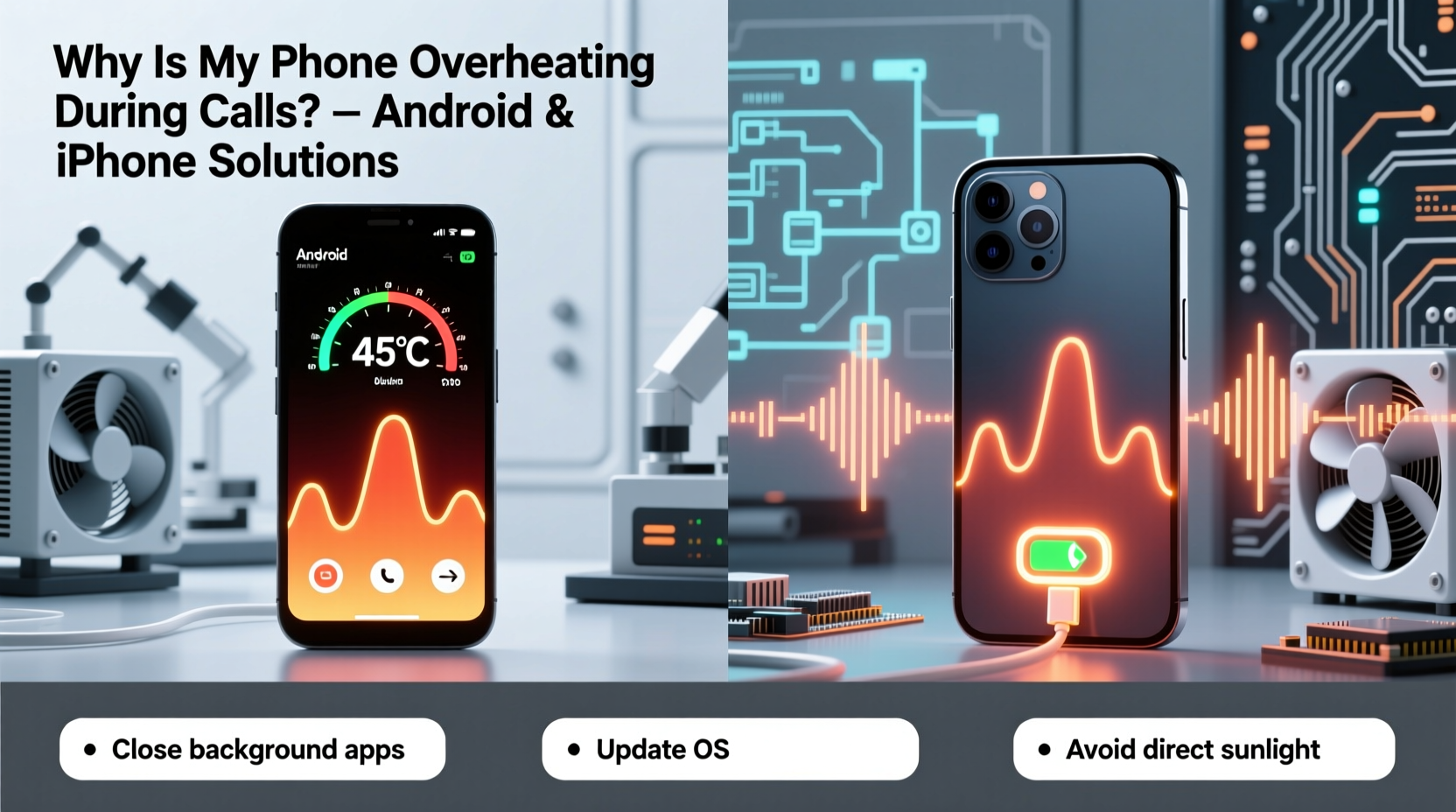
When you make or receive a call, your phone activates multiple systems simultaneously: the cellular radio, microphone, speaker, proximity sensor, and sometimes even GPS (for location-based services like emergency calling). These components consume power, and as electrical current flows through circuits, heat is naturally generated—a phenomenon known as resistive heating.
Modern smartphones are designed with thermal management systems, including heat-dissipating materials and software throttling mechanisms. However, under certain conditions, these safeguards may not be sufficient. The following factors amplify heat production:
- Poor signal strength: When your phone struggles to maintain a stable connection, it boosts its radio output, increasing power consumption and heat.
- Background apps: Apps running in the background—especially those using GPS, streaming, or syncing data—can strain the processor alongside call functions.
- Aged batteries: As lithium-ion batteries degrade, they become less efficient and generate more heat during use.
- Direct sunlight or hot environments: Ambient temperature plays a major role. A phone used outdoors on a summer day can easily exceed safe operating temperatures.
- Phone case insulation: Thick or non-breathable cases trap heat, especially when the phone is held against the ear.
“Phones are engineered to handle moderate heat, but sustained high temperatures during voice calls often indicate inefficient signal processing or poor thermal design.” — Dr. Lena Torres, Mobile Hardware Engineer at TechInsight Labs
Common Causes by Device Type
While the underlying physics apply universally, Android and iPhone devices exhibit different patterns due to variations in hardware integration, software optimization, and network compatibility.
| Factor | Android Devices | iPhone Models |
|---|---|---|
| Signal Handling | Varying chipset efficiency across brands; some mid-range phones overheat faster in weak signal areas. | Consistent modem performance, but older models (e.g., iPhone 6–8) struggle with LTE band switching. |
| Software Background Load | Higher likelihood of background app interference due to open ecosystem and multitasking. | iOS restricts background activity, reducing load—but FaceTime and Siri can add overhead. |
| Battery Age Impact | Many Androids lack detailed battery health metrics, delaying user awareness. | iOS reports battery health percentage, helping users identify degradation early. |
| Thermal Design | Inconsistent across manufacturers; budget models often skimp on heat dissipation. | Tighter integration allows better heat distribution, though compact designs limit airflow. |
Step-by-Step Guide to Prevent and Fix Overheating
Addressing phone overheating requires a combination of immediate actions and long-term habits. Follow this structured approach to diagnose and resolve the issue:
- End the call and let the phone cool down. Do not place it in a refrigerator or freezer. Instead, turn off unnecessary functions and allow passive cooling in a shaded area.
- Remove the case. Especially if it’s made of silicone or leather, which insulate heat. Let the phone breathe during extended calls.
- Check for active background apps. On Android, go to Settings > Battery > Usage to see which apps consume power. On iPhone, navigate to Settings > Battery to review app activity over the last 24 hours.
- Disable unused features. Turn off Bluetooth, Wi-Fi, and location services if not needed during calls. These radios contribute to thermal load.
- Switch to Airplane Mode temporarily. Then manually re-enable cellular service. This forces a clean network reconnect and may stabilize a struggling signal.
- Update your operating system. Manufacturers frequently release patches that optimize thermal management and fix bugs causing excessive CPU usage.
- Reset network settings. On Android: Settings > System > Reset > Reset Wi-Fi, mobile & Bluetooth. On iPhone: Settings > General > Transfer or Reset iPhone > Reset > Reset Network Settings. This clears corrupted carrier configurations.
- Test with a different SIM card or carrier. Some carriers have weaker coverage in your area, forcing the phone to work harder. Borrow a friend’s phone or SIM to compare signal strength.
When to Consider Hardware Service
If overheating persists despite software troubleshooting, internal hardware may be failing. Common culprits include:
- Damaged battery cells causing irregular power draw
- Faulty charging port or power management IC
- Water damage affecting circuit insulation
Visit an authorized repair center. For iPhones, Apple Stores can run diagnostics using AST (Apple Service Toolkit). For Android, Samsung Care, Google Store, or certified third-party providers offer similar assessments.
Preventive Checklist for Long-Term Use
Maintaining your phone’s thermal health should be part of routine care. Use this checklist monthly to minimize overheating risks:
- ✅ Monitor battery health (iOS: Settings > Battery > Battery Health; Android: Use AccuBattery or manufacturer tools)
- ✅ Keep the OS and apps updated
- ✅ Avoid using the phone in direct sunlight or hot cars
- ✅ Limit call duration in areas with 1–2 bars of signal
- ✅ Clean the charging port gently with a dry brush to ensure proper ventilation
- ✅ Replace swollen or aged batteries (typically after 2–3 years of daily use)
- ✅ Use speakerphone or headphones for long conversations to reduce direct contact and heat retention
Real-World Example: Maria’s Commute Problem
Maria, a sales representative in Chicago, noticed her Samsung Galaxy S21 would overheat every afternoon during client calls. The issue worsened during winter commutes, when she’d hold the phone inside her coat pocket while talking. Initially dismissing it as normal, she eventually experienced automatic shutdowns mid-call.
After reading about thermal throttling, she tested her theory: she removed the thick rubber case, disabled Wi-Fi and GPS before calls, and switched to wired headphones. She also discovered that her phone was constantly syncing emails in the background. By adjusting sync frequency and moving email fetch to manual, her phone’s temperature dropped by nearly 7°C during a 15-minute call test.
Her final solution? Using Bluetooth earbuds and scheduling longer calls only when indoors with strong signal. “I didn’t realize how much my habits were stressing the phone,” she said. “Now my calls are stable, and the phone stays cool.”
Frequently Asked Questions
Can overheating permanently damage my phone?
Yes. Prolonged exposure to high temperatures can accelerate battery degradation, warp internal components, and trigger permanent thermal throttling, where the processor runs slower to avoid heat. Lithium-ion batteries exposed to temperatures above 35°C (95°F) for extended periods lose capacity faster.
Is it safe to keep using an overheating phone?
Short-term use is generally safe due to built-in safeguards, but continued operation under high heat increases failure risk. If your phone frequently exceeds 40°C (104°F), stop using it until the cause is resolved. Persistent overheating may void warranty coverage if linked to user neglect.
Does using speaker mode reduce heating?
Yes. Speakerphone reduces reliance on the earpiece and proximity sensor, slightly lowering power draw. More importantly, holding the phone away from your body improves airflow around the device, aiding natural cooling.
Expert Tips for Android and iPhone Users
Different platforms require nuanced approaches. Here are targeted recommendations:
For iPhone owners, enable Low Power Mode before extended calls. It reduces background activity and slightly limits CPU performance, cutting heat generation. On Android, use \"Battery Saver\" modes and consider enabling \"Adaptive Battery\" to restrict non-essential apps.
Additionally, avoid charging while on a call. Charging generates heat, and combining it with call processing pushes thermal limits. If necessary, use a high-quality cable and charger to minimize resistance and uneven power delivery.
Conclusion: Take Control of Your Phone’s Temperature
Phone overheating during calls isn’t just uncomfortable—it’s a warning sign that your device is under stress. Whether you use an Android or iPhone, the principles of thermal management remain the same: reduce unnecessary load, maintain good signal quality, and respect environmental limits.
By applying the strategies outlined—monitoring battery health, optimizing settings, and adopting smarter calling habits—you can prevent overheating, extend your phone’s lifespan, and ensure reliable performance when it matters most. Don’t wait for a shutdown to act. Start today by reviewing your settings, removing bulky cases, and testing your next call in a cooler environment.




 浙公网安备
33010002000092号
浙公网安备
33010002000092号 浙B2-20120091-4
Comments
No comments yet. Why don't you start the discussion?