
Phone screen flickering at low brightness is a surprisingly common issue that affects users across brands, from budget smartphones to flagship models. While occasional flicker might seem like a minor annoyance, persistent flashing can strain the eyes, disrupt usability, and indicate deeper hardware or software problems. Unlike sudden blackouts or complete screen failures, flickering—especially under dim lighting conditions—is often subtle and intermittent, making diagnosis tricky. However, understanding the root causes and knowing how to respond can prevent long-term damage and restore smooth performance.
The phenomenon typically occurs when the display struggles to maintain consistent backlight output at lower brightness levels. This isn't just a cosmetic flaw; it reflects an underlying mismatch between power delivery, display technology, and system settings. Whether you're using an OLED, AMOLED, or LCD screen, flickering in low brightness can stem from adaptive brightness algorithms, firmware bugs, or even physical wear. The good news is that many cases are fixable without professional repair.
Understanding Display Technologies and Flicker
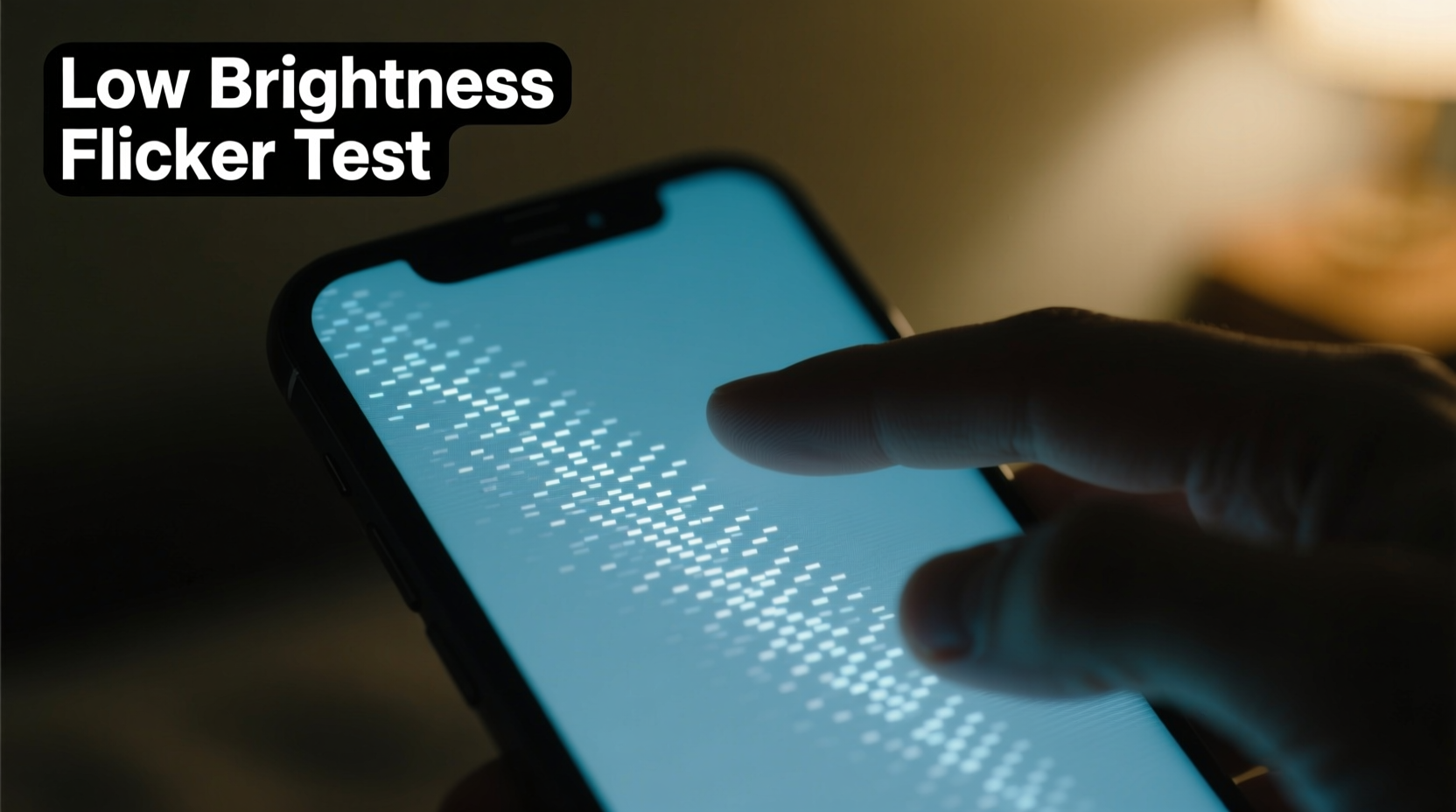
To effectively diagnose screen flickering, it's essential to understand how different display types behave under low brightness. The two dominant technologies—LCD and OLED—handle brightness in fundamentally different ways.
LCD (Liquid Crystal Display) screens use a constant backlight, usually LED-based, which shines through liquid crystals to produce images. When brightness is reduced, the backlight dims via pulse-width modulation (PWM) or direct current (DC) dimming. PWM rapidly turns the backlight on and off to simulate lower brightness. At high brightness, this flicker is imperceptible. But at low levels, the off-periods lengthen, increasing the chance of visible flicker, especially in peripheral vision.
OLED (Organic Light-Emitting Diode) displays generate light per pixel, eliminating the need for a separate backlight. They’re more energy-efficient and offer deeper blacks, but most still rely on PWM for brightness control. In fact, many modern OLED phones—including certain iPhone and Samsung Galaxy models—use low-frequency PWM at low brightness, which some users report as eye strain or flickering.
“Low-frequency PWM in OLED panels is a trade-off between battery efficiency and visual comfort. It’s not a defect per se, but it can be problematic for sensitive users.” — Dr. Lena Torres, Display Technology Researcher at Mobile Insights Lab
Common Causes of Low-Brightness Screen Flickering
Flickering isn’t always caused by one single factor. Multiple overlapping issues—software, hardware, and environmental—can contribute. Identifying the likely culprit helps determine whether a fix is user-accessible or requires technical service.
Software Glitches and System Updates
One of the most frequent triggers is a bug introduced during a software update. Operating system patches, particularly major Android or iOS upgrades, sometimes include display driver changes that conflict with existing hardware configurations. For example, a 2023 Android 14 rollout was linked to flickering reports on several mid-tier devices due to incorrect PWM frequency calibration.
Additionally, third-party apps that modify screen behavior—such as blue light filters, dark mode enhancers, or battery savers—can interfere with native brightness controls. These apps often run background services that override system settings, leading to inconsistent rendering.
Adaptive Brightness Malfunctions
Adaptive or auto-brightness features use ambient light sensors to adjust screen output dynamically. When the sensor is dirty, blocked, or miscalibrated, it may send erratic signals, causing the screen to oscillate between brightness levels. This fluctuation appears as flickering, especially in stable lighting environments where adjustments shouldn’t be necessary.
Hardware Degradation
Over time, physical components degrade. The display connector, backlight circuitry (in LCDs), or individual OLED pixels can wear out, especially if the device has been dropped, exposed to moisture, or subjected to thermal stress. A failing display driver IC (integrated circuit) may struggle to regulate voltage at lower brightness thresholds, resulting in unstable output.
PWM Frequency Sensitivity
Some individuals are more sensitive to screen flicker than others. Studies suggest that up to 30% of people experience discomfort from low-frequency PWM, including headaches, eye fatigue, or perceived flickering—even when the effect is technically within manufacturer specifications. This sensitivity varies by age, visual acuity, and neurological factors.
Troubleshooting Steps to Fix Screen Flickering
Before assuming hardware failure, perform a systematic series of checks. Many flickering issues resolve with simple adjustments or resets.
- Disable Adaptive Brightness: Go to Settings > Display > Brightness and turn off auto-brightness. Manually set brightness to a low but stable level to test consistency.
- Restart Your Phone: A reboot clears temporary glitches in the GPU or display driver processes.
- Boot in Safe Mode: On Android, hold the power button, then long-press “Power off” and select “Safe Mode.” On iPhone, restart and avoid pressing any buttons after the Apple logo. Safe mode disables third-party apps, helping isolate software conflicts.
- Check for System Updates: Navigate to Settings > System > Software Update (Android) or Settings > General > Software Update (iOS). Install any pending updates, as patches often fix known display bugs.
- Reset Display Settings: On some devices, resetting all settings (not full factory reset) restores default display parameters without deleting personal data.
- Clean the Proximity Sensor Area: Use a soft, dry cloth to wipe the top bezel near the front camera and earpiece, where the ambient light sensor is typically located.
Do’s and Don’ts When Dealing With Flickering Screens
| Action | Do | Don’t |
|---|---|---|
| Brightness Adjustment | Use manual brightness control instead of auto | Leave adaptive brightness on if flickering persists |
| Software Management | Update OS and remove aggressive screen-modifying apps | Install untrusted \"screen smoother\" tools from third-party stores |
| Hardware Testing | Test screen in different lighting environments | Apply pressure or heat to the display area |
| Data Protection | Back up your phone before attempting resets | Perform a factory reset without backing up first |
Real-World Example: Resolving Persistent Flicker on a Samsung Galaxy S22
Jamal, a graphic designer in Austin, began noticing his Galaxy S22 screen flickering whenever he edited photos at night. He initially assumed it was eye strain from long hours. But when the flicker persisted across apps—even on the lock screen—he decided to investigate.
He first disabled adaptive brightness and cleaned the sensor area. No change. Then he booted into safe mode and noticed the flickering stopped. That pointed to a third-party app. After reviewing recently installed apps, he found a “Blue Light Dimmer” tool running in the background. Uninstalling it eliminated the flicker entirely.
Later, Samsung released a patch noting that certain third-party dimming apps were interfering with the device’s native HDR brightness management. Jamal’s experience highlights how software conflicts—not hardware defects—are often the real culprit.
When to Seek Professional Repair
If troubleshooting fails, consider hardware issues. Signs that point to physical damage or component failure include:
- Flickering only in specific areas of the screen (e.g., bottom edge)
- Accompanying discoloration, lines, or touch responsiveness issues
- Symptoms appearing after water exposure or impact
- Flickering worsens over time regardless of software state
In such cases, visit an authorized service center. Technicians can test the display module, replace faulty connectors, or recalibrate the driver IC. Attempting DIY repairs on modern sealed smartphones risks further damage and voids warranties.
“About 40% of ‘flickering screen’ service requests we receive turn out to be software-related. We always recommend a full diagnostic before replacing parts.” — Carlos Mendez, Senior Technician at TechFix Pro
Preventive Measures to Avoid Future Issues
Once resolved, take steps to minimize recurrence:
- Keep your operating system updated to benefit from display optimizations.
- Avoid installing apps that claim to enhance screen performance unless they’re from trusted developers.
- Use genuine chargers and cables to prevent power fluctuations that affect display stability.
- Enable True Tone (iOS) or Adaptive Display (Samsung) features, which adjust color and brightness more smoothly than manual controls.
FAQ
Is screen flickering dangerous?
Not physically dangerous, but prolonged exposure to flickering can cause eye strain, headaches, or migraines in sensitive individuals. It’s best addressed promptly for comfort and long-term usability.
Can I fix PWM-related flickering?
You can’t eliminate PWM on most phones, but you can mitigate its effects. Increase brightness slightly, use dark themes, or enable DC dimming if your device supports it (available on some Xiaomi and OnePlus models via developer settings).
Does screen flickering mean my phone is dying?
Not necessarily. While it can signal hardware wear, most cases are temporary and software-linked. Only recurring flicker after resets or repairs suggests serious degradation.
Conclusion
Screen flickering in low brightness mode is more than just a visual nuisance—it’s a signal that something in your phone’s display ecosystem needs attention. Whether it’s a rogue app, a firmware bug, or a failing component, the solution often lies in methodical troubleshooting. By understanding how your screen works and responding wisely, you can restore clarity and comfort to your daily use.




 浙公网安备
33010002000092号
浙公网安备
33010002000092号 浙B2-20120091-4
Comments
No comments yet. Why don't you start the discussion?