
A sudden shift in your phone’s screen tone—especially a persistent yellow or warm tint—can be disconcerting. You might notice whites appearing cream-colored, photos looking off-balance, or text harder to read under certain lighting. While it's natural to worry about hardware failure, the cause is often simpler and more manageable than you think. The yellowing of a phone screen can stem from software settings, environmental adaptations, aging components, or even protective accessories. Understanding the root causes empowers you to diagnose and fix the issue efficiently, preserving both visual clarity and device longevity.
Common Causes Behind a Yellow-Tinted Phone Screen
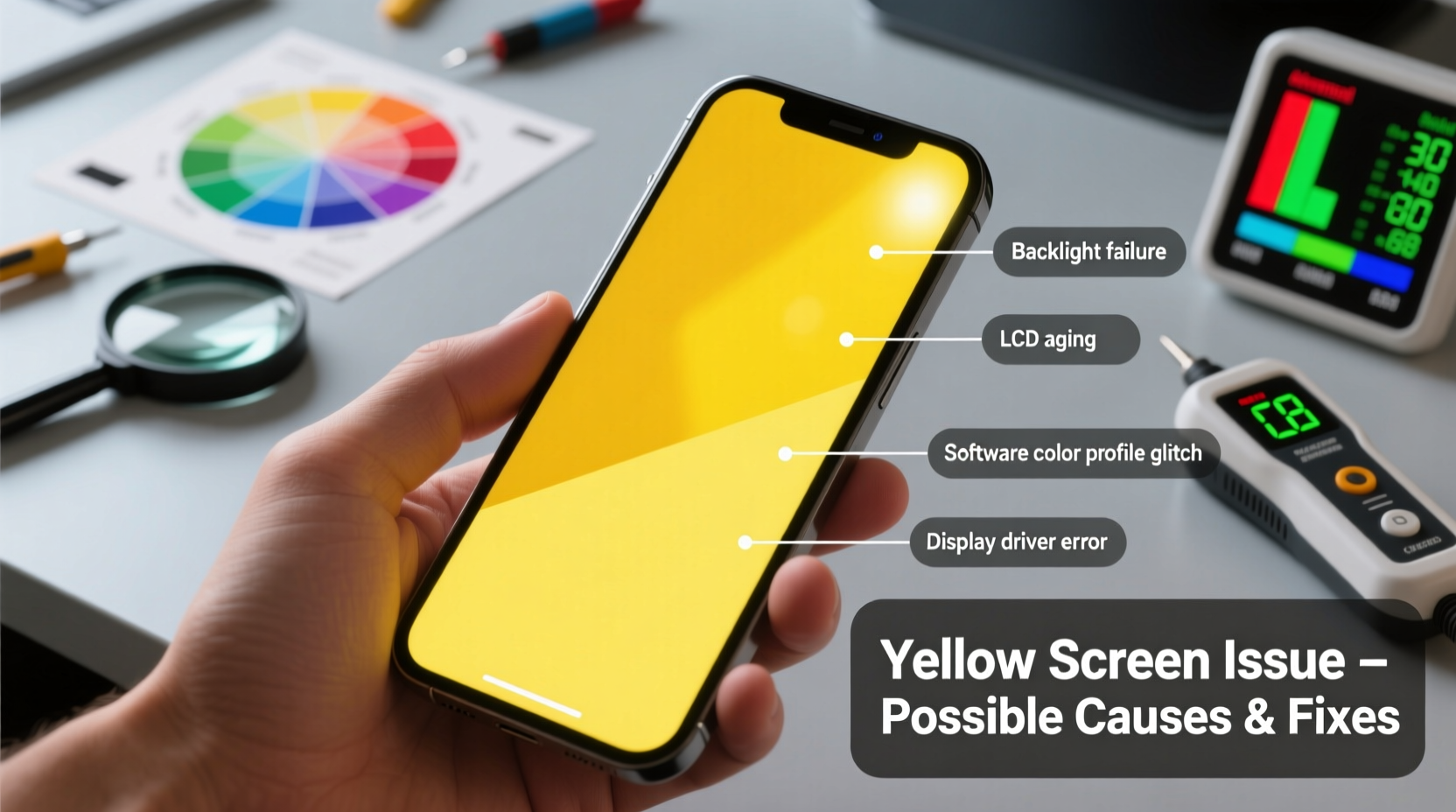
The perception of a yellow screen isn't always due to physical degradation. Modern smartphones use dynamic color management systems that adapt based on time of day, ambient light, and user preferences. However, several factors—both technical and environmental—can contribute to this discoloration.
- Night mode or blue light filters: Most phones automatically reduce blue light in the evening, shifting colors toward warmer (yellow/orange) tones to support melatonin production and reduce eye strain.
- Color calibration settings: Custom display profiles, such as “Warm” color temperature modes, can permanently alter how colors are rendered unless adjusted back.
- Aging OLED panels: Over time, organic materials in OLED displays degrade unevenly. Blue subpixels typically deteriorate faster, causing red and green to dominate—resulting in a yellowish appearance.
- Screen protectors or cases: Some low-quality tempered glass or plastic films have yellow-tinted adhesives or anti-glare coatings that distort true color output.
- Software bugs or OS updates: Occasionally, system updates introduce glitches in display drivers or misconfigure default settings without user awareness.
- Environmental lighting: Viewing your screen under warm indoor lighting (like incandescent bulbs) can create an illusion of yellowing due to contrast with cooler screen settings.
Step-by-Step Guide to Diagnose and Fix a Yellow Screen
Follow this structured troubleshooting process to identify whether the issue is software-based, accessory-related, or potentially hardware-driven.
- Check Night Mode / Blue Light Filter Status
Navigate to Settings > Display > Night Light (Android) or Settings > Display & Brightness > Night Shift (iOS). Turn it off completely and observe the screen under neutral lighting. If the yellow cast vanishes, the feature was the culprit. - Reset Color Mode and Temperature
On Android devices, go to Settings > Display > Advanced > Color Mode and select “Natural” or “Standard.” For Samsung phones, avoid “Adaptive” or “Warm” presets. On iPhones, ensure True Tone is toggled off temporarily to assess baseline color accuracy. - Inspect Screen Protector or Case Interference
Remove any screen protector and examine the display directly. If the yellowing disappears, consider replacing it with a high-clarity, AR-coated model designed for your specific device. - Test Across Multiple Apps and Backgrounds
Open a pure white webpage or image. Compare its appearance against known references (e.g., printed paper). If only certain apps show discoloration, the issue may lie within app-specific rendering rather than system-wide display problems. - Restart Your Device
A soft reboot clears temporary memory glitches that could affect GPU rendering or sensor data used by adaptive brightness and color systems. - Boot into Safe Mode (Android)
Press and hold the power button, then long-press “Power off” until “Reboot to safe mode” appears. In Safe Mode, third-party apps are disabled. If the screen returns to normal, a recently installed app may be overriding display settings. - Update or Reinstall Operating System
Check for pending OS updates. If already updated, consider backing up data and performing a factory reset as a last-resort diagnostic step (after ruling out hardware).
Hardware Degradation: When It’s More Than Just Settings
If software adjustments fail to correct the yellow tint, the problem may stem from physical wear. OLED and AMOLED screens, common in flagship smartphones, are particularly prone to differential pixel aging. Unlike LCDs, which use a uniform backlight, OLED pixels emit their own light—and each color degrades at a different rate.
Blue OLED materials have shorter lifespans due to higher energy requirements. After thousands of hours of usage—especially with static elements like navigation bars or status icons—the blue subpixels dim faster than red and green ones. This imbalance results in a visible yellow or pinkish hue, especially noticeable on white backgrounds.
“After about two years of heavy use, we begin to see measurable color drift in OLED displays, particularly in devices left on high brightness for extended periods.” — Dr. Lena Park, Display Technology Researcher at Mobile Insights Lab
This type of degradation is irreversible and considered a natural part of the display lifecycle. While manufacturers implement pixel-shifting and automatic brightness limiting to prolong panel life, they cannot eliminate eventual decay.
Do’s and Don’ts for Preserving Display Longevity
| Do’s | Don’ts |
|---|---|
| Use auto-brightness to prevent unnecessary high-luminance stress | Keep maximum brightness enabled constantly |
| Enable dark mode where available to reduce pixel workload | Display static images or UI elements for prolonged durations |
| Rotate wallpapers and change home screen layouts periodically | Leave the screen on indefinitely with fixed content (e.g., navigation apps) |
| Apply firmware updates that include display optimization patches | Ignore recurring color inconsistencies after software resets |
Real-World Example: Diagnosing a Persistent Yellow Tint
Consider the case of Mark, a freelance photographer who relies on accurate color representation for editing mobile shots. He noticed his iPhone 13 Pro’s screen appeared increasingly yellow over three months. Initially dismissing it as fatigue, he later realized clients were commenting on inconsistent color grading.
He began troubleshooting: first disabling True Tone and Night Shift, then resetting all settings. No change. He removed his matte-finish screen protector—no improvement. Testing with professional calibration tools confirmed a +1200K shift toward warm tones compared to a new unit.
Upon visiting an Apple Store, diagnostics revealed significant blue pixel degradation consistent with 18 months of daily 10-hour usage, often at full brightness outdoors. Although not covered under warranty, Mark opted for an out-of-warranty screen replacement. Post-repair, color accuracy returned to factory specifications, reaffirming the importance of early detection and professional assessment when software remedies fall short.
Troubleshooting Checklist: Is Your Phone’s Yellow Screen Fixable?
Use this concise checklist to methodically evaluate and resolve display discoloration:
- ✅ Disable Night Mode / Blue Light Filter
- ✅ Turn off True Tone (iOS) or Adaptive Display (Android)
- ✅ Reset display settings to default
- ✅ Remove screen protector and inspect bare screen
- ✅ Test on white background under neutral lighting
- ✅ Restart the device or boot into Safe Mode
- ✅ Check for OS updates or perform clean reset
- ✅ Assess uniformity: does yellowing appear across entire screen?
- ✅ Compare with another device showing same content
- ✅ Consult authorized technician if issue persists
Frequently Asked Questions
Can a yellow screen damage my eyes?
No, a yellow-tinted screen does not harm your eyes physically. In fact, reduced blue light emission can decrease digital eye strain, especially at night. However, inaccurate color reproduction may lead to visual discomfort or difficulty reading fine details, particularly for creatives requiring color precision.
Is screen yellowing covered under warranty?
Typically, no. Manufacturers classify gradual display degradation—including color shift—as “normal wear and tear,” not a defect. Warranties usually cover sudden failures (e.g., complete discoloration, dead pixels), but not slow deterioration from regular use. Extended protection plans or AppleCare+ may offer coverage depending on severity and timing.
Will dark mode help prevent further yellowing?
Yes. Since OLED screens illuminate pixels individually, using dark mode reduces the active lifespan of red, green, and blue subpixels—especially beneficial for white-on-black interfaces. By minimizing overall pixel usage, particularly bright whites, you extend the balanced life of the display and delay uneven aging.
Conclusion: Take Control of Your Display Health
A yellowing phone screen doesn’t automatically signal doom—it’s often a solvable setting mismatch or an early warning of display aging. By understanding the interplay between software features, environmental influences, and hardware limitations, you gain the upper hand in maintaining optimal visual performance. Start with simple fixes: disable adaptive tints, verify accessories, and recalibrate settings. If those don’t work, investigate deeper into usage patterns and potential hardware wear.
Smartphones are precision instruments, and their displays are among the most sensitive components. Regular maintenance, mindful usage habits, and timely intervention can preserve both functionality and fidelity far beyond expectations. Don’t wait until the tint becomes unbearable—act now to ensure every scroll, swipe, and photo remains true to color.




 浙公网安备
33010002000092号
浙公网安备
33010002000092号 浙B2-20120091-4
Comments
No comments yet. Why don't you start the discussion?