
You’ve just deleted dozens of photos, cleared your downloads folder, and uninstalled a few apps you no longer use. You check your phone’s storage settings, expecting to see breathing room—but the bar is still red. Your device insists it’s nearly full. This frustrating scenario affects millions of smartphone users every year. The truth is, deleting visible files often doesn’t solve the problem because storage is being consumed by invisible, behind-the-scenes processes and overlooked digital clutter.
Understanding what’s really eating up space on your phone requires looking beyond the obvious. Hidden culprits like cached data, duplicated backups, bloated messaging apps, and system logs can silently consume gigabytes without ever showing up in your gallery or file manager. In this guide, we’ll uncover the most common hidden causes of low storage and provide actionable steps to reclaim your device’s performance and capacity.
The Illusion of Deleted Files
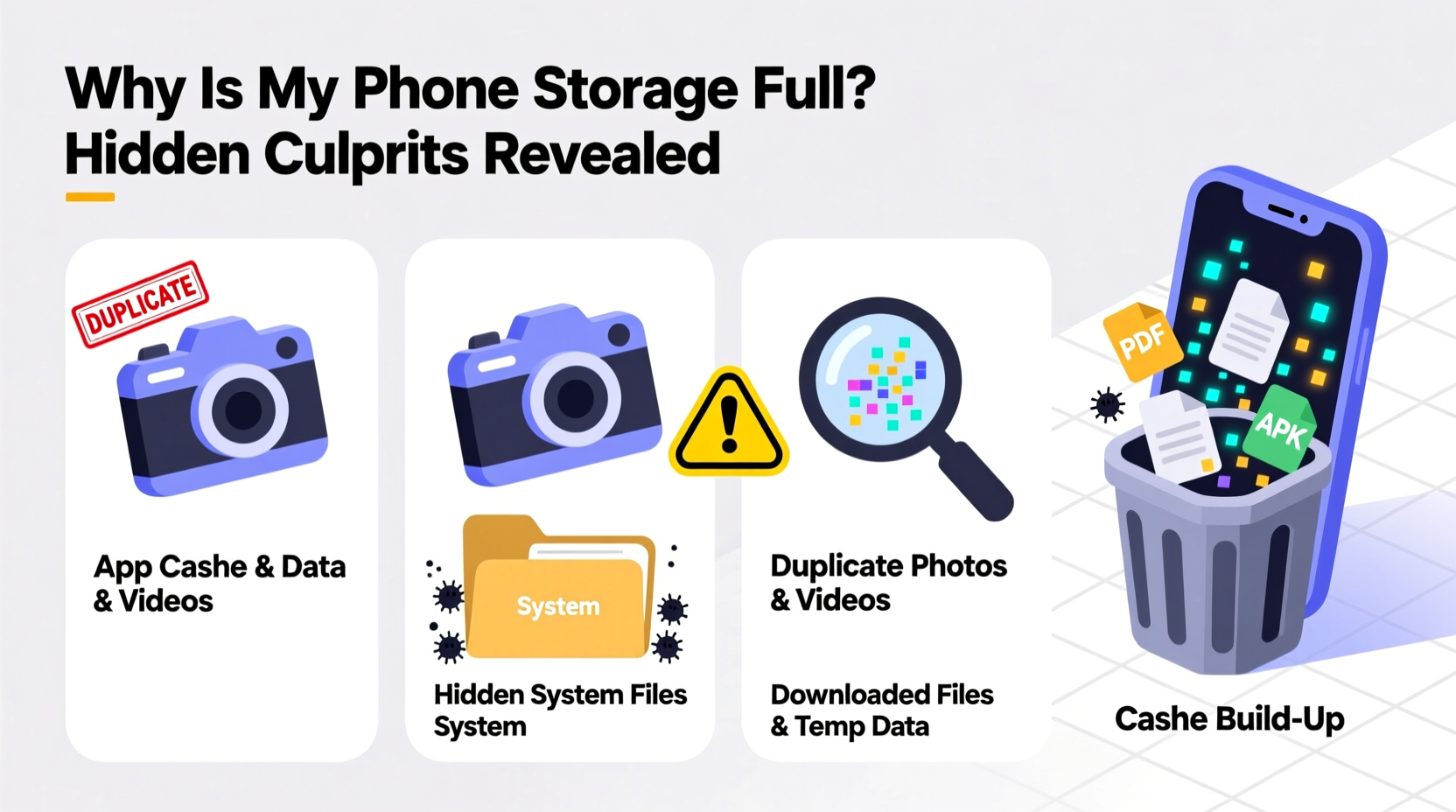
When you delete a photo, message, or file, it may appear gone—but that doesn’t mean it’s immediately removed from your device’s memory. Many phones move deleted items to a “Recently Deleted” folder, where they remain for 30 days before permanent removal. During that time, they continue to occupy storage space. Similarly, some apps don’t fully uninstall when removed; residual data such as cache, preferences, and offline files linger in system directories.
This creates a false sense of progress. You think you’re freeing up space, but your phone is still holding onto the same amount of data—just out of sight.
Hidden Storage Thieves: What’s Really Using Your Space?
Most users focus on media files—photos, videos, music—as primary storage consumers. While these do take up significant space, they’re rarely the only offenders. Below are the most common hidden culprits that quietly fill up your phone:
1. App Cache and Temporary Files
Every app stores temporary data to improve loading speed and functionality. This includes thumbnails, login sessions, and preloaded content. Over time, this cache can grow into hundreds of megabytes—or even gigabytes—for apps like Facebook, Instagram, or Chrome. Even if you clear your browsing history, cached images and scripts remain embedded in the app’s private storage.
2. Messaging Apps with Media Auto-Save
Apps like WhatsApp, Telegram, and iMessage automatically download photos, videos, and voice notes received in chats. These files are saved directly to your internal storage and often duplicated across multiple folders. A single group chat over several months can accumulate several gigabytes of unseen media.
3. System Data and Logs
Your operating system (iOS or Android) generates logs, diagnostic reports, and update remnants. These files help troubleshoot issues but aren’t always cleaned up automatically. On Android devices, “Other” or “System” storage can balloon to several gigabytes due to fragmented logs and firmware updates stored in recovery partitions.
4. Duplicate Files and Backups
Cloud sync services sometimes create local duplicates. For example, iCloud Photos may keep original-resolution files on-device even after optimization. Similarly, third-party backup tools (like Samsung Smart Switch or Google Drive) may store redundant copies of contacts, messages, or settings without user awareness.
5. Bloatware and Pre-installed Apps
Many phones come with preloaded apps that can’t be uninstalled. These “bloatware” apps run background processes, collect telemetry, and store data—even if you never open them. Examples include trial versions of software, carrier-specific utilities, and promotional apps.
“Users often overlook system-level data, assuming their phone automatically manages cleanup. But modern smartphones generate more background data than ever—manual intervention is essential.” — Dr. Lena Park, Mobile Systems Analyst at TechInsight Labs
Step-by-Step Guide to Reclaim Hidden Storage
Follow this structured process to identify and eliminate hidden storage drains:
- Check Storage Breakdown: Go to Settings > Storage. Review the categories listed (e.g., Apps, Photos, System, Other). Pay attention to unusually large entries under “System” or “Other.”
- Clear App Caches Individually: Navigate to Settings > Apps > [App Name] > Storage. Tap “Clear Cache” for social media, browsers, and messaging apps. Avoid “Clear Data” unless necessary—it resets app settings.
- Review Messaging App Media Settings: Open WhatsApp > Settings > Storage and Data > Manage Storage. Sort conversations by size and delete large media batches. Disable auto-download for photos and videos in Settings > Chats > Media Auto-Download.
- Delete Recently Deleted Items: In your Photos app, go to Albums > Recently Deleted. Select all and tap Delete to permanently remove them.
- Uninstall Unused Apps with High Storage Use: Sort apps by size in Storage settings. Remove any you don’t use regularly, especially those over 500MB.
- Use Built-in Cleanup Tools: On Android, use “Phone Cleaner” (in Samsung’s Device Care or Google Files). On iPhone, enable “Optimize Photo Storage” in Settings > Photos.
- Restart After Cleaning: A reboot forces the OS to rebuild temporary files cleanly, often reducing “Other” storage usage.
Do’s and Don’ts: Managing Phone Storage Wisely
| Do | Don’t |
|---|---|
| Enable cloud syncing for photos and documents | Store high-resolution videos locally long-term |
| Review app storage monthly | Ignore “Storage Almost Full” warnings |
| Use lightweight alternatives (e.g., Twitter Lite instead of Twitter) | Install apps from unknown sources that may contain bloat |
| Manually clear cache for heavy apps quarterly | Delete system files using root/file explorers unless experienced |
| Back up and factory reset annually for deep clean | Assume uninstalling an app removes all its data |
Real Example: Maria’s Storage Mystery Solved
Maria, a freelance photographer, noticed her iPhone 13 was constantly warning of low storage despite having deleted over 20GB of old projects. She assumed she’d fixed the issue—until her camera failed to save new shots during a shoot.
Upon investigation, she discovered that WhatsApp had accumulated 14GB of voice messages and video clips from client communications. Additionally, her “Recently Deleted” album contained another 6GB of edited photos she thought were gone. By clearing WhatsApp’s cache, disabling auto-backup for videos, and permanently deleting the photo bin, she freed up nearly 20GB overnight. Her phone’s performance improved significantly, and she set a monthly reminder to audit app storage moving forward.
Checklist: Monthly Phone Storage Audit
- ✅ Check total storage usage in Settings
- ✅ Empty “Recently Deleted” photo albums
- ✅ Clear cache for top 5 largest apps
- ✅ Review WhatsApp, Telegram, or iMessage storage
- ✅ Disable auto-download for media in messaging apps
- ✅ Uninstall at least one unused app
- ✅ Verify cloud backup status for photos and files
- ✅ Restart device after cleanup
Frequently Asked Questions
Why does my phone say “System” is using 10GB of storage?
The “System” or “Other” category includes operating system files, firmware updates, logs, and cached system data. It can grow due to incomplete updates or corrupted caches. To reduce it, restart your phone, install pending OS updates, or perform a factory reset as a last resort.
Does clearing cache delete my app data?
No—clearing cache only removes temporary files like thumbnails and offline scripts. Your login status, preferences, and saved content remain intact. However, “Clear Data” or “Reset App” will erase everything, including account info.
Can I delete “Other” storage on Android?
You can’t directly delete “Other” storage, but you can reduce it by clearing app caches, removing downloaded files, and managing offline maps or podcasts. Using Google Files or Samsung’s Storage Booster can automate part of this process.
Conclusion: Take Control of Your Digital Space
Your phone’s storage isn’t just about how many photos you’ve taken—it’s a dynamic ecosystem of apps, logs, caches, and system functions. Deleting files is only the first step. True storage management requires regular maintenance, awareness of hidden data sources, and proactive habits. By understanding what lurks beneath the surface, you can prevent slowdowns, avoid backup failures, and extend your device’s usable life.




 浙公网安备
33010002000092号
浙公网安备
33010002000092号 浙B2-20120091-4
Comments
No comments yet. Why don't you start the discussion?