
It’s a familiar frustration: your phone, laptop, and smart TV all connect seamlessly to your Wi-Fi network, but your printer refuses to cooperate. You’ve double-checked the password, restarted the router, and even reinstalled the software—yet the error persists. Unlike general connectivity issues, this problem isolates the printer despite a functioning network, making it especially puzzling.
The root cause often lies in outdated firmware, incorrect network settings, or hardware limitations specific to printers. Unlike smartphones or laptops, many printers have older wireless chipsets, limited memory, and minimal user interfaces, which restrict their ability to adapt to modern network changes. This article breaks down the most common reasons behind this issue and provides practical, tested solutions to get your printer back online reliably.
Understanding Printer-WiFi Communication
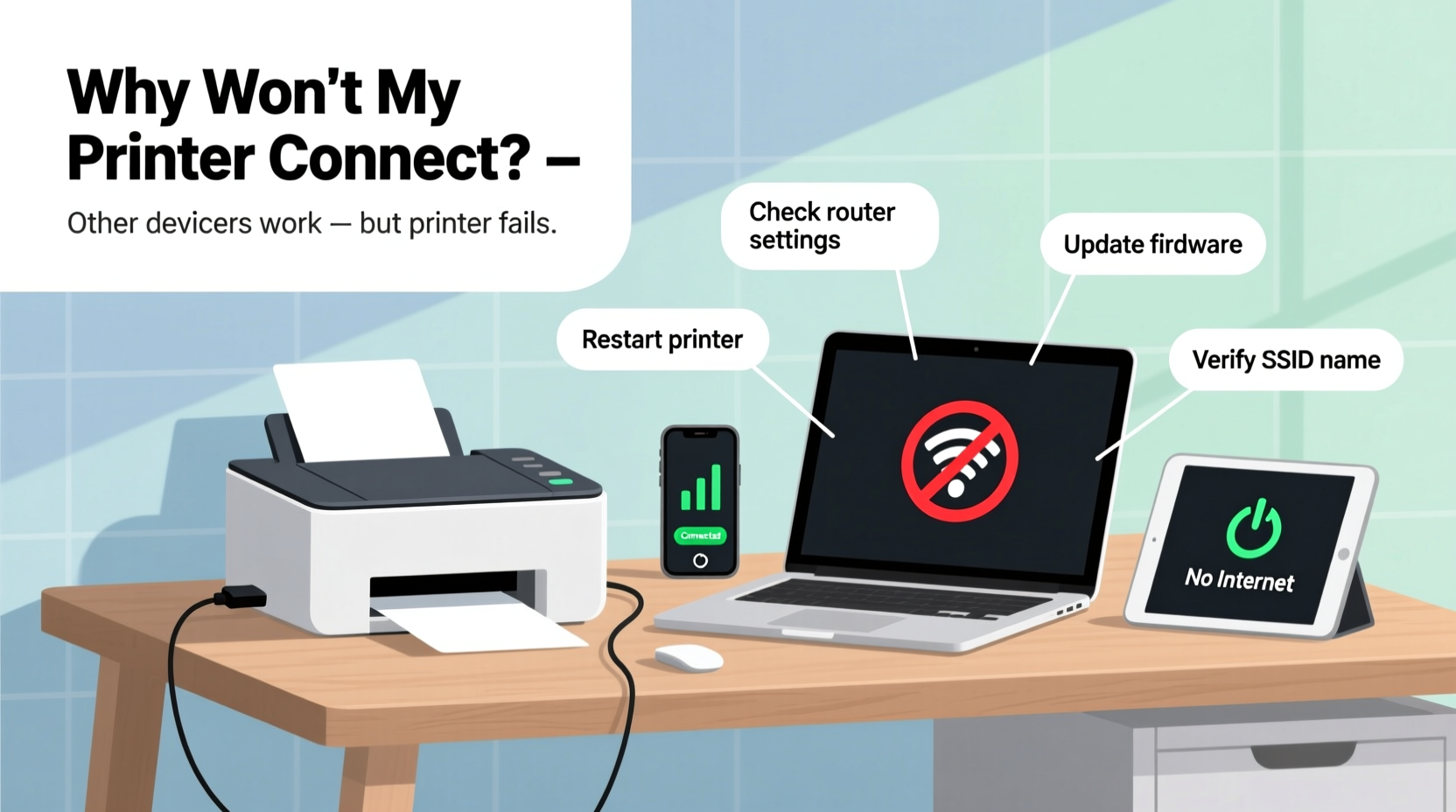
Printers communicate with your Wi-Fi network differently than mobile devices or computers. Most printers use either WPS (Wi-Fi Protected Setup), manual network entry, or a temporary access point mode during setup. Once connected, they rely on consistent IP addressing, stable signal strength, and compatible security protocols like WPA2 or WPA3.
However, printers are typically designed for simplicity, not advanced networking. They may not support 5 GHz bands, newer encryption standards, or dynamic DNS updates. Some models fail to reconnect automatically after a router reboot or firmware update. These limitations mean that even if your network works perfectly for other devices, your printer might still fall out of sync.
“Printers are often the forgotten endpoint in home networks. Their limited processing power makes them sensitive to subtle changes in router settings.” — David Lin, Network Infrastructure Engineer at NetSecure Labs
Common Causes of Printer Wi-Fi Disconnection
When only the printer fails to connect, the issue isn’t with the network itself—but rather with compatibility, configuration, or hardware behavior. Below are the most frequent culprits:
- Incompatible Wi-Fi band: Many printers only support 2.4 GHz networks and cannot detect or join 5 GHz bands.
- Outdated firmware: Older printer firmware may not recognize updated router security settings or channel configurations.
- IP address conflicts: If your printer receives a conflicting IP from DHCP or uses a static IP now occupied by another device, communication fails.
- Router firewall or MAC filtering: Some routers block unknown devices by default or require manual approval via MAC address whitelisting.
- Signal interference: Printers placed far from the router or near microwaves, cordless phones, or metal surfaces may experience poor signal quality.
- SSID hiding or special characters: Hidden networks or SSIDs containing spaces, symbols, or uppercase letters can confuse printer setup wizards.
Step-by-Step Troubleshooting Guide
Follow this structured approach to diagnose and resolve the connection issue without unnecessary guesswork.
- Verify the correct Wi-Fi band: Log into your router’s admin panel and confirm whether your network broadcasts separate 2.4 GHz and 5 GHz bands. If they share the same name (SSID), temporarily rename the 5 GHz network so only the 2.4 GHz version matches what the printer expects.
- Restart all devices: Power off the printer, router, and main computer. Wait 60 seconds, then turn on the router first, wait for it to fully boot, then power on the printer and computer.
- Check printer display or status lights: Look for blinking amber lights or error messages such as “Offline,” “No Network,” or “Wi-Fi Error.” Refer to your model’s manual for code meanings.
- Reconnect using WPS (if supported): Press the WPS button on your router, then press and hold the Wi-Fi button on the printer for 3–5 seconds. Wait up to two minutes for automatic pairing.
- Use the printer’s control panel to re-enter network credentials: Navigate to Settings > Network > Wireless Setup Wizard and manually enter the SSID and password. Double-check for typos, case sensitivity, and hidden characters.
- Assign a static IP address: Access your printer’s web interface (via its current IP) or use your router’s DHCP reservation feature to assign a fixed IP. This prevents future conflicts.
- Update firmware: Visit the manufacturer’s website, enter your printer model, and download the latest firmware. Install it via USB or directly through the printer’s embedded server.
- Disable IPv6 temporarily: Some older printers struggle with IPv6. In your router settings, switch to IPv4-only mode to test connectivity.
Do’s and Don’ts When Fixing Printer Connectivity
| Do | Don’t |
|---|---|
| Use a simple SSID without spaces or special characters (e.g., HomeWiFi24) | Name your network “My Home Network!” or include emojis |
| Place the printer within 10–15 feet of the router, away from large appliances | Keep the printer behind a filing cabinet or next to a microwave |
| Regularly check for firmware updates every 3–6 months | Ignore firmware notifications or assume the printer is “set and forget” |
| Enable DHCP reservations for your printer’s MAC address | Rely solely on dynamic IPs that may change after reboots |
| Test printing from multiple devices once connected | Assume the connection is stable after one successful job |
Real-World Case Study: The Office That Lost Its Printer
A small accounting firm in Portland upgraded its internet service and received a new mesh router system. All computers, tablets, and phones connected instantly to the dual-band network. However, their HP LaserJet Pro MFP M428fdw refused to reconnect, showing “Wireless Connection Failed” despite repeated attempts.
The IT consultant discovered that the new router broadcasted both 2.4 GHz and 5 GHz under the same SSID (“PortlandOffice”), causing the printer to attempt joining the 5 GHz band, which it didn’t support. After separating the bands with distinct names—“PortlandOffice_2G” and “PortlandOffice_5G”—and guiding the printer through a manual setup using the 2.4 GHz network, the device connected successfully.
Additionally, the consultant enabled DHCP reservation for the printer’s MAC address and scheduled quarterly firmware checks. Since then, no further disconnections have occurred—even after power outages or router updates.
Advanced Fixes for Persistent Issues
If basic troubleshooting doesn’t resolve the issue, consider these deeper interventions:
Create a Guest Network for Legacy Devices
Some modern routers allow you to create a guest network operating only on 2.4 GHz with WPA2 security. Connect your printer to this isolated network. While guest networks usually block local device access, you can enable LAN access in advanced settings to allow printing.
Use a Wireless Print Server
If your printer has only a USB or Ethernet port, connect it to a dedicated print server (like the TP-Link TL-PS110U). This small device connects to your Wi-Fi and shares the printer over the network, bypassing the printer’s built-in wireless module entirely.
Reset Network Settings on the Printer
Many printers store outdated or corrupted network profiles. To clear them:
- Go to Settings > Network > Restore Network Settings (varies by brand).
- Confirm the reset.
- Reboot the printer.
- Run the wireless setup wizard again from scratch.
Check Router Channel Congestion
Overcrowded Wi-Fi channels (especially channels 6–11 on 2.4 GHz) can disrupt low-power devices. Use a tool like Wi-Fi Analyzer (on Android) or NetSpot (Windows/Mac) to identify the least congested channel. Then log into your router and set the 2.4 GHz band to use channel 1 or 11 manually.
“Sometimes the simplest fix is changing the Wi-Fi channel. I’ve seen printers come back online just by switching from auto to channel 1.” — Sarah Nguyen, IT Support Specialist, TechAid Solutions
Quick Checklist: Regain Printer Connectivity in Under 15 Minutes
For immediate action, follow this concise checklist:
- ✅ Confirm the printer supports 2.4 GHz Wi-Fi
- ✅ Restart the printer and router
- ✅ Ensure the SSID is visible and not hidden
- ✅ Re-enter Wi-Fi password via printer menu
- ✅ Test WPS push-button method (if available)
- ✅ Check for firmware updates
- ✅ Assign a static IP via DHCP reservation
- ✅ Move the printer closer to the router temporarily
Frequently Asked Questions
Can a router firmware update disconnect my printer?
Yes. Router updates often change default security protocols, channel selection, or DHCP behavior. After an update, older printers may lose connectivity until manually reconfigured or updated themselves.
Why does my printer show “Connected” but still not print?
This usually indicates a partial connection. The printer may have joined the network but failed to obtain a valid IP address or communicate with the print server. Try pinging the printer’s IP from a computer or clearing the print queue and restarting the spooler service.
Is it better to use Ethernet instead of Wi-Fi for printers?
Yes, whenever possible. A wired connection eliminates interference, ensures full bandwidth, and avoids authentication issues. If your printer has an Ethernet port, use it—especially in dense office environments with multiple access points.
Final Steps and Long-Term Prevention
Resolving Wi-Fi printer issues isn’t just about fixing the momentary disconnect—it’s about preventing recurrence. Once your printer is back online, take proactive steps: label the printer’s MAC address and IP on a sticker, bookmark the firmware update page, and add a biannual maintenance reminder to your calendar.
Modern networks evolve rapidly, but printers remain static. Bridging that gap requires awareness, routine checks, and sometimes creative workarounds. By understanding the limitations of your hardware and aligning it with your network’s capabilities, you ensure seamless operation for years.




 浙公网安备
33010002000092号
浙公网安备
33010002000092号 浙B2-20120091-4
Comments
No comments yet. Why don't you start the discussion?