
If your Roomba suddenly starts spinning in tight circles instead of cleaning your floors efficiently, it’s more than just a nuisance—it’s a sign that something has gone wrong. While this behavior can be alarming, it's often linked to sensor malfunctions, debris buildup, or software glitches. Understanding the root causes and knowing how to properly diagnose and reset your device can save you time, money, and frustration. This guide breaks down the most common reasons behind circular navigation, explains how Roomba sensors work, and provides actionable troubleshooting steps to get your robot vacuum back on track.
How Roomba Navigation Works: The Role of Sensors
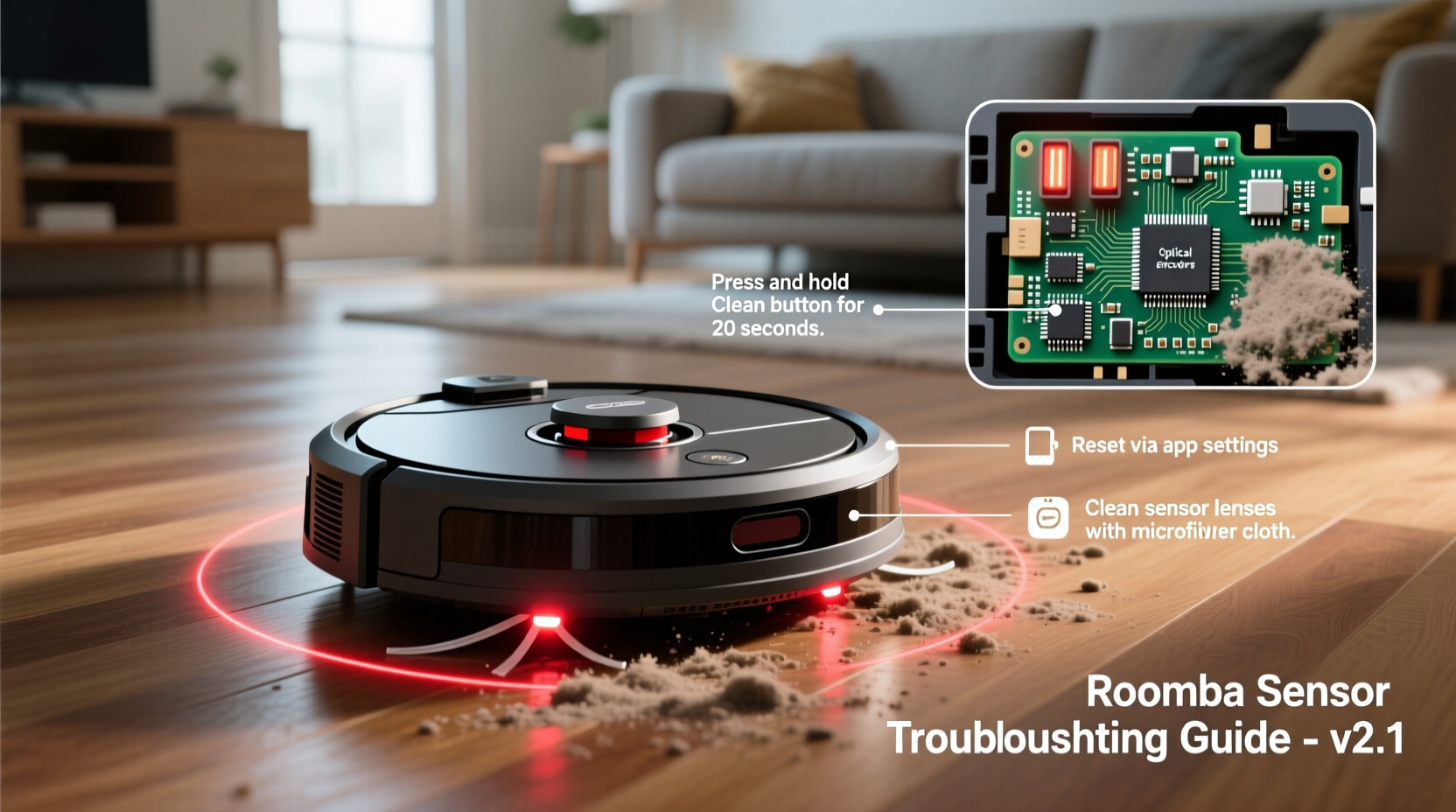
Modern Roomba models rely on a network of sensors to map rooms, avoid obstacles, detect drop-offs (like stairs), and navigate efficiently. These include infrared bump sensors, cliff sensors, wheel encoders, and optical floor tracking systems. When functioning correctly, these components allow the Roomba to move in smooth, intelligent patterns—covering every inch of your floor without repeating paths or getting stuck.
However, when one or more sensors malfunction, the internal logic that governs movement becomes compromised. For example, if the right-side bumper sensor falsely reports constant contact with an obstacle, the Roomba may interpret this as needing to turn left repeatedly—resulting in a clockwise spinning motion. Similarly, dirty cliff sensors can make the unit think it’s near a staircase edge, causing erratic turning behaviors designed to pull it away from danger.
“Sensor accuracy is critical for autonomous navigation. Even minor obstructions like dust or pet hair can trigger false readings that disrupt normal operation.” — Dr. Alan Zhou, Robotics Engineer at SmartHome Labs
Common Causes of Circular Movement in Roombas
Circular motion isn’t random—it’s typically the result of a specific system failure. Identifying the underlying issue requires examining both hardware and software components.
- Dirt or debris on sensors: Dust, hair, or smudges on infrared or cliff sensors can block signals, leading to incorrect environmental readings.
- Wheel or caster jams: Obstructed wheels prevent smooth turning, forcing the Roomba to pivot around one side.
- Faulty wheel encoders: These track wheel rotation; if damaged, the Roomba loses directional awareness.
- Software glitches: Firmware bugs or corrupted settings can cause abnormal motor commands.
- Low battery calibration errors: A poorly calibrated battery may send inconsistent power, affecting motor synchronization.
- Dirty side brush or main brush: Imbalanced cleaning tools create drag, influencing steering.
Step-by-Step Diagnosis and Reset Procedures
Before assuming hardware failure, perform a systematic diagnostic routine. Many cases of circular motion are resolved through simple cleaning and resets.
- Power down the Roomba: Press and hold the “Clean” button for 10 seconds until the lights turn off.
- Inspect and clean sensors: Locate the cliff sensors (along the bottom front edge) and bumper sensors (on the front bumper). Wipe each gently with a soft, dry cloth.
- Check wheel assemblies: Remove both side wheels and clear any tangled hair or debris from the axles and gear housings. Ensure wheels spin freely.
- Clean brushes and extractors: Take out the main brush roller and side brush. Remove缠绕的毛发 and check for broken bristles or bent ends.
- Examine caster wheel: The front swivel wheel should rotate smoothly. If stiff or cracked, replace it.
- Reset the Roomba: With the unit powered off, press and hold the “Dock” and “Spot” buttons simultaneously. While holding them, press the “Power” button once. Continue holding the two buttons for 10 seconds after powering on. Release when the light ring pulses white.
- Reboot and test: Place the Roomba on a hard, flat surface and start a cleaning cycle. Observe whether movement returns to normal.
This reset clears temporary memory and recalibrates motor feedback loops. It does not erase Wi-Fi settings or cleaning history but forces a fresh sensor initialization.
Do’s and Don’ts When Troubleshooting Sensor Issues
| Do | Don’t |
|---|---|
| Clean sensors regularly with a dry or slightly damp cloth | Use abrasive cloths or strong solvents on sensor lenses |
| Reset the Roomba after deep cleaning | Ignore persistent error beeps during startup |
| Lift and reposition the Roomba manually if stuck | Force wheels to spin backward aggressively |
| Update firmware via the iRobot HOME app | Disassemble internal components without warranty coverage |
| Replace worn brushes every 6–12 months | Operate the Roomba on wet surfaces or high-pile rugs unsuited for its model |
Real-World Example: Resolving Persistent Spinning in a Roomba i7+
Sarah, a homeowner in Portland, noticed her Roomba i7+ began spinning in tight counterclockwise circles every time she launched a cleaning job. Initially, she assumed it was a major mechanical fault and considered contacting support. Instead, she followed a structured troubleshooting process.
First, she cleaned the brushes and removed pet hair from the wheels. No improvement. Next, she wiped all sensors with a lint-free cloth. Still circling. Then, she performed a full factory reset using the button combination method. After rebooting, the Roomba moved normally for one cycle—but reverted to spinning the next day.
The breakthrough came when Sarah inspected the right-front cliff sensor more closely. She discovered a small piece of carpet fiber lodged beneath the plastic cover, invisible under casual inspection. Using a toothpick, she dislodged the debris. Since then, the Roomba has operated flawlessly for over three months.
This case highlights how even microscopic obstructions can disrupt sensor function—and why thorough physical inspection matters more than immediate software fixes.
Firmware Updates and App-Based Diagnostics
Newer Roomba models integrate with the iRobot HOME app, which offers real-time diagnostics and automatic firmware updates. If your model supports app connectivity, leverage these tools to identify hidden issues.
Navigate to the “Settings” menu in the app, select your device, and review the “Diagnostic Reports.” Look for alerts such as:
- \"Right Wheel Encoder Fault\"
- \"Cliff Sensor Blocked\"
- \"Main Brush Stall Detected\"
If any of these appear, address the corresponding hardware component. The app may also prompt you to install pending updates. Always complete firmware upgrades before concluding that a hardware repair is necessary. Many behavioral quirks—including circular driving—are patched in newer software versions.
When to Consider Replacement Parts
If basic cleaning and resets fail, individual components may need replacement. Common culprits include:
- Front caster wheel: Worn casters cause imbalance and poor steering response.
- Side wheels: Damaged treads or seized bearings lead to uneven propulsion.
- Main brush assembly: Cracked housing or degraded rubber fins create resistance.
- Battery: Aging batteries deliver inconsistent voltage, disrupting motor coordination.
iRobot sells genuine replacement parts directly through their website and authorized retailers. Third-party options exist but vary in quality and compatibility. Stick to OEM components for reliable performance and continued warranty eligibility.
FAQ: Frequently Asked Questions
Can a dirty sensor really make my Roomba go in circles?
Yes. Cliff and bumper sensors use infrared beams to detect surroundings. If blocked by dust or grime, they send false signals to the processor, causing the Roomba to believe it’s constantly hitting obstacles or approaching edges—triggering repeated turns.
How do I know if my Roomba needs a factory reset?
Perform a factory reset if standard troubleshooting fails and the device exhibits recurring navigation errors, unresponsive controls, or failure to connect to Wi-Fi. Note: This will remove saved maps and preferences, so only proceed after backing up important data via the app.
Is circular motion covered under warranty?
Typically, yes—if caused by manufacturing defects in sensors or motors. However, damage due to lack of maintenance (e.g., clogged wheels from pet hair) is usually excluded. Regular cleaning is considered user responsibility.
Final Checklist: Fix Your Roomba in Under 30 Minutes
- Step 1:
- Turn off the Roomba completely.
- Step 2:
- Remove and clean main brush, side brush, and wheels.
- Step 3:
- Wipe all sensors (front bumper, cliff array, charging contacts).
- Step 4:
- Check caster wheel for smooth rotation.
- Step 5:
- Perform a manual reset using the Dock + Spot + Power sequence.
- Step 6:
- Test on a clear, flat surface. Monitor initial movement pattern.
- Step 7:
- If problems persist, check the iRobot app for error codes or schedule service.
Conclusion: Regain Control of Your Cleaning Routine
A Roomba going in circles doesn't mean the end of its lifespan. In most cases, the issue stems from preventable causes like dirt accumulation or minor software hiccups. By understanding how sensors influence navigation and following a disciplined maintenance routine, you can resolve the problem quickly and extend the efficiency of your device. Don’t rush to replace or repair—start with cleaning, inspect thoroughly, and apply targeted resets. With consistent care, your Roomba can continue delivering spotless floors for years to come.




 浙公网安备
33010002000092号
浙公网安备
33010002000092号 浙B2-20120091-4
Comments
No comments yet. Why don't you start the discussion?