
Samsung TVs are known for their sleek design, vibrant displays, and smart functionality. But even the most advanced models can begin to lag over time. If your once-responsive television now takes forever to load apps, stutters during navigation, or freezes mid-stream, you're not alone. Performance slowdowns are common across many smart TVs — especially as software updates accumulate and apps grow more demanding. The good news? Most of these issues can be resolved without professional help. By understanding the root causes and applying targeted fixes, you can restore your Samsung TV’s speed and enjoy a smoother viewing experience.
Common Causes of Slow Performance on Samsung TVs
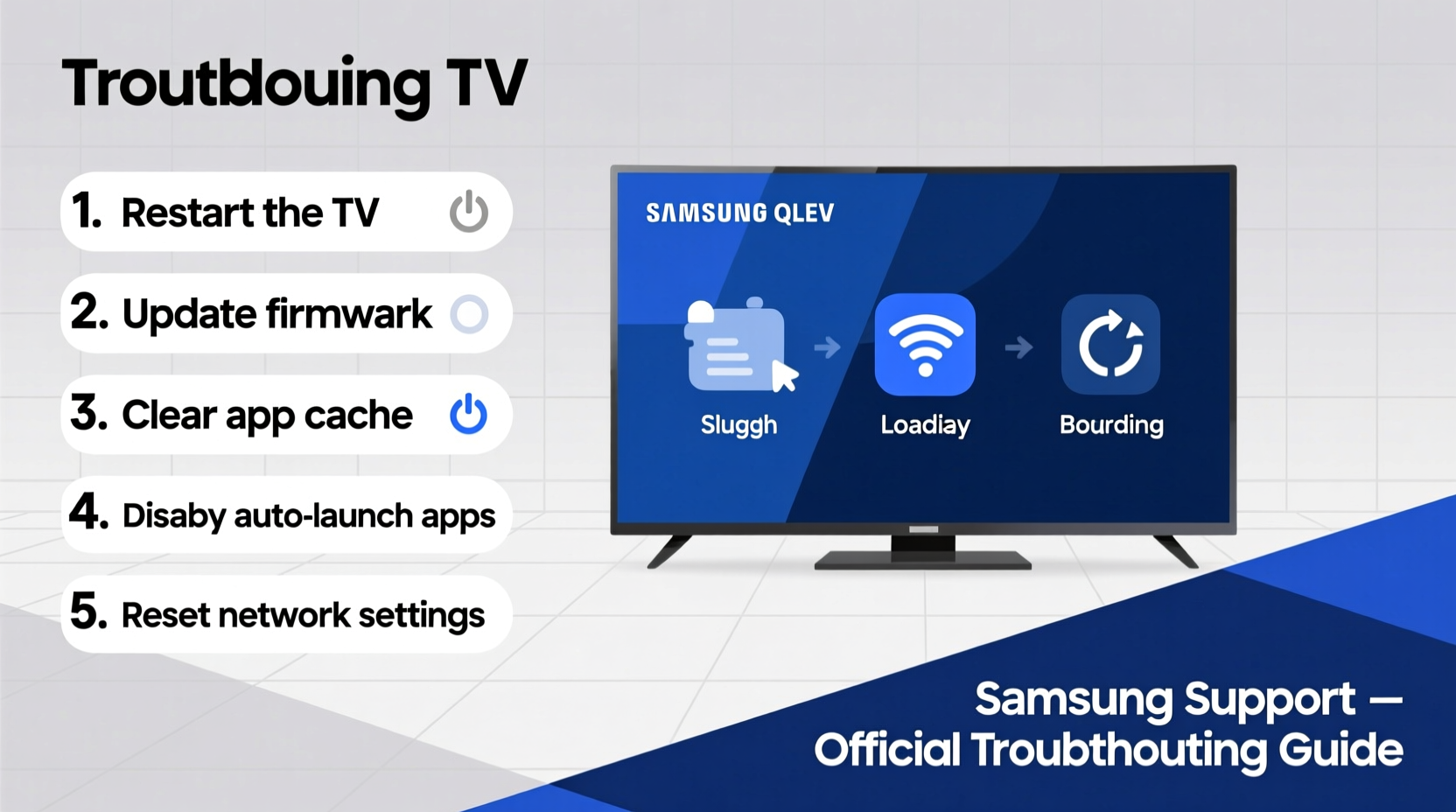
Before jumping into solutions, it's essential to understand what might be causing the sluggishness. Unlike traditional televisions, modern Samsung smart TVs run on Tizen OS, a full-fledged operating system that manages multiple background processes. Over time, this system can become bogged down by several factors:
- Too many installed apps: Each app consumes storage space and may run background services that drain system resources.
- Outdated firmware: Missing critical software updates can lead to compatibility issues and reduced efficiency.
- Full cache memory: Temporary files from streaming apps like Netflix, YouTube, or Disney+ build up and slow down operations.
- Weak or unstable internet connection: Buffering and delayed response times often stem from poor network performance.
- Hardware limitations: Older models (e.g., 2016–2018) have less RAM and slower processors, making them struggle with newer, heavier apps.
- Background apps and auto-start features: Some apps launch automatically when the TV turns on, consuming memory unnecessarily.
“Smart TVs are essentially computers with screens. Like any computer, they need regular maintenance to perform well.” — David Kim, Senior Home Tech Analyst at Consumer Insights Group
Step-by-Step Guide to Speed Up Your Samsung TV
Follow this structured troubleshooting sequence to identify and eliminate the cause of your TV’s sluggish behavior. Start with the simplest fixes before moving to more advanced options.
- Restart the TV
Hold the power button on your remote for 5 seconds to force a restart. This clears temporary glitches and resets active processes. - Check your internet speed
Go to Settings > Network > Network Status > Network Test. Ensure download speeds are above 15 Mbps for HD streaming and 25+ Mbps for 4K. - Clear app cache and data
Navigate to Settings > Apps > See All Apps. Select each major app (Netflix, YouTube, etc.), then choose “Clear Cache” and “Clear Data” if needed. - Update the TV’s software
Go to Settings > Support > Software Update > Update Now. Install any pending updates immediately. - Uninstall unused apps
Remove apps you no longer use through Settings > Apps > See All Apps > select app > Delete. - Reset Smart Hub
In Settings > Apps > Smart Hub Reset, enter your PIN (default is 0000). This refreshes the home interface without erasing personal accounts. - Perform a factory reset (last resort)
If all else fails, go to Settings > General > Reset. Enter your PIN and confirm. Note: You’ll need to reconfigure Wi-Fi and log back into apps.
Troubleshooting Checklist
Use this checklist to systematically improve your TV’s performance:
- ✅ Restart the TV using the remote’s power button
- ✅ Run a network speed test and reboot your router if needed
- ✅ Clear cache for Netflix, YouTube, Hulu, and other streaming apps
- ✅ Check for and install the latest firmware update
- ✅ Delete at least 3 unused or rarely used apps
- ✅ Disable voice assistant and motion controls (Settings > General > Accessibility)
- ✅ Reset Smart Hub to refresh the interface
- ✅ Consider factory reset if performance remains poor
Do’s and Don’ts When Fixing a Slow Samsung TV
| Action | Do | Don't |
|---|---|---|
| Updating software | Regularly check for updates monthly | Ignore update notifications |
| Managing apps | Keep only essential apps installed | Install every free app available |
| Internet connection | Use Ethernet for stable speeds | Rely solely on weak Wi-Fi signals |
| Cache management | Clear cache every 6–8 weeks | Never delete temporary files |
| Factory reset | Back up Wi-Fi passwords and accounts first | Reset without knowing your account logins |
Real-World Example: Restoring a Lagging 2017 QLED TV
Mark, a homeowner in Austin, noticed his Samsung Q7F from 2017 was taking over 30 seconds to open Netflix and frequently freezing during shows. He tried restarting the TV multiple times with little improvement. After reading about cache buildup, he accessed Settings > Apps > See All Apps, selected Netflix, and cleared both cache and data. He repeated the process for YouTube and Prime Video. Then, he checked for software updates and found a pending patch from Samsung that had been ignored for months. After installing it, the TV booted faster, and apps launched within 5 seconds. Mark also uninstalled three gaming apps he hadn’t used in over a year, freeing up internal memory. The result? A nearly new level of responsiveness without spending a dime on repairs or upgrades.
Frequently Asked Questions
How often should I clear the cache on my Samsung TV?
For optimal performance, clear the cache of your most-used apps every 6 to 8 weeks. Heavy streamers may benefit from doing it monthly, especially if they notice delays or crashes.
Will a factory reset delete my streaming account logins?
Yes. A factory reset returns the TV to its original state. While some Samsung accounts may auto-sync, you’ll likely need to manually log back into Netflix, Hulu, Disney+, and other services.
Can using an external streaming device make my old Samsung TV faster?
Absolutely. Devices like Roku Streaming Stick+, Amazon Fire Stick 4K, or Apple TV 4K offload app processing from your TV’s internal hardware. Connecting one via HDMI can dramatically improve app performance and provide access to newer interfaces.
Conclusion: Take Control of Your Viewing Experience
A slow Samsung TV doesn’t mean it’s time to replace it. In most cases, simple maintenance steps can breathe new life into your device. From routine cache clearing to strategic app management and timely software updates, the tools are already built into your TV — you just need to use them. Performance issues are rarely permanent, and with a methodical approach, you can restore smooth navigation and fast app loading. Don’t tolerate endless buffering or frozen menus any longer.




 浙公网安备
33010002000092号
浙公网安备
33010002000092号 浙B2-20120091-4
Comments
No comments yet. Why don't you start the discussion?