
Screen flickering during a Zoom call can be more than just an annoyance—it disrupts communication, affects productivity, and may signal deeper hardware or software issues. Whether you're presenting to a client, attending a team meeting, or catching up with family, a stable display is essential. The good news is that most causes of screen flickering are diagnosable and fixable without professional help. This guide breaks down the common reasons behind flickering screens on laptops during Zoom sessions and provides clear, step-by-step solutions tailored to everyday users and remote professionals alike.
Understanding the Causes of Screen Flickering
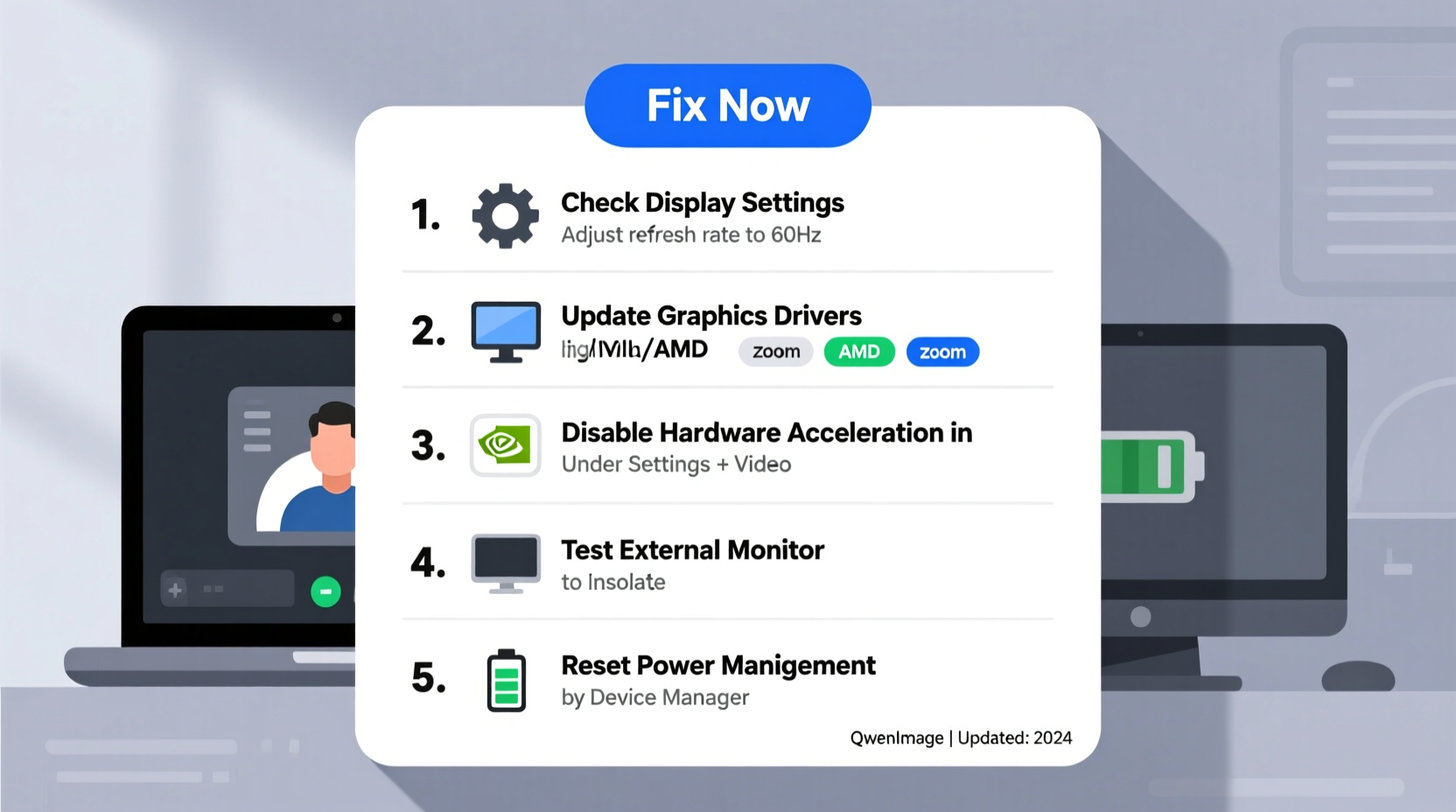
Screen flickering during Zoom calls isn’t always caused by Zoom itself. Instead, it often stems from how your system handles video processing under load. Zoom uses significant GPU and CPU resources, especially when enabling HD video, screen sharing, or virtual backgrounds. When combined with outdated drivers, incompatible software, or hardware limitations, this increased demand can destabilize your display output.
Common culprits include:
- Outdated or corrupt graphics drivers – The most frequent cause, especially after OS updates.
- Incompatible display settings – Incorrect refresh rate or resolution mismatches.
- Power-saving modes – Laptops throttling performance to conserve battery.
- Conflicts with third-party apps – Antivirus, screen filters (like f.lux), or background recording tools.
- Hardware degradation – Aging LCD panels, loose internal cables, or failing GPUs.
Pinpointing the root cause requires systematic testing—not guesswork. Start with software-based fixes before moving to hardware diagnostics.
Step-by-Step Troubleshooting Guide
Follow this structured approach to identify and resolve the flickering issue efficiently. Each step isolates potential causes and builds toward a permanent fix.
- Restart Your Laptop and Zoom App
A simple restart clears temporary glitches. Close Zoom completely, reboot your system, then relaunch Zoom. Test with a new meeting or use Zoom’s test call feature (zoom.us/test). - Update Zoom to the Latest Version
Outdated Zoom clients may have known bugs affecting display rendering. Open Zoom > click your profile picture > \"Check for Updates.\" Always install the latest stable release. - Adjust Zoom Video Settings
Reduce strain on your system:- Disable HD video: Settings > Video > uncheck “Enable HD”
- Turn off virtual backgrounds and filters
- Disable touch-up appearance and video effects
- Test in Another Browser or App
Join a Zoom meeting via browser (Chrome or Edge) instead of the desktop app. If flickering stops, the issue lies within the installed Zoom application. - Boot into Safe Mode (Windows) or Safe Boot (Mac)
This disables third-party extensions and startup programs. If flickering stops in safe mode, a background app is likely interfering.
Advanced System-Level Fixes
If basic steps don’t resolve the issue, proceed with deeper system adjustments.
Update or Reinstall Graphics Drivers
Corrupted or outdated GPU drivers are responsible for over 60% of screen flickering cases reported by IT support teams. Here’s how to update them:
On Windows:
- Press Win + X and select “Device Manager.”
- Expand “Display adapters.”
- Right-click your graphics card (e.g., Intel UHD Graphics, NVIDIA GeForce) and choose “Update driver.”
- Select “Search automatically for updated driver software.”
If no update is found, visit the manufacturer’s website:
- Intel: Intel Driver & Support Assistant
- NVIDIA: GeForce Experience
- AMD: AMD Driver Support
To reinstall, right-click the device in Device Manager and select “Uninstall device,” then restart—Windows will reinstall the default driver.
On macOS:
Graphics drivers are bundled with macOS updates. Go to Apple Menu > System Settings > General > Software Update. Install any pending updates, including security patches.
“We’ve seen a surge in flickering reports tied to delayed driver updates after major Windows 11 upgrades. Keeping GPU firmware current prevents 70% of these issues.” — Rajiv Mehta, Senior Desktop Engineer at TechSupport Labs
Optimize Display and Power Settings
Your laptop’s power plan and display configuration can directly impact screen stability during high-load tasks like video conferencing.
Adjust Refresh Rate
A mismatched refresh rate (e.g., 60Hz vs. 59.94Hz) can cause subtle flickering. To check:
- Right-click desktop > Display settings.
- Scroll down and click “Advanced display.”
- Under “Refresh rate,” ensure it’s set to the recommended value (usually 60Hz).
If multiple options appear, try switching between them to see if flickering stops.
Disable Battery Saver and Adaptive Brightness
Power-saving features can throttle GPU performance or modulate screen brightness rapidly, creating a flicker effect.
To disable on Windows:
- Go to Settings > System > Power & sleep.
- Set power mode to “Best performance.”
- Click “Additional power settings” > Change plan settings > Change advanced power settings.
- Expand “Display” > “Enable adaptive brightness” > Set to “Off” for both battery and plugged in.
On Mac:
- System Settings > Displays > uncheck “Automatically adjust brightness.”
- Ensure “Low power mode” is disabled in Battery settings.
| Setting | Recommended Value | Why It Matters |
|---|---|---|
| Refresh Rate | 60 Hz (or native panel rate) | Mismatched rates cause visual instability |
| Resolution | Native (e.g., 1920x1080) | Non-native scaling strains GPU |
| Power Mode | Best Performance / High Performance | Prevents GPU throttling |
| Brightness Control | Manual (disable auto-brightness) | Eliminates rapid brightness pulses |
Identify Software Conflicts
Third-party applications often interfere with display output. Common offenders include:
- Blue light filters (f.lux, Iris, Night Light)
- Antivirus real-time scanning during video encoding
- Screen recording or streaming software (OBS, Camtasia)
- Multiple VPN clients running simultaneously
To isolate conflicts:
- Close all non-essential apps before joining a Zoom call.
- Temporarily disable blue light filters.
- Pause antivirus scans during meetings (if policy allows).
- Use Task Manager (Ctrl+Shift+Esc) to check CPU/GPU usage. If another app spikes usage, consider uninstalling or scheduling it post-meeting.
Mini Case Study: Resolving Persistent Flickering on a Dell Latitude
Sarah, a freelance consultant using a 3-year-old Dell Latitude 7420, began experiencing screen flickering during daily client Zoom calls. The issue didn’t occur during web browsing or document work—only in Zoom. Initial troubleshooting included restarting and updating Zoom, with no success.
She tested in Safe Mode and noticed the flickering stopped. This pointed to a software conflict. After disabling her f.lux app, the flickering disappeared completely. Further investigation revealed that f.lux was forcing a color temperature shift every few seconds, which Zoom’s video engine misinterpreted as a display change, triggering a redraw loop.
Solution: Sarah switched to Windows’ built-in Night Light, scheduled to turn off during work hours. She also updated her Intel graphics driver, which included a patch for display timing conflicts. The problem has not returned in over two months.
When Hardware Might Be the Issue
If all software fixes fail, the problem may be physical. Hardware-related flickering tends to worsen over time and may present additional symptoms:
- Flickering even when idle or on the login screen
- Vertical lines, discoloration, or backlight bleeding
- Flickering only when moving the laptop lid
Possible hardware faults include:
- Loose display cable – Connects the motherboard to the screen; vibration can dislodge it.
- Failing backlight – Especially in older CCFL-backlit panels.
- Damaged LCD panel – Physical pressure or aging can degrade pixels.
- GPU failure – Rare, but possible in overheated or heavily used systems.
For users comfortable with basic repairs:
“Gently open and close the laptop lid while observing the screen. If flickering changes with movement, the display cable is likely loose.” — Lin Zhao, Field Technician, Mobile Repair Group
However, internal repairs carry risk. For most users, consulting an authorized service center is safer and preserves warranty coverage.
Troubleshooting Checklist
Use this checklist to methodically eliminate causes:
- ✅ Restart laptop and Zoom app
- ✅ Update Zoom to latest version
- ✅ Disable HD video and virtual backgrounds
- ✅ Update graphics drivers (Intel/NVIDIA/AMD)
- ✅ Set refresh rate to 60Hz (native)
- ✅ Disable f.lux, Night Light, or blue light filters
- ✅ Switch to “Best Performance” power mode
- ✅ Test in Safe Mode to rule out software conflicts
- ✅ Check for OS updates (Windows/macOS)
- ✅ Inspect for physical damage or movement-related flickering
Frequently Asked Questions
Does screen flickering damage my laptop?
Occasional flickering due to software issues does not cause physical damage. However, persistent flickering from hardware faults (e.g., failing backlight or GPU) may worsen over time and lead to complete display failure if ignored.
Why does flickering only happen during Zoom calls and not other apps?
Zoom places unique demands on your system’s video encoder, camera input, and GPU compositing. If your system is borderline capable, Zoom’s real-time processing can trigger instability that lighter apps don’t expose.
Can I fix screen flickering without technical knowledge?
Yes. Most fixes—updating Zoom, changing settings, disabling effects—require no technical skill. Only driver updates and hardware checks involve moderate complexity, and guided tutorials are widely available online.
Final Steps and Long-Term Prevention
Once the flickering stops, take preventive measures to avoid recurrence:
- Schedule monthly driver updates using manufacturer tools.
- Keep Zoom updated automatically.
- Avoid stacking multiple display-altering apps (e.g., f.lux + dark mode + night filter).
- Allow your laptop to cool between long meetings—overheating exacerbates display issues.
For organizations, consider deploying standardized Zoom configurations across employee devices to minimize variability and support overhead.
Conclusion
Screen flickering during Zoom calls is a solvable problem. By systematically addressing software settings, driver health, and environmental factors, most users can restore a smooth, professional-quality display. Don’t tolerate flickering as “just how Zoom works”—it’s a signal your system needs attention. Apply the steps in this guide, document what works, and share your findings. A stable screen means clearer communication, fewer distractions, and more confident virtual presence.




 浙公网安备
33010002000092号
浙公网安备
33010002000092号 浙B2-20120091-4
Comments
No comments yet. Why don't you start the discussion?