
Smart bulbs promise convenience, energy efficiency, and customizable lighting—but when they start flickering or disconnecting unexpectedly, the experience quickly turns frustrating. Flickering can range from a subtle, barely noticeable pulse to erratic on-off behavior that disrupts daily life. Beyond annoyance, persistent flickering may indicate deeper issues in your network, electrical system, or device compatibility. The good news? Most problems are diagnosable and fixable with the right approach. Understanding the root causes—whether it’s Wi-Fi interference, outdated firmware, or incompatible dimmer switches—empowers you to restore stability and enjoy seamless smart lighting.
Common Causes of Smart Bulb Flickering
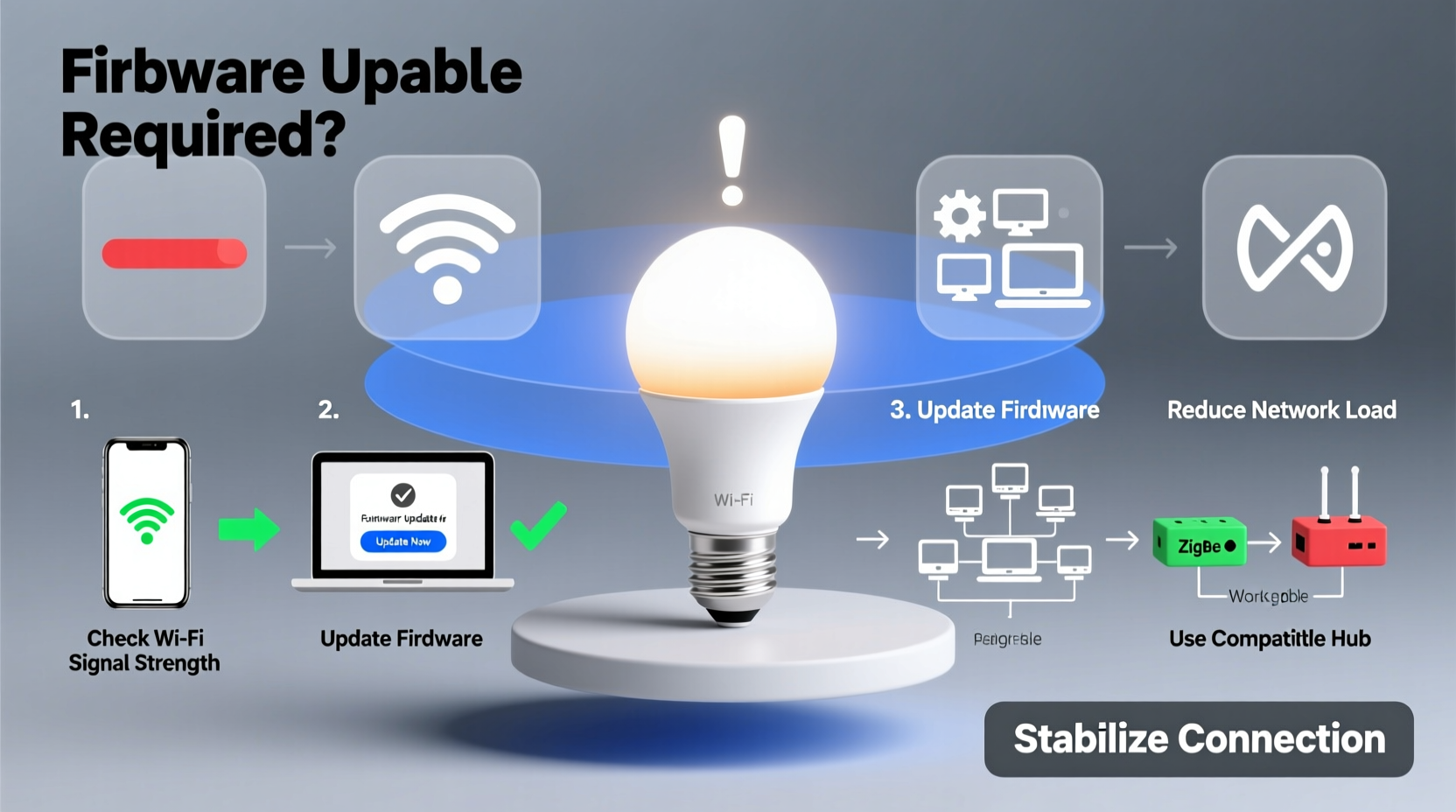
Flickering in smart bulbs isn’t always due to a faulty product. In fact, most cases stem from environmental, technical, or configuration-related factors. Identifying the source is the first step toward resolution.
- Wi-Fi Signal Instability: Smart bulbs rely on consistent wireless connectivity. If the signal is weak or interrupted, the bulb may flicker as it struggles to maintain communication with the hub or app.
- Electrical Interference: Nearby appliances like microwaves, refrigerators, or HVAC systems can emit electromagnetic noise that disrupts low-voltage signals used by smart devices.
- Incompatible Dimmer Switches: Traditional dimmers designed for incandescent bulbs often don’t work well with LED-based smart bulbs, causing flickering or inconsistent brightness levels.
- Firmware Bugs: Outdated or buggy firmware can lead to erratic behavior, including flickering, delayed responses, or disconnections.
- Overloaded Network: Too many connected devices on a single router can cause bandwidth congestion, leading to dropped signals and unstable bulb performance.
- Power Supply Fluctuations: Voltage spikes or drops in household circuits—especially in older homes—can affect sensitive electronics like smart bulbs.
Step-by-Step Guide to Diagnose and Fix Flickering
Resolving flickering requires systematic troubleshooting. Follow this timeline to isolate and correct the issue efficiently.
- Observe the Pattern: Note when the flickering happens—continuously, during commands, at night, or after power surges. This helps narrow down potential causes.
- Test the Bulb in Another Fixture: Move the bulb to a different lamp or socket. If the flickering stops, the original fixture or switch may be the culprit.
- Bypass the Dimmer Switch: Temporarily remove any dimmer switch and connect the bulb directly to a standard on/off switch. If flickering ceases, the dimmer is incompatible.
- Check Wi-Fi Signal Strength: Use a Wi-Fi analyzer app to measure signal strength at the bulb’s location. Aim for at least -70 dBm for reliable performance.
- Restart the Router and Hub: Power cycle your router, smart hub (if applicable), and all smart bulbs. Wait two minutes before reconnecting.
- Update Firmware: Open your smart lighting app (e.g., Philips Hue, LIFX, or SmartThings) and ensure all bulbs and hubs have the latest firmware installed.
- Reduce Network Load: Disconnect non-essential devices or consider setting up a dedicated 2.4 GHz network for IoT devices.
- Replace with a Compatible Dimmer: Install a trailing-edge (ELV) dimmer switch designed for LEDs if dimming functionality is required.
How to Stabilize Your Smart Bulb Connection
A stable connection is critical for responsive, flicker-free operation. While smart bulbs use various protocols—Wi-Fi, Zigbee, or Z-Wave—the principles of network health remain consistent.
For Wi-Fi bulbs, placement matters. Keep bulbs within 30 feet of the router, avoiding thick walls or metal obstructions. If multiple bulbs are located far from the router, consider using Wi-Fi extenders or mesh networks to improve coverage.
Zigbee and Z-Wave users benefit from mesh networking, where each device acts as a signal repeater. Ensure you have enough powered Zigbee devices (like smart plugs or hubs) distributed throughout the home to maintain strong signal hops.
“Mesh protocols like Zigbee are more resilient than standalone Wi-Fi devices because they create decentralized networks. One failed node doesn’t bring down the whole system.” — David Lin, IoT Network Engineer
Do’s and Don’ts: Smart Bulb Best Practices
| Do’s | Don’ts |
|---|---|
| Use LED-compatible dimmer switches if dimming is needed | Use old incandescent dimmers with smart LED bulbs |
| Keep firmware updated through the manufacturer’s app | Ignore firmware update notifications |
| Install bulbs in enclosed fixtures rated for them | Place non-rated bulbs in tightly sealed enclosures causing overheating |
| Segment IoT devices onto a separate Wi-Fi band | Run 40+ smart devices on a single 2.4 GHz consumer router |
| Test new bulbs individually before full deployment | Install multiple bulbs at once without checking compatibility |
Real-World Example: Resolving Persistent Flickering in a Living Room Setup
Sarah installed four Wi-Fi smart bulbs in her living room ceiling fixture to enable voice-controlled ambiance lighting. Within days, she noticed intermittent flickering, especially when streaming video or using the microwave. Initially suspecting defective bulbs, she replaced one under warranty—but the issue persisted.
After reading about RF interference, she used a Wi-Fi analyzer app and discovered her microwave was flooding the 2.4 GHz band during operation. Her router was also located in the basement, resulting in poor signal (-82 dBm) upstairs.
Sarah took three actions: she moved her router closer to the living room, switched her smart bulbs to a less congested Wi-Fi channel, and installed a Wi-Fi extender. She also disabled auto-updates on her streaming devices during evening hours to reduce network load. The flickering stopped entirely, and her bulbs responded instantly to voice commands.
This case illustrates how environmental factors and network management—not hardware defects—are often behind flickering issues.
Troubleshooting Checklist: Stop Flickering & Boost Stability
Use this checklist to methodically address both flickering and connection instability:
- ✅ Confirm the bulb is compatible with your fixture and switch type
- ✅ Replace any incompatible dimmer switches with LED-rated models
- ✅ Test signal strength near the bulb using a Wi-Fi analyzer app
- ✅ Restart the router, hub, and all smart bulbs
- ✅ Update firmware for bulbs and central hub via the app
- ✅ Reduce interference by relocating bulbs away from large appliances
- ✅ Consider switching to Zigbee or Z-Wave bulbs if Wi-Fi congestion persists
- ✅ Add a mesh network node or extender to improve coverage
- ✅ Factory reset the bulb and re-pair it if issues continue
- ✅ Contact manufacturer support if the bulb flickers even when hardwired correctly
FAQ: Common Questions About Smart Bulb Flickering
Can voltage fluctuations damage my smart bulbs?
Yes. While most smart bulbs have built-in surge protection, prolonged exposure to unstable voltage—common in older homes or areas with frequent power surges—can degrade internal components over time. Using a whole-home surge protector or installing bulbs on a stabilized circuit reduces risk.
Why do my smart bulbs flicker only at night?
This often occurs due to increased network traffic during evening hours. Streaming, gaming, and multiple connected devices can saturate your Wi-Fi bandwidth. Additionally, some utility companies adjust grid voltage at night, which may affect sensitive electronics. Try scheduling heavy downloads for daytime or upgrading your router’s QoS (Quality of Service) settings.
Is it safe to leave a flickering smart bulb installed?
Short-term flickering is usually not a fire hazard, but it should not be ignored. Persistent flickering may indicate electrical faults, overheating, or failing components. If the bulb emits a burning smell, becomes excessively hot, or flickers despite troubleshooting, unplug it immediately and replace it.
Expert Insight: Designing a Reliable Smart Lighting Ecosystem
According to Dr. Lena Patel, a home automation researcher at MIT’s Media Lab, “The weakest link in any smart home setup is rarely the end device—it’s the ecosystem around it. People focus on buying the latest bulb but overlook their router’s age, wall materials, or circuit quality.”
“Investing in a modern mesh router and using protocol-specific hubs (like a Philips Hue Bridge for Zigbee) dramatically improves reliability. It’s not just about fixing flickering—it’s about building resilience.” — Dr. Lena Patel, MIT Media Lab
She recommends auditing your smart home infrastructure annually: testing signal strength, updating firmware across all devices, and evaluating whether your network can handle planned expansions like security cameras or sensors.
Conclusion: Take Control of Your Smart Lighting Experience
Flickering smart bulbs are more than an inconvenience—they’re a signal that something in your environment, network, or setup needs attention. Whether it’s an outdated dimmer, a congested Wi-Fi channel, or a simple firmware update, the solutions are within reach. By applying structured diagnostics, adhering to best practices, and understanding the interplay between hardware and network conditions, you can achieve smooth, reliable performance from your smart lighting system.




 浙公网安备
33010002000092号
浙公网安备
33010002000092号 浙B2-20120091-4
Comments
No comments yet. Why don't you start the discussion?