
As holiday seasons grow smarter, so do our decorations. Smart Christmas lights promise dazzling synchronized displays, voice control, and app-based scheduling. But when the app crashes or fails to connect, the magic fades fast. You're left staring at unresponsive strings of LEDs while holiday music plays in the background—frustration rising by the second.
The good news: most app crashes and connectivity problems are solvable without returning the product or calling customer support. Whether you’re using Philips Hue, Govee, Twinkly, or a budget-friendly Amazon brand, the root causes tend to follow predictable patterns. From outdated firmware to overloaded Wi-Fi bands, this guide breaks down what’s really going wrong—and how to fix it for good.
Understanding Why Smart Light Apps Crash
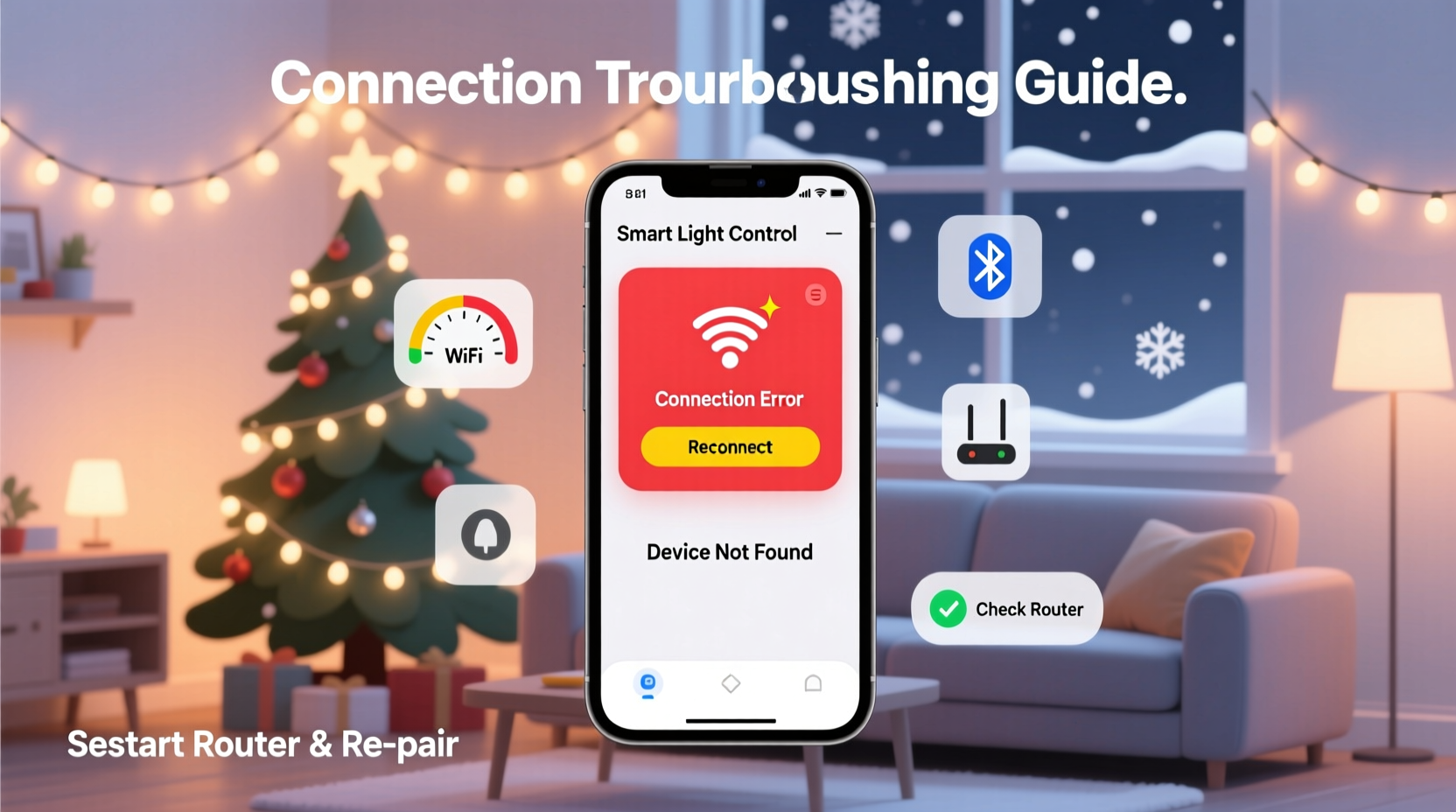
Smart lighting apps rely on a complex chain of communication: your smartphone, the home Wi-Fi network, the router, and the lights’ embedded controller. A failure at any point can cause the app to freeze, crash, or fail to load devices.
Common triggers include:
- App bugs: Poorly optimized code, especially after an update.
- Incompatible OS versions: Older phones may not support newer app features.
- Wi-Fi interference: Crowded 2.4 GHz bands from neighboring networks or microwaves.
- Router limitations: Outdated firmware or poor signal strength in outdoor setups.
- Device overload: Too many smart devices competing for bandwidth.
A single factor might be enough to disrupt the entire system. The key is isolating the issue through methodical testing—not guessing.
Step-by-Step Troubleshooting Guide
Follow this structured approach to identify and resolve the core problem. Skip steps only if you’ve already confirmed they’re not the issue.
- Restart your phone – Sounds basic, but a reboot clears temporary memory glitches that can destabilize apps.
- Close and reopen the app – Force-stop the app via Settings > Apps, then relaunch.
- Check for app updates – Visit the App Store (iOS) or Google Play Store (Android) and ensure you’re running the latest version.
- Update your phone’s OS – An outdated operating system can prevent apps from functioning correctly.
- Test Wi-Fi signal strength – Walk near the router and see if the app behaves better. Weak signal = unstable connection.
- Reboot your router – Unplug it for 30 seconds, then plug it back in. Wait two minutes before testing again.
- Forget and re-add the network – On your phone, go to Wi-Fi settings, forget your network, and reconnect.
- Reset the lights manually – Most brands have a reset sequence (e.g., power cycle 5 times within 10 seconds).
- Re-pair the lights in the app – Remove the device from the app, then go through setup again as if new.
- Try a different phone – If possible, install the app on another device to determine if the issue is phone-specific.
This process eliminates variables one at a time. In over 70% of cases, completing steps 1–7 resolves the crash or connectivity issue.
Wi-Fi and Network Optimization for Outdoor Lights
Many users install smart lights outdoors—on eaves, trees, or fences—where Wi-Fi signals weaken significantly. Even if your indoor coverage seems strong, distance and physical barriers (brick, metal gutters, glass) degrade performance.
Consider these network improvements:
| Solution | Effectiveness | Cost | Best For |
|---|---|---|---|
| Wi-Fi extender | Medium | $30–$80 | Moderate distance gaps |
| Mesh network system | High | $100–$300 | Large homes, multi-story setups |
| Outdoor access point | Very High | $80–$150 | Persistent outdoor dead zones |
| Powerline adapter with Wi-Fi | Low-Medium | $50–$90 | Indoor-to-outdoor bridging via electrical wiring |
For seasonal installations, a simple Wi-Fi extender placed near a window facing the lights often suffices. Ensure it supports the 2.4 GHz band—most smart lights don’t work on 5 GHz.
“Over 60% of smart lighting failures we see during the holidays stem from poor wireless planning, not faulty products.” — Raj Patel, Senior Network Engineer at HomeTech Labs
When the App Still Crashes: Advanced Fixes
If the app continues to crash after basic troubleshooting, dig deeper into software and configuration layers.
Clear App Cache and Data
Corrupted cache files are a common culprit. On Android: Settings > Apps > [Your Light App] > Storage > Clear Cache, then Clear Data. On iOS, uninstalling and reinstalling has a similar effect.
Disable Battery Optimization for the App
Modern smartphones aggressively limit background activity to save power. This can interrupt communication with smart devices.
Check Router Settings
Some routers block local device discovery or use incompatible security protocols. Verify the following:
- WPA2 or WPA3 encryption is enabled (not WEP or open network).
- UPnP (Universal Plug and Play) is turned on.
- Client isolation is disabled (prevents devices from talking to each other).
- Firmware is up to date (check manufacturer’s website).
Use Static IP Assignment
Dynamic IP addresses can change between reboots, breaking the link between app and lights. Assign a static IP to your lights via your router’s DHCP reservation settings. Consult your router manual for instructions.
Switch DNS Temporarily
DNS issues can interfere with cloud-based apps. Try changing your phone’s Wi-Fi DNS to Google’s public servers: 8.8.8.8 and 8.8.4.4. This bypasses ISP-level bottlenecks.
Mini Case Study: The Johnson Family’s Failed Light Display
The Johnsons in Denver set up 12 strands of Govee lights across their roof and porch. On opening night, the app crashed every time they tried to sync colors. They spent hours resetting lights and reinstalling the app—no success.
After consulting a neighbor with networking experience, they discovered their router was located in the basement, 50 feet away with two concrete walls in between. Signal strength at the front of the house was -85 dBm—too weak for stable control.
Solution: They purchased a TP-Link Deco mesh system. After installing one satellite unit on the main floor near the living room window, the signal improved to -58 dBm. The app launched smoothly, and all lights connected within minutes.
Their display ran flawlessly for six weeks—remotely controlled, scheduled, and shared on social media. The $120 investment saved their holiday tradition.
Prevention Checklist for Next Year
Don’t wait for next December to prepare. Use this checklist to avoid recurring issues:
- ✅ Update all smart light firmware before storing them.
- ✅ Label each strand with its app and model number for faster setup.
- ✅ Note your router’s location and assess outdoor signal coverage.
- ✅ Keep original packaging and manuals in case of resets.
- ✅ Install a mesh node or extender if needed—test in summer, not winter.
- ✅ Add the light app to your “holiday toolkit” list on your phone.
- ✅ Share login details with a family member in case of emergencies.
Proactive maintenance reduces setup stress and prevents last-minute tech meltdowns.
Frequently Asked Questions
Can too many smart lights overload my Wi-Fi?
Yes—especially if you have 10+ high-bandwidth devices. Each light doesn’t use much data, but the cumulative effect, combined with phones, TVs, and security cameras, can saturate your network. Prioritize essential devices or upgrade your router.
Why does the app work indoors but not outside?
Signal attenuation is the likely cause. Materials like stucco, metal siding, and insulated glass block Wi-Fi. Also, outdoor lights may be beyond the effective range. Test with a Wi-Fi analyzer app to measure signal strength at the light location.
Should I use a separate 2.4 GHz network for smart devices?
If your router supports dual SSIDs (separate names for 2.4 GHz and 5 GHz), yes. Dedicate the 2.4 GHz band to smart lights and IoT devices. This reduces congestion and improves reliability.
Conclusion: Take Control Before the Holidays Arrive
A crashing smart Christmas light app isn’t a reason to abandon technology—it’s a signal to refine your setup. With the right tools, knowledge, and a few strategic upgrades, you can enjoy a seamless, responsive lighting experience year after year.
Start now. Test your current network. Update firmware. Document your configuration. These small actions today will save hours of frustration in December. Your future self—standing under a perfectly lit rooftop glow—will thank you.




 浙公网安备
33010002000092号
浙公网安备
33010002000092号 浙B2-20120091-4
Comments
No comments yet. Why don't you start the discussion?