
As the holiday season approaches, millions of households turn to smart Christmas lights for synchronized displays, color-changing effects, and remote control convenience. But nothing disrupts the festive mood faster than a sluggish app—lights that respond late, fail to sync, or disconnect entirely. If you’ve found yourself tapping commands only to wait 10 seconds (or more) for a reaction, you’re not alone. App lag in smart lighting systems is a widespread issue rooted in network conditions, device limitations, and software inefficiencies. The good news: most causes are fixable with the right approach.
Understanding the Root Causes of Smart Light App Lag
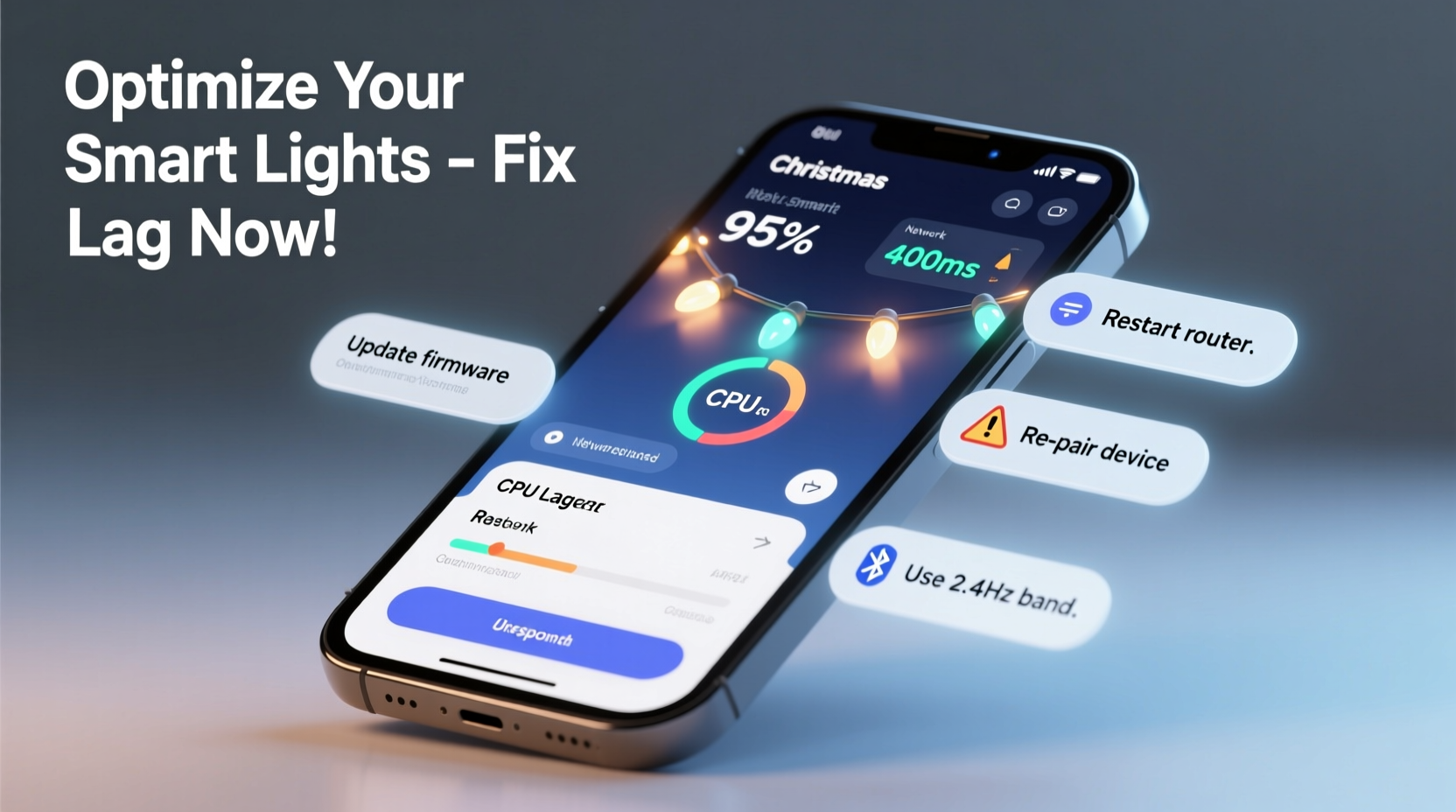
Smart Christmas lights rely on a chain of technologies working in harmony: your smartphone, the companion app, your home Wi-Fi network, and the lights themselves. When one link falters, the entire system slows down. Latency—the delay between command and action—is often mistaken as an “app problem,” but it’s rarely that simple.
Modern smart lights connect via Wi-Fi, Bluetooth, Zigbee, or proprietary protocols like LIFX or TP-Link’s Kasa Connect. Each has different bandwidth demands and range capabilities. For example, Wi-Fi-based lights stream data-heavy commands such as music synchronization or gradient animations. These require consistent throughput. If your router struggles during peak usage hours—say, when streaming video or multiple devices are online—your lights may suffer.
Additionally, many users overlook the processing power of their phone. Older smartphones or those running background-intensive apps can’t render complex interfaces quickly, leading to perceived lag even if the network is stable. Similarly, outdated firmware in the lights themselves can cause miscommunication or dropped signals.
“Latency in smart lighting isn’t just about internet speed—it’s about signal integrity, device load, and protocol efficiency.” — Dr. Alan Reyes, IoT Systems Engineer at the University of Michigan
Step-by-Step Guide to Diagnose and Fix App Lag
Before investing in new hardware, follow this systematic troubleshooting process to identify and resolve the root cause.
- Test Network Speed Near the Lights
Use a speed test app on your phone while standing where the lights are installed. Aim for at least 10 Mbps download and 5 Mbps upload. If speeds are low, the issue may be distance from the router or interference. - Check Signal Strength (RSSI)
On Android, use apps like WiFi Analyzer; on iOS, enable developer mode to view signal strength in dBm. Anything below -70 dBm indicates poor reception. Move closer to the router or consider a mesh extender. - Restart All Devices
Power cycle your router, smart lights, and smartphone. This clears temporary glitches and resets connection states. Wait two minutes after turning off before powering back on. - Update Firmware and App
Open your smart light manufacturer’s app and check for updates under Settings > Device Info. Also update the app via Google Play or App Store. Outdated software is a common culprit. - Reduce Network Congestion
Disconnect unused devices from Wi-Fi. Schedule heavy downloads or streaming for off-peak times. Consider placing smart lights on a separate 2.4 GHz band if your router supports dual-band.
Optimizing Your Home Network for Smart Lighting
Your Wi-Fi setup plays a decisive role in app responsiveness. Most smart Christmas lights operate on the 2.4 GHz frequency because it travels farther than 5 GHz, though it’s slower and more prone to interference. However, congestion from neighboring networks, cordless phones, or baby monitors can degrade performance.
To minimize interference:
- Change your Wi-Fi channel to 1, 6, or 11—these are non-overlapping and less crowded.
- Use Quality of Service (QoS) settings on your router to prioritize traffic to your smart lights.
- If possible, assign a static IP to your lights so they don’t lose connection during DHCP renewals.
For larger displays—more than 50 bulbs or multi-zone setups—consider upgrading to a mesh Wi-Fi system. Brands like Google Nest Wifi, Eero, or Netgear Orbi provide seamless coverage and better device management. Mesh systems dynamically route signals around obstacles and balance loads across nodes.
Do’s and Don’ts of Network Setup for Smart Lights
| Do | Don’t |
|---|---|
| Use 2.4 GHz band for long-range outdoor lights | Place lights behind large metal objects or dense trees |
| Enable QoS and prioritize IoT devices | Run too many high-bandwidth tasks simultaneously |
| Install a Wi-Fi extender or mesh node nearby | Use old routers with outdated firmware |
| Group lights into zones to reduce per-command load | Control all lights individually in a massive display |
Device and App Optimization Techniques
Even with perfect network conditions, lag can persist due to suboptimal device settings. Your smartphone’s battery-saving features, for instance, may throttle background processes—including communication with smart devices. On both iOS and Android, ensure the smart light app is exempted from power optimization.
On Android:
- Go to Settings > Apps > [Your Smart Light App]
- Select Battery > Battery Optimization
- Choose “Don’t optimize”
On iPhone:
- Settings > [App Name]
- Ensure Background App Refresh is enabled
- Keep Location Services set to “While Using” or “Always” if required
Also, clear the app cache periodically. Over time, cached data can corrupt or bloat, slowing performance. In Android, go to App Settings > Storage > Clear Cache. On iOS, uninstalling and reinstalling the app achieves the same result.
Avoid using third-party launchers or task killers—they can interfere with persistent connections. Instead, keep the app open in the background when actively managing lights.
Real-World Case: The Holiday Display That Wouldn’t Sync
Mark T., a homeowner in Colorado, spent weeks setting up a 300-bulb animated display synced to holiday music. But every time he triggered a sequence, the lights responded 5–7 seconds late. Frustrated, he assumed his $200 lights were defective.
After testing, he discovered his garage-mounted string was operating at -82 dBm signal strength—far below reliable levels. His router was inside the house, separated by two brick walls. He moved a Google Nest Mini (which doubles as a mesh point) into the garage, boosting signal to -62 dBm. He also updated the Govee app and disabled battery saver on his phone.
Result: Response time dropped to under 1 second. The display now runs smoothly during nightly shows watched by dozens of neighbors.
This case illustrates how environmental factors outweigh device quality. Even premium lights fail without proper infrastructure.
Advanced Fixes: Firmware, Protocols, and Alternative Control Methods
If basic fixes don’t work, consider deeper technical adjustments. Many users aren’t aware that smart lights can support alternative control methods beyond apps:
- Voice Assistants: Use Alexa or Google Assistant routines. Voice commands often trigger faster than app taps because they bypass the GUI layer.
- IFTTT or Home Assistant: Automate sequences using webhooks. These run independently of your phone and can execute with millisecond precision.
- Scheduling: Pre-program daily routines (e.g., “On at 5 PM, Off at 10 PM”). Scheduled commands run locally and don’t depend on real-time app input.
Some manufacturers release beta firmware with performance improvements. Check forums like Reddit’s r/smartlights or official support pages for early access. Flashing custom firmware carries risk, but for advanced users, tools like ESPHome (for compatible ESP8266-based lights) offer superior control and reduced latency.
Checklist: Improve Smart Light App Response Time
- ✅ Test Wi-Fi speed and signal strength near the lights
- ✅ Restart router, lights, and phone
- ✅ Update app and light firmware
- ✅ Disable battery saver for the app
- ✅ Use 2.4 GHz network; avoid 5 GHz for outdoor strings
- ✅ Install a Wi-Fi extender or mesh node if needed
- ✅ Reduce number of connected devices during shows
- ✅ Group lights into manageable zones
- ✅ Enable QoS and prioritize IoT traffic
- ✅ Consider voice or automation triggers instead of manual app use
Frequently Asked Questions
Why do my smart lights work fine one day and lag the next?
Fluctuations in Wi-Fi performance—due to neighbor network changes, weather affecting signal propagation, or increased household device usage—can cause inconsistent behavior. Also, automatic firmware updates sometimes introduce bugs that are later patched.
Can too many smart lights overload my network?
Yes. While each bulb uses minimal bandwidth, large arrays (100+ bulbs) sending real-time animation data can saturate a weak router. A general rule: avoid exceeding 50% of your router’s capacity with IoT devices. Upgrade to a gigabit-capable router if running extensive displays.
Is Bluetooth worse than Wi-Fi for smart Christmas lights?
Bluetooth has shorter range and supports fewer devices, making it less ideal for large or outdoor setups. However, it consumes less power and avoids Wi-Fi congestion. Hybrid models (like Govee H6159) use Wi-Fi for setup and Bluetooth for quick controls, balancing speed and reliability.
Final Thoughts: Enjoy Smooth, Responsive Holiday Lighting
Smart Christmas lights should enhance joy, not create frustration. App lag is rarely a single-point failure—it’s the result of overlapping factors in your ecosystem. By methodically addressing network health, device settings, and usage patterns, you can achieve near-instantaneous response and flawless synchronization.
The holiday season is short. Don’t spend it waiting for pixels to change color. Apply these strategies now—test your signal, update your firmware, optimize your phone—and reclaim the magic of responsive, vibrant lighting. Whether you’re hosting a family gathering or delighting the neighborhood, a smooth-running display makes all the difference.




 浙公网安备
33010002000092号
浙公网安备
33010002000092号 浙B2-20120091-4
Comments
No comments yet. Why don't you start the discussion?