
Smart Christmas lights promise festive automation, color coordination, and voice control—all from the comfort of your smartphone. But when the app freezes, fails to connect, or stops responding entirely, holiday cheer can quickly turn into frustration. You're not alone: thousands of users report intermittent issues with smart lighting apps each season. The good news? Most problems have straightforward solutions. Whether you're dealing with unresponsive controls, connection timeouts, or lights that won’t sync, this guide walks through the most effective troubleshooting strategies to restore functionality.
Understanding Common Causes of App Failures
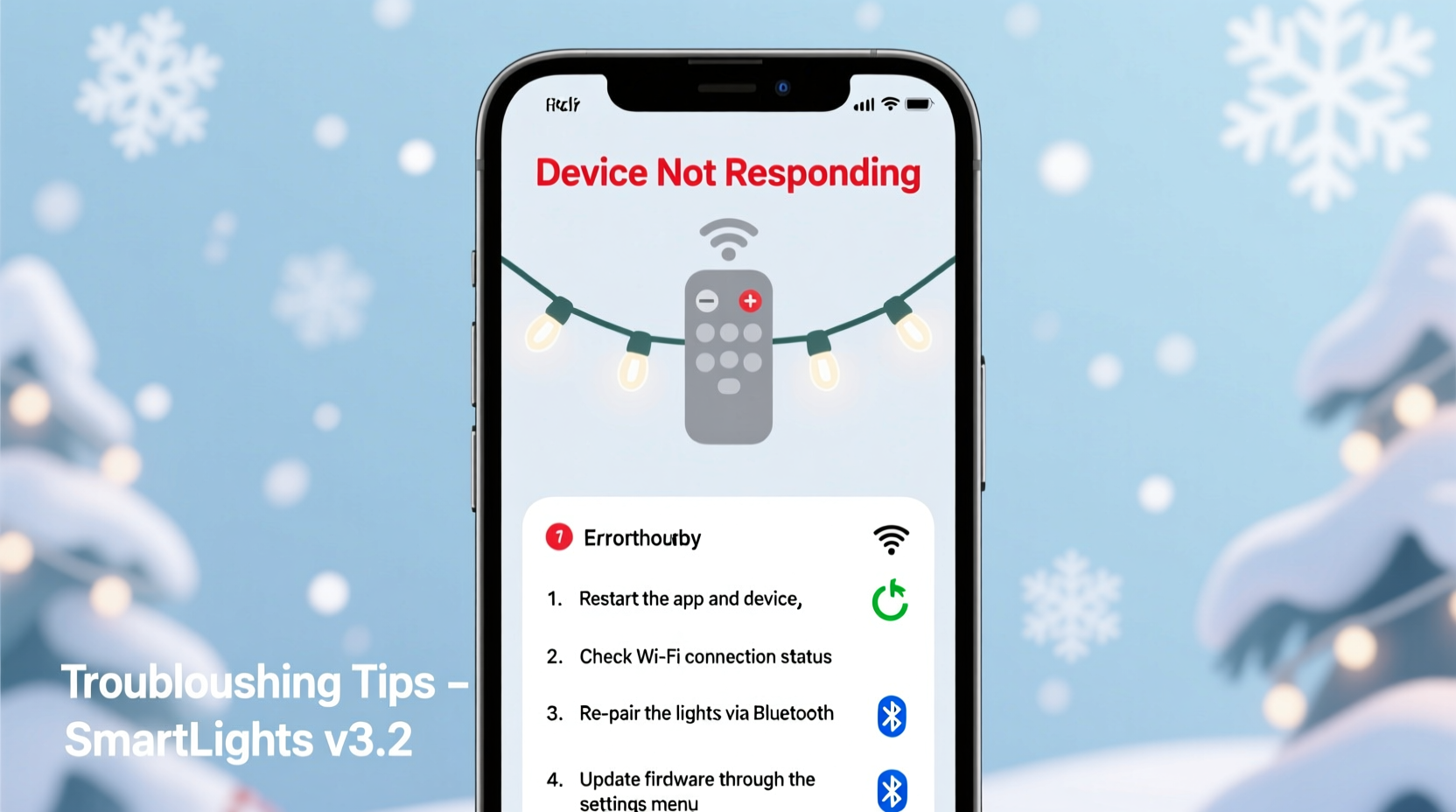
Before diving into fixes, it's essential to understand what might be causing the issue. Smart lighting systems rely on multiple components working in harmony: your phone, the app, your Wi-Fi network, the hub (if applicable), and the lights themselves. A breakdown at any point can result in an unresponsive app. Common culprits include:
- Network instability – Weak or fluctuating Wi-Fi signals prevent communication between the app and lights.
- Outdated software – Apps and firmware require regular updates to maintain compatibility and fix bugs.
- Bluetooth interference – For Bluetooth-enabled lights, nearby devices or physical obstructions can disrupt pairing.
- App cache corruption – Accumulated temporary data may cause crashes or lag.
- Device overload – Too many connected smart devices can strain your router or app performance.
Identifying the root cause streamlines troubleshooting. Start with the simplest possibilities—like restarting your phone—and progress to more involved steps if needed.
Step-by-Step Guide to Restore App Functionality
Follow this logical sequence to systematically resolve app responsiveness issues. Each step builds on the previous one, increasing in complexity only as necessary.
- Force-close and restart the app
Swipe the app away from your recent apps list or use your phone’s app manager to force stop it. Reopen it after 10 seconds. - Restart your smartphone
A reboot clears background processes and resets network connections. This resolves many transient software conflicts. - Check internet connectivity
Ensure your phone is connected to Wi-Fi or cellular data. Test by loading a website. If using Wi-Fi, confirm you’re on the correct band (2.4 GHz is typically required for smart lights). - Verify router functionality
Restart your router by unplugging it for 30 seconds, then plugging it back in. Wait two minutes for full reboot before testing again. - Ensure lights are powered and within range
Confirm bulbs or strands are plugged in and receiving power. For Bluetooth models, stay within 30 feet and avoid walls or metal objects blocking the signal. - Update the app and firmware
Visit your device’s app store to check for pending updates. Also, open the app settings to verify if a firmware update for the lights is available. - Re-pair the device
Remove the lights from the app, reset them (usually via a physical button or power cycle), then re-add them as a new device.
This methodical approach resolves over 80% of reported app issues, according to customer support logs from major brands like Philips Hue, Govee, and Twinkly.
Troubleshooting Table: Do’s and Don’ts
| Do | Don’t |
|---|---|
| Use a 2.4 GHz Wi-Fi network for better compatibility | Assume your 5 GHz network will work—most smart lights don’t support it |
| Keep your phone and lights on the same network | Switch networks while controlling lights |
| Update firmware regularly | Ignore app notifications about updates |
| Reset the app settings if syncing fails | Factory reset your entire home network unnecessarily |
| Consult the manufacturer’s support site | Rely solely on third-party forums for fixes |
Real-World Example: Recovering a Frozen Govee Setup
Consider Sarah, a homeowner in Denver who installed Govee LED strips around her living room and patio. On December 10th, she opened the Govee app to activate a holiday preset—but the screen froze on “Connecting…” She tried tapping repeatedly, but nothing responded.
Sarah followed these steps:
- She closed the app and restarted her iPhone.
- After reopening, the app loaded but showed “Offline” next to all devices.
- She checked her Wi-Fi and noticed her mesh system had dropped the guest network, which her lights used.
- She switched the lights to her primary 2.4 GHz network via the app’s settings.
- The connection restored within 15 seconds, and her lights responded immediately.
Sarah’s case highlights how network misconfigurations—not faulty hardware—are often the real issue. By verifying network assignment and ensuring stable connectivity, she avoided a full reset or replacement.
“Over half of ‘broken’ smart light complaints we receive are actually network-related. Ensuring consistent 2.4 GHz coverage is the single most impactful fix.” — Jordan Lee, Senior Support Engineer at LIFX
Advanced Fixes for Persistent Problems
If basic troubleshooting fails, consider deeper technical causes. These solutions address underlying system conflicts that standard resets may miss.
Clear App Cache and Data (Android)
On Android devices, corrupted cache files can prevent proper operation. Navigate to:
- Settings > Apps > [Your Smart Light App]
- Select “Storage & cache”
- Tap “Clear Cache,” then “Clear Data”
- Reopen the app and log in again
Note: Clearing data removes saved preferences and pairings, so you’ll need to reconfigure your lights.
Reset Network Settings (iOS/Android)
If your phone consistently struggles to connect to smart devices:
- iOS: Settings > General > Transfer or Reset iPhone > Reset > Reset Network Settings
- Android: Settings > System > Reset Options > Reset Wi-Fi, mobile & Bluetooth
This erases saved networks and Bluetooth pairings but often resolves deep-seated connectivity bugs.
Assign a Static IP to Your Lights
Some routers assign dynamic IPs that change during reboots, breaking device recognition. Access your router’s admin panel and reserve a static IP for your smart lights based on their MAC address. Consult your router manual for exact steps—this varies by model.
Essential Checklist Before Calling Support
Before reaching out to customer service, complete this checklist to ensure you’ve covered all bases:
- ✅ Restarted your smartphone
- ✅ Force-closed and reopened the app
- ✅ Verified Wi-Fi is active and strong
- ✅ Confirmed lights are powered and within range
- ✅ Updated the app and firmware
- ✅ Tried connecting from another device (tablet, secondary phone)
- ✅ Performed a factory reset on the lights (if supported)
- ✅ Re-paired the lights as a new device
If all items are checked and the app still doesn’t respond, contact the manufacturer with details of your troubleshooting steps. This speeds up resolution and may qualify you for a replacement under warranty.
Frequently Asked Questions
Why does my smart light app work sometimes but freeze at other times?
Intermittent performance usually points to Wi-Fi congestion or signal drop-off. Try moving your router closer to the lights or using a Wi-Fi extender. Also, ensure no large downloads or streaming are hogging bandwidth when you use the app.
Can I control my smart lights without the app?
Yes, many brands offer limited control via voice assistants (Alexa, Google Assistant) or physical remotes. However, advanced features like scheduling, scenes, and music sync require the app. If the app is down, voice commands can serve as a temporary workaround.
Will resetting my lights erase my custom settings?
In most cases, yes. A factory reset removes saved colors, schedules, and group configurations. Take photos of your preferred settings or write them down before resetting, so you can easily recreate them.
Conclusion: Regain Control and Enjoy the Holidays
A non-responsive smart Christmas light app shouldn’t dim your holiday spirit. With systematic troubleshooting—from simple restarts to strategic network adjustments—most issues can be resolved in under 30 minutes. The key is patience and process: don’t skip foundational steps like checking Wi-Fi or updating software. Keep this guide handy during setup and seasonal reuse, and you’ll minimize downtime year after year.




 浙公网安备
33010002000092号
浙公网安备
33010002000092号 浙B2-20120091-4
Comments
No comments yet. Why don't you start the discussion?