
Smart Christmas lights bring convenience, customization, and festive flair to holiday décor. With app control, scheduling, and dynamic color effects, they elevate seasonal displays. But when a firmware update goes live, some users report unexpected issues—most commonly, colors appearing incorrect or inconsistent across strands. A red might look pink, blue may shift toward purple, or entire sections fail to respond to commands. If you’re asking, “Why is my smart Christmas light color off after updates?” you're not alone. This issue stems from software glitches, calibration errors, or communication breakdowns between devices and apps. The good news: most problems are fixable with proper resets, recalibration, and troubleshooting.
Why Firmware Updates Can Disrupt Smart Light Colors
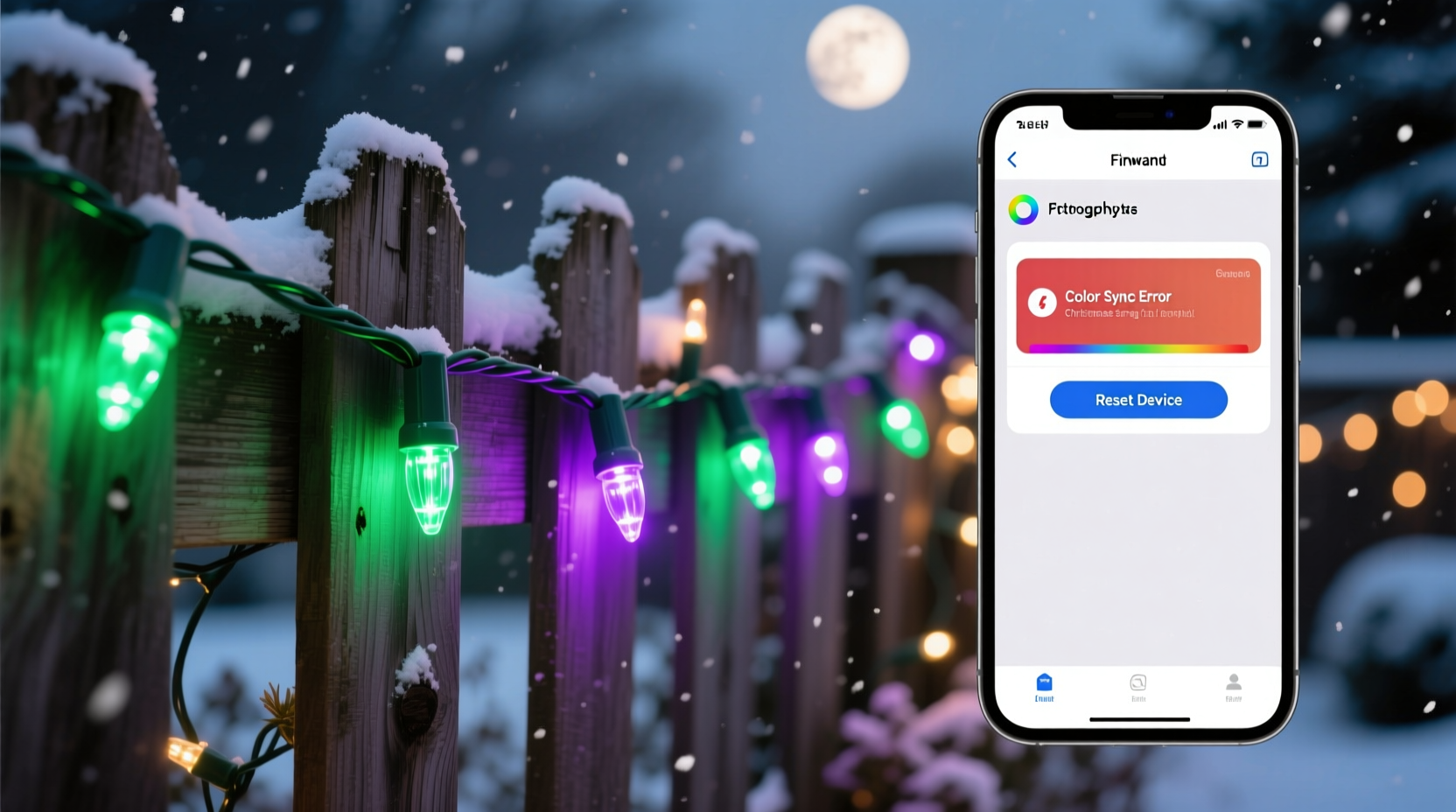
Firmware updates for smart lighting systems aim to improve performance, patch security vulnerabilities, or add new features. However, these updates can sometimes interfere with existing configurations. When a manufacturer pushes a new version, it may alter how color data is interpreted by the controller chip inside each light strand. This mismatch often results in inaccurate hues, especially if the update includes changes to RGB value mapping or brightness scaling.
Additionally, many smart lights rely on precise timing signals sent through pulse-width modulation (PWM) to control individual LEDs. A firmware change that modifies signal timing—even slightly—can throw off synchronization, causing color shifts or flickering. In some cases, the update may reset factory defaults, erasing custom color profiles or white balance settings that were previously fine-tuned.
“Firmware updates are essential but can introduce unintended side effects, particularly in older hardware models not fully optimized for new code.” — Daniel Reeves, Embedded Systems Engineer at LumiTech Innovations
Another factor is device fragmentation. Not all smart lights on the market use the same chipset or communication protocol. Brands like Philips Hue, Govee, Twinkly, and LIFX each have proprietary systems. An update designed for one model may behave differently on another, even within the same product line. Users with mixed batches or older-generation strings are more likely to experience inconsistencies post-update.
Common Causes of Color Inaccuracy After an Update
Understanding the root cause helps determine the right solution. Below are the most frequent reasons smart Christmas lights display incorrect colors after a software update:
- Color profile reset: Factory settings overwrite customized white points or hue preferences.
- RGB calibration drift: LED drivers misinterpret color values due to updated firmware logic.
- Controller sync failure: Multiple controllers or zones lose alignment after rebooting.
- App-to-device communication lag: The mobile app sends correct commands, but the light’s microcontroller fails to execute them accurately.
- Damaged or aging LEDs: Older bulbs degrade over time, changing how they emit light—this becomes more noticeable after a reset.
Step-by-Step Guide to Resetting Your Smart Christmas Lights
A full reset often resolves color inaccuracies caused by corrupted data or failed updates. Follow this universal procedure, adjusting slightly based on brand-specific requirements.
- Power down completely: Unplug the light strand from the outlet. Wait at least 30 seconds to allow capacitors to discharge and memory to clear.
- Remove from app (if applicable): Open your smart lighting app (e.g., Govee Home, LIFX, Twinkly), go to device settings, and delete the affected light(s).
- Perform a hard reset: Plug the lights back in and initiate a reset sequence. This varies by brand:
- Govee: Turn power on/off five times rapidly (within 10 seconds).
- LIFX: Power cycle three times quickly while watching for flashing patterns.
- Twinkly: Hold physical button (if available) for 10+ seconds until lights flash red/green.
- Reconnect via app: Launch the app, start setup mode, and re-pair the lights as if new. Ensure Wi-Fi or Bluetooth connection is stable.
- Recalibrate colors: Use built-in calibration tools or manually adjust RGB sliders to restore accurate tones.
- Test multiple scenes: Run preset modes like “Warm White,” “Rainbow Fade,” and static colors to confirm consistency.
If the problem persists after resetting, consider updating the app itself—sometimes outdated apps fail to communicate correctly with newly updated firmware.
Troubleshooting Table: Diagnose & Fix Common Issues
| Issue | Possible Cause | Solution |
|---|---|---|
| One section shows wrong color | Signal interruption in daisy-chained setup | Check connections; replace faulty segment |
| All whites appear blue or yellow | White balance reset during update | Use app's white calibration feature |
| Lights unresponsive after update | Incomplete firmware installation | Hard reset and retry update |
| Colors correct in app preview but wrong on lights | LED driver firmware mismatch | Contact support for firmware rollback option |
| Only certain colors work | Dead channel (R, G, or B) in LED strip | Replace damaged section or retire strand |
Mini Case Study: Recovering a Post-Update Display Failure
Mark, a homeowner in Denver, installed two sets of Govee Wi-Fi LED strips around his porch in November. Both strands matched perfectly—crisp reds, deep greens, and warm whites. After a December firmware update pushed automatically, he noticed the second strand turned noticeably cooler, making reds appear orange and whites take on a bluish tint. He tried adjusting the app settings but saw no improvement.
Following online advice, Mark deleted both devices from the Govee app, unplugged them for a full minute, then powered them back on. He watched for the blinking pattern indicating reset mode. Once both flashed green twice, he re-added them individually. During setup, he used the “Color Calibration” tool under advanced settings, selecting “Match First Strip” to ensure uniformity. After re-syncing his holiday schedule, the lights returned to perfect harmony.
This case illustrates how a simple reset combined with calibration tools can resolve firmware-related discrepancies without requiring replacement hardware.
Expert Tips for Preventing Future Color Shifts
Maintaining long-term accuracy requires proactive care. Here are proven strategies to minimize disruptions after future updates.
- Delay automatic updates: Disable auto-updates in your app temporarily. Review changelogs first and wait for user feedback before applying.
- Back up scenes manually: Take screenshots of RGB values or save favorite themes in notes outside the app.
- Group similar batches: Avoid mixing different manufacturing runs in the same display zone—they may calibrate differently.
- Use surge protectors: Sudden power spikes during updates can corrupt firmware. Stable voltage protects sensitive electronics.
- Monitor community forums: Sites like Reddit’s r/smartlights or brand-specific Facebook groups often report bugs before official channels do.
When to Contact Support or Replace the Lights
Not all issues are solvable at home. If you’ve completed a full reset, reinstalled the app, ensured strong network connectivity, and still see persistent color distortion, the problem may be hardware-based. Signs include:
- One color channel (red, green, or blue) not working across multiple segments
- Flickering only in specific areas despite reset
- Failure to enter pairing or reset mode
- Overheating near controller box
In such cases, contact the manufacturer’s customer service. Many brands offer limited warranties covering defects and premature failures. Provide photos, firmware version, and steps already taken. Some companies may send replacement parts or issue refunds for defective units.
“We replaced a full set under warranty after confirming the controller chip was incompatible with v2.7 firmware. Their support team made it easy.” — Lisa Tran, verified buyer of Twinkly Mini Lights
Frequently Asked Questions
Can I roll back to an older firmware version?
Some brands allow firmware rollback through advanced settings or desktop tools, though this isn’t common in consumer apps. Check the manufacturer’s website or developer documentation. Note: Rolling back may disable new features or create security risks.
Why do my lights look different at night versus daytime?
Perceived color varies with ambient light. What looks balanced indoors may seem off outdoors. Always test displays under actual viewing conditions. Also, human eyes adapt to low light, making blues appear brighter at night.
Do all smart lights need Wi-Fi to function properly?
No. While Wi-Fi enables remote control and automation, basic functions like preset modes or IR remotes (if equipped) work offline. However, firmware updates typically require internet access.
Final Checklist Before Reinstalling
Before assuming your lights are broken, run through this final verification list:
- ✅ Power cycled the lights (unplugged for 30+ seconds)
- ✅ Deleted device from app and re-paired
- ✅ Performed hard reset using correct button/pattern sequence
- ✅ Updated mobile app to latest version
- ✅ Tested on a different circuit or outlet
- ✅ Verified Wi-Fi signal strength near lights (minimum -70 dBm)
- ✅ Calibrated white and primary colors using app tools
- ✅ Checked for physical damage or moisture exposure
Conclusion
Smart Christmas lights enhance holiday magic—but technical hiccups shouldn't dim the spirit. Firmware updates occasionally disrupt color accuracy due to calibration resets, signal mismatches, or compatibility gaps. By understanding the causes and following systematic reset procedures, most users can restore perfect color fidelity. Proactive habits like delaying automatic updates, labeling batches, and backing up settings reduce future risks. When troubleshooting fails, don’t hesitate to reach out to manufacturer support—many stand behind their products with responsive service.




 浙公网安备
33010002000092号
浙公网安备
33010002000092号 浙B2-20120091-4
Comments
No comments yet. Why don't you start the discussion?