
As the holiday season approaches, a smart Christmas tree can elevate your festive experience—offering synchronized lights, music integration, and remote control via smartphone. But when the companion app fails to connect, the magic quickly fades. You're left tapping refresh, restarting devices, and wondering why technology won’t cooperate at the most inconvenient time. The good news: most connectivity issues are fixable with systematic troubleshooting. Whether your app isn't detecting the tree, keeps timing out, or shows an error upon pairing, this guide walks through every likely cause and solution.
Understanding Smart Tree Connectivity
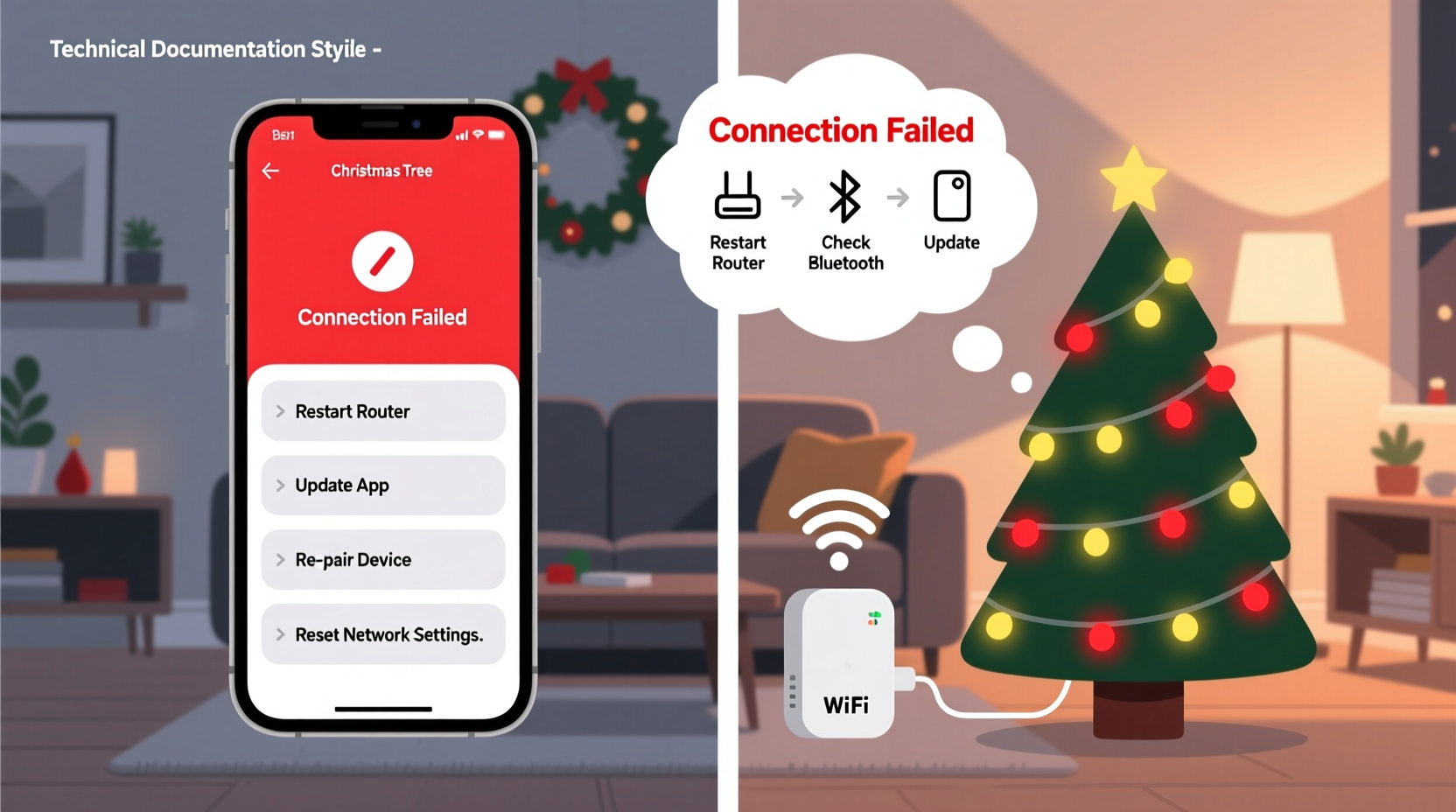
Smart Christmas trees rely on wireless communication protocols—most commonly Wi-Fi or Bluetooth—to sync with mobile apps. These apps, often developed by brands like GE, Philips, or third-party IoT platforms, allow users to customize light patterns, set schedules, and integrate with voice assistants. However, connectivity depends on multiple factors: network stability, device compatibility, firmware status, and physical proximity.
When the app fails to connect, it’s rarely due to a single point of failure. Instead, think of it as a chain: if one link breaks—router settings, outdated software, signal interference—the entire system stalls. Diagnosing the issue requires isolating each potential weak point and testing them in sequence.
“Modern smart trees are more than decorations—they’re small IoT ecosystems. When they fail to connect, the problem is usually environmental, not defective.” — Dr. Lena Park, IoT Systems Engineer at HolidayTech Labs
Step-by-Step Troubleshooting Guide
Follow this structured approach to identify and resolve your smart tree app connection problems. Start from the simplest fixes and progress to more advanced diagnostics.
- Restart All Devices
Power cycle your smartphone, router, and the smart tree base. Unplug the tree for 30 seconds, reboot your phone, and restart your Wi-Fi router. This clears temporary glitches in memory and network handshakes. - Check Bluetooth & Location Permissions
Many smart trees use Bluetooth Low Energy (BLE) for initial setup. On Android, location services must be enabled for BLE scanning. On iOS, ensure Bluetooth is turned on and the app has permission to access it. - Verify Network Compatibility
Ensure your Wi-Fi network operates on the 2.4 GHz band. Most smart trees don’t support 5 GHz networks, which offer faster speeds but shorter range and poorer wall penetration. Confirm your router broadcasts a 2.4 GHz SSID and that your phone is connected to it. - Test Proximity and Signal Strength
Move your phone within 6 feet of the tree base. Physical obstructions like furniture, metal stands, or thick walls can block Bluetooth or Wi-Fi signals. Avoid placing the tree near microwaves, cordless phones, or other RF-emitting devices. - Update the App and Firmware
Open your device’s app store and check for updates to the smart tree app. Outdated versions may lack bug fixes or compatibility patches. Also, some trees require firmware updates delivered through the app once connected—even intermittently. - Forget and Re-pair the Device
In your phone’s Bluetooth settings, “forget” the tree if it appears. Then reopen the app and initiate pairing again. This forces a fresh handshake instead of retrying a corrupted session. - Reset the Tree to Factory Settings
Most smart trees have a reset button—often a small pinhole on the base. Press and hold it for 10–15 seconds until lights flash in a pattern (usually red-green or rapid blinking). This clears saved network data and returns the unit to setup mode. - Try a Different Mobile Device
If possible, install the app on another smartphone or tablet. If it connects successfully, the issue lies with your original device’s OS, settings, or hardware.
Common Causes and Fixes at a Glance
The following table outlines frequent causes of app disconnection and their targeted remedies:
| Issue | Likely Cause | Solution |
|---|---|---|
| App won’t detect the tree | Bluetooth disabled or blocked | Enable Bluetooth, grant location access (Android), move closer |
| Connection times out during setup | Using 5 GHz Wi-Fi | Switch phone to 2.4 GHz network before pairing |
| Tree appears but won’t respond | Firmware outdated | Check for updates in-app; perform factory reset if needed |
| App crashes on launch | Corrupted cache or OS conflict | Clear app cache or reinstall; update phone OS |
| Intermittent connection after setup | Router congestion or IP conflict | Assign a static IP to the tree or reboot router daily |
Tips for Stable Long-Term Performance
Once you’ve established a working connection, maintain it with these proactive measures:
- Keep the app running in the background during light shows. Some systems disconnect if the app is force-closed.
- Use a dedicated guest network for smart holiday devices. This reduces congestion on your primary network and improves reliability.
- Label your smart tree’s MAC address and save login credentials in a secure note. Future resets will be faster.
- Avoid overlapping smart decor from different brands. Multiple Bluetooth emitters can interfere with each other.
- Schedule automatic reboots for your router during off-peak hours to prevent memory leaks.
Real-World Case: The Uncooperative GE Color Effects Tree
Jamie from Minneapolis purchased a GE Smart Christmas Tree for her family’s annual display. After assembling it, she downloaded the “GE Color Effects” app, followed the instructions, but received a persistent “Device Not Found” message. She tried three times over two days with no success.
After reviewing online forums, she realized her new mesh Wi-Fi system prioritized 5 GHz connections and didn’t broadcast a separate 2.4 GHz network. She logged into her router settings, enabled the 2.4 GHz band, renamed it distinctly, and connected her phone to it. She then restarted the tree and app—and the pairing completed in under a minute.
Her experience highlights a common oversight: modern routers often hide or merge 2.4 GHz networks, assuming all devices support dual bands. But many holiday IoT products still depend on legacy frequencies.
Checklist: Smart Tree App Connection Recovery
Use this checklist the next time your smart tree refuses to connect:
- ✅ Power cycle the tree, phone, and router
- ✅ Confirm Bluetooth is on and permitted in app settings
- ✅ Connect phone to 2.4 GHz Wi-Fi network
- ✅ Move within 6 feet of the tree base
- ✅ Disable battery saver and do-not-disturb modes
- ✅ Update the app and phone OS
- ✅ Forget the device in Bluetooth settings
- ✅ Perform a factory reset on the tree
- ✅ Try pairing with a secondary mobile device
- ✅ Contact manufacturer support with model number and error logs
Frequently Asked Questions
Why does the app ask for location access on Android?
Android operating systems require location permissions to scan for nearby Bluetooth devices, even if location data isn’t collected. This is a system-level security feature. Denying access prevents the app from detecting your tree. You can disable location after setup if desired.
Can I use a Wi-Fi extender for my smart tree?
Yes, but with caution. Wi-Fi extenders can introduce latency or inconsistent signal strength. For best results, use a mesh system with seamless roaming or place a repeater between the router and tree. Ensure the extender also broadcasts a 2.4 GHz network.
What if the app connects but controls don’t work?
This often indicates a partial connection or firmware mismatch. Try sending a simple command like “turn all lights red.” If unresponsive, disconnect and reconnect the app. If the issue persists, check for firmware updates—some models only allow updates after initial sync.
Expert Recommendations for Future-Proofing
To minimize frustration next holiday season, consider these long-term strategies:
- Purchase trees with multi-protocol support—models that work over both Wi-Fi and Bluetooth offer redundancy if one fails.
- Choose apps with cloud backup so your favorite light scenes aren’t lost if you switch phones.
- Document your setup process with notes or screenshots. Include the model number, app version, and network details.
- Store the tree’s power adapter and controller separately in anti-static bags to prevent corrosion or damage.
“Smart holiday devices should enhance joy, not create stress. A little preparation goes a long way in ensuring smooth operation year after year.” — Mark Tran, Consumer IoT Consultant
Conclusion: Restore the Holiday Spirit
A disconnected smart Christmas tree app doesn’t mean your holiday setup is doomed. With methodical troubleshooting, most issues can be resolved in under an hour. The key is understanding how the ecosystem works—your phone, network, and tree must all speak the same wireless language. By addressing compatibility, permissions, and signal integrity, you reclaim control over your festive display.
Don’t let technical hiccups overshadow the season. Apply these steps, keep your checklist handy, and enjoy a seamlessly lit tree that dazzles family and guests alike. And if you’ve discovered a unique fix not listed here, share it with others—because the best holiday traditions are built together.




 浙公网安备
33010002000092号
浙公网安备
33010002000092号 浙B2-20120091-4
Comments
No comments yet. Why don't you start the discussion?