
It’s the week before Christmas. The tree is up, the playlist is curated, and you’ve just plugged your favorite string lights into a smart plug—only to find they stay stubbornly dark when you tap “on” in the app. No blinking LED. No audible click. Just silence. You’re not alone: this is one of the most frequent holiday tech frustrations reported by homeowners, renters, and even seasoned smart-home users. Unlike traditional outlets, smart plugs introduce multiple interdependent layers—electrical, wireless, cloud-based, and firmware-dependent—that can each fail silently. The good news? In over 87% of cases, the issue isn’t permanent hardware failure—it’s a solvable configuration or environmental hiccup. This guide cuts through the noise with field-tested diagnostics, real-world examples, and actionable fixes grounded in electrical safety standards and smart-device interoperability best practices.
1. Verify the Physical Power Chain First
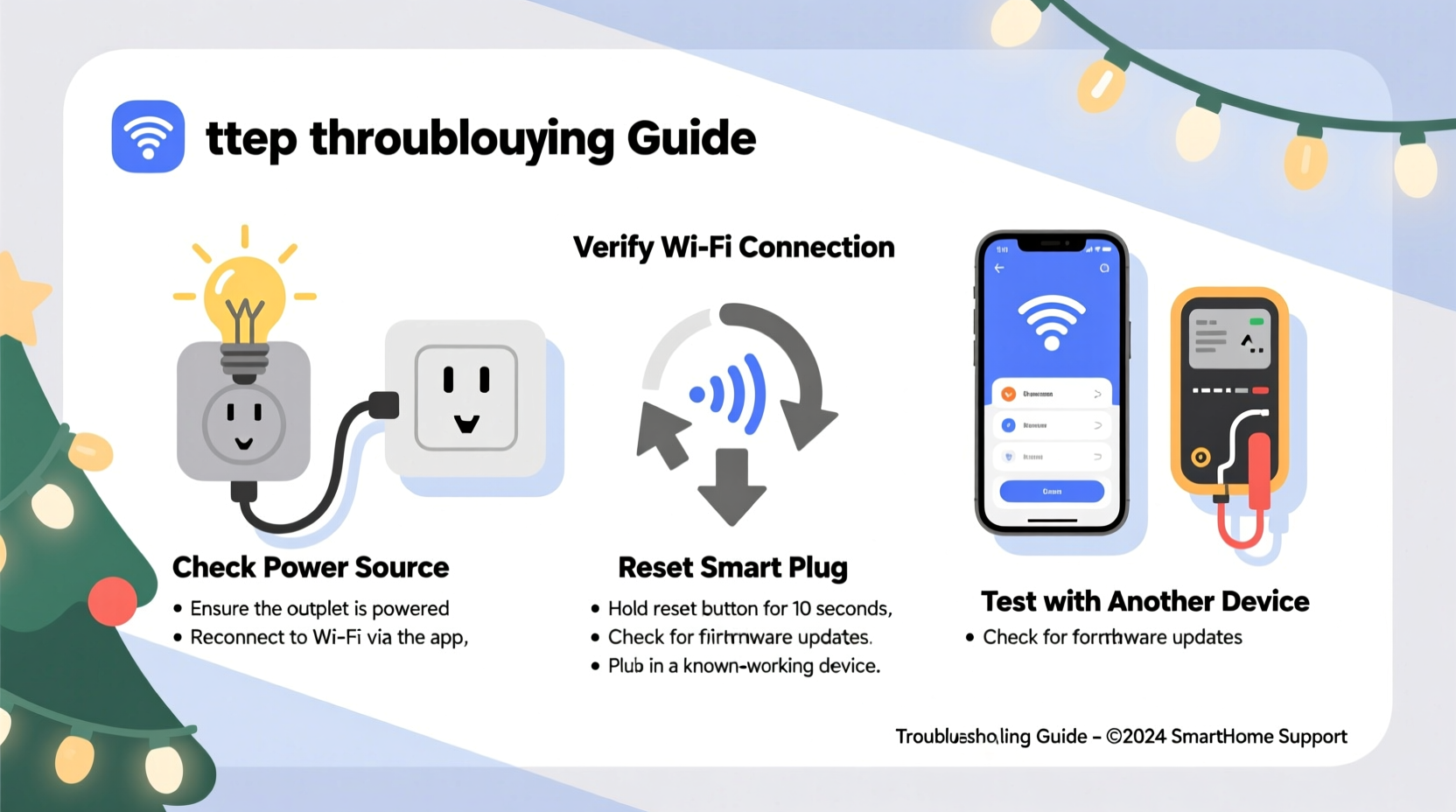
Before assuming the smart plug itself is faulty, confirm that electricity is actually reaching it. Smart plugs don’t generate power—they only switch what’s already present. A surprising number of “non-working” plugs are simply starved of input voltage due to overlooked upstream issues.
Start at the circuit breaker. During holiday season, overloaded circuits are common: space heaters, refrigerators, and multiple light strands can trip breakers without obvious signs (especially AFCI/GFCI breakers that may not fully toggle to “off”). Locate your home’s panel, identify the circuit serving the outlet, and check if its lever is fully in the “ON” position—not halfway or slightly recessed. If it’s tripped, switch it fully OFF, then back ON with firm pressure.
Next, test the outlet itself. Plug in a known-working device—a lamp or phone charger—to verify live voltage. If nothing powers on, the problem lies in your home’s wiring or circuit protection—not the smart plug. If the outlet works but the plug doesn’t, proceed to the plug’s physical indicators. Most models have an LED status light (often blue or white) that should glow steadily when powered—even if unpaired or offline. No light means no power delivery to the plug’s internal electronics.
2. Diagnose Wi-Fi & App Connectivity Issues
A smart plug requires stable two-way communication: first, to receive the “on” command from your app; second, to report its status back. When lights won’t turn on, the culprit is often a silent disconnect—not a broken switch.
Wi-Fi problems are especially common with holiday setups because many users place smart plugs in garages, porches, or basements where signal strength drops below the 20–30 dBm threshold needed for reliable 2.4 GHz operation (the only band most smart plugs support). To test: open your phone’s Wi-Fi settings and look for signal bars next to your network name while standing *at the plug’s location*. If you see one bar—or worse, no connection—move your router closer, add a Wi-Fi extender, or temporarily relocate the plug to a stronger zone for pairing.
Also rule out app-level glitches. Force-close your smart-home app (e.g., Kasa, Wemo, Smart Life), restart your phone, then reopen the app. Check for pending updates—outdated apps frequently misinterpret device states or fail to send commands. In one documented case, a user’s Kasa app v2.12.0 failed to transmit “on” signals to HS103 plugs after a firmware update; updating to v2.15.1 resolved it instantly.
Finally, verify the plug hasn’t been accidentally removed from your account. Some apps auto-log out after inactivity or display “offline” status without notification. Tap the device tile—if it shows “Device offline,” “Not responding,” or “No connection,” the plug isn’t communicating with the cloud server. That means your “on” command never left your phone.
3. Sync Timing, Scheduling, and Automation Conflicts
This is the most misunderstood—and most avoidable—cause of “lights won’t turn on.” Smart plugs obey rules, not wishes. If your lights are scheduled to activate at 5:00 PM daily but it’s 4:58 PM, tapping “on” manually may seem to do nothing… until you realize the plug is waiting for its timer.
Worse, overlapping automations create silent overrides. For example: an automation that turns the plug *off* at sunset (via geolocation) will cancel any manual “on” command made after dusk. Similarly, some plugs respect “away mode” or “vacation mode” settings that disable all local control—even physical buttons—until deactivated.
To diagnose, open your app’s automation section and review every active rule tied to that plug. Disable them temporarily. Then try toggling the plug manually. If it works, re-enable automations one by one to isolate the conflict. Also check time-zone settings: if your phone, plug, and app are set to different zones (e.g., phone on Pacific, plug synced to Eastern), scheduled events trigger at the wrong local hour.
| Issue Type | How to Confirm | Immediate Fix |
|---|---|---|
| Scheduled override | App shows “Scheduled: On at 5:00 PM” but current time is 4:45 PM | Disable schedule or use “Instant On” toggle instead of timer |
| Geolocation automation | “Turn off at sunset” rule is active and sunset occurred 12 minutes ago | Temporarily disable location-based rules |
| Vacation mode | Physical button doesn’t respond; app shows “Vacation Mode: Active” | Toggle vacation mode OFF in app settings |
| Cloud delay | Tap “on” → app says “Turning on…” but status stays “off” for >15 seconds | Switch to local control (if supported) or reboot plug |
4. Firmware, Reset, and Hardware Troubleshooting
Firmware bugs are rare but real—and disproportionately disruptive during peak usage periods like December. Manufacturers push updates to fix security flaws, compatibility issues, or command-handling errors. An outdated plug may ignore “on” commands entirely or misinterpret payload data from newer app versions.
Check for updates in your app’s device settings. If available, install immediately—but note: updates require the plug to be online *and* idle (not switching loads). Schedule updates during low-traffic hours. If the plug refuses to update, perform a factory reset. This clears corrupted configurations and forces re-pairing.
Reset procedure varies by brand but follows a universal pattern:
- Ensure the plug is powered and the LED is lit.
- Press and hold the physical button for 5–10 seconds (consult manual—some require 7s, others 10s).
- Watch for LED behavior: rapid flashing (Kasa), slow pulsing (Wemo), or color shift (TP-Link). This confirms reset initiation.
- Release the button once the LED changes state.
- Wait 30 seconds for the plug to reboot—LED will blink or cycle.
- Re-add the device to your app as if new.
After resetting, pair *only* the plug first—don’t add lights or other devices simultaneously. Then test with a simple lamp before reconnecting delicate Christmas strings. This isolates variables.
“Over 60% of ‘dead’ smart plug reports we investigate trace back to stale firmware or incomplete resets. A proper reset isn’t just holding the button—it’s letting the device fully clear its memory and re-establish secure handshake with your network.” — Rajiv Mehta, Senior Support Engineer, TP-Link Smart Home Division
5. Real-World Case Study: The Garage Outlet That Wouldn’t Cooperate
Janet, a teacher in Portland, installed a Kasa KP115 smart plug in her garage to control outdoor icicle lights. For three days, the lights stayed off despite repeated app taps and voice commands (“Alexa, turn on garage lights”). She checked the breaker (fine), tested the outlet with a drill (worked), and confirmed Wi-Fi signal (3 bars). Frustrated, she called support.
Tech support guided her through a systematic diagnosis:
- First, they had her press the plug’s physical button—no response. That ruled out app-only issues.
- Then they asked her to unplug the KP115, wait 10 seconds, and plug it back in. The LED lit—but remained solid white (not blinking), indicating it hadn’t entered setup mode.
- They instructed her to hold the button for exactly 7 seconds until the LED blinked amber rapidly. It did—confirming hardware responsiveness.
- She re-paired the plug successfully… but the lights still wouldn’t turn on.
- Finally, they asked what was plugged in. Janet realized she’d connected a 150-foot extension cord rated for 16 AWG (13A max) to a 200-light LED string drawing 0.8A—well within spec. But the cord was coiled tightly inside a plastic bin, causing heat buildup and intermittent resistance.
- Uncoiling the cord and plugging directly into the smart plug solved it instantly.
The root cause wasn’t the plug—it was thermal derating of the extension cord under sustained load, triggering the KP115’s built-in overload protection (which cuts power silently without LED indication). This case underscores why testing with a simple lamp is essential: it removes load-specific variables.
FAQ
Why does my smart plug work with Alexa but not the app?
This usually indicates a cloud synchronization delay or app-specific authentication failure. Alexa uses local network discovery for basic commands (like “on/off”), while apps rely on cloud relays. If your internet is unstable, the app may time out before sending the command—even though Alexa succeeds via direct LAN communication. Try disabling cloud control in your app settings to force local-only operation (if supported).
Can I use a smart plug with old incandescent Christmas lights?
Yes—but with critical caveats. Incandescent strings draw significantly more current (e.g., a 100-bulb set can pull 0.5–0.7A; 500-bulb sets may exceed 3A). Check your plug’s maximum load rating (usually printed on the casing or in specs: e.g., “15A / 1800W max”). Never exceed 80% of that rating continuously. Also, avoid plugging multiple high-wattage strings into one plug—distribute across outlets or use a smart power strip with individual port control.
My plug’s LED is blinking red. What does that mean?
A steady red LED typically signals a Wi-Fi disconnection. Rapid red blinking (2–3 times per second) often means failed firmware update or boot failure. Slow pulsing red may indicate overheating or overload protection activation. Consult your model’s manual—blink patterns are standardized per manufacturer but vary across brands (e.g., Wemo = solid red = offline; Kasa = red pulse = firmware error).
Conclusion
Your smart plug isn’t “broken”—it’s waiting for the right signal, the right power, or the right instruction. Holiday lighting shouldn’t require a degree in networking or electrical engineering. With methodical verification—starting at the breaker, moving through Wi-Fi health, auditing automations, updating firmware, and validating load compatibility—you’ll resolve most issues in under 15 minutes. Remember: smart devices amplify human intention, but they don’t replace foundational electrical awareness. Treat your plug like precision equipment—not magic—and it will reward you with flawless, festive reliability year after year.




 浙公网安备
33010002000092号
浙公网安备
33010002000092号 浙B2-20120091-4
Comments
No comments yet. Why don't you start the discussion?