
Power outages are more than just an inconvenience—they can disrupt the delicate calibration of your smart home devices, especially your smart thermostat. After a blackout, you might notice erratic behavior: unresponsive controls, incorrect temperature readings, Wi-Fi disconnections, or even a complete system freeze. These issues stem from interrupted firmware processes, lost network settings, or temporary glitches in internal memory. While it may seem alarming, most problems can be resolved quickly with the right steps. This guide explains why smart thermostats act up after power loss and walks you through a reliable reset process to get your HVAC system back under control.
Why Smart Thermostats Malfunction After Power Outages
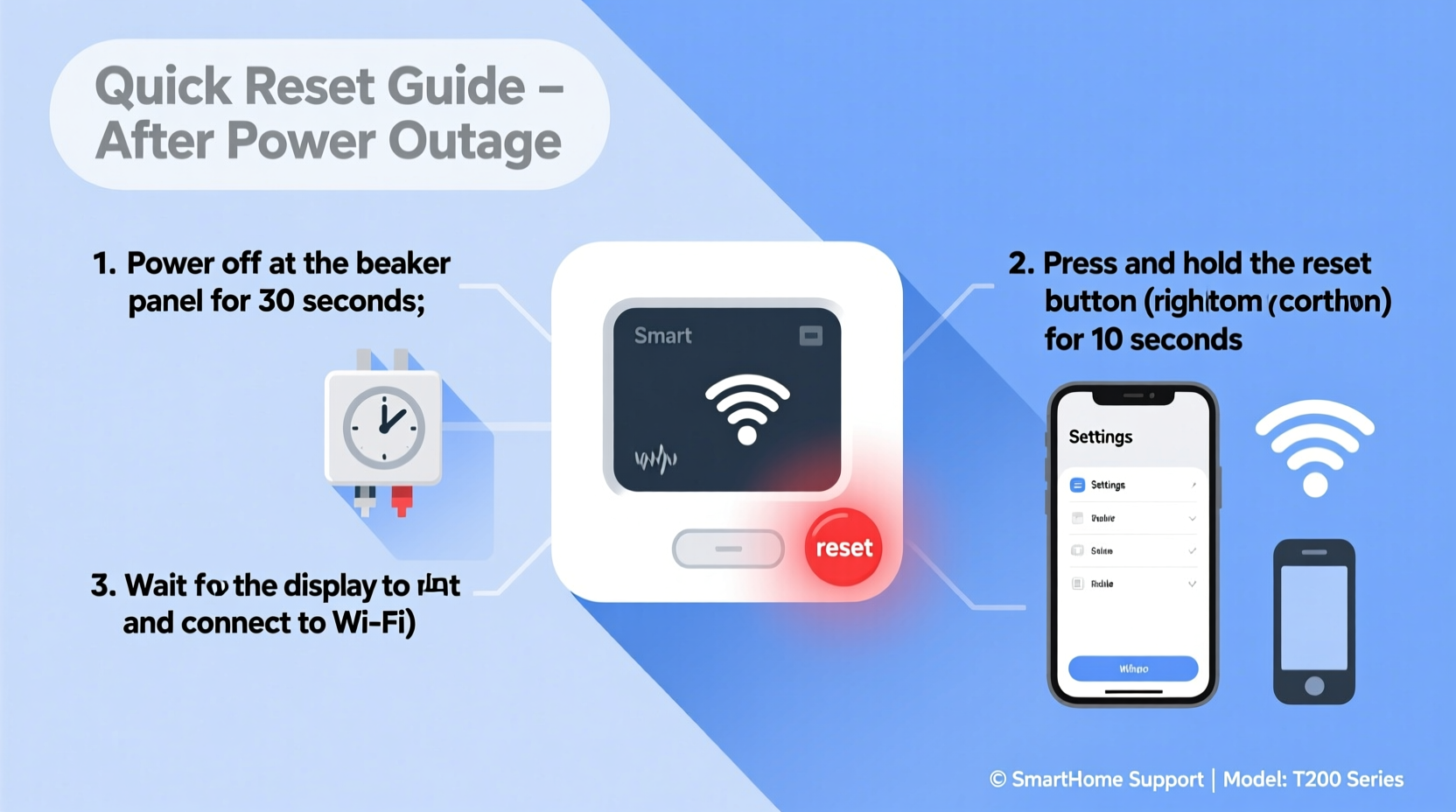
Unlike traditional thermostats, smart models rely on continuous power and stable software operations to function correctly. When electricity cuts out suddenly, several things can go wrong:
- Firmware corruption: The thermostat’s operating system may be mid-update or saving settings when the power drops, leading to corrupted data.
- Wi-Fi disconnect: Network credentials or connection profiles may fail to reload properly after reboot.
- Battery drain: Most smart thermostats have small backup batteries. If these are weak or depleted, the device may not boot correctly.
- Memory glitches: RAM and cache errors can cause frozen screens or unresponsive touch interfaces.
- HVAC miscommunication: The thermostat may lose its communication link with your furnace or heat pump, causing heating or cooling failures.
These malfunctions aren’t usually permanent. In fact, the majority of post-outage issues are software-related and can be fixed without professional help.
“After a power surge or outage, electronic devices like smart thermostats often experience soft failures—temporary glitches that respond well to proper resets.” — Dr. Alan Reyes, Electrical Systems Engineer
Step-by-Step Reset Guide for Your Smart Thermostat
If your thermostat is behaving strangely after a power outage, follow this structured reset procedure. It applies to most major brands including Nest, Ecobee, Honeywell Home, Emerson Sensi, and others.
- Check Physical Power Supply
Ensure your circuit breaker hasn’t tripped and that the HVAC system has power. Some thermostats draw power from the HVAC control board via a C-wire. If that line is interrupted, the thermostat won’t charge properly. - Remove the Thermostat from the Wall
Gently detach the faceplate from its base. This acts as a soft reset for many models and allows you to inspect connections. - Wait 30 Seconds
Let the device sit without power for at least half a minute. This clears residual electrical charge and resets volatile memory. - Reattach and Power On
Snap the thermostat back into place. Wait for it to boot up. You should see the brand logo or a progress indicator. - Perform a Factory Reset (If Needed)
If the screen remains frozen or unresponsive:- Navigate to Settings > Reset (if accessible).
- Select “Restart” or “Factory Reset.”
- For hard resets: Press and hold the front button or specific key combination (e.g., Nest: hold ring until screen goes dark).
- Reconnect to Wi-Fi
Once rebooted, go to Network or Wi-Fi settings and reconnect to your home network. Enter your password carefully—smart thermostats are case-sensitive. - Reconfigure Preferences
Restore your preferred temperature schedules, geofencing, and alerts. If you backed up settings via the app, now is the time to reapply them. - Test HVAC Operation
Manually trigger heating or cooling to confirm the system responds. Listen for the furnace or air handler to engage within 60 seconds.
Common Post-Outage Issues and Fixes
Different symptoms point to different underlying problems. Use this reference table to diagnose and resolve common post-blackout behaviors.
| Issue | Possible Cause | Solution |
|---|---|---|
| Blank or flickering screen | Low battery, no C-wire power, loose wiring | Check wiring; perform reset; verify HVAC power |
| Thermostat won’t turn on AC/furnace | Lost HVAC communication, tripped breaker | Reset thermostat and HVAC unit; check circuit panel |
| Incorrect room temperature reading | Sensor glitch or calibration error | Wait 30 minutes; recalibrate via app if available |
| Wi-Fi keeps dropping | Network profile corruption | Forget network and reconnect; restart router |
| App shows “Offline” status | Device not syncing after reboot | Check internet; reboot router; update firmware |
Some issues resolve themselves after a few minutes as the thermostat reestablishes connections. Patience is key—but if problems persist beyond 30 minutes, intervention is necessary.
Mini Case Study: Resolving a Frozen Nest Thermostat
After a severe thunderstorm caused a two-hour power outage in Columbus, Ohio, homeowner Maria Thompson found her Google Nest Thermostat completely frozen—no response to touch, stuck on 72°F despite outdoor temps near freezing.
She tried tapping the screen and removing it from the wall, but nothing worked. Following online advice, she performed a factory reset by holding the thermostat ring for 15 seconds until the screen turned black. After 45 seconds, it rebooted and displayed the setup wizard.
Maria reconnected to Wi-Fi, restored her schedule from her phone app, and tested heating mode. Within three minutes, the furnace kicked on. The entire process took less than 10 minutes, and her home began warming immediately.
This real-world example shows how a simple reset can resolve what appears to be a serious malfunction.
Prevent Future Issues: Proactive Measures
While you can’t prevent power outages, you can reduce their impact on your smart thermostat with a few strategic upgrades.
- Install a C-wire: Many older HVAC systems lack a common wire (C-wire), forcing the thermostat to scavenge power inefficiently. Adding one ensures stable voltage and prevents brownouts from affecting performance.
- Use a surge protector: Plug your HVAC control board into a surge-protected circuit if possible. Whole-home surge protection offers even better defense.
- Enable battery backup: Some thermostats, like certain Ecobee models, support external battery packs. These keep the device running during short outages.
- Update firmware regularly: Manufacturers release patches that improve stability and recovery protocols. Enable auto-updates if available.
- Monitor remotely: Use your smartphone app to check thermostat status during storms. Early detection means faster resolution.
Do’s and Don’ts After a Power Outage
| Do’s | Don’ts |
|---|---|
| Wait 5–10 minutes before restoring power to HVAC | Immediately flip breakers back on during storm conditions |
| Inspect thermostat display and responsiveness | Force restart repeatedly in rapid succession |
| Verify Wi-Fi and app connectivity | Assume hardware failure without trying a reset |
| Check HVAC filter and vents for airflow | Overload circuits by turning on all appliances at once |
| Contact support if reset fails | Disassemble internal components yourself |
FAQ: Common Questions After a Power Outage
Will a power outage erase my thermostat schedule?
Most modern smart thermostats store schedules in non-volatile memory, so they survive brief outages. However, a factory reset will erase custom settings unless backed up in the companion app. Always verify your schedule after a reboot.
How long does it take for a smart thermostat to recover?
After power is restored, allow 2–5 minutes for the thermostat to boot and reconnect. If it doesn’t respond within 10 minutes or displays persistent errors, initiate a manual reset.
Can a power surge damage my smart thermostat permanently?
Yes. While rare, voltage spikes during outages can fry sensitive electronics. Signs include a completely dead unit, burning smell, or visible damage. If suspected, discontinue use and contact the manufacturer. Consider installing whole-home surge protection to mitigate risk.
Final Checklist: Post-Outage Thermostat Recovery
Keep this checklist handy for future incidents:
- Confirm household power is fully restored.
- Check HVAC circuit breaker and reset if tripped.
- Inspect thermostat display—is it blank, frozen, or responsive?
- Detach and reattach the thermostat faceplate.
- If unresponsive, perform a factory reset using model-specific instructions.
- Reconnect to Wi-Fi and re-enter credentials.
- Verify HVAC operation by manually activating heating or cooling.
- Restore schedules, preferences, and geofencing settings.
- Monitor system for 30 minutes to ensure stability.
- Consider upgrading to a C-wire or surge protector for long-term reliability.
“The best thermostat maintenance happens before the problem occurs. A little prep goes a long way in avoiding discomfort after a storm.” — Linda Cho, HVAC Service Manager at ClimateSure Inc.
Conclusion: Regain Control Quickly and Confidently
A smart thermostat acting weird after a power outage is a common but fixable issue. With a methodical approach—starting with a simple reboot and progressing to a full reset if needed—you can restore normal operation in minutes. Understanding the root causes, recognizing symptoms, and knowing the correct recovery steps empower you to maintain comfort and efficiency in your home, even after unexpected disruptions.
Don’t let a minor glitch turn into prolonged discomfort. Apply these steps the next time your thermostat misbehaves, and consider implementing preventive measures to avoid repeat issues. Your smart home should work for you, not against you—even when the lights go out.




 浙公网安备
33010002000092号
浙公网安备
33010002000092号 浙B2-20120091-4
Comments
No comments yet. Why don't you start the discussion?