
Smart thermostats promise comfort, convenience, and energy savings. But when they start behaving unpredictably—turning the heat on at odd hours, failing to learn your schedule, or causing sudden spikes in your energy bill—the frustration is real. Instead of replacing it or calling a technician immediately, try these practical, step-by-step troubleshooting techniques. Most issues stem from simple configuration errors, connectivity problems, or environmental factors that you can fix yourself.
The good news? In over 80% of cases, erratic smart thermostat behavior isn’t due to hardware failure. It’s usually something correctable with a few minutes of attention. Whether you own a Nest, Ecobee, Honeywell Home, or another brand, the principles below apply universally.
Check Your Wi-Fi and App Connection
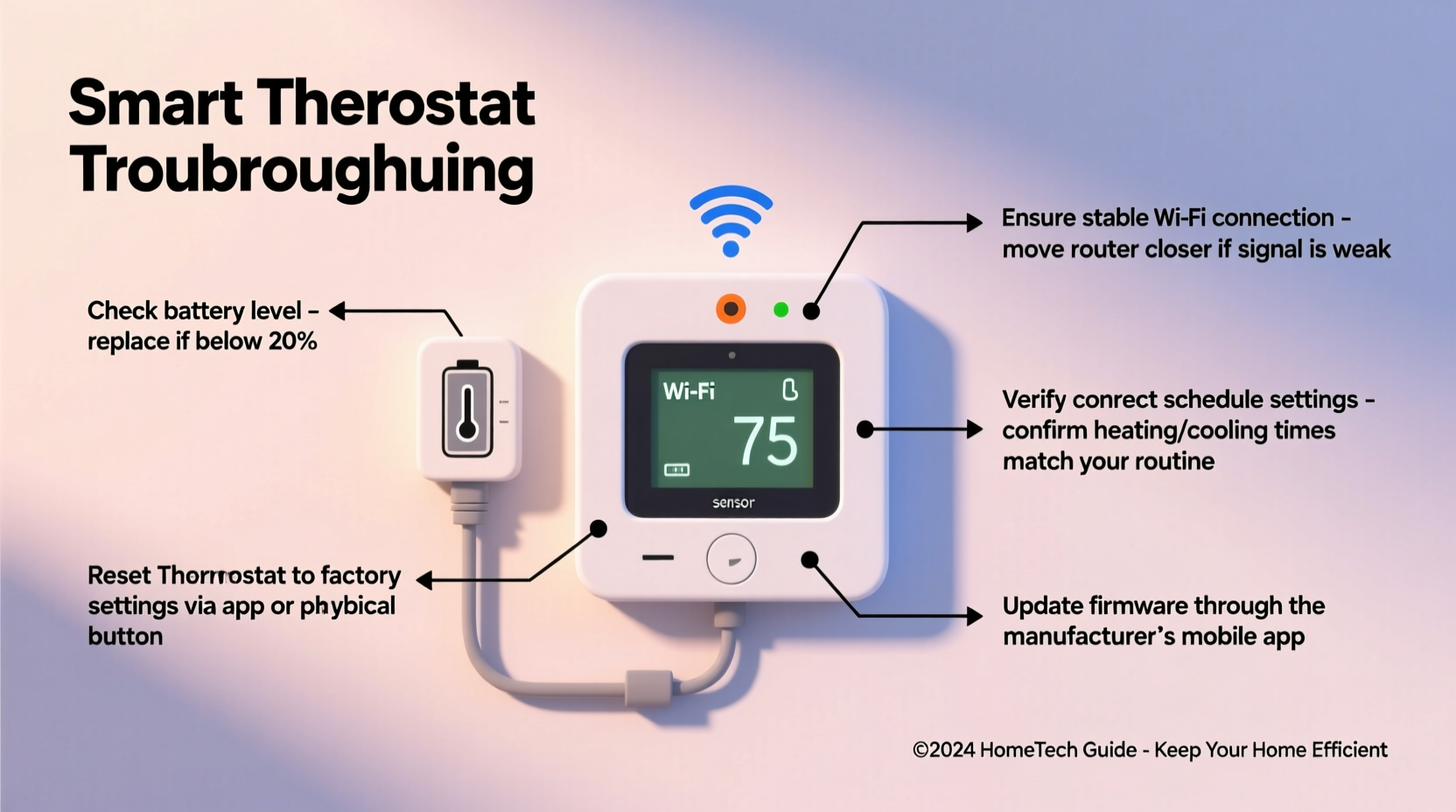
One of the most common reasons for a smart thermostat acting erratically is poor or unstable internet connectivity. These devices rely on consistent communication with their companion apps and cloud servers to maintain schedules, receive updates, and enable remote control. If the connection drops, your thermostat may revert to default settings, fail to follow routines, or display incorrect data.
Start by checking the signal strength near the thermostat. Many units show Wi-Fi status directly on the screen or through the app. If the signal is weak:
- Move your router closer to the thermostat if possible.
- Use a Wi-Fi extender to boost coverage in that area.
- Ensure you're connected to the 2.4 GHz band (not 5 GHz), as most smart thermostats don’t support the faster frequency.
- Reboot your router and thermostat to refresh the connection.
If the device still won't connect, verify that your home network uses WPA2 security (WEP or open networks often cause pairing failures). Also, check for firmware updates in the app—outdated software can create communication hiccups.
Verify Sensor Accuracy and Placement
Smart thermostats use internal sensors—and sometimes external ones—to detect temperature, occupancy, and humidity. If these sensors are compromised, your system could be heating or cooling unnecessarily.
First, ensure the thermostat isn’t exposed to misleading heat sources. Common culprits include:
- Direct sunlight hitting the unit during part of the day
- Proximity to lamps, TVs, or kitchen appliances
- Installation on an exterior wall with poor insulation
These conditions trick the thermostat into thinking the room is warmer or cooler than it actually is. As a result, your HVAC system runs longer than needed, increasing energy consumption.
“Thermostat placement is just as important as calibration. A poorly located unit can waste up to 15% more energy annually.” — Dr. Alan Reed, Energy Efficiency Engineer at the National Institute of Building Sciences
To test accuracy, place a standalone digital thermometer next to the thermostat for several hours. Compare readings. If there's a difference of more than 2°F, recalibrate or relocate the unit.
For models like the Ecobee that use room sensors, check battery levels and positioning. A sensor placed near a drafty window or behind furniture may report inaccurate temperatures, leading to inefficient cycling.
Review Scheduling and Automation Settings
Misconfigured schedules are a silent cause of energy waste. You might have set a routine months ago and forgotten about changes in your lifestyle—or a software update may have reset preferences.
Open your thermostat’s app and examine the following:
- Active Schedule: Confirm wake, leave, return, and sleep times align with your actual routine.
- Auto-Schedule Learning: If enabled, has the thermostat properly learned your habits? Some users disable motion detection or occupancy sensing without realizing it.
- Geofencing: Does the thermostat accurately detect when you leave or return home via smartphone location? Poor GPS performance or disabled permissions can break this feature.
- Vacation Mode: Accidentally leaving vacation mode active keeps the system in energy-saving mode even when you’re home, forcing manual overrides that disrupt efficiency.
A common issue arises when multiple users share control via the app. One person adjusts the temperature manually, overriding the schedule, and forgets to reset it. Over time, this creates inconsistent patterns that prevent the thermostat from optimizing performance.
Mini Case Study: The Weekend Temperature Spike
Sarah in Portland noticed her electricity bill jumped 30% over three months despite using her Nest thermostat exactly as before. She reviewed the app history and discovered the system was heating the house to 72°F every Saturday morning at 6 AM—even though she rarely woke before 9.
After checking settings, she found that an old “early workout” routine from six months prior was still active. Disabling the unused schedule immediately corrected the behavior. Combined with recalibrating the thermostat’s eco-temperature range, she reduced heating runtime by 18% in the following month.
Inspect HVAC System Compatibility and Wiring
No matter how intelligent the thermostat is, it can only work with what it’s connected to. Mismatched wiring or incompatible systems lead to erratic behavior such as short cycling, failure to turn on, or constant fan operation.
Begin by verifying compatibility. Most smart thermostats require a C-wire (common wire) to provide continuous power. Without it, the unit may drain battery rapidly or behave inconsistently—especially in extreme weather when heating or cooling demand is high.
If your thermostat frequently reboots or shows low power warnings, lack of a C-wire is likely the culprit. Solutions include:
- Installing a C-wire adapter kit (offered by most manufacturers)
- Hiring an HVAC technician to run a new wire
- Using a power extender kit (PEK), especially for systems like older Lennox or Carrier units
Also, inspect existing wires for looseness or corrosion. Turn off power at the breaker, remove the thermostat faceplate, and gently tug each wire to ensure secure connections. Label them before disconnecting anything.
| Wire Color | Function | Common Issues |
|---|---|---|
| Red (R) | Power from transformer | Intermittent power if loose |
| White (W) | Heating call | Short cycling if misconnected |
| Yellow (Y) | Cooling call | AC runs nonstop if stuck |
| Green (G) | Fan control | Fan runs constantly if faulty |
| Blue/Black (C) | Common power | Required for stable operation |
If you’ve recently upgraded your HVAC system, double-check that the thermostat firmware supports the new equipment. Some heat pumps or dual-fuel systems need specific settings enabled to operate efficiently.
Reset and Recalibrate: When to Factory Reset
Sometimes, the fastest way to resolve persistent glitches is a factory reset. This clears corrupted settings, reconnects network credentials, and forces the device to go through initial setup again.
Proceed with caution: you’ll lose custom schedules and geofencing preferences. But if your thermostat ignores commands, displays wrong modes, or fails to respond to voice assistants, a reset often resolves the issue.
Step-by-Step: Performing a Safe Factory Reset
- Open the thermostat app and note down your current schedule and preferences.
- Turn off HVAC power at the circuit breaker for safety.
- Access settings on the thermostat (usually via gear icon).
- Navigate to Reset > Factory Reset.
- Confirm the action. The device will reboot and erase all data.
- Restore power and follow the on-screen setup process.
- Reconnect to Wi-Fi and re-enter your schedule.
- Test HVAC operation in both heating and cooling modes.
After resetting, observe the thermostat for 48 hours. Monitor whether it learns your habits correctly and maintains desired temperatures without manual intervention.
Troubleshooting Checklist
Use this checklist to systematically identify and fix smart thermostat issues:
- ✅ Check Wi-Fi signal strength and reconnect if necessary
- ✅ Verify thermostat is not in direct sunlight or near heat sources
- ✅ Compare thermostat reading with a trusted thermometer
- ✅ Review and correct daily temperature schedules
- ✅ Ensure geofencing and occupancy sensors are enabled and working
- ✅ Inspect wiring, especially presence of a C-wire
- ✅ Update thermostat firmware via the app
- ✅ Test HVAC response after mode changes
- ✅ Perform factory reset if problems persist
- ✅ Contact manufacturer support if under warranty
Frequently Asked Questions
Why does my smart thermostat keep turning on the heat at night?
This often happens when the scheduled \"sleep\" temperature is set too high, or when occupancy sensors detect movement and override eco-mode. Check your nighttime settings and ensure no one is adjusting the thermostat manually. Also, confirm that Smart Recovery or Adaptive Intelligence features aren’t starting heating earlier than expected to reach target temps on time.
Can a smart thermostat increase my energy bill?
Yes—if it's malfunctioning or improperly configured. A unit with poor sensor data, incorrect scheduling, or frequent disconnections may run your HVAC system longer than necessary. Additionally, users who constantly override automated settings eliminate the energy-saving benefits. When used correctly, however, smart thermostats typically reduce energy usage by 10–12% per year, according to the U.S. Department of Energy.
How do I know if my smart thermostat needs repair or replacement?
If you’ve completed all troubleshooting steps—including reset, rewiring, and firmware updates—and the unit still fails to control your HVAC system reliably, it may be defective. Signs include unresponsive touchscreens, repeated error codes (like “Aux Heat” stuck on), or inability to maintain any connection. Contact the manufacturer for diagnostics or warranty service before purchasing a new model.
Final Thoughts: Take Control of Your Comfort and Costs
Your smart thermostat should simplify life, not complicate it. When it starts acting strangely, resist the urge to abandon automation altogether. Most issues stem from overlooked details—settings buried in apps, sensors fooled by sunlight, or outdated firmware—not inherent flaws in the technology.
By methodically checking connectivity, placement, settings, and wiring, you regain control over your home’s climate and energy use. The investment you made in a smart thermostat pays off most when you understand how to maintain it.




 浙公网安备
33010002000092号
浙公网安备
33010002000092号 浙B2-20120091-4
Comments
No comments yet. Why don't you start the discussion?