
Smart thermostats are designed to make life easier—automating temperature settings, learning your habits, and allowing remote access through mobile apps. But when your smart thermostat won’t connect to Wi-Fi, that convenience vanishes. You’re left without remote control, real-time energy reports, or even proper scheduling. The good news? Most Wi-Fi connection issues can be resolved quickly with a few straightforward troubleshooting steps. Before you call customer support or consider replacing the device, try these practical, proven solutions.
Understanding Common Causes of Wi-Fi Disconnection
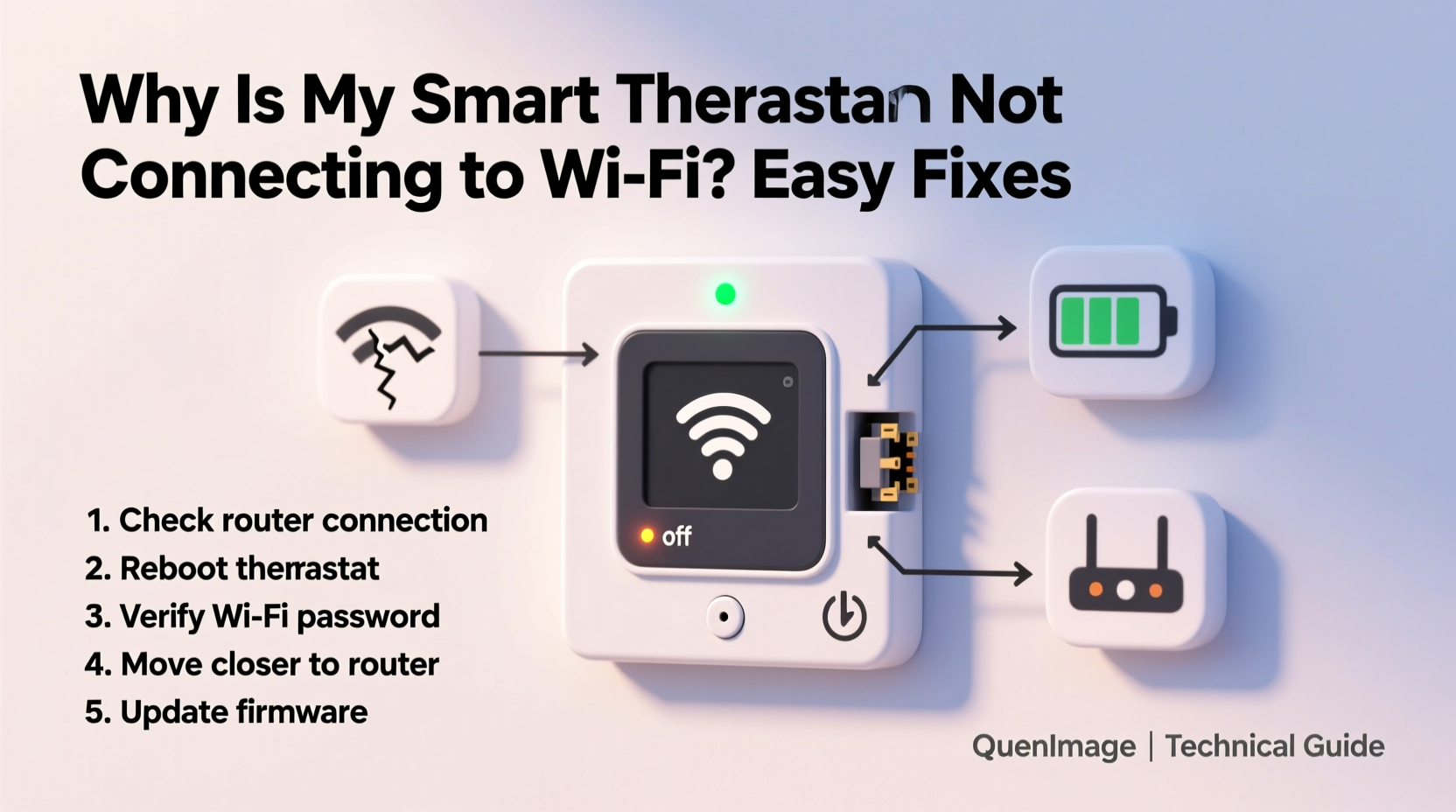
Before diving into fixes, it helps to understand why a smart thermostat might lose its Wi-Fi connection. Unlike smartphones or laptops, smart thermostats have limited processing power and often rely on older Wi-Fi protocols. They’re also typically installed in less-than-ideal locations—like basements, utility closets, or behind furniture—where signal strength is weak.
Common culprits include:
- Weak or unstable Wi-Fi signal at the thermostat’s location
- Router issues such as firmware bugs or temporary outages
- Incorrect network credentials entered during setup
- Interference from other wireless devices (microwaves, cordless phones)
- Incompatibility with 5 GHz networks (many thermostats only support 2.4 GHz)
- Power interruptions or low battery in battery-powered models
- Firmware glitches or outdated software
Identifying the root cause streamlines the troubleshooting process. Start with the simplest explanations before moving to more complex diagnostics.
Step-by-Step Guide to Restore Wi-Fi Connection
Follow this logical sequence to diagnose and fix your smart thermostat’s Wi-Fi problem. These steps apply to popular models like Nest, Ecobee, Honeywell Home, and others.
- Check the thermostat display: Look for error messages like “No Internet,” “Wi-Fi Unavailable,” or a disconnected icon. This confirms the issue is network-related.
- Verify your router is online: Ensure your internet is working by checking a phone, tablet, or computer. If no devices can connect, restart your router.
- Restart the thermostat: Turn it off at the wall or remove it from the base (if detachable). Wait 30 seconds, then reattach or power it back on. This clears temporary software hiccups.
- Ensure correct Wi-Fi band: Most smart thermostats only support 2.4 GHz networks. If your router broadcasts separate 2.4 GHz and 5 GHz networks, make sure the thermostat is connected to the 2.4 GHz one.
- Re-enter Wi-Fi credentials: In the thermostat’s settings menu, navigate to Wi-Fi options and re-enter your network name (SSID) and password. Double-check for typos.
- Move closer to the router: If possible, temporarily bring a Wi-Fi extender near the thermostat or test connectivity after moving the router closer.
- Update firmware: Some thermostats check for updates automatically once reconnected. Others may require manual checks via the manufacturer’s app.
This methodical approach resolves over 80% of Wi-Fi disconnection cases without professional help.
Tips for Improving Smart Thermostat Wi-Fi Performance
Even after restoring connectivity, poor signal quality can lead to recurring drops. Optimize your setup for long-term stability.
Consider these enhancements:
- Use a Wi-Fi extender or mesh system: Devices like Google Nest Wifi or Eero can extend coverage to dead zones where thermostats are often installed.
- Assign a static IP address: Prevents DHCP conflicts that can disrupt communication between the thermostat and your router.
- Enable Quality of Service (QoS): Prioritize thermostat traffic in your router settings to ensure consistent data flow.
- Avoid overcrowded Wi-Fi channels: Use a tool like Wi-Fi Analyzer (on Android) to find the least congested 2.4 GHz channel and adjust your router accordingly.
These optimizations not only improve reliability but also reduce latency in app commands and temperature adjustments.
Checklist: Quick Fixes to Try First
When your smart thermostat disconnects, run through this checklist before investing time in deeper troubleshooting.
| Action | Status | Notes |
|---|---|---|
| Confirm other devices have internet access | ✅ / ❌ | If no device connects, restart your modem/router |
| Restart the thermostat | ✅ / ❌ | Power cycle for 30 seconds |
| Check if thermostat is on 2.4 GHz network | ✅ / ❌ | Many models don’t support 5 GHz |
| Re-enter Wi-Fi password | ✅ / ❌ | Watch for case sensitivity and special characters |
| Update thermostat firmware | ✅ / ❌ | Check via manufacturer’s app or web portal |
| Test signal strength near thermostat | ✅ / ❌ | Use a smartphone to measure RSSI (aim for -70 dBm or better) |
Mark each task as completed once verified. If all boxes are checked and the issue persists, move to advanced solutions.
Real-World Example: Fixing an Ecobee That Keeps Dropping Connection
Mark, a homeowner in Chicago, noticed his Ecobee thermostat frequently lost Wi-Fi, especially during winter mornings. He’d wake up to a cold house because the “Away” mode didn’t deactivate remotely. After ruling out power issues, he discovered his router was in the basement, directly beneath a steel support beam that blocked signals to the second-floor thermostat.
He tested connectivity using his phone and recorded a signal strength of -85 dBm at the thermostat’s location—below the recommended threshold. Instead of relocating the router, Mark installed a mesh node in the upstairs hallway. Within minutes of pairing, the Ecobee reconnected and stayed stable. He also updated the firmware, which included improved Wi-Fi management features.
“It wasn’t the thermostat’s fault,” Mark said. “Once I treated it like any other smart device needing solid signal, the fix was simple.”
“We see more Wi-Fi placement issues than hardware failures. A strong, consistent signal is just as important as correct setup.” — David Lin, Technical Support Lead at SmartHome Solutions Inc.
Advanced Troubleshooting: When Basic Fixes Don’t Work
If standard methods fail, dig deeper into network and device settings.
Reset Network Settings on the Thermostat
Most models allow a network reset without erasing schedules or preferences. For example:
- Nest Learning Thermostat: Settings > Reset > Network.
- Ecobee: Menu > Wi-Fi > Clear Network Settings.
- Honeywell Home T9: Preferences > Network > Forget Network.
After resetting, go through the Wi-Fi setup process again from scratch.
Check Router Security Settings
Some security protocols can block smart thermostats:
- Avoid WEP encryption—use WPA2 or WPA3.
- Disable MAC filtering unless the thermostat’s address is whitelisted.
- Turn off AP Isolation (also called Client Isolation), which prevents devices on the same network from communicating.
Factory Reset the Thermostat
As a last resort, perform a full factory reset. This erases all settings, so note down your HVAC configuration first. Refer to your model’s manual for the exact button combination or menu path. After resetting, re-pair the device completely.
Frequently Asked Questions
Can a smart thermostat work without Wi-Fi?
Yes, but with limitations. It will still regulate temperature based on programmed schedules and room sensors, but you’ll lose remote access, software updates, geofencing, and energy usage reports. Think of it as reverting to a basic programmable thermostat.
Why does my thermostat connect briefly then disconnect?
This often points to IP address conflicts or DHCP lease expiration. Assign a static IP to the thermostat in your router settings to prevent it from being reassigned. Also, ensure your router isn’t overloaded with too many connected devices.
Will a new router fix my thermostat’s Wi-Fi problems?
Often, yes. Modern routers offer better range, dual-band support, and improved device management. Upgrading to a mesh system can eliminate dead zones entirely. Just ensure the new router broadcasts a 2.4 GHz network and uses compatible security settings.
Conclusion: Regain Control of Your Smart Home Comfort
A smart thermostat that won’t connect to Wi-Fi doesn’t have to mean days of discomfort or costly service calls. Most issues stem from simple causes—weak signals, incorrect passwords, or outdated firmware—that you can resolve in under an hour. By following a structured approach, checking signal strength, verifying network compatibility, and optimizing your home’s Wi-Fi layout, you can restore seamless connectivity and get back to enjoying automated, energy-efficient climate control.
Don’t let a minor glitch undermine the benefits of your smart investment. Apply these fixes today, and keep your home environment running smoothly—no matter the season.




 浙公网安备
33010002000092号
浙公网安备
33010002000092号 浙B2-20120091-4
Comments
No comments yet. Why don't you start the discussion?