
Streaming a favorite show only to be interrupted by endless buffering can turn relaxation into frustration. If your smart TV buffers constantly, you're not alone—millions of users face the same issue daily. While it may seem like a problem with the TV itself, buffering is typically rooted in network performance, device settings, or service limitations. Understanding the underlying causes allows for faster diagnosis and more effective solutions. This guide walks through the most common reasons behind persistent buffering and provides actionable steps to resolve them quickly and permanently.
Understanding How Streaming Works on Smart TVs
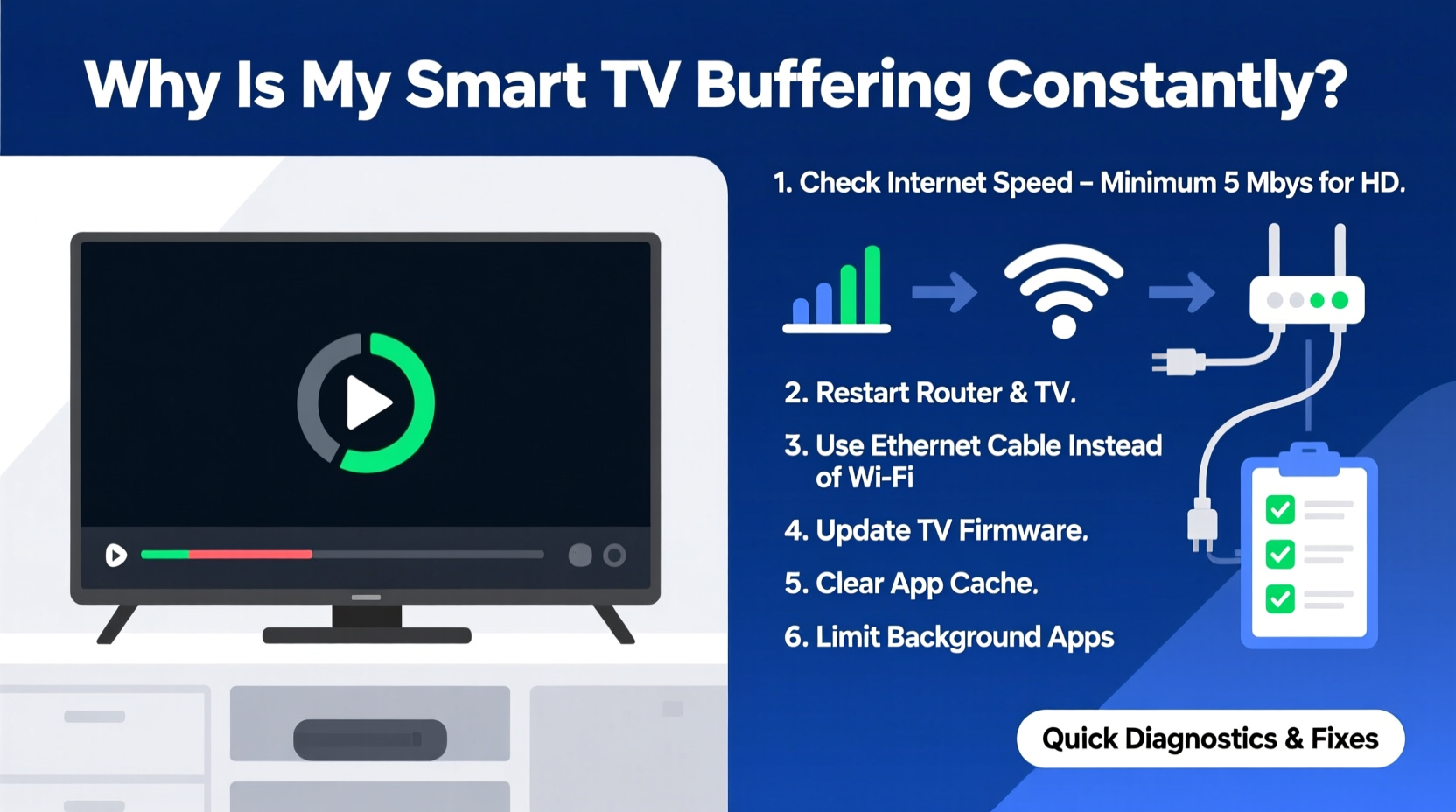
Smart TVs rely on internet connectivity to deliver video content from platforms like Netflix, Hulu, YouTube, and Disney+. When you press play, the service begins downloading small segments of the video—called “chunks”—to your TV’s temporary memory (buffer). These chunks are played back in sequence. If the download speed drops below what's needed for continuous playback, the buffer empties, and the video pauses to refill, causing that familiar spinning wheel.
The required bandwidth depends on video quality: HD content generally needs at least 5 Mbps, while 4K Ultra HD streams require 25 Mbps or more. If your connection fluctuates or shares bandwidth with other devices, buffering becomes inevitable. But poor internet isn’t always the culprit. Other factors include outdated firmware, overloaded routers, background apps on the TV, or even regional server congestion from the streaming provider.
Step-by-Step Diagnostic Process
Before jumping into fixes, perform a systematic check to identify the root cause. Follow this timeline to isolate the issue efficiently:
- Check Internet Speed: Use a speed test app on another device connected to the same network. Compare results with your ISP’s promised speeds.
- Restart Your Router and TV: Power cycle both devices. This clears temporary glitches and resets connections.
- Test Another Device: Stream the same content on a phone or tablet using the same Wi-Fi. If it buffers too, the issue is likely network-wide.
- Switch to Ethernet: Temporarily connect your TV via an Ethernet cable to rule out Wi-Fi instability.
- Try a Different Streaming App: Test multiple services. If only one app buffers, the problem may lie with that platform’s servers or app optimization.
- Lower Video Quality Settings: In the app settings, reduce resolution manually to see if buffering stops.
This process helps pinpoint whether the issue is local (your home network or TV), external (ISP or streaming service), or environmental (interference, distance from router).
Common Causes and Targeted Fixes
1. Weak or Unstable Wi-Fi Signal
Wi-Fi strength diminishes with distance and physical obstructions like walls and appliances. Smart TVs often sit far from the router, especially in larger homes, leading to inconsistent signal quality.
Solutions:
- Reposition your router centrally and elevate it off the floor.
- Avoid placing it near microwaves, cordless phones, or metal objects that cause interference.
- Use a Wi-Fi extender or mesh network system to boost coverage.
- Switch to the 5 GHz band if available—it offers faster speeds and less interference than 2.4 GHz, though with shorter range.
2. Network Congestion
Multiple devices streaming, gaming, or downloading simultaneously can saturate your bandwidth. Even automatic updates on smartphones or laptops can steal crucial data during peak viewing times.
Solutions:
- Limit active devices during streaming hours.
- Enable Quality of Service (QoS) settings on your router to prioritize your TV’s traffic.
- Schedule large downloads or updates for off-peak hours.
3. Outdated Firmware or Apps
Manufacturers release firmware updates to improve stability, security, and performance. An outdated operating system or streaming app can lead to inefficient data handling and crashes.
Solutions:
- Navigate to your TV’s settings and check for system updates under \"Support\" or \"About.\"
- Update individual apps through the app store or smart hub.
- Set updates to install automatically if the option is available.
4. ISP Throttling or Data Caps
Some Internet Service Providers intentionally slow down (throttle) traffic for high-bandwidth activities like video streaming, especially if you exceed monthly data limits.
Solutions:
- Contact your ISP to confirm if throttling policies apply.
- Monitor your data usage via your ISP account portal.
- Consider upgrading to an unlimited data plan or higher-speed tier.
- Using a VPN might help bypass throttling in some cases, though it adds encryption overhead.
5. Server-Side Issues
Even with perfect home conditions, streaming platforms can experience outages or slowdowns due to high demand, maintenance, or technical failures.
Solutions:
- Check real-time status pages like Downdetector.com to see if others report issues with the same service.
- Wait and retry later if the problem is confirmed to be on the provider’s end.
“Buffering is rarely just about speed—it's about consistency. A stable 10 Mbps connection often outperforms a fluctuating 50 Mbps one.” — Raj Mehta, Network Engineer at Broadband Insights Group
Tips for Long-Term Buffering Prevention
Once you’ve resolved immediate buffering, implement these habits to maintain smooth performance over time:
Optimize Router Placement and Settings
Place your router in a central, open location, away from thick walls and electronic interference. Access your router’s admin panel (usually via 192.168.1.1 or similar) and ensure it’s using the least congested channel. For dual-band routers, assign your smart TV to the 5 GHz network when within range.
Upgrade Hardware When Necessary
If your router is several years old, it may not support modern standards like Wi-Fi 5 (802.11ac) or Wi-Fi 6 (802.11ax). Older models struggle with multiple high-definition streams. Consider upgrading to a mesh system like Google Nest Wifi or Eero for whole-home coverage.
Use Wired Connections Where Possible
Ethernet delivers the most reliable connection. If running a cable is impractical, powerline adapters can transmit data through electrical wiring, offering better stability than Wi-Fi in some setups.
Manage Smart Home Bandwidth Load
Modern homes host dozens of connected devices—smart lights, cameras, thermostats—all consuming bandwidth. While individually minimal, their combined effect impacts streaming quality. Assign non-critical devices to a guest network or schedule updates during idle hours.
Do’s and Don’ts: Quick Reference Table
| Do’s | Don’ts |
|---|---|
| Restart your router weekly | Ignore firmware update notifications |
| Use 5 GHz Wi-Fi for HD/4K streaming | Place your router inside a cabinet or basement |
| Close unused apps on your smart TV | Stream 4K on a 10 Mbps connection |
| Test speed directly on the TV if possible | Assume the problem is always your ISP |
| Invest in a mesh Wi-Fi system for large homes | Run large downloads while watching movies |
Real Example: Fixing Persistent Buffering in a Two-Story Home
Mark, a remote worker and avid streamer, noticed his Samsung smart TV buffering every few minutes despite having a 100 Mbps internet plan. His initial assumption was that the ISP wasn’t delivering promised speeds. After testing on his laptop—which showed full speed—he realized the issue was localized to the TV.
He followed the diagnostic steps: restarted both devices, checked app updates (none were pending), and tested YouTube with the same result. Then he borrowed an Ethernet cable and connected the TV directly to the router. The buffering stopped instantly.
The culprit? Wi-Fi signal degradation caused by two concrete walls between the router (in the basement) and the TV (on the second floor). Mark installed a mesh Wi-Fi node on the first floor, which restored strong 5 GHz coverage upstairs. Since then, his streaming has been seamless—even during 4K movie nights.
Quick Fix Checklist
Follow this checklist to resolve buffering fast:
- ✅ Restart your smart TV and router
- ✅ Run a speed test near the TV
- ✅ Switch from Wi-Fi to Ethernet (if possible)
- ✅ Update your TV’s operating system and streaming apps
- ✅ Move closer to the router or use a Wi-Fi extender
- ✅ Lower streaming resolution in app settings
- ✅ Check for outages on the streaming service
- ✅ Limit other devices using bandwidth
- ✅ Enable QoS on your router to prioritize the TV
- ✅ Contact your ISP if speeds are consistently below advertised rates
Frequently Asked Questions
Why does my smart TV buffer even with fast internet?
Your overall internet speed might be sufficient, but Wi-Fi signal strength, network congestion, or outdated firmware can still disrupt data flow. Additionally, if multiple devices are using bandwidth simultaneously, your TV may not get enough consistent throughput for uninterrupted playback.
Can too many apps on my smart TV cause buffering?
Yes. Background apps can consume memory and network resources, slowing down active streaming. Some apps auto-refresh content or sync data in the background. Regularly clearing unused apps and restarting the TV helps maintain optimal performance.
Is it better to use Ethernet or Wi-Fi for streaming?
Ethernet is almost always more stable and faster than Wi-Fi. It eliminates signal interference, latency spikes, and dropouts. If your setup allows, use a wired connection—especially for 4K, HDR, or live sports streaming where consistency matters most.
Conclusion: Take Control of Your Streaming Experience
Constant buffering doesn’t have to be part of your smart TV routine. By understanding the interplay between your internet connection, network setup, and device health, you can diagnose and fix issues swiftly. Most problems stem from correctable factors—weak signals, outdated software, or avoidable congestion—not irreversible hardware flaws. Apply the steps outlined here, from simple restarts to strategic upgrades, and reclaim smooth, uninterrupted viewing.




 浙公网安备
33010002000092号
浙公网安备
33010002000092号 浙B2-20120091-4
Comments
No comments yet. Why don't you start the discussion?