
If you've ever settled in for a relaxing evening of streaming only to be interrupted by endless buffering, spinning wheels, or sudden quality drops, you're not alone. Buffering on smart TVs has become one of the most common frustrations in modern home entertainment. While it may seem like a flaw in your TV or app, the truth is that the root causes are often related to network performance, device limitations, or service-side congestion. Understanding these factors—and knowing how to address them—can restore smooth playback and get you back to uninterrupted viewing.
Buffering occurs when your smart TV can't download data quickly enough to keep up with real-time playback. The video pauses while it \"buffers\" more data into temporary memory. When this happens repeatedly, it's usually a symptom of deeper connectivity or configuration issues. This guide breaks down the technical and practical reasons behind constant buffering and provides actionable solutions to resolve them permanently.
Understanding How Streaming Works (and Where It Fails)
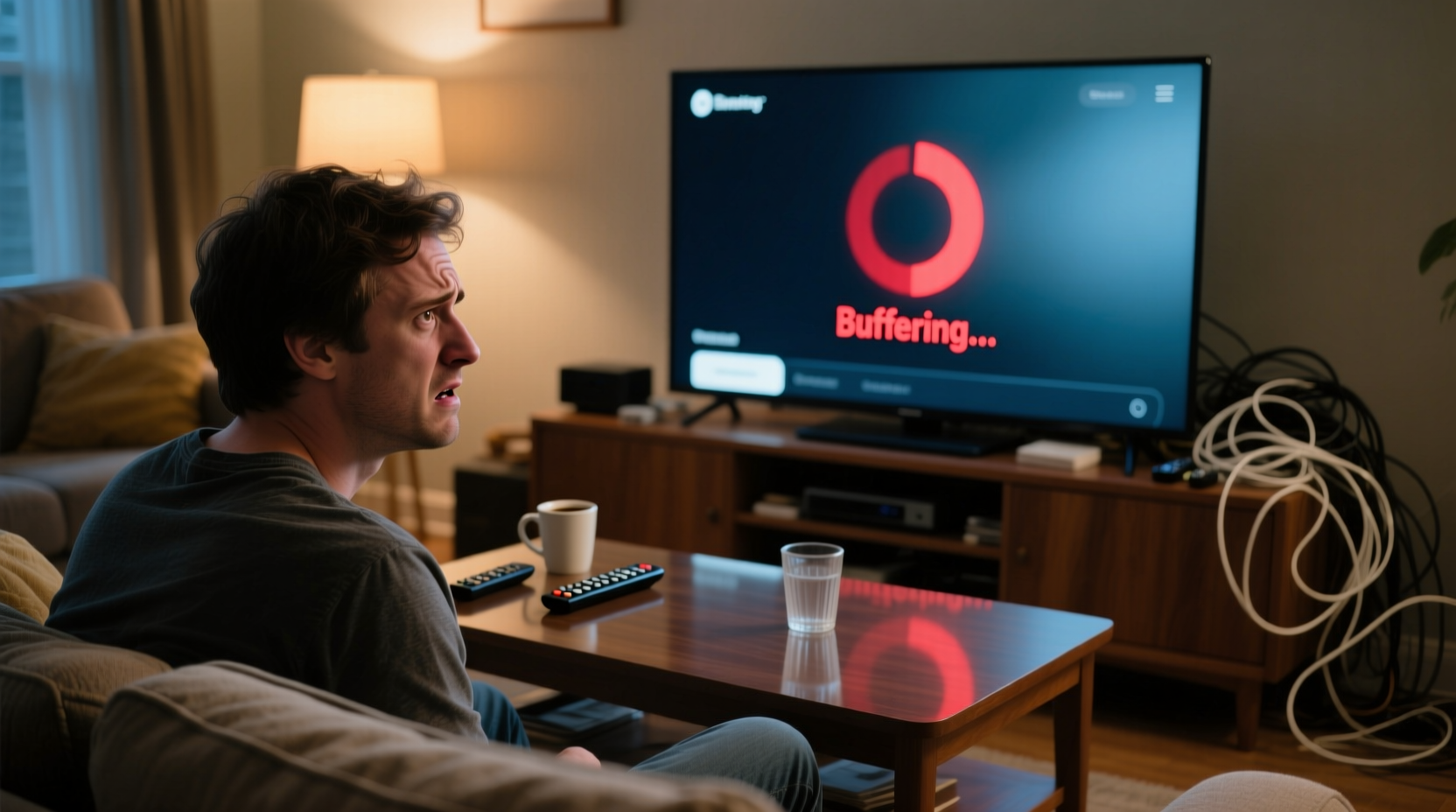
Streaming video is essentially a continuous flow of data from a remote server (like Netflix or YouTube) to your smart TV over your home Wi-Fi or Ethernet connection. For high-definition (HD) content, your TV typically needs a minimum of 5 Mbps. For 4K Ultra HD, that jumps to 25 Mbps or higher. If your internet speed fluctuates below these thresholds—even briefly—the stream can't maintain its pace, leading to buffering.
But bandwidth isn’t the only factor. Your smart TV must also decode the video signal efficiently. Older models or budget TVs may struggle with high-bitrate streams, especially if they’re running multiple apps in the background. Additionally, wireless interference, router placement, and network congestion from other devices all contribute to inconsistent performance.
“Most buffering issues aren’t with the TV itself, but with the ecosystem around it—especially the network.” — James Lin, Network Infrastructure Specialist at Broadband Insights Group
Common Causes of Smart TV Buffering
- Insufficient internet speed: Your plan may not support the resolution you're trying to stream.
- Wi-Fi signal weakness: Distance from the router, walls, or electronic interference can degrade signal strength.
- Network congestion: Multiple devices using bandwidth simultaneously (e.g., gaming, downloads, video calls).
- Outdated firmware: Smart TVs require regular updates to maintain optimal performance and security.
- Router limitations: Older routers may not support modern streaming demands or dual-band frequencies.
- App or service issues: Temporary outages or bugs in streaming platforms like Hulu or Disney+.
- TV hardware limitations: Low RAM or outdated processors can't handle high-resolution decoding smoothly.
Step-by-Step Guide to Fix Buffering Issues
Follow this systematic approach to identify and eliminate the source of your buffering problems.
- Test your internet speed directly on the smart TV. Use a built-in speed test tool (if available) or install a compatible app like “Speedtest by Ookla.” Run the test while connected via Wi-Fi and again via Ethernet if possible. Compare results to your ISP’s advertised speeds.
- Check your required bandwidth. Refer to the table below to confirm what speed your streaming service requires.
- Restart your router and smart TV. Power cycle both devices: unplug for 30 seconds, then plug back in. This resolves many temporary glitches.
- Move closer to the router or use a wired connection. Ethernet is always more stable than Wi-Fi. If wiring isn’t feasible, consider a Wi-Fi extender or mesh system.
- Switch to the 5 GHz Wi-Fi band. Most modern routers broadcast two networks: 2.4 GHz (longer range, slower) and 5 GHz (faster, shorter range). Connect your TV to the 5 GHz network for better throughput.
- Close unused apps on your smart TV. Background processes consume memory and processing power, reducing resources available for streaming.
- Update your smart TV’s firmware. Navigate to Settings > Support > Software Update (varies by brand) and install any pending updates.
- Reduce stream quality temporarily. In your streaming app settings, manually lower the video quality to 720p or 1080p to reduce bandwidth demand.
- Limit other network activity. Pause large downloads, cloud backups, or gaming sessions during streaming.
- Factory reset as a last resort. If issues persist, back up your settings and perform a factory reset to eliminate software corruption.
Recommended Streaming Speeds by Service
| Service | Minimum Speed | Recommended Speed | 4K/HD Support |
|---|---|---|---|
| Netflix | 3 Mbps (SD) | 15 Mbps (4K) | Yes, with Premium plan |
| YouTube | 3 Mbps (720p) | 20 Mbps (4K HDR) | Yes |
| Hulu | 3 Mbps (SD) | 16 Mbps (4K) | Limited 4K content |
| Disney+ | 5 Mbps (HD) | 25 Mbps (4K) | Yes |
| Amazon Prime Video | 1 Mbps (SD) | 15 Mbps (4K UHD) | Yes |
Use this chart to verify whether your current internet plan meets the requirements for your preferred service and resolution. If your speed test shows less than the recommended threshold, upgrading your internet plan may be necessary.
Troubleshooting Checklist: What to Do When Your TV Buffers
Print or bookmark this checklist for quick reference the next time buffering strikes:
- ✅ Run an internet speed test on the smart TV
- ✅ Restart the router and smart TV
- ✅ Switch from 2.4 GHz to 5 GHz Wi-Fi
- ✅ Connect via Ethernet cable (if possible)
- ✅ Close unused apps on the TV
- ✅ Check for firmware updates
- ✅ Lower video quality in app settings
- ✅ Pause other downloads or streaming devices
- ✅ Position router closer to TV or use a mesh system
- ✅ Contact ISP if speeds are consistently below advertised rates
Real-World Example: Solving Persistent Buffering in a Multi-Device Home
Sarah, a homeowner in Austin, Texas, experienced constant buffering on her Samsung QLED TV despite having a 100 Mbps internet plan. Her family used multiple devices: two laptops, three smartphones, a gaming console, and a tablet—all connected simultaneously. She assumed her plan was sufficient, but testing revealed her smart TV only received 6–8 Mbps during peak hours.
After following the step-by-step guide, she made several key changes: she switched her TV to the 5 GHz Wi-Fi band, turned off automatic updates on other devices during evenings, and moved her router from the basement to a central location on the main floor. She also enabled Quality of Service (QoS) settings on her router to prioritize streaming traffic. Within 48 hours, buffering stopped completely, and her 4K content played without interruption.
Sarah’s case illustrates that even with adequate internet speed, poor network management can cripple performance. Small adjustments often yield dramatic improvements.
When the Problem Isn’t Your Network
Sometimes, the issue lies within the streaming service itself. Major platforms occasionally experience server outages or regional delivery issues. Before assuming the fault is yours, check the service status:
- Visit Downdetector.com to see real-time reports of outages for Netflix, Hulu, etc.
- Search social media platforms like Twitter for terms like “Netflix down” or “Disney+ buffering.”
- Try opening the same content on another device (phone, tablet, computer). If it buffers there too, the problem is likely service-wide.
If the service is operational but your TV still struggles, consider reinstalling the app. Corrupted app data can cause playback errors. On most smart TVs, you can uninstall and reinstall apps through the app store or settings menu.
Advanced Solutions for Persistent Issues
If basic fixes don’t work, consider these advanced options:
- Upgrade your router: Invest in a modern dual- or tri-band Wi-Fi 6 router designed for high-bandwidth homes.
- Use a streaming device: Sometimes, built-in smart systems lag behind external devices. A Roku Ultra, Apple TV 4K, or NVIDIA Shield often delivers smoother performance than native smart TV platforms.
- Install a mesh Wi-Fi system: Brands like Google Nest Wifi, Eero, or TP-Link Deco provide seamless coverage across large homes.
- Set up a static IP for your TV: Assign a fixed IP address to ensure consistent network prioritization and reduce DHCP-related hiccups.
- Monitor bandwidth usage: Use tools like GlassWire or your router’s admin panel to track which devices are consuming the most data.
“Over 60% of ‘smart TV’ issues are actually network-related. The TV gets blamed, but the router is often the silent culprit.” — Linda Park, Senior Tech Support Analyst at Consumer Broadband Watch
Frequently Asked Questions
Why does my smart TV buffer even with fast internet?
Your internet speed might be fast on paper, but Wi-Fi interference, distance from the router, or network congestion during peak hours can reduce actual throughput. Also, older smart TVs may lack the processing power to decode high-bitrate streams efficiently, causing internal bottlenecks.
Does turning off other devices really help?
Yes. Each connected device consumes bandwidth, even in standby mode. Smartphones syncing photos, laptops updating software, or security cameras uploading footage can collectively saturate your network. Temporarily disconnecting non-essential devices often improves streaming stability.
Is Ethernet really better than Wi-Fi for streaming?
Absolutely. Ethernet offers lower latency, higher reliability, and consistent speeds unaffected by walls or interference. If your TV is near a router or you can run a cable along baseboards, a wired connection eliminates the most common cause of buffering.
Final Thoughts: Take Control of Your Streaming Experience
Constant buffering doesn’t have to be part of your smart TV routine. By understanding the interplay between your internet connection, router, TV hardware, and streaming services, you gain the power to diagnose and fix issues quickly. Start with simple steps—restart your devices, test your speed, switch to 5 GHz Wi-Fi—and progress to more advanced solutions if needed. Most users find relief with just a few targeted changes.
Remember, streaming should enhance your entertainment, not interrupt it. With a little attention to your home network setup, you can enjoy seamless, high-quality viewing every time you turn on your TV.




 浙公网安备
33010002000092号
浙公网安备
33010002000092号 浙B2-20120091-4
Comments
No comments yet. Why don't you start the discussion?