
Smartwatches have become essential companions—tracking fitness, delivering notifications, and even making calls. But nothing disrupts the experience like a battery that dies by midday. If you're charging your watch twice a day or waking up to a dead device, you're not alone. The good news: most battery issues stem from predictable causes, many of which are easily corrected. Understanding what’s draining your smartwatch and how to manage it can restore confidence in your wearable tech.
Battery longevity isn’t just about hardware age—it’s often about usage patterns, settings, and hidden background processes. From GPS overuse to third-party apps running wild, multiple factors can turn an all-day battery into a half-day liability. This guide breaks down the most common culprits, backed by real-world insights and practical solutions, so you can reclaim hours of use without upgrading.
Common Causes of Rapid Smartwatch Battery Drain
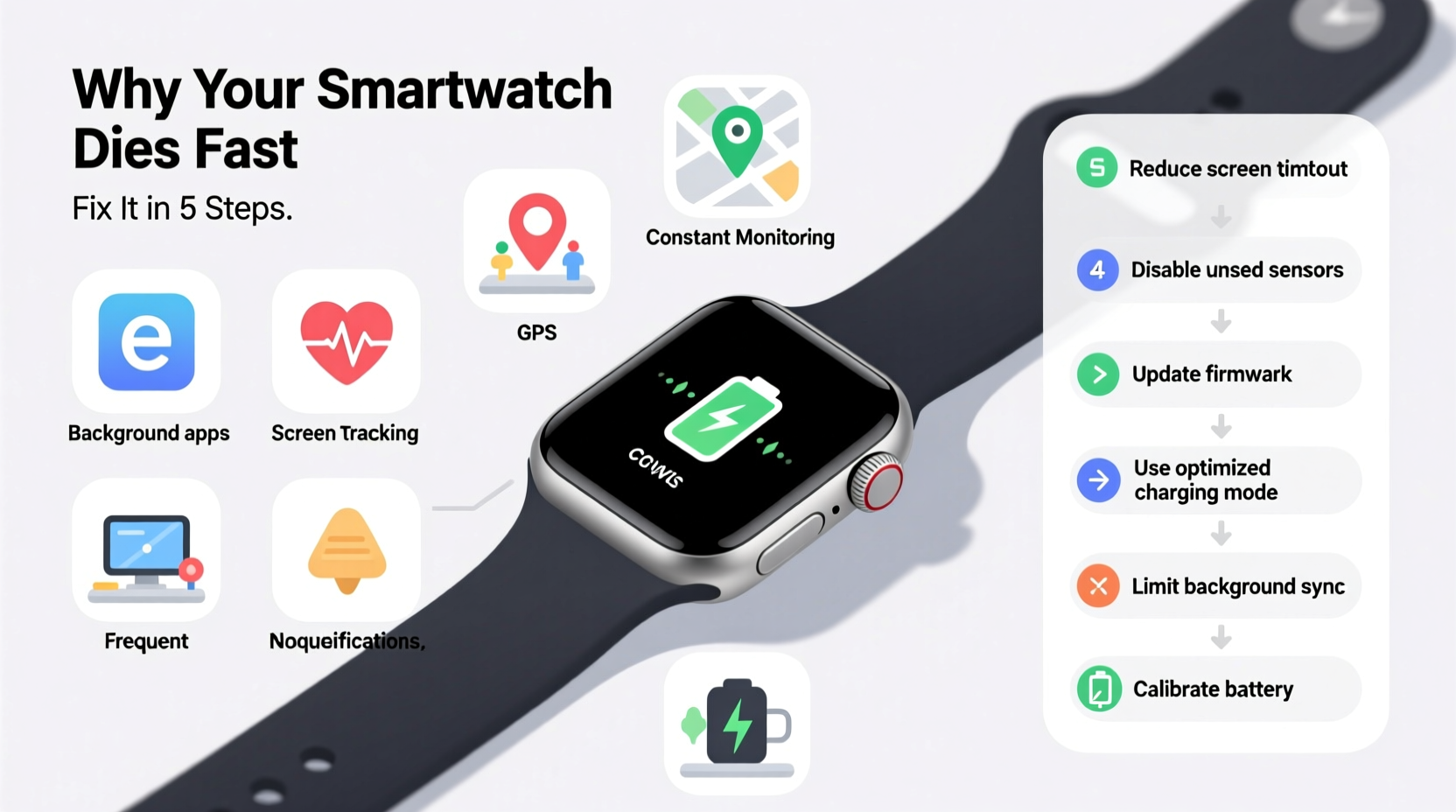
The convenience of constant connectivity comes at an energy cost. Many features designed to enhance usability also consume significant power. Identifying these drains is the first step toward improving performance.
- Always-On Display (AOD): While convenient, keeping the screen lit continuously can reduce battery life by up to 30–40%, depending on brightness and model.
- GPS Tracking: Fitness tracking with continuous GPS uses more power than almost any other function. A single hour-long outdoor run can deplete 15–25% of your battery.
- Frequent Notifications: Every alert vibrates, lights up the screen, and wakes the processor. Dozens per day add up quickly, especially if they trigger animations or sounds.
- Background App Refresh: Third-party apps checking for updates, syncing data, or running in the background silently sap energy.
- Poor Bluetooth Connection: When your watch struggles to maintain a stable link with your phone, it increases transmission power and retry attempts, accelerating drain.
- High Screen Brightness: Auto-brightness helps, but manually set high levels—even briefly—can cause disproportionate energy loss due to OLED/AMOLED panel design.
- Outdated Software: Bugs in older firmware versions may lead to memory leaks or inefficient processes that keep the CPU active unnecessarily.
How to Diagnose Battery Usage on Your Smartwatch
Before making changes, determine what’s actually consuming power. Most modern smartwatches provide built-in tools to analyze battery consumption by app and system feature.
- Open the companion app on your smartphone (e.g., Wear OS by Google, Samsung Galaxy Wearable, Apple Watch app).
- Navigate to the battery section or diagnostics menu.
- Review the last 24–48 hours of usage, focusing on:
- Which apps used the most power
- Time spent with screen on vs. idle
- GPS activation duration
- Notification frequency
- Cross-reference spikes in usage with your activity log (e.g., workouts, travel days).
If you notice a particular app consistently topping the list—especially one you rarely use—it may be malfunctioning or poorly optimized. Consider uninstalling it temporarily to test improvements.
“Battery analytics are often overlooked, but they’re the fastest way to pinpoint inefficiencies. Users surprised by poor performance usually find one or two rogue apps responsible.” — Marcus Lin, Senior Wearables Engineer at FitTech Labs
Proven Fixes to Extend Smartwatch Battery Life
Once you’ve identified the main drains, apply targeted fixes. These strategies work across major platforms including Wear OS, watchOS, and Samsung Tizen.
1. Optimize Display Settings
The screen is typically the largest power consumer. Adjust these settings:
- Disable Always-On Display or set it to minimal mode (time only, dimmed).
- Reduce screen timeout from 15 seconds to 8–10 seconds.
- Enable auto-brightness or manually lower maximum brightness.
- Use dark watch faces—especially effective on OLED screens where black pixels are turned off.
2. Manage App Behavior
Not all apps behave equally. Some refresh constantly, while others sync only when opened.
- Uninstall unused or rarely used third-party apps.
- Limit background refresh permissions through the companion app.
- Replace heavy widgets (e.g., live weather maps) with simpler alternatives.
- Check for app updates—developers frequently release efficiency patches.
3. Control Connectivity Features
Wireless radios are essential but power-hungry. Use them wisely:
- Turn off Wi-Fi if you’re always near your phone—Bluetooth uses less power.
- Disable LTE on cellular models unless truly needed (e.g., leaving your phone behind).
- Turn off NFC when not using contactless payments.
- Ensure Bluetooth signal strength is strong; avoid placing your phone in a metal bag or far room.
4. Rethink Notification Strategy
You don’t need every email, social update, or game alert on your wrist.
- In the companion app, customize which apps can send alerts.
- Set priority-only interruptions during sleep or focus hours.
- Disable haptic feedback for non-critical notifications.
- Consider silent delivery for low-priority messages.
5. Update Firmware and Reset When Necessary
Manufacturers regularly release software updates that improve battery efficiency.
- Ensure your watch and phone app are running the latest version.
- Perform a soft reset weekly—power off, wait 10 seconds, restart.
- If problems persist, back up data and perform a factory reset to eliminate software corruption.
Battery-Saving Checklist
Follow this checklist weekly to maintain optimal battery health:
- ✅ Disable Always-On Display or limit its visibility
- ✅ Set screen timeout to 8–10 seconds
- ✅ Use a dark-themed watch face
- ✅ Uninstall unused apps, especially those with background sync
- ✅ Limit notifications to essential apps only
- ✅ Turn off Wi-Fi and LTE when not needed
- ✅ Enable airplane mode during flights or offline activities
- ✅ Review battery usage report every 3 days
- ✅ Keep software updated on both watch and phone
- ✅ Restart the device at least once a week
Real-World Example: Recovering from All-Day Failure
Sarah, a marketing manager and avid runner, noticed her Wear OS smartwatch dying before 3 PM—despite a full charge each morning. She relied on it for calendar alerts, heart rate monitoring, and post-workout GPS tracking. After reviewing her battery stats, she discovered that a weather widget was refreshing every five minutes and a messaging app was syncing continuously, even though she only checked it twice daily.
She took three actions:
- Replaced the animated weather widget with a static text-based one.
- Disabled background sync for the messaging app.
- Switched to a black watch face and reduced screen timeout.
The result? Her battery lasted until 9:30 PM—a 70% improvement—with no reduction in core functionality. She still tracked runs with GPS and received urgent alerts, but unnecessary load was eliminated.
Do’s and Don’ts: Smartwatch Battery Best Practices
| Do | Don't |
|---|---|
| Use dark watch faces on OLED displays | Use bright, animated faces constantly |
| Review battery usage weekly | Ignore sudden drops in performance |
| Disable unused wireless features (Wi-Fi, LTE) | Leave all connections enabled “just in case” |
| Update firmware promptly | Delay updates for months |
| Limit third-party app installations | Install every app you see in the store |
| Restart your watch weekly | Run the same session for days without reboot |
Frequently Asked Questions
How long should a smartwatch battery last under normal use?
A well-maintained smartwatch should last between 1.5 and 3 days on a single charge under typical usage—receiving notifications, tracking steps, occasional GPS use, and moderate screen interaction. High-end models like the Apple Watch or Samsung Galaxy Watch usually target 18–36 hours. Anything less suggests inefficient settings or software issues.
Does charging my smartwatch overnight damage the battery?
No—not with modern devices. Smartwatches use lithium-ion batteries with built-in charge regulation. Once the battery reaches 100%, charging stops automatically. However, keeping it at 100% for extended periods (e.g., days) can contribute to long-term degradation. For optimal longevity, try to keep charge between 20% and 80% when possible, especially during storage.
Can a factory reset improve battery life?
Yes, in cases where software glitches, corrupted caches, or misbehaving apps are causing excessive drain. A factory reset wipes the system clean and allows you to rebuild settings selectively. Be sure to back up important data first. Many users report immediate improvements after resetting, particularly if the device has been in use for months without a deep refresh.
Final Thoughts: Take Control of Your Smartwatch Experience
Your smartwatch shouldn’t be chained to a charger. With thoughtful configuration and regular maintenance, most devices can deliver reliable, all-day performance—even under active use. The key is vigilance: monitor usage, question defaults, and adjust settings based on your actual needs, not assumptions.
Battery life isn’t just a technical spec—it’s a reflection of how well you’ve tailored the device to your lifestyle. By eliminating waste, optimizing display behavior, and managing connectivity, you gain not only longer runtime but also a smoother, more responsive experience.




 浙公网安备
33010002000092号
浙公网安备
33010002000092号 浙B2-20120091-4
Comments
No comments yet. Why don't you start the discussion?