
Smartwatches have become essential tools for tracking fitness goals, monitoring daily activity, and encouraging a more active lifestyle. Among the most relied-upon metrics is step count—a simple number that reflects movement, motivation, and progress. But what happens when your smartwatch seems to undercount, overcount, or miss steps entirely? Inaccurate step tracking can be frustrating, especially when you're trying to meet health targets or maintain consistency.
The good news is that most step-counting issues are not due to hardware failure but rather correctable settings, placement habits, or environmental factors. Understanding the root causes—and knowing how to address them—can restore confidence in your device’s data and improve your overall experience.
How Smartwatches Track Steps: The Basics
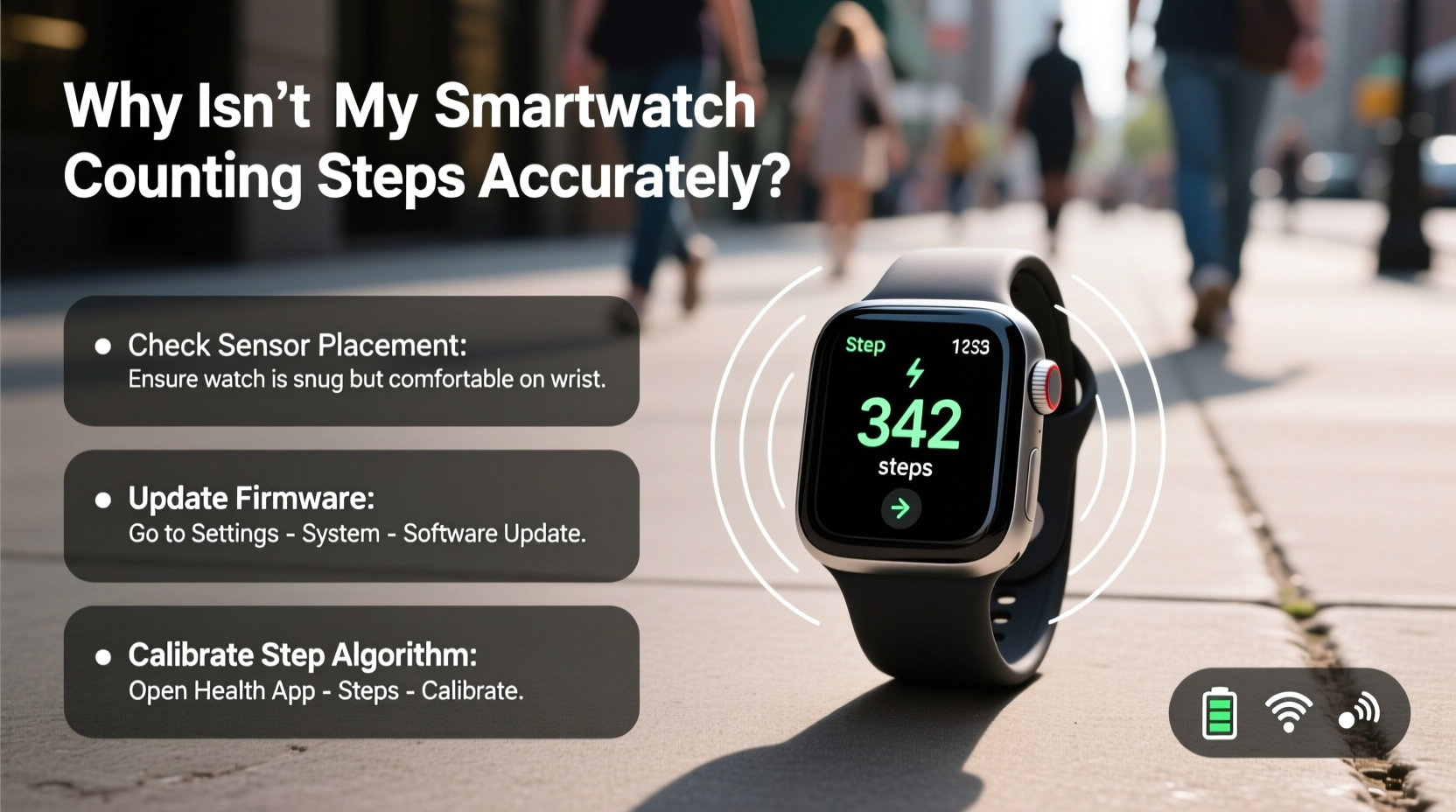
Most modern smartwatches use an internal sensor called an accelerometer to detect motion. This sensor measures acceleration forces in multiple directions, allowing the device to distinguish between walking, running, shaking, and other movements. Advanced models also incorporate a gyroscope and sometimes a barometer to enhance accuracy by detecting orientation and elevation changes.
The raw data from these sensors is processed through proprietary algorithms developed by manufacturers like Apple, Samsung, Garmin, and Fitbit. These algorithms analyze patterns in movement—such as stride length, cadence, and arm swing—to determine whether motion qualifies as a \"step.\" However, no algorithm is perfect, and variations in user behavior, device positioning, and software settings can all affect results.
“Step counting on wearables is estimation-based, not exact science. It’s designed for trends over time, not laboratory precision.” — Dr. Lena Torres, Biomedical Engineer & Wearable Technology Researcher
Common Causes of Inaccurate Step Counting
Before assuming your smartwatch is faulty, consider the following frequent culprits behind inaccurate step tracking:
- Inconsistent wearing habits: Taking the watch off during walks or wearing it too loosely reduces detection sensitivity.
- Non-arm-swing activities: Cycling, pushing a stroller, or shopping cart use limit natural arm motion, leading to missed steps.
- Improper calibration: Factory defaults may not match your actual stride length or walking pattern.
- Software bugs or outdated firmware: Glitches in the operating system or fitness app can disrupt sensor readings.
- Overcounting from incidental movement: Typing, gesturing, or driving can register false steps if sensitivity is too high.
- Low battery or power-saving modes: Some watches reduce sensor frequency to conserve energy, impacting tracking accuracy.
Troubleshooting Your Smartwatch Step Accuracy
If your step count feels unreliable, follow this systematic approach to diagnose and resolve the issue.
1. Verify Device Placement and Fit
The location and tightness of your smartwatch significantly influence sensor performance. A loose band allows excessive sliding, which dampens motion signals. Conversely, wearing it too tightly can restrict blood flow and cause discomfort without improving accuracy.
Ensure the back sensors remain in consistent contact with your skin. Avoid wearing it over clothing or bulky sleeves, as fabric can absorb vibrations and prevent proper detection.
2. Recalibrate Your Stride Length and Personal Data
Many smartwatches estimate distance and steps using default stride lengths based on height and gender. These assumptions often don’t reflect real-world gait.
To recalibrate:
- Walk a known distance (e.g., 100 meters) at your normal pace while manually counting steps.
- Divide the distance (in cm) by the number of steps to get your average stride length.
- Enter this value into your watch or companion app under personal settings.
This adjustment improves both step and distance calculations, particularly for shorter or taller individuals whose gaits differ from averages.
3. Update Firmware and Apps
Manufacturers regularly release updates that refine motion algorithms and fix bugs affecting sensor performance. Check for available updates in your smartwatch settings or companion smartphone app.
For example:
- Apple Watch: Settings > General > Software Update
- Samsung Galaxy Watch: Galaxy Wearable app > Watch settings > About watch > Software update
- Fitness trackers (Fitbit, Garmin): Sync via app and check for notifications
4. Disable Power-Saving Modes During Activity
Some smartwatches enter low-power states that disable continuous heart rate monitoring and reduce accelerometer sampling rates. While helpful for extending battery life, these modes compromise step accuracy.
If you’re consistently missing steps throughout the day, ensure features like “Always-On Display” or “Battery Saver” aren’t interfering with background tracking. Consider scheduling power-saving modes only for nighttime.
Do’s and Don’ts of Accurate Step Tracking
| Do | Don't |
|---|---|
| Wear the watch snugly on your wrist during physical activity | Leave the watch on a table or bag while moving |
| Manually calibrate stride length using real-world data | Rely solely on default settings for height/weight |
| Keep software and apps up to date | Ignore firmware update prompts for weeks |
| Use built-in workout modes for non-walking activities | Expect accurate step counts when arms aren’t swinging |
| Sync your device daily to catch data gaps | Wait several days between syncs, risking data loss |
Real-World Example: Fixing Underreported Steps
Jamal, a 38-year-old office worker, noticed his weekly step average dropped suddenly despite walking more after work. He wore his smartwatch daily but found discrepancies when comparing it to his phone’s pedometer.
After investigation, he discovered two issues: first, he had enabled Battery Saver mode overnight and forgot to turn it off; second, he started carrying groceries home with both hands, minimizing arm swing. His watch wasn’t detecting those walks.
He disabled the power-saving setting and began starting a “Walk” workout in his watch app before each evening stroll. Within days, his step totals aligned better with expectations, and he regained trust in his device.
When to Trust (and When Not to Trust) Your Step Count
It’s important to recognize that step counting is inherently approximate. Studies show most consumer-grade devices have a margin of error between 5% and 15%, depending on conditions.
You should trust your smartwatch for:
- Trend analysis over days or weeks
- Motivational feedback and goal tracking
- Comparative insights (e.g., more active vs. sedentary days)
But avoid relying on it for:
- Clinical or medical assessments
- Precise calorie burn calculations
- Legal or insurance-related activity verification
Instead of obsessing over individual step numbers, focus on consistency and gradual improvement in your overall activity level.
Expert Tips for Maximizing Accuracy
Beyond basic troubleshooting, here are advanced strategies used by fitness tech enthusiasts and professionals:
- Pair with a phone GPS app: Run a trusted fitness app (like Strava or MapMyWalk) simultaneously to cross-check distance and correlate with step data.
- Reset motion calibration: On iOS devices, go to Settings > Privacy > Location & Privacy > System Services > Reset Calibration Data to refresh motion algorithms.
- Test different wearing positions: Try switching wrists or adjusting the band position slightly to see if accuracy improves.
- Monitor for sensor blockage: Dirt, sweat, or screen protectors covering the back sensors can impair function—clean regularly with a soft, dry cloth.
“Users who treat their wearable as a trend tracker rather than a measuring tape tend to get the most long-term value.” — Mark Hu, Senior UX Designer at a Leading Wearable Tech Company
FAQ: Common Questions About Step Tracking Issues
Can I improve step accuracy without resetting my watch?
Yes. Most accuracy improvements come from adjusting settings, updating software, recalibrating stride length, and changing wearing habits—none of which require a factory reset. Reserve resets for persistent glitches after trying other fixes.
Why does my smartwatch count steps when I’m not walking?
This usually happens due to excessive motion interpreted as steps—like typing vigorously, cooking, or driving on bumpy roads. High-sensitivity algorithms may struggle to filter out non-locomotive movement. Some watches allow sensitivity adjustments; otherwise, this minor overcounting evens out over time.
Does wearing the watch on my dominant hand affect step counting?
Not directly, but most people swing their non-dominant arm less during daily tasks. Manufacturers typically optimize algorithms for the non-dominant wrist. Wearing it on your dominant side might slightly reduce accuracy unless the device detects handedness automatically.
Final Checklist: Ensure Your Smartwatch Tracks Steps Correctly
Follow this checklist weekly to maintain reliable step tracking:
- ✅ Confirm the watch is worn snugly, sensor-side down, one finger above the wrist bone
- ✅ Verify that software and companion apps are up to date
- ✅ Recheck personal profile data (height, weight, stride length)
- ✅ Disable power-saving modes during waking hours
- ✅ Start workout sessions for non-arm-swing activities (cycling, elliptical, etc.)
- ✅ Clean the back sensors gently with a dry microfiber cloth
- ✅ Sync your device daily to ensure data integrity
Conclusion: Take Control of Your Fitness Data
Your smartwatch is a powerful ally in staying active—but only if you understand its limitations and know how to optimize its performance. Inaccurate step counts are rarely a sign of broken hardware; they’re usually the result of small, fixable oversights in setup, usage, or maintenance.
By applying the solutions outlined here—from recalibrating your stride to managing software updates—you can dramatically improve the reliability of your step tracking. More importantly, you’ll gain clearer insight into your daily habits and make smarter decisions about your health journey.




 浙公网安备
33010002000092号
浙公网安备
33010002000092号 浙B2-20120091-4
Comments
No comments yet. Why don't you start the discussion?