
You’ve paid for a high-speed internet plan—perhaps even upgraded to gigabit service—and yet, when you settle in to watch your favorite show, the screen breaks into blocky, unwatchable pixels. It’s frustrating, especially when speed tests confirm that your connection should be more than capable of handling 4K streaming. The truth is, internet speed is only one piece of the puzzle. Pixelation during streaming can stem from a complex chain of factors beyond bandwidth alone, including network congestion, device limitations, Wi-Fi interference, and even how streaming platforms manage delivery. Understanding these underlying issues is key to restoring crisp, seamless video.
Understanding the Streaming Chain
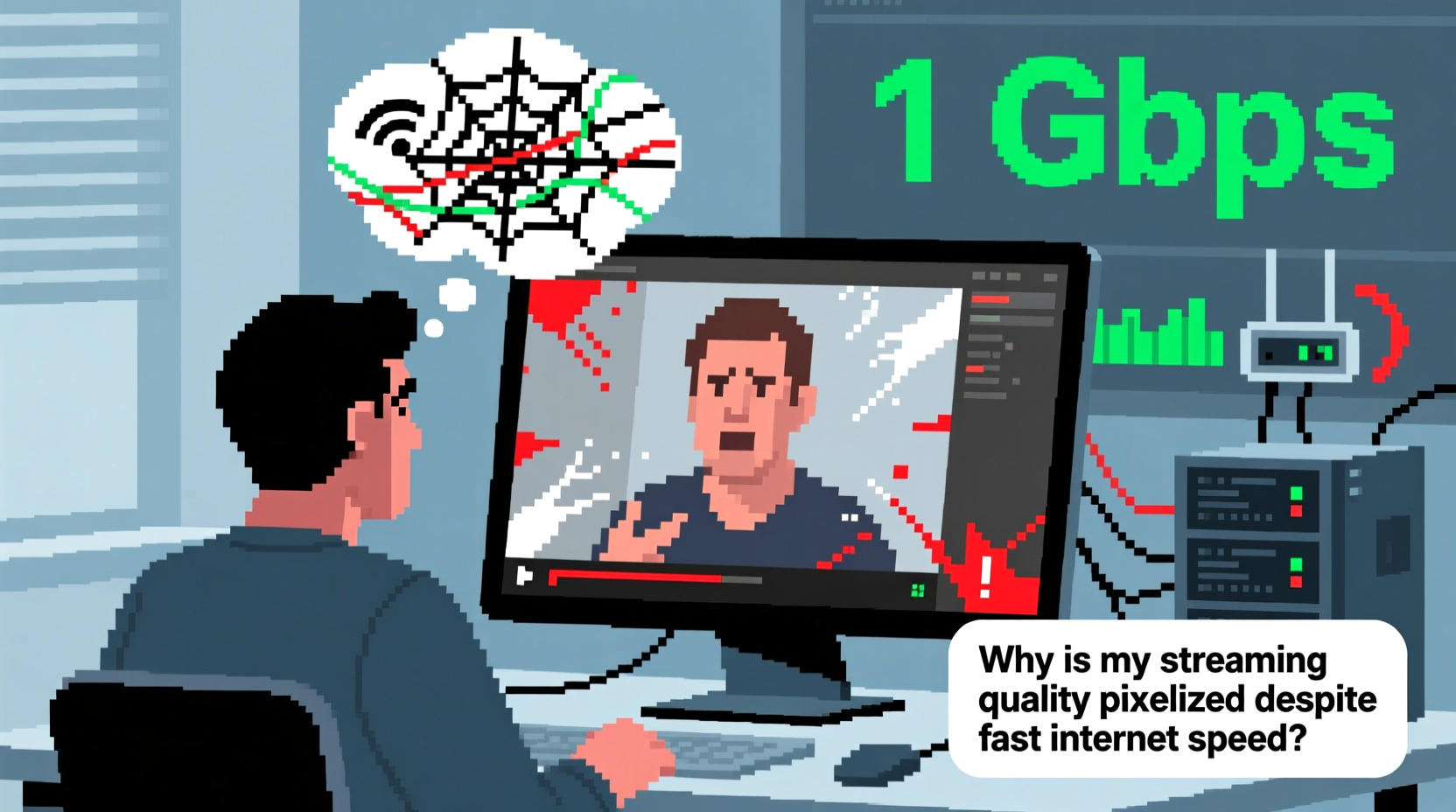
Streaming isn’t just about raw download speed. It’s a multi-step process: data travels from the content provider (like Netflix or YouTube), through your internet service provider (ISP), into your router, across your home network, and finally to your device—be it a smart TV, tablet, or gaming console. Any weakness in this chain can degrade quality, regardless of what your ISP promises.
Modern streaming services use adaptive bitrate technology. This means the platform constantly adjusts video quality based on real-time network conditions. Even if your average speed is high, momentary drops in throughput or increases in latency can trigger a downgrade to lower resolution to prevent buffering. So while your internet may be “fast” on paper, inconsistent performance can still lead to pixelation.
Common Causes of Pixelation Despite High Speed
1. Wi-Fi Interference and Signal Degradation
Even with a 500 Mbps connection, using Wi-Fi introduces variables that wired connections avoid. Walls, appliances, neighboring networks, and physical distance can all weaken your signal. A strong signal at the router doesn’t guarantee consistent strength at your streaming device, especially if it’s on the other side of the house.
Frequent disconnections, fluctuating speeds, or high latency over Wi-Fi often go unnoticed until they impact video quality. The result? The streaming app detects instability and downgrades to a lower bitrate, causing pixelation.
2. Network Congestion and Bandwidth Sharing
Your total bandwidth is shared among all connected devices. While one person might be streaming 4K video, others could be downloading large files, gaming online, or running cloud backups—all consuming bandwidth silently in the background. Even if your plan supports high speeds, peak usage times can create local bottlenecks.
Additionally, ISP throttling during peak hours or on specific types of traffic (e.g., video streaming) can reduce effective throughput, even if your speed test shows otherwise.
3. Outdated or Underpowered Hardware
Your router, modem, or streaming device may not be equipped to handle modern high-resolution content efficiently. Older routers using outdated Wi-Fi standards (like 802.11n) struggle with multiple HD streams. Similarly, budget smart TVs or older streaming sticks may lack sufficient processing power to decode high-bitrate video smoothly, leading to dropped frames and visual artifacts.
4. Server-Side Limitations
Streaming quality also depends on the source. If the content provider’s servers are overloaded or geographically distant, delivery suffers. Some platforms cap maximum bitrates based on subscription tier. For example, standard Netflix plans limit 4K streaming, forcing lower resolutions even if your connection supports higher quality.
5. Packet Loss and Latency Spikes
Latency (ping time) and packet loss are often overlooked. High latency (>100ms) or frequent packet loss (>1%) disrupts the steady flow of data required for smooth streaming. These issues may not affect browsing but severely impact real-time video delivery.
“Bandwidth gets all the attention, but jitter and packet loss are silent killers of streaming quality.” — David Lin, Network Engineer at Broadband Insights Group
Troubleshooting Checklist: Fix Pixelation Step by Step
Follow this structured approach to isolate and resolve the root cause of pixelation.
- Test Your Connection During Streaming: Use tools like Fast.com or Speedtest.net while actively streaming. Note fluctuations in download speed, upload, ping, and jitter.
- Check for Packet Loss: Open Command Prompt (Windows) or Terminal (Mac), then run:
ping -t 20 8.8.8.8. Let it run for 2 minutes while streaming. If more than 1–2% of packets are lost, there’s a network issue. - Switch to Ethernet: Connect your streaming device directly to the router via an Ethernet cable. If pixelation disappears, Wi-Fi is the culprit.
- Restart Router and Modem: Power cycle both devices. This clears temporary glitches and resets IP assignments.
- Limit Background Devices: Temporarily disconnect other devices or pause downloads/cloud syncs.
- Update Firmware: Check your router and streaming device for available firmware updates.
- Change DNS Servers: Try switching to Google DNS (8.8.8.8 / 8.8.4.4) or Cloudflare (1.1.1.1) for potentially faster routing.
- Test on Another Device: Stream the same content on a different device. If the problem persists, it’s likely network-related; if not, the original device may be at fault.
Do’s and Don’ts: Managing Streaming Performance
| Do’s | Don’ts |
|---|---|
| Use a wired Ethernet connection for critical devices | Place your router near microwaves or thick concrete walls |
| Upgrade to Wi-Fi 6 if streaming multiple 4K devices | Ignore firmware updates on your router or smart TV |
| Set QoS (Quality of Service) rules to prioritize streaming | Assume your ISP-provided router is optimal for performance |
| Clear cache on streaming apps monthly | Stream 4K on devices not officially certified for it |
| Monitor bandwidth usage via your router’s admin panel | Run large downloads while watching important content |
Real-World Example: The Case of the \"Fast But Frustrating\" Fiber Plan
Mark, a remote worker in Austin, upgraded to a 1 Gbps fiber plan after experiencing constant buffering on his previous 100 Mbps connection. He ran speed tests showing 940 Mbps download—more than enough for 4K streaming. Yet, his living room Apple TV kept dropping to 720p, especially in the evenings.
After ruling out device issues, he connected the Apple TV via Ethernet. The pixelation vanished. Further investigation revealed that his ISP-provided router was placed in a closet behind metal shelves, severely weakening Wi-Fi signals in the living room. By relocating the router to a central, elevated position and upgrading to a mesh Wi-Fi 6 system, Mark restored stable 4K streaming—even during family movie nights with multiple devices active.
This case highlights a common misconception: speed ≠ stability. Infrastructure and placement matter as much as bandwidth.
Optimizing Your Setup for Consistent Quality
To maintain high-quality streaming without interruptions, consider these long-term optimizations:
- Invest in a Quality Router: Look for Wi-Fi 6 (802.11ax) support, dual or tri-band operation, and beamforming technology for better signal direction.
- Enable QoS Settings: Most modern routers allow you to prioritize certain devices or applications. Assign high priority to your streaming box or smart TV.
- Use a Dedicated Streaming Device: Devices like Apple TV 4K, NVIDIA Shield, or Roku Ultra offer superior decoding and software optimization compared to built-in smart TV platforms.
- Monitor ISP Throttling: Use tools like Cloudflare’s Ward or M-Lab to detect potential throttling of video traffic.
- Consider a Network Switch or Mesh System: For larger homes, extend coverage with access points rather than relying on Wi-Fi extenders, which often halve bandwidth.
Frequently Asked Questions
Why does my video pixelate only during live streams?
Live streams are more sensitive to network fluctuations because they don’t benefit from pre-buffering like on-demand content. Even brief latency spikes or packet loss can cause the player to drop resolution instantly to maintain continuity.
Can my smart TV cause pixelation even with good internet?
Yes. Older or budget smart TVs may have underpowered processors or outdated video decoders. They might struggle with high-bitrate HEVC or AV1 codecs used in 4K streaming, resulting in poor rendering and pixelation—even if the data arrives intact.
Does using a VPN affect streaming quality?
Absolutely. A VPN adds encryption overhead and reroutes your traffic through additional servers, increasing latency and reducing effective bandwidth. If you must use a VPN, choose one with nearby servers and optimized streaming performance.
Conclusion: Clarity Starts with Diagnosis
Pixelation despite fast internet speed is a symptom, not the problem itself. Solving it requires looking beyond headline bandwidth numbers and examining the entire ecosystem—from your ISP and router to your device and environment. Often, the fix isn’t upgrading your plan but optimizing how your existing connection is used.
Start with simple steps: switch to Ethernet, eliminate interference, and monitor real-time performance. Then move to advanced solutions like QoS settings or hardware upgrades. Each adjustment brings you closer to the smooth, immersive viewing experience you expected when you signed up for high-speed internet.




 浙公网安备
33010002000092号
浙公网安备
33010002000092号 浙B2-20120091-4
Comments
No comments yet. Why don't you start the discussion?