
It’s a common frustration: you run a speed test and see blazing-fast download speeds—maybe 100 Mbps or more—but your upload speed crawls at just 5 or 10 Mbps. You’re not imagining it. Most home internet connections are designed this way by default. But when upload performance impacts video calls, cloud backups, live streaming, or remote work, the imbalance becomes more than just an annoyance—it becomes a bottleneck.
Understanding the reasons behind slow upload speeds requires looking beyond surface-level symptoms. It involves knowing how internet infrastructure works, what your ISP prioritizes, and how your own network setup might be limiting performance. This article breaks down the technical and practical factors affecting upload speed and provides actionable steps to improve it.
How Internet Speed Works: Asymmetry Explained
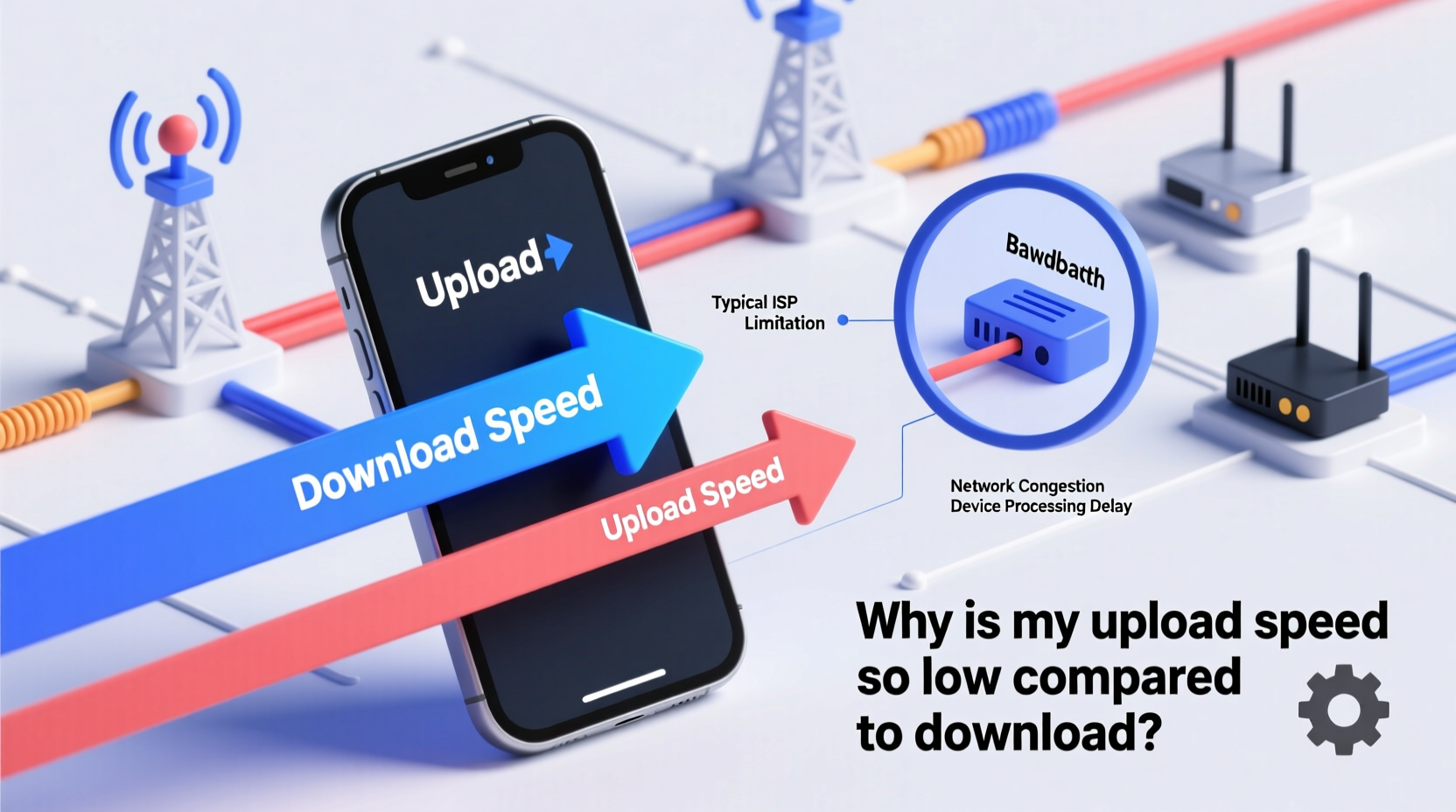
Most residential broadband services use what’s known as asymmetric bandwidth allocation. This means download speeds are significantly higher than upload speeds. The design reflects typical consumer behavior: users tend to consume far more data (streaming videos, downloading files, browsing websites) than they send.
For example, watching a 4K Netflix stream uses about 15 Mbps of download bandwidth but almost no upload. Conversely, uploading a 1GB file to Google Drive consumes substantial upload capacity over time. ISPs optimize their networks accordingly, allocating more bandwidth downstream.
This asymmetry is built into common technologies like DSL, cable, and even some fiber plans. A standard cable internet plan might offer:
| Connection Type | Average Download Speed | Average Upload Speed | Typical Ratio (Download:Upload) |
|---|---|---|---|
| Cable | 100–500 Mbps | 5–35 Mbps | 10:1 to 20:1 |
| DSL | 5–20 Mbps | 1–3 Mbps | 5:1 to 10:1 |
| Fiber (Residential) | 200–1000 Mbps | 200–1000 Mbps | 1:1 (Symmetric) |
| Fiber (Budget Tier) | 300 Mbps | 30 Mbps | 10:1 |
As shown, only full-fiber plans typically offer symmetric speeds. Even then, some providers throttle uploads on lower-tier packages. If your usage has evolved—from casual browsing to working remotely or live-streaming—you may have outgrown your current plan’s upload capacity.
Common Causes of Slow Upload Speeds
While asymmetry is normal, unusually low upload speeds can stem from deeper issues. Below are the most frequent culprits:
1. Network Congestion During Peak Hours
Your local node (a shared segment of the ISP’s network) can become overloaded during evenings when many users stream, game, or video conference. While downloads suffer too, uploads are often hit harder because upstream bandwidth is already limited.
2. Outdated or Low-Quality Networking Equipment
An old router, damaged Ethernet cables, or Wi-Fi interference can severely degrade upload performance. For instance, a router using outdated Wi-Fi standards (like 802.11n) may struggle with sustained upload throughput, especially over wireless connections.
3. Background Applications Using Bandwidth
Applications running in the background—cloud sync tools (Dropbox, OneDrive), automatic backups, software updates, or peer-to-peer sharing—can silently consume upload bandwidth without your knowledge.
4. Signal Degradation (Cable/DSL)
On cable or DSL lines, distance from the central office or signal noise due to damaged lines reduces both download and upload speeds, but upload channels are often more sensitive to line quality.
5. Data Caps and Throttling
Some ISPs reduce speeds after you exceed a monthly data allowance. Others engage in throttling specific types of traffic, such as large uploads to cloud services or P2P networks.
6. Wi-Fi Interference and Distance
If you're relying on Wi-Fi instead of a wired connection, physical obstructions, competing signals (neighbors’ networks), or being too far from the router can disproportionately affect upload stability due to smaller packet sizes and stricter timing requirements.
“We’ve seen cases where customers assumed their ISP was underdelivering, only to discover that a misconfigured smart home hub was uploading gigabytes of sensor data every night.” — David Lin, Senior Network Engineer at NetVista Solutions
Step-by-Step Guide to Diagnose and Improve Upload Speed
Follow this structured approach to identify and resolve upload bottlenecks:
- Test Your Current Speed
Use a reliable tool like Ookla Speedtest (speedtest.net) on a device connected directly via Ethernet. Test three times at different times of day to rule out temporary congestion. - Check for Background Uploads
Open Task Manager (Windows) or Activity Monitor (Mac). Sort by network usage and look for processes consuming upload bandwidth. Disable unnecessary sync or update tasks temporarily. - Restart Your Router and Modem
Power cycle your equipment: unplug both modem and router, wait 60 seconds, then power the modem first, followed by the router. This clears temporary glitches and resets connection parameters. - Switch to a Wired Connection
Run a second speed test using an Ethernet cable. If upload speeds improve dramatically, your issue is likely Wi-Fi related—either interference, distance, or outdated wireless standards. - Update Firmware and Drivers
Check your router manufacturer’s website for firmware updates. Also ensure your computer’s network adapter drivers are up to date. - Change Wi-Fi Channel
Use a Wi-Fi analyzer app to find the least congested channel. Log into your router settings and manually set your 2.4 GHz or 5 GHz band to a less crowded option. - Contact Your ISP
If all else fails, call your provider. Ask specifically: “Is my line experiencing upstream signal degradation?” and “Am I on a symmetric or asymmetric plan?” Request a line quality report if available.
Real-World Example: Remote Worker Struggles with Video Calls
Sarah, a freelance graphic designer based in Denver, upgraded her internet to 300 Mbps download for smoother collaboration. But she kept experiencing frozen screens during Zoom presentations and delays uploading project files. Her download speed tested fine, but uploads barely reached 3 Mbps.
After troubleshooting, she discovered two issues: her five-year-old router supported only Wi-Fi 5 (802.11ac) and had poor upload handling, and her backup software was syncing 20 GB of photos overnight.
She replaced the router with a modern Wi-Fi 6 model, scheduled backups for off-peak hours, and switched her main workstation to Ethernet. Her upload speed jumped to 28 Mbps—close to her plan’s advertised 30 Mbps—and video calls stabilized immediately.
Sarah’s case highlights how hardware limitations and background processes can compound inherent asymmetry, making uploads feel broken when they’re merely constrained.
Actionable Tips to Boost Upload Performance
- Use QoS (Quality of Service) Settings: Prioritize real-time applications like video conferencing over background uploads in your router settings.
- Limit Simultaneous Uploads: Avoid starting large cloud backups while in a Teams meeting or streaming live.
- Upgrade to Fiber or Business-Class Internet: If your work depends on fast uploads, consider switching to a symmetric fiber plan or business tier with guaranteed upstream bandwidth.
- Split Networks: Use guest Wi-Fi or VLANs to isolate smart home devices that constantly phone home, reducing background chatter on your primary network.
- Monitor Usage Regularly: Set up alerts via your router or third-party tools like GlassWire to catch abnormal upload spikes early.
Checklist: Is Your Upload Speed Problem Resolved?
Use this checklist to confirm you've addressed all potential causes:
- ✅ Ran speed test on a wired connection
- ✅ Verified no background apps are consuming upload bandwidth
- ✅ Restarted modem and router
- ✅ Updated router firmware and network drivers
- ✅ Switched to less congested Wi-Fi channel
- ✅ Contacted ISP for line quality check
- ✅ Considered upgrading to a symmetric or business internet plan
FAQ: Common Questions About Upload Speed
Why is upload speed usually slower than download?
Most residential internet plans are asymmetric by design. ISPs allocate more bandwidth to downloads because typical users consume more data than they send. Streaming, browsing, and downloading dominate usage patterns, so networks are optimized accordingly.
Can malware cause slow upload speeds?
Yes. Some malware turns infected devices into bots that send spam, mine cryptocurrency, or relay data—all of which consume upload bandwidth. If your upload usage is high without explanation, scan your system with updated antivirus software.
Does distance from the server affect upload speed?
Not significantly. Unlike latency (ping), upload speed is primarily determined by your local connection quality and ISP configuration. However, the destination server’s ability to accept data quickly can create perceived slowdowns, though this is rare with major platforms.
Conclusion: Take Control of Your Connection
Low upload speed compared to download isn’t always a flaw—it’s often by design. But when it interferes with how you use the internet today, it’s worth investigating and addressing. From checking for silent bandwidth hogs to upgrading your plan or hardware, the solutions are within reach.
Don’t accept sluggish uploads as inevitable. With the right diagnosis and adjustments, you can achieve a balanced, responsive connection that supports modern digital demands. Evaluate your current setup, apply the steps outlined here, and experience the difference a well-tuned network can make.




 浙公网安备
33010002000092号
浙公网安备
33010002000092号 浙B2-20120091-4
Comments
No comments yet. Why don't you start the discussion?