
You run a speed test. The results look great: 200 Mbps download, low ping—everything seems perfect. Yet the moment you launch your favorite online game, the character stutters, your shots miss their mark, and you’re kicked from the match due to lag. This frustrating disconnect between high-speed internet and poor gaming performance often comes down to one overlooked issue: packet loss.
While raw bandwidth (download/upload speeds) gets most of the attention, consistent data delivery matters far more in real-time applications like gaming. Even small amounts of packet loss can disrupt gameplay, causing rubberbanding, input delay, or disconnections. The good news? Most causes are fixable without upgrading your plan or buying new hardware.
What Is Packet Loss and Why It Ruins Gaming
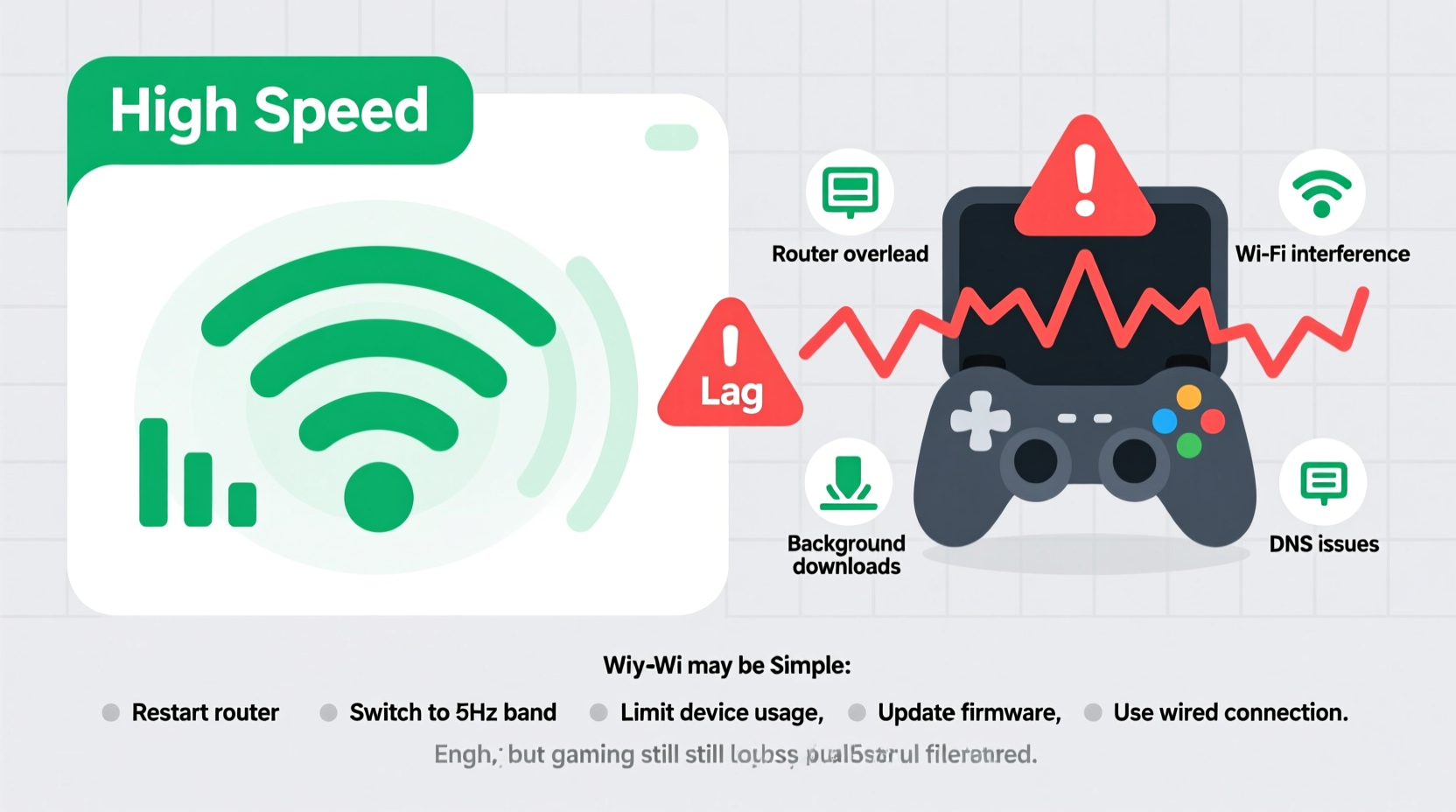
Data travels across the internet in small units called “packets.” When you send a command in-game—like jumping or shooting—your device packages that action into a packet and sends it to the game server. The server processes it and sends back a response. This exchange happens hundreds of times per second.
Packet loss occurs when some of these packets fail to reach their destination. If 5% of your packets go missing, the game server receives incomplete information. It might interpret your movement incorrectly or delay your actions. Unlike streaming video, which can buffer and recover, online games rely on real-time precision. Missing even a few packets leads to noticeable lag.
“Gamers don’t just need speed—they need reliability. A connection with 50 Mbps and 0% packet loss will outperform a 500 Mbps connection with 3% loss.” — Rajiv Patel, Network Engineer at CloudLink Systems
Common Causes of Packet Loss (Even With Fast WiFi)
High-speed internet doesn’t guarantee stable connectivity. Here are the top reasons why packet loss happens despite fast WiFi:
- Network congestion: Too many devices using bandwidth simultaneously—streaming, downloads, smart home gadgets—can overwhelm your router.
- Wi-Fi interference: Walls, appliances, and neighboring networks on the same channel create signal noise, especially on 2.4 GHz bands.
- Outdated or overloaded router: Older routers struggle with modern traffic demands and may drop packets under load.
- Congested ISP network: Your internet provider might have bottlenecks during peak hours, particularly with cable networks shared by neighbors.
- Loose or damaged cables: Faulty Ethernet cables, modem connections, or wall jacks introduce physical layer errors.
- Background software: Automatic updates, cloud backups, or peer-to-peer apps consume bandwidth silently.
- Wireless distance and obstacles: The farther you are from the router, or the more walls/floors in between, the weaker and less reliable the signal becomes.
How to Test for Packet Loss
Before fixing the problem, confirm it exists. Here’s how to check for packet loss using built-in tools:
- Open Command Prompt (Windows) or Terminal (Mac/Linux).
- Type:
ping -n 100 google.com(Windows) orping -c 100 google.com(Mac/Linux). - Run for 100 packets to get a meaningful sample.
- Analyze results: Look for “Lost = X” in Windows or “packet loss” percentage in Mac/Linux.
If loss exceeds 1–2%, investigate further. For gaming-specific testing, use:
- Steam Network Test: Built into Steam settings under “Test Connection.”
- Cloudflare Warp: Offers detailed network diagnostics including jitter and loss.
- WinMTR (Windows): Combines ping and traceroute to identify where packets are being dropped—your local network, ISP, or beyond.
Step-by-Step Fixes to Reduce Packet Loss
Follow this sequence to systematically eliminate sources of packet loss:
1. Switch to Ethernet
Ditch Wi-Fi for a direct Ethernet connection. Wireless signals are inherently less stable due to interference and signal degradation. A $10 Cat 6 cable provides a dramatic improvement in consistency.
2. Restart Your Network Hardware
Power cycle your modem and router:
- Unplug both devices.
- Wait 60 seconds.
- Plug in the modem first, wait until all lights stabilize.
- Then power on the router.
This clears temporary glitches and resets connection states.
3. Update Router Firmware
Manufacturers release firmware updates to fix bugs and improve stability. Log into your router’s admin page (usually 192.168.1.1 or 192.168.0.1) and check for updates under “Administration” or “Firmware.”
4. Change Wi-Fi Channel
Use a tool like Wi-Fi Analyzer (Android) or NetSpot (Windows/Mac) to see which 2.4 GHz or 5 GHz channels are least crowded. Manually set your router to a less congested channel in its settings.
5. Enable Quality of Service (QoS)
QoS prioritizes gaming traffic over less time-sensitive tasks. In your router settings, find QoS or “Bandwidth Control,” then assign higher priority to your gaming device or port (e.g., UDP ports 3074 for Xbox, 3478–3479 for general gaming).
6. Limit Background Bandwidth Usage
Schedule automatic updates, cloud backups, and large downloads outside gaming hours. On Windows, disable Delivery Optimization; on consoles, turn off auto-updates or set them to notify-only.
7. Replace Old or Low-End Routers
If your router is more than 3–4 years old, consider upgrading to a modern dual- or tri-band model with MU-MIMO and beamforming. These technologies improve signal stability and reduce interference.
8. Contact Your ISP
If packet loss persists after local fixes, contact your Internet Service Provider. Run a continuous ping test (ping google.com -t) while on the phone with support. If they see loss on their end, request line inspection or modem replacement.
Real Example: How Sarah Fixed Her Apex Legends Lag
Sarah had gigabit fiber internet and a high-end gaming PC, yet her Apex Legends matches were plagued by rubberbanding and sudden disconnects. Speed tests showed 850 Mbps down, 700 Mbps up—on paper, flawless.
She ran a 100-ping test and discovered 4% packet loss. After switching from Wi-Fi to Ethernet, loss dropped to 1%. Still not ideal. Using WinMTR, she found the loss occurred between her router and the first hop—indicating a local issue.
She updated her router’s firmware (it was two versions behind), changed the 5 GHz channel from 36 to 149 (less crowded), and enabled QoS for her PC’s IP address. She also paused her NAS backup job during evenings.
Result: Ping stabilized from 28ms to 19ms, and packet loss fell to 0%. Her in-game experience became smooth and responsive. No hardware upgrades needed—just targeted optimization.
Do’s and Don’ts: Quick Reference Table
| Do | Don't |
|---|---|
| Use Ethernet for gaming | Rely solely on Wi-Fi for competitive play |
| Update router firmware regularly | Ignore firmware update notifications |
| Enable QoS and prioritize gaming devices | Allow unlimited background downloads |
| Test packet loss monthly | Assume high speed means good performance |
| Contact ISP with test data | Accept “network issues” without proof |
Checklist: Eliminate Packet Loss in 7 Steps
Print or bookmark this checklist to troubleshoot methodically:
- ☐ Perform a 100-ping test to measure current packet loss
- ☐ Connect your gaming device via Ethernet cable
- ☐ Restart modem and router
- ☐ Check for and install router firmware updates
- ☐ Use Wi-Fi analyzer to switch to a less crowded channel
- ☐ Enable QoS and prioritize your gaming device
- ☐ Pause background updates, syncs, and downloads during gaming
Frequently Asked Questions
Can packet loss be 0%?
Ideal networks aim for 0% packet loss, and it’s achievable on well-maintained home setups. Enterprise and gaming-optimized connections often maintain near-zero loss. Occasional single drops (e.g., 1 in 1000 packets) may occur but won’t impact gameplay noticeably.
Does a VPN help with packet loss?
Generally, no. Adding a VPN introduces extra hops, which can increase latency and sometimes worsen packet loss. However, if your ISP is throttling gaming traffic or routing poorly, a high-quality gaming VPN with optimized servers might bypass congestion and improve stability—but test carefully.
Is packet loss always the player’s fault?
No. While local network issues are common, packet loss can occur within your ISP’s network, at peering points, or even on the game server’s side. Use traceroute tools to identify where loss begins. If it starts beyond your ISP, there may be limited recourse except switching providers or choosing different game servers.
Conclusion: Smooth Gameplay Starts With Reliable Packets
Fast WiFi doesn’t guarantee lag-free gaming—consistent packet delivery does. By understanding and addressing the root causes of packet loss, you reclaim control over your online experience. Simple changes like switching to Ethernet, updating firmware, and managing bandwidth can transform stuttering gameplay into seamless performance.
You don’t need the fastest internet plan to play like a pro. You need a clean, stable, and optimized connection. Start applying these fixes today. Monitor your results, refine your setup, and enjoy the responsiveness you’ve been missing.




 浙公网安备
33010002000092号
浙公网安备
33010002000092号 浙B2-20120091-4
Comments
No comments yet. Why don't you start the discussion?