
If you’ve noticed your video calls are smoother, games load faster, or downloads complete in seconds after 10 PM, you’re not imagining things. Many users experience a noticeable improvement in Wi-Fi speed during nighttime hours. The phenomenon isn’t magic—it’s rooted in network dynamics, usage patterns, and signal interference. Understanding why this happens gives you the power to replicate those optimal conditions even during peak daytime hours.
The key lies in how internet bandwidth is shared across networks, both locally within your home and on a broader scale through your Internet Service Provider (ISP). When demand drops, bandwidth becomes more available, reducing congestion and latency. But you don’t have to wait until midnight to enjoy fast speeds. With the right strategies, you can create a near-nighttime-quality connection any time of day.
Why Wi-Fi Speeds Improve at Night
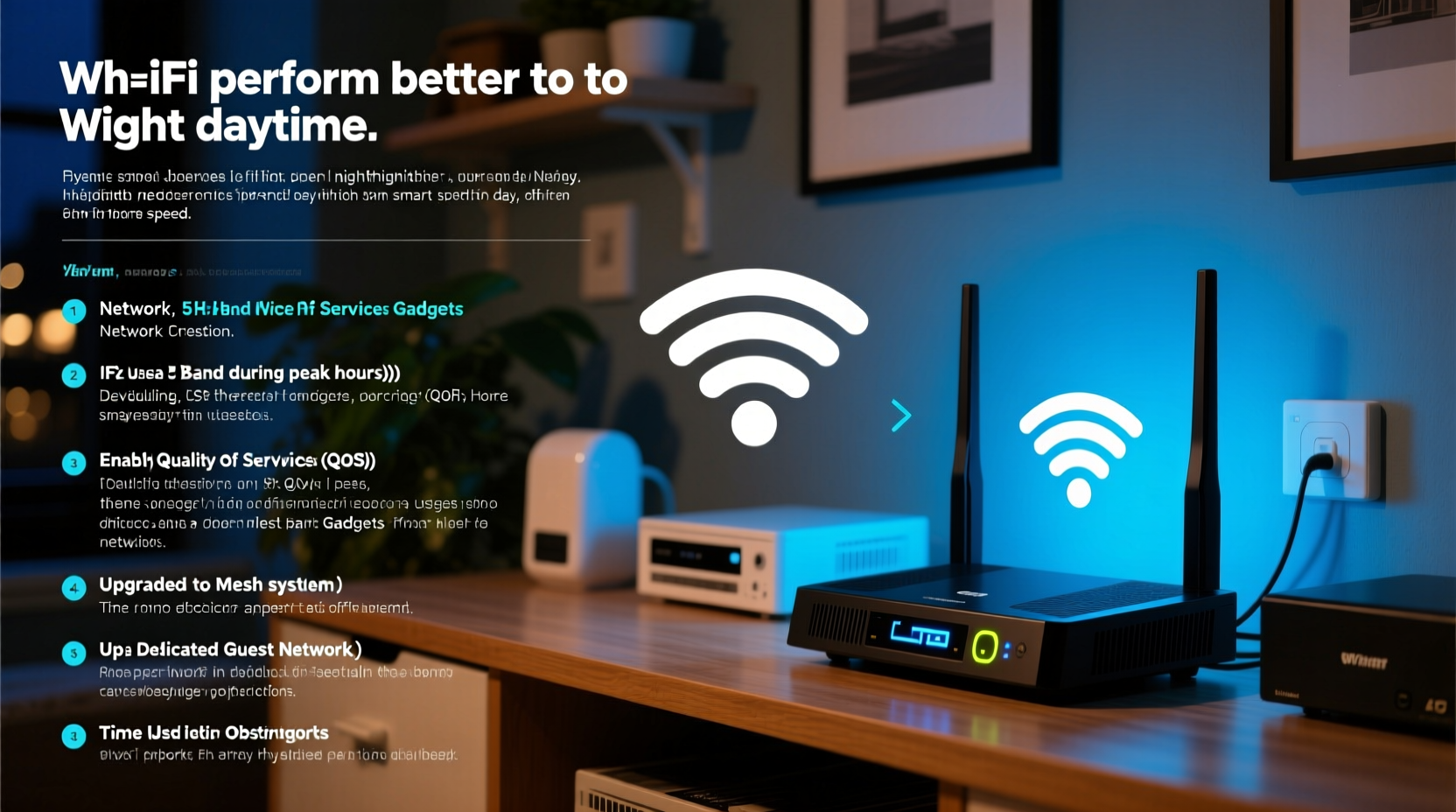
Wi-Fi performance isn’t just about your router or internet plan. It’s heavily influenced by external factors such as network congestion, device interference, and ISP traffic management. At night—typically between 10 PM and 6 AM—several favorable conditions align:
- Reduced household usage: Fewer devices are actively streaming, downloading, or gaming.
- Lower neighborhood congestion: Neighboring networks are less active, reducing radio interference on shared Wi-Fi channels.
- Decreased ISP backbone load: ISPs manage large-scale data traffic, which peaks during business and evening hours. Late at night, their infrastructure handles fewer users, allowing faster throughput.
- Fewer background updates: Smart devices often schedule software updates, cloud backups, and syncs during off-peak hours, but these processes finish early in the night, freeing up bandwidth.
“Network performance is as much about timing as it is about hardware. Congestion is the silent killer of speed.” — Dr. Lena Torres, Network Engineer at Broadband Insights Group
This convergence of low demand and minimal interference creates an ideal environment for high-speed connectivity. The result? Faster downloads, lower ping times, and uninterrupted streaming—all without upgrading your plan.
How Home Network Usage Changes Throughout the Day
Your home network operates like a shared highway. During rush hour, too many cars (data packets) cause slowdowns. At night, traffic clears, and speeds increase. To understand how to maintain fast Wi-Fi during the day, examine when and how your household uses bandwidth.
| Time of Day | Typical Activities | Bandwidth Impact |
|---|---|---|
| 6 AM – 9 AM | Video calls, news streaming, smart home devices syncing | Moderate to high congestion |
| 9 AM – 5 PM | Remote work, online classes, cloud backups | High usage; sustained data transfer |
| 5 PM – 8 PM | Streaming, gaming, social media, multiple users online | Peak congestion; highest latency |
| 8 PM – 10 PM | Entertainment-focused: 4K streaming, multiplayer gaming | Very high demand |
| 10 PM – 6 AM | Limited activity; only background tasks | Low usage; optimal performance |
Notice how the heaviest loads occur in the late afternoon and early evening. This is when your connection feels sluggish—not because your plan changed, but because the same pipe now carries three times the data.
Can You Replicate Nighttime Speeds During the Day?
Yes—though not perfectly, significant improvements are achievable. While you can’t control your neighbors’ Wi-Fi habits or your ISP’s backbone traffic, you *can* optimize your local network to mimic the low-congestion conditions of nighttime.
The goal is to reduce internal bottlenecks, minimize interference, and prioritize critical traffic. Here’s how to do it.
Step-by-Step Guide to Daytime Speed Optimization
- Conduct a Wi-Fi audit: Use tools like WiFi Analyzer (Android) or NetSpot (Windows/Mac) to scan nearby networks. Identify the least crowded 2.4 GHz and 5 GHz channels.
- Change your router’s channel: Log into your router’s admin panel (usually via 192.168.1.1) and switch to a less congested channel. For 2.4 GHz, stick to channels 1, 6, or 11. On 5 GHz, choose non-DFS channels like 36, 40, 44, or 48.
- Enable Quality of Service (QoS): Prioritize real-time applications like video calls or gaming over background tasks like cloud syncs.
- Limit connected devices: Disconnect unused smart gadgets or set guest network limits to prevent bandwidth hogging.
- Upgrade firmware: Ensure your router runs the latest firmware for improved stability and security.
- Use Ethernet where possible: Hardwiring PCs, consoles, or TVs reduces Wi-Fi load and improves overall network efficiency.
- Install a mesh system: If dead zones exist, a mesh network ensures consistent coverage and reduces retransmission errors that slow speeds.
Real-World Example: The Johnson Family’s Fix
The Johnsons in suburban Denver struggled with Zoom call lag and buffering Netflix every weekday evening. Their 200 Mbps plan seemed underperforming. After testing speeds at different times, they found their connection averaged 180 Mbps at midnight but dropped to 60 Mbps at 7 PM.
A Wi-Fi scan revealed 18 nearby networks, 14 of which used channel 6 on 2.4 GHz. Their router was also placed next to a microwave and cordless phone base—both sources of interference. They took these steps:
- Moved the router to a central shelf away from appliances.
- Switched 2.4 GHz to channel 1 and 5 GHz to channel 149.
- Enabled QoS to prioritize laptops and tablets during work/school hours.
- Set their smart TV to download updates at 2 AM via built-in scheduler.
Result: Daytime speeds stabilized around 150 Mbps, close to their nighttime baseline. Video calls stopped freezing, and 4K streaming resumed without interruption.
Advanced Tactics for Sustained Performance
Beyond basic optimization, consider long-term upgrades and behavioral changes that lock in faster speeds regardless of time of day.
Invest in a Dual-Band or Tri-Band Router
Older single-band routers operate only on 2.4 GHz, a crowded spectrum prone to interference. A dual-band router adds a 5 GHz band, which offers faster speeds and less congestion. For heavy households, a tri-band model dedicates one 5 GHz band exclusively to backhaul (router-to-node communication), further reducing latency.
Use Band Steering and Device Separation
Many modern routers support band steering, automatically directing capable devices to the faster 5 GHz network. You can also manually assign devices:
- 5 GHz: Laptops, phones, gaming consoles, smart TVs (high-bandwidth needs).
- 2.4 GHz: Smart plugs, thermostats, doorbells (low-bandwidth, longer range).
This separation prevents slower devices from dragging down the entire network.
Monitor Data Hogs
Sometimes, one device silently consumes bandwidth. Check your router’s admin interface for data usage logs. Common culprits include:
- Cloud backup services (Google Drive, iCloud, OneDrive)
- Automatic game updates (Steam, Xbox Live, PlayStation Network)
- Smart security cameras uploading footage continuously
- Peer-to-peer file sharing apps (even if unintentional)
Checklist: How to Achieve Night-Like Wi-Fi Any Time
Follow this actionable checklist to maximize your chances of replicating nighttime speeds during busy hours:
- ✅ Perform a Wi-Fi channel analysis using a free app
- ✅ Switch to the least congested channel on both bands
- ✅ Enable QoS and prioritize critical devices
- ✅ Update router firmware to the latest version
- ✅ Position router centrally, elevated, and away from metal or electronics
- ✅ Connect high-demand devices via Ethernet
- ✅ Limit guest network access and set time restrictions
- ✅ Schedule large downloads for off-peak hours
- ✅ Upgrade to a mesh system if coverage is poor
- ✅ Monitor device usage weekly to catch bandwidth hogs
Frequently Asked Questions
Does my ISP throttle speeds during the day?
Some ISPs implement “traffic shaping” during peak hours, especially on unlimited data plans. This isn’t always disclosed. If you suspect throttling, use a VPN to test speeds before and after connecting. A significant increase may indicate ISP-level restrictions. However, true throttling is less common than simple congestion.
Will restarting my router help during the day?
Yes, temporarily. Restarting clears memory leaks, resets connections, and can force the router to reselect a better Wi-Fi channel. But it’s a short-term fix. Combine restarts with deeper optimizations like channel selection and QoS for lasting results.
Can too many devices slow Wi-Fi even if they’re not in use?
Yes. Devices connected to Wi-Fi—even idle ones—exchange periodic signals (beacons, keep-alives) with the router. Hundreds of connected gadgets can overwhelm older routers. Regularly disconnect unused devices or use a guest network with auto-disconnect features.
Conclusion: Take Control of Your Connection
The difference between slow daytime Wi-Fi and fast nighttime performance comes down to demand, not destiny. While you can’t stop your neighbor from streaming ultra-HD content at 6:30 PM, you *can* engineer your network to stay efficient under pressure. By optimizing channels, managing device loads, and upgrading outdated hardware, you reclaim bandwidth that’s already yours.
Don’t wait for the clock to strike ten to enjoy smooth browsing. Apply these strategies today, measure the results, and fine-tune your setup. Fast, reliable Wi-Fi shouldn’t be a privilege of the night—it should be your everyday standard.




 浙公网安备
33010002000092号
浙公网安备
33010002000092号 浙B2-20120091-4
Comments
No comments yet. Why don't you start the discussion?