
It’s a common frustration: your smartphone shows full bars of WiFi in the kitchen but drops to one bar—or worse—when you step into the basement or bedroom. You pay for high-speed internet, yet entire areas of your home seem cut off from reliable connectivity. The issue isn’t always with your internet plan. More often than not, it’s about how the wireless signal travels—or fails to travel—through your space.
WiFi signals are radio waves, much like FM radio or Bluetooth, and they’re subject to physical limitations. Walls, appliances, distance, and even the materials used in your home’s construction can interfere with signal strength. The good news? Most of these problems have simple, affordable fixes. With a few strategic adjustments and some smart upgrades, you can eliminate dead zones and enjoy consistent, strong WiFi in every room.
Understanding Why WiFi Weakness Happens
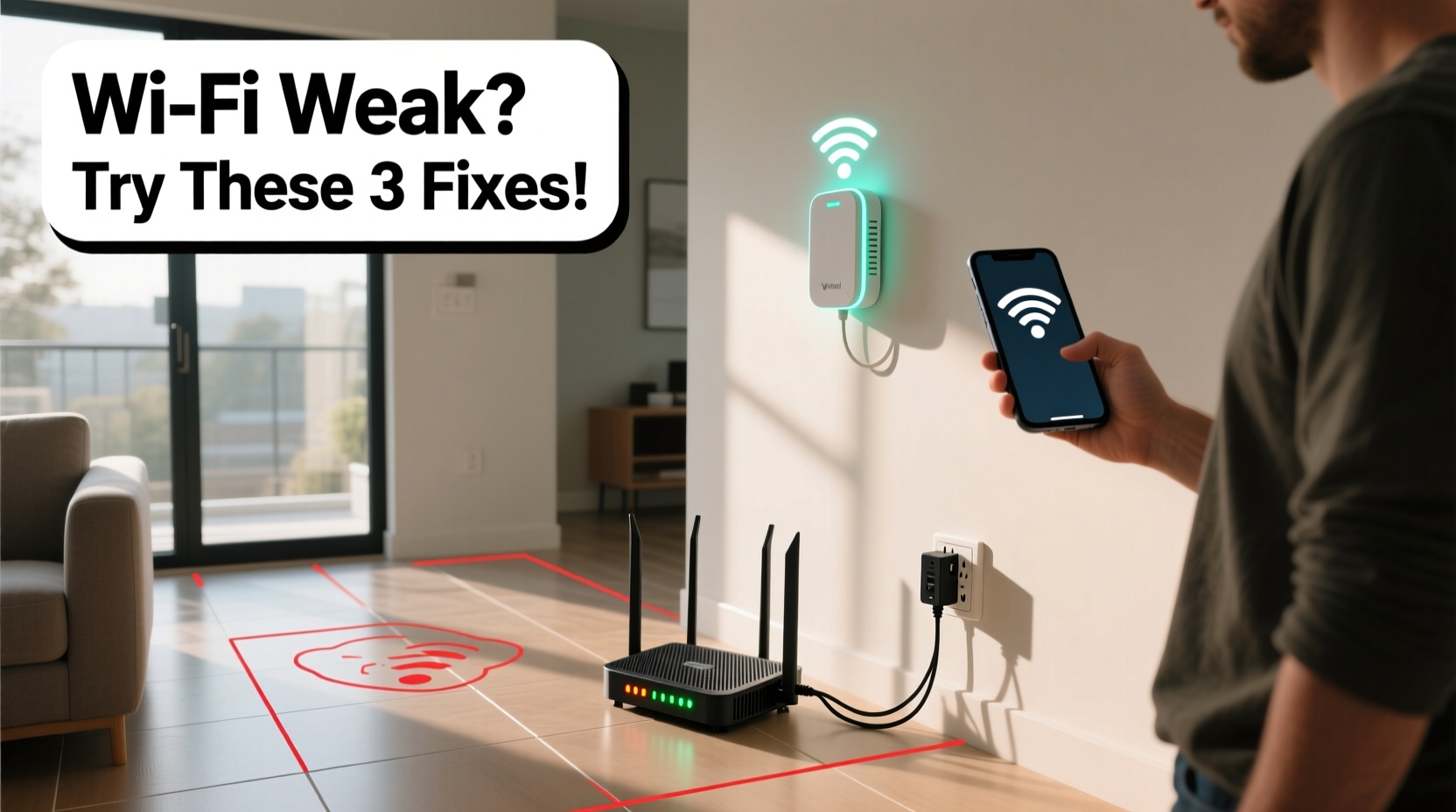
Before jumping into solutions, it helps to understand what causes weak signals in the first place. Unlike wired connections, WiFi relies on wireless transmission that degrades over distance and through obstacles. Several factors contribute to poor reception:
- Distance from the router: The farther you are from the router, the weaker the signal becomes. This is especially true in larger homes where the router may be located at one end.
- Physical obstructions: Thick walls, concrete floors, metal framing, mirrors, and large furniture absorb or reflect WiFi signals, reducing their reach.
- Interference from other devices: Microwaves, cordless phones, baby monitors, and even neighboring WiFi networks operate on the same 2.4 GHz frequency band and can cause interference.
- Router placement: A router tucked behind a TV cabinet, placed on the floor, or inside a closet will struggle to broadcast effectively.
- Aging or underpowered equipment: Older routers may not support modern standards like WiFi 6 or lack multiple antennas needed for beamforming and MIMO technology.
“WiFi doesn’t just disappear—it gets absorbed, reflected, or blocked. Knowing where and why helps you fix it.” — Dr. Alan Torres, Network Engineer at Broadband Insights Lab
Step-by-Step Guide to Diagnose and Fix Weak Signals
Improving WiFi coverage doesn’t require technical expertise. Follow this practical sequence to identify and resolve problem areas in your home network.
- Test your current signal strength: Use a free app like WiFi Analyzer (Android) or NetSpot (Windows/Mac) to map signal strength room by room. Walk through your home and note where the signal drops below -70 dBm (a threshold for unreliable performance).
- Check your router’s location: Is it near the center of your home? Elevated? Away from large metal objects or appliances? If not, consider relocating it.
- Restart your router and modem: Power cycle both devices by unplugging them for 30 seconds. This clears temporary glitches and resets connection logs.
- Update firmware: Log into your router’s admin panel (usually via 192.168.1.1 or similar) and check for firmware updates. Outdated software can reduce performance and security.
- Switch to the less congested band: If your router supports dual-band (2.4 GHz and 5 GHz), connect devices accordingly. Use 2.4 GHz for range (better wall penetration) and 5 GHz for speed (shorter range but faster data).
- Change the WiFi channel: In crowded neighborhoods, multiple networks on the same channel create interference. Use your analyzer tool to pick a less busy channel (e.g., switch from Channel 6 to Channel 1 or 11 on 2.4 GHz).
Practical Solutions to Boost WiFi Coverage
Once you’ve assessed the situation, implement targeted improvements based on your home layout and usage needs.
Reposition Your Router Strategically
The simplest fix is also the most effective. Move your router to a central, elevated location—like a shelf in a living room or hallway. Keep it at least three feet away from walls and electronic devices. Avoid basements, closets, or cabinets, which trap signals.
Upgrade to a Modern Router
If your router is more than three years old, it likely lacks support for newer WiFi standards. Consider upgrading to a WiFi 6 (802.11ax) model, which offers better efficiency, faster speeds, and improved handling of multiple connected devices.
Use a WiFi Extender or Mesh System
For homes with persistent dead zones, extenders or mesh systems bridge the gap.
| Solution | Best For | Pros | Cons |
|---|---|---|---|
| WiFi Extender | Small to medium homes with one dead zone | Inexpensive, easy setup | Can halve bandwidth; tricky to configure |
| Mesh WiFi System | Large homes, multi-floor layouts | Seamless roaming, unified network, easy management via app | Higher cost (typically $200+) |
| Powerline Adapter | Homes with stable electrical wiring | Uses existing outlets; good for basements or garages | Performance varies by circuit quality |
A mesh system like Google Nest WiFi, Eero, or TP-Link Deco uses multiple nodes placed around the house to create a single, seamless network. Unlike traditional extenders, mesh systems intelligently route traffic and maintain strong handoffs between nodes.
Add Directional Antennas or Reflectors
If your router has external antennas, adjust them vertically for devices on the same floor and slightly angled for upper/lower levels. You can also create a DIY parabolic reflector using aluminum foil or a soda can to focus the signal toward a weak area.
Mini Case Study: Eliminating the Basement Dead Zone
Mark, a remote worker in a two-story suburban home, struggled with constant disconnections during video calls whenever he worked from his basement office. His router was upstairs near the front door. Signal tests showed -85 dBm in the basement—barely functional.
He tried a basic WiFi extender first, but streaming lagged and file uploads stalled. After research, he invested in a three-node mesh system. He placed one node near the original router, one midway on the stairs, and one in the basement. Within minutes of setup, his signal improved to -58 dBm, and his Zoom calls became stable. Total cost: $230. Time spent: under 30 minutes.
“I didn’t realize how much time I was wasting rebooting and moving upstairs,” Mark said. “Now I can work anywhere without stress.”
WiFi Optimization Checklist
Use this checklist to systematically improve your home network:
- ✅ Test signal strength in all key rooms
- ✅ Relocate router to a central, elevated spot
- ✅ Update router firmware
- ✅ Switch to less congested WiFi channel
- ✅ Replace outdated router with a modern dual-band or WiFi 6 model
- ✅ Install a mesh WiFi system for large or multi-level homes
- ✅ Use wired Ethernet for stationary devices (TVs, desktops)
- ✅ Limit interference by turning off unused devices
- ✅ Secure your network with WPA3 encryption
- ✅ Schedule regular reboots (weekly or monthly)
Frequently Asked Questions
Can thick walls really block WiFi?
Yes. Concrete, brick, stone, and metal lath in plaster walls significantly weaken signals. Even dense wood or insulated drywall can reduce strength. This is why multi-story homes often need mesh systems or access points on each level.
Is it better to use a WiFi extender or a mesh system?
Mesh systems are generally superior. They offer seamless roaming, better bandwidth management, and centralized control via apps. Extenders are cheaper but often result in a separate network name (SSID) and reduced speed because they repeat the signal.
Will restarting my router improve speed?
Temporarily, yes. Routers accumulate memory leaks and connection errors over time. Restarting clears the cache and refreshes the IP assignment, which can restore responsiveness. For best results, reboot monthly or use a smart plug to automate the process.
Final Thoughts: Take Control of Your Home Network
Weak WiFi in certain rooms isn’t an inevitable part of modern life—it’s a solvable engineering challenge. By understanding how signals behave and applying practical fixes, you can transform spotty connectivity into a robust, whole-home network. Start with simple changes like repositioning your router, then scale up to mesh systems if needed. The investment pays off in smoother streaming, fewer dropped calls, and greater flexibility in how and where you use your devices.




 浙公网安备
33010002000092号
浙公网安备
33010002000092号 浙B2-20120091-4
Comments
No comments yet. Why don't you start the discussion?