
If you’ve ever struggled to stream a movie, join a video call, or even load a webpage in a specific room of your home, you’re not alone. Many homeowners experience frustrating Wi-Fi dead zones—especially in basements, attics, or rooms far from the router. The good news? Weak signals aren’t inevitable. With the right understanding and tools, you can significantly improve connectivity without replacing your entire setup.
Wi-Fi issues often stem from physical obstructions, outdated hardware, interference, or poor router placement. Identifying the root cause is the first step toward a reliable fix. This guide walks through common reasons for weak signals, practical troubleshooting steps, and cost-effective solutions that actually work.
Common Causes of Weak Wi-Fi in One Room
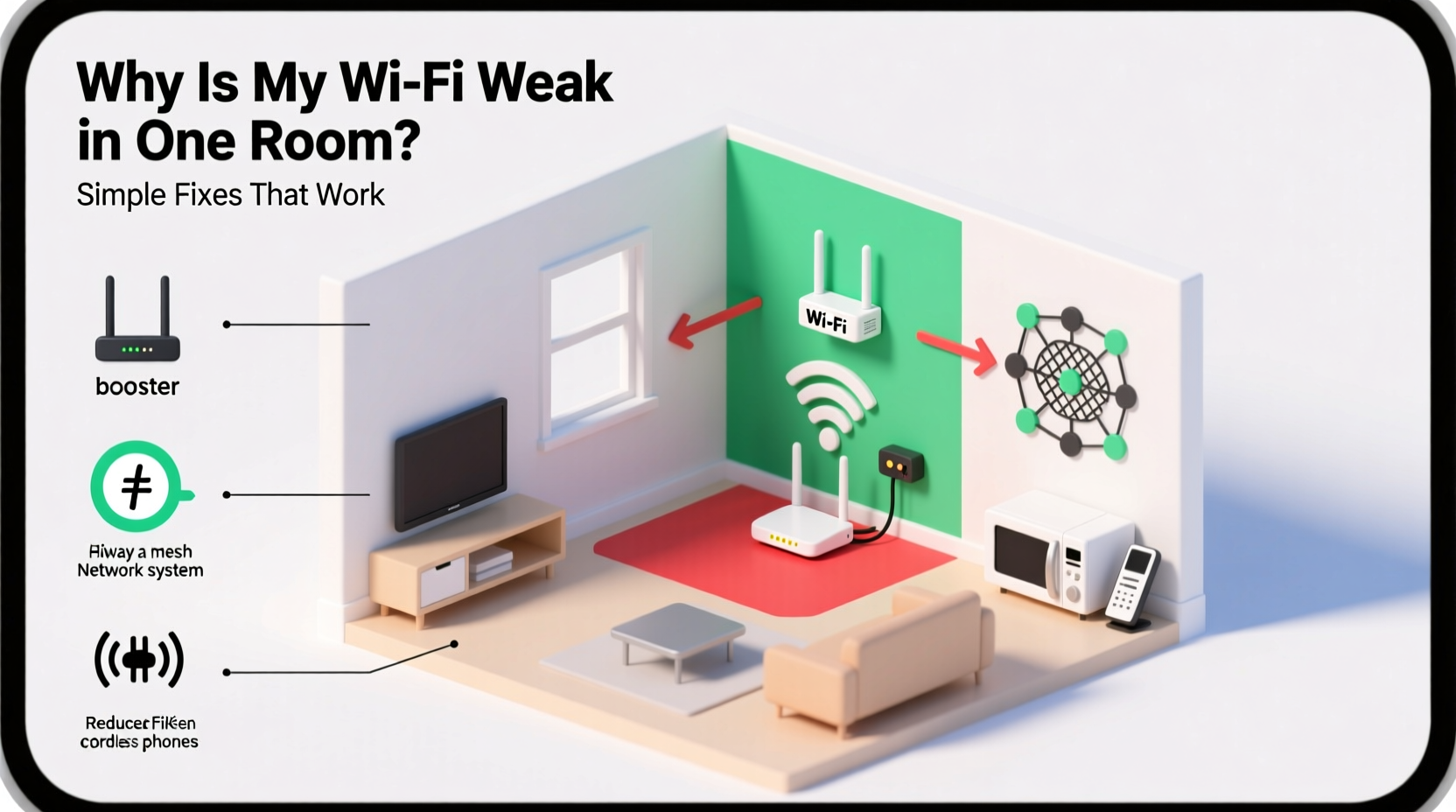
Before investing in new equipment, it’s essential to understand what might be blocking or weakening your signal. Wi-Fi operates on radio frequencies (typically 2.4 GHz and 5 GHz), which are easily disrupted by materials and electronic noise.
- Distance from the router: Signal strength degrades with distance. Rooms on the opposite side of the house, especially those more than 30–50 feet away, often suffer reduced performance.
- Physical barriers: Thick walls, especially those made of concrete, brick, or plaster with metal lath, absorb or reflect Wi-Fi signals. Floors, mirrors, and large furniture also contribute to signal loss.
- Interference from appliances: Microwaves, cordless phones, baby monitors, and Bluetooth devices operate on similar frequencies and can create interference, particularly on the 2.4 GHz band.
- Router location: Placing your router in a closet, basement, or behind a TV cabinet restricts signal dispersion. Elevation and central positioning matter.
- Outdated equipment: Older routers may not support modern standards like Wi-Fi 5 (802.11ac) or Wi-Fi 6 (802.11ax), limiting speed and range.
- Network congestion: Too many connected devices can overwhelm your router, especially during peak usage hours.
Step-by-Step Guide to Diagnose and Fix Weak Signals
Solving a weak Wi-Fi issue doesn’t have to be technical. Follow this structured approach to pinpoint and resolve the problem.
- Verify the issue: Use a free app like Wi-Fi Analyzer (Android) or AirPort Utility (iOS) to check signal strength (measured in dBm). Anything below -70 dBm indicates a weak signal.
- Check for interference: Temporarily turn off nearby electronics like microwaves, cordless phones, or wireless speakers. See if performance improves.
- Reposition your router: Move it to a central, elevated location—ideally on a shelf in an open area. Avoid placing it near metal objects or behind thick walls.
- Update firmware: Log into your router’s admin panel (usually via 192.168.1.1 or 192.168.0.1) and check for updates. Outdated firmware can cause instability.
- Switch Wi-Fi bands: If your router supports dual-band, connect the device in the weak-signal room to the 5 GHz network if close, or 2.4 GHz for better wall penetration at longer distances.
- Restart your network: Power cycle your modem and router by unplugging them for 30 seconds, then plugging them back in. This clears temporary glitches.
- Test with a wired connection: Plug a laptop directly into the router via Ethernet. If speeds are still slow, the issue may be with your internet plan, not Wi-Fi.
“Over 60% of Wi-Fi problems are related to placement and environment, not hardware failure.” — David Lin, Network Engineer at Broadband Insights Group
Simple Boosters and Range Extenders That Work
If repositioning your router doesn’t solve the issue, consider adding a signal booster. Not all extenders are created equal—here’s a breakdown of the most effective options.
| Solution | Best For | Pros | Cons |
|---|---|---|---|
| Wi-Fi Range Extender | Single dead zone, budget-friendly fix | Inexpensive, easy setup, plugs into wall outlet | Can halve bandwidth, may create separate network name |
| Mesh Wi-Fi System | Whole-home coverage, multi-room homes | Seamless roaming, unified network, self-healing | Higher upfront cost, requires multiple units |
| Powerline Adapter with Wi-Fi | Homes with stable electrical wiring | Uses existing wiring, strong signal in distant rooms | Performance varies by circuit, older wiring reduces speed |
| Access Point (Wired) | Permanent solution with Ethernet available | Full-speed Wi-Fi, professional-grade performance | Requires running cables, more complex setup |
For most households, a mesh system offers the best balance of performance and ease of use. Brands like Google Nest Wi-Fi, Eero, and TP-Link Deco provide intuitive apps and automatic optimization. Place satellite units halfway between the main router and the weak-signal room for optimal results.
Real-World Example: Fixing a Basement Office
Consider Mark, a freelance graphic designer working from a converted basement office. His video calls frequently dropped, and file uploads crawled. His router was upstairs near the front door, separated by two floors and a concrete foundation.
Initial tests showed a signal strength of -85 dBm in the basement—essentially unusable. He tried a $30 Wi-Fi extender, but performance remained inconsistent due to interference from his gaming console and refrigerator.
The real fix came when he switched to a tri-band mesh system (Netgear Orbi). He placed the primary unit near the modem and positioned a satellite in the hallway downstairs. Within minutes, his signal improved to -58 dBm, and upload speeds tripled. Now, his Zoom meetings run smoothly, and large design files sync without delay.
Mark’s case highlights a key principle: sometimes, low-cost solutions fail because they don’t address the full scope of the problem. Investing in a robust system pays off in reliability and productivity.
Do’s and Don’ts of Wi-Fi Optimization
To avoid common pitfalls, follow this checklist of recommended practices.
| Do’s | Don’ts |
|---|---|
| Place the router centrally and off the floor | Hide the router in a cabinet or closet |
| Use the 2.4 GHz band for long-range coverage | Assume 5 GHz is always better (it has shorter range) |
| Update router firmware monthly | Ignore firmware updates or security patches |
| Label and test each device’s connection | Blame the ISP without checking local factors |
| Use Wi-Fi analyzer tools to map signal strength | Guess where the problem lies without testing |
Frequently Asked Questions
Can walls really block Wi-Fi?
Yes. Materials like concrete, brick, metal, and even water (in fish tanks or plumbing) can severely weaken or block Wi-Fi signals. Drywall and wood are less obstructive but still reduce signal strength over distance.
Is a Wi-Fi extender as fast as the main router?
Not usually. Most extenders operate by repeating the signal, which can cut bandwidth in half. Mesh systems and access points with wired backhaul maintain full speed and are better for high-demand tasks like streaming or gaming.
Will upgrading my internet plan fix a weak signal?
No. A faster plan increases maximum speed but doesn’t improve coverage. If your device can’t reliably connect to the network, extra bandwidth won’t help. Focus on signal strength first, then consider upgrading your plan if needed.
Action Plan: Your 7-Day Wi-Fi Improvement Checklist
Follow this timeline to systematically eliminate weak signal issues.
- Day 1: Test Wi-Fi speed and signal strength in the problem room using a mobile app.
- Day 2: Reposition the router to a central, elevated, open location.
- Day 3: Update router firmware and restart the network.
- Day 4: Switch devices in the weak zone to the appropriate band (2.4 GHz for range, 5 GHz for speed).
- Day 5: Purchase and install a Wi-Fi extender or mesh node based on your home layout.
- Day 6: Test speeds again and adjust the booster’s position for optimal performance.
- Day 7: Monitor usage for a full day and confirm stability during video calls or streaming.
Final Thoughts: Take Control of Your Home Network
A weak Wi-Fi signal in one room doesn’t have to disrupt your daily life. By understanding the science behind signal propagation and applying practical fixes—from strategic router placement to investing in a mesh system—you can achieve consistent, high-speed connectivity throughout your home.
Start with the simplest changes: reposition your router, eliminate interference, and test your signal. If those don’t suffice, move confidently toward scalable solutions like mesh networks or powerline adapters. Remember, every home is different, so patience and testing are key.




 浙公网安备
33010002000092号
浙公网安备
33010002000092号 浙B2-20120091-4
Comments
No comments yet. Why don't you start the discussion?