
If your internet feels sluggish every evening—buffering videos, lagging video calls, or games freezing mid-match—you’re not imagining it. Millions of households experience the same phenomenon: WiFi performance drops significantly at night. The good news? This isn’t a mystery you have to accept. Understanding the root causes and applying targeted solutions can dramatically improve your connection when you need it most.
The slowdown isn’t always about your router or plan. It’s often a combination of network congestion, device overload, signal interference, and provider-side limitations that converge during peak usage hours—typically between 7 PM and 11 PM. By identifying what’s happening and taking practical steps, you can reclaim fast, reliable internet even during the busiest times.
Why Does WiFi Slow Down at Night?
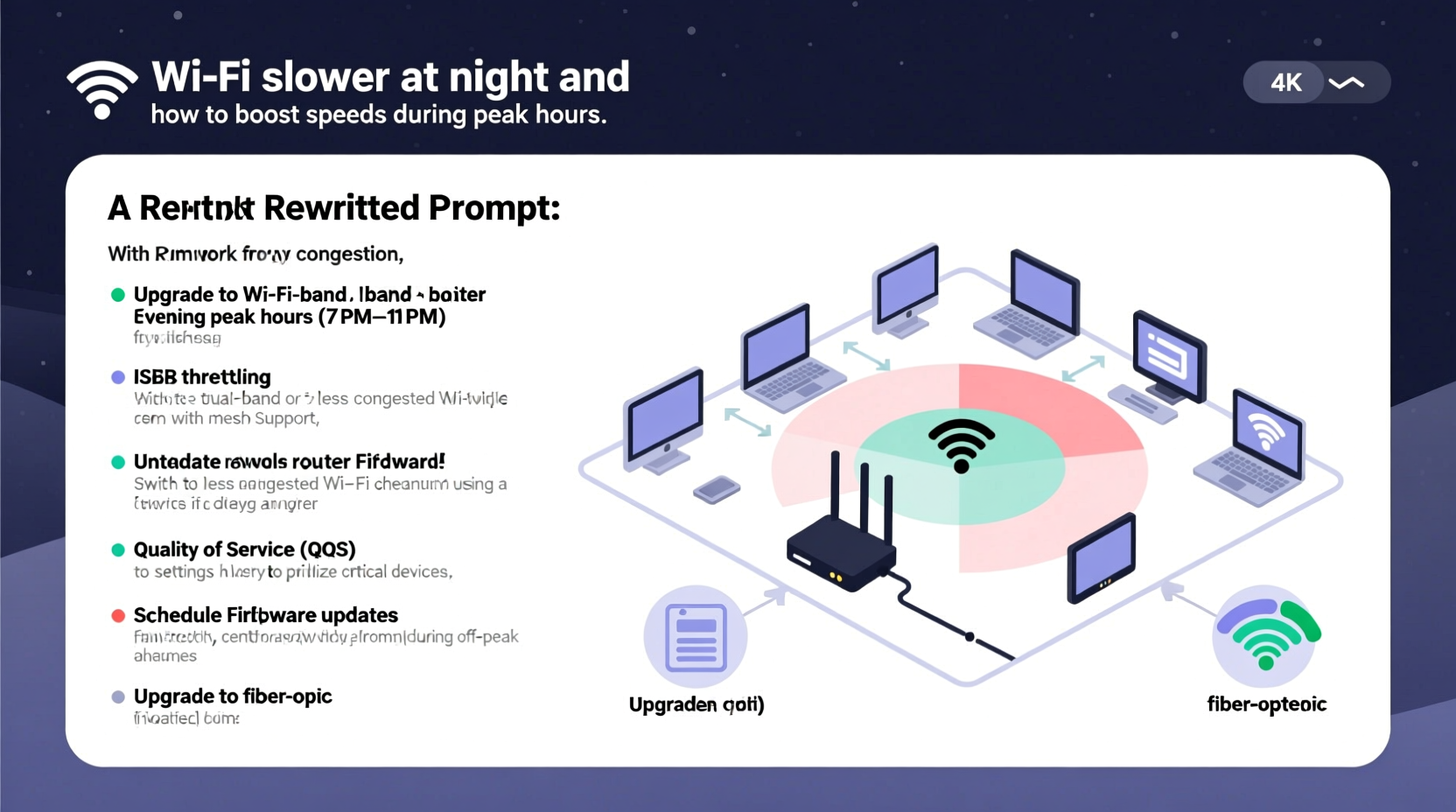
Internet speed degradation in the evenings is primarily due to increased demand across multiple levels—from your home network to your neighborhood and beyond. Here’s how each layer contributes:
1. Network Congestion in Your Home
Evening is when families return home, devices power on, and usage spikes. Multiple users might be streaming 4K content, gaming online, attending remote meetings, or downloading large files—all simultaneously. Routers have limited bandwidth and processing power. When too many devices compete for data, latency increases and throughput drops.
2. Neighborhood Network Overload (The “WiFi Rush Hour”)
In densely populated areas—apartments, townhouses, suburban neighborhoods—your wireless spectrum shares space with dozens of nearby networks. Most home routers default to common channels (like 6 on the 2.4 GHz band), creating signal overlap. At night, as neighbors stream and browse, this interference intensifies, reducing available bandwidth and increasing packet loss.
This effect is especially pronounced on the 2.4 GHz frequency, which travels farther but supports fewer concurrent connections and is more prone to interference from microwaves, baby monitors, and Bluetooth devices.
3. ISP Throttling and Shared Bandwidth Pools
Many internet service providers use a model called \"contention ratio,\" where a group of subscribers shares a finite amount of bandwidth from a local node. During off-peak hours, plenty of capacity exists. But at night, when everyone is online, that shared pipe becomes congested.
Some ISPs may also employ traffic shaping or throttling during peak periods, particularly for high-bandwidth activities like video streaming or peer-to-peer downloads—even if you're on an “unlimited” plan.
“We see a 30–40% increase in latency across urban networks between 8 PM and 10 PM. It's not just perception—it's measurable congestion.” — Dr. Alan Reyes, Network Performance Analyst at NetMetrics Lab
4. Router Limitations and Heat Buildup
Routers aren’t designed for sustained maximum loads. After hours of continuous operation, especially under heavy demand, internal components heat up. Thermal throttling can reduce performance to prevent damage. Older or budget routers may lack sufficient RAM or dual-band support, making them bottlenecks during peak use.
How to Boost WiFi Speeds During Peak Hours
While you can’t control your ISP’s infrastructure or your neighbor’s Netflix habits, you *can* optimize your environment and equipment. The following strategies address both immediate fixes and long-term improvements.
1. Upgrade to a Dual-Band or Tri-Band Router
If you're still using an older single-band (2.4 GHz only) router, upgrading is one of the most effective changes you can make. Modern dual-band (2.4 GHz + 5 GHz) or tri-band (2.4 GHz + two 5 GHz bands) routers distribute traffic more efficiently.
- 5 GHz band: Faster speeds, less interference, ideal for streaming and gaming—but shorter range.
- 2.4 GHz band: Better wall penetration, suited for smart home devices and phones farther from the router.
Assign bandwidth-heavy devices (like TVs and gaming consoles) to the 5 GHz network, while reserving 2.4 GHz for low-demand gadgets.
2. Optimize Channel Selection
Manually switching your WiFi channel can avoid crowded frequencies. Use a free app like WiFi Analyzer (Android) or NetSpot (Windows/Mac) to scan nearby networks and identify the least congested channels.
| Band | Recommended Channels | Avoid If Possible |
|---|---|---|
| 2.4 GHz | 1, 6, 11 (non-overlapping) | 3, 4, 8 (overlap with others) |
| 5 GHz | 36, 40, 44, 48, 149–161 | Channels near radar (e.g., 120–128) |
Enable \"Auto\" channel selection only if your router intelligently switches based on real-time conditions. Otherwise, set it manually for stability.
3. Position Your Router Strategically
Router placement has a massive impact on signal strength and consistency. Avoid:
- Basements or enclosed cabinets
- Near large metal objects, mirrors, or appliances
- Close proximity to cordless phones or microwaves
Ideal location: central area, elevated (on a shelf), away from walls and obstructions. For larger homes, consider relocating the router closer to main usage zones like the living room or home office.
4. Use Quality of Service (QoS) Settings
Most modern routers include QoS—a feature that prioritizes certain devices or applications over others. You can assign higher priority to:
- Video conferencing (Zoom, Teams)
- Gaming consoles
- Streaming boxes (Apple TV, Roku)
This ensures critical traffic gets bandwidth first, minimizing lag even when other devices are active.
Step-by-Step Guide to Optimizing Evening WiFi
Follow this timeline to diagnose and fix slow nighttime internet:
- 7:00 AM – Run a baseline speed test
Use Speedtest.net or Fast.com to record download/upload speeds and ping. Do this during low-usage hours. - 7:00 PM – Repeat the test
Compare results. A drop of more than 30% indicates a potential issue worth addressing. - 8:00 PM – Audit connected devices
Log into your router admin page (usually via 192.168.1.1 or 192.168.0.1). Review all active devices. Disconnect unknown or unused ones. - 8:30 PM – Enable QoS and assign priorities
Set your main devices (laptop, TV, console) as high-priority. Save settings and reboot the router. - 9:00 PM – Test again under load
Start streaming on two devices while running a speed test. Observe improvements in buffering and response time. - Next Day – Consider hardware upgrades
If issues persist, evaluate mesh systems or a new router. Also contact your ISP to confirm your plan’s actual speeds during peak times.
Real Example: How One Family Regained Their Streaming Nights
The Thompson family in Austin, Texas, struggled nightly with frozen YouTube Kids videos and interrupted Zoom homework help sessions. Their 2018 dual-band router was buried in a closet next to the microwave. Speed tests showed 180 Mbps in the morning but dropped to 45 Mbps by 8 PM.
They followed the optimization steps: moved the router to the living room shelf, switched the 2.4 GHz channel from 6 to 11 (less crowded), and enabled QoS to prioritize tablets and laptops. They also upgraded firmware.
Result: Evening speeds stabilized at 120 Mbps. No more buffering. As a bonus, their smart lights responded faster, and the backyard security camera streamed smoothly.
When to Consider Hardware Upgrades
Sometimes, no amount of tweaking can overcome outdated equipment. Evaluate these signs:
- Frequent disconnections after 9 PM
- Router older than 3–4 years
- Only supports 802.11n or earlier standards
- Single-band (2.4 GHz only)
If any apply, consider:
- Mesh WiFi System: Brands like Eero, Google Nest WiFi, or TP-Link Deco provide whole-home coverage and intelligent load balancing.
- WiFi 6 Router: Offers better multi-device handling, lower latency, and improved efficiency under load.
- Wired Connections: Use Ethernet cables for stationary devices (PCs, TVs, game consoles) to offload wireless traffic.
“Upgrading to WiFi 6 reduced our evening latency by 60%. It’s not just faster—it’s more consistent.” — Sarah Lin, Home Network Consultant
Checklist: Maximize WiFi Performance at Night
- Test speeds at different times of day
- Move router to a central, elevated location
- Switch to less congested WiFi channels
- Enable Quality of Service (QoS) settings
- Limit background downloads and updates
- Reboot router weekly to clear memory leaks
- Upgrade to a dual-band or mesh system if needed
- Contact ISP to verify advertised speeds during peak hours
Frequently Asked Questions
Can my ISP really slow down my internet at night?
Yes. While outright throttling is less common with regulated providers, many use dynamic bandwidth allocation. During peak hours, shared neighborhood nodes become overloaded, effectively slowing everyone’s connection—even without intentional throttling. Some ISPs may deprioritize certain types of traffic (like torrents) during congestion.
Is it better to use 5 GHz or 2.4 GHz at night?
Use 5 GHz whenever possible for devices close to the router. It’s faster and less crowded. Reserve 2.4 GHz for devices far from the router or those that don’t require high bandwidth (smart bulbs, thermostats). At night, the 2.4 GHz band is typically saturated—so shift what you can to 5 GHz.
Will restarting my router help with slow speeds?
Yes, temporarily. Restarting clears cached data, resets connections, and can resolve minor software glitches. However, it won’t fix underlying issues like interference or insufficient bandwidth. Make it a habit to reboot your router once a week, ideally before peak usage begins.
Take Control of Your Connection
Slow WiFi at night doesn’t have to be inevitable. With a mix of smart configuration, strategic hardware choices, and awareness of network dynamics, you can maintain strong, responsive internet when it matters most. Start with simple adjustments—router placement, channel selection, and QoS—and build toward upgrades if needed.
Your internet shouldn’t punish you for using it during normal hours. By understanding the “why” behind the slowdown and applying practical solutions, you transform frustration into control. The difference between a stuttering movie night and seamless streaming could be just one setting change.




 浙公网安备
33010002000092号
浙公网安备
33010002000092号 浙B2-20120091-4
Comments
No comments yet. Why don't you start the discussion?