
If your internet feels like it's crawling every evening—just when you're ready to stream, game, or work from home—you're not imagining things. Many households experience a noticeable drop in Wi-Fi performance after dark. The issue isn't magic or malfunction; it's rooted in network congestion, device behavior, and environmental factors that peak during evening hours. Understanding the causes is the first step. Fixing them is what transforms frustrating lag into smooth, reliable connectivity.
Why Wi-Fi Slows Down at Night: The Hidden Culprits
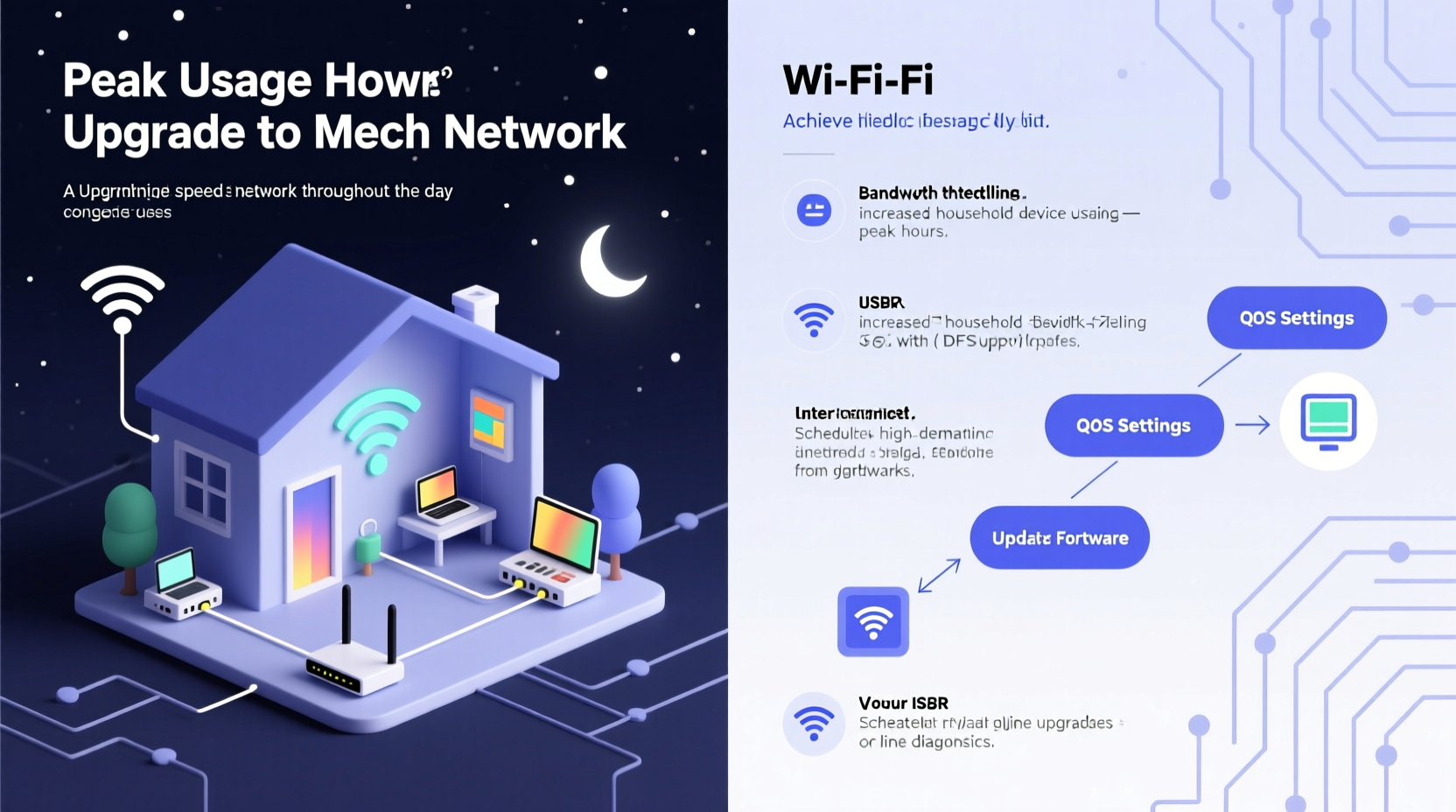
The slowdown isn’t usually due to your internet plan throttling speed after a certain time. Instead, several overlapping factors converge in the evening, turning your network into a digital traffic jam.
Network Congestion on Your ISP’s Network
Internet Service Providers (ISPs) manage shared bandwidth across neighborhoods. During peak hours—typically 7 PM to 11 PM—many users are streaming, gaming, video calling, and downloading simultaneously. This surge increases latency and reduces throughput, especially if your ISP uses oversubscription models. As one network engineer put it:
“Peak-hour slowdowns are like rush hour on a highway. Even if your car is fast, you’re stuck behind everyone else.” — David Lin, Network Infrastructure Analyst at Broadband Insights Group
Increased Device Usage at Home
Your own household likely sees more connected devices in use at night. Smart TVs, tablets, phones, gaming consoles, and smart home gadgets all draw from the same router. Each active device consumes bandwidth and competes for signal strength, especially if they're performing high-data tasks.
Interference from Neighboring Networks
Wi-Fi operates on shared radio frequencies (2.4 GHz and 5 GHz). In dense urban areas or apartment complexes, dozens of nearby routers may be broadcasting on overlapping channels. At night, as neighbors come home and turn on their networks, interference spikes. The 2.4 GHz band is particularly vulnerable due to its longer range and limited non-overlapping channels (only three: 1, 6, and 11).
Router Overheating or Performance Degradation
Many routers lack robust cooling systems. After running continuously for hours—especially under load—they can overheat, leading to throttled performance or intermittent disconnects. Dust buildup, poor ventilation, or outdated firmware can compound this issue.
How to Diagnose Nighttime Wi-Fi Slowdowns
Before making changes, confirm the source of the slowdown. Use these steps to isolate whether the problem is internal (your network) or external (ISP or neighborhood).
- Run Speed Tests at Different Times: Use tools like Speedtest.net or Fast.com to measure download, upload, and ping at noon, 6 PM, and 9 PM. Compare results over several days.
- Test via Ethernet: Connect a laptop directly to your modem/router with an Ethernet cable. If wired speeds also drop at night, the issue lies with your ISP or upstream congestion.
- Monitor Connected Devices: Log into your router’s admin interface (usually via 192.168.1.1 or 192.168.0.1) and check how many devices are active during slowdowns.
- Analyze Wi-Fi Channels: Use apps like Wi-Fi Analyzer (Android) or NetSpot (Windows/Mac) to see which channels nearby networks are using. High congestion on channel 6? Switch yours to 1 or 11.
If your wired connection remains stable but Wi-Fi drops, the bottleneck is likely within your home network setup.
Proven Solutions for Consistent Wi-Fi Speeds
Once you’ve identified the cause, apply targeted fixes. These strategies address both local and external factors affecting nighttime performance.
1. Upgrade to a Dual-Band or Tri-Band Router
Older single-band routers operate only on 2.4 GHz, which is crowded and slow. Modern dual-band (2.4 GHz + 5 GHz) or tri-band (2.4 GHz + two 5 GHz bands) routers allow you to offload high-bandwidth devices to less congested frequencies. The 5 GHz band offers faster speeds and lower interference, though with slightly shorter range.
2. Optimize Channel Selection
Most routers default to “Auto” channel selection, but this doesn’t always pick the least congested option. Manually set your 2.4 GHz band to channel 1, 6, or 11—whichever shows the least activity in your area. For 5 GHz, choose a non-DFS (Dynamic Frequency Selection) channel between 36–48 or 149–161 for better stability.
3. Enable Quality of Service (QoS)
QoS lets you prioritize certain devices or applications. For example, you can give your home office laptop or gaming console higher priority over background updates or smart fridges. Most modern routers support QoS in their settings menu under “Traffic Management” or “Bandwidth Control.”
4. Limit Background Data Usage
Many devices silently consume bandwidth at night:
- Smartphones backing up to the cloud
- TVs updating apps or downloading content
- Computers syncing files or installing OS updates
Schedule these activities during off-peak hours or disable automatic updates temporarily.
5. Add a Mesh Wi-Fi System
If your home is large or has dead zones, a single router struggles to maintain strong signals everywhere. Mesh systems use multiple nodes to blanket your space with seamless coverage. They also balance device loads intelligently and reduce strain on any single access point.
Checklist: 7 Steps to Restore Nighttime Wi-Fi Speed
Follow this actionable checklist to systematically eliminate common causes of slowdowns:
- ✅ Run a wired speed test at night to rule out ISP issues
- ✅ Restart your router weekly to clear memory and refresh connections
- ✅ Update router firmware to the latest version
- ✅ Switch your 2.4 GHz Wi-Fi to the least congested channel (1, 6, or 11)
- ✅ Move high-bandwidth devices to the 5 GHz network
- ✅ Enable QoS and prioritize critical devices
- ✅ Install a mesh system if coverage is inconsistent
Real-World Example: The Johnson Family’s Fix
The Johnsons, living in a suburban neighborhood of Chicago, noticed their Netflix streams buffering nightly around 8 PM. Their kids couldn’t join Zoom classes smoothly, and online gaming lagged. A speed test showed 150 Mbps in the afternoon but dropped to 28 Mbps by 9 PM.
They began troubleshooting:
- First, they tested via Ethernet—speeds still dropped, pointing to ISP congestion.
- They called their provider and learned they were on a DOCSIS 3.0 modem, which struggles during peak loads.
- They upgraded to a DOCSIS 3.1 modem and a Wi-Fi 6 router.
- They enabled QoS, prioritizing the home office and main TV.
- They scheduled iCloud and Google Drive backups for early morning.
Result: Nightly speeds stabilized at 110+ Mbps. Streaming and remote work became seamless—even during family movie nights.
Do’s and Don’ts: Managing Home Network Performance
| Do | Don’t |
|---|---|
| Place your router centrally and elevated | Hide your router in a cabinet or basement |
| Use the 5 GHz band for streaming and gaming | Connect all devices to 2.4 GHz |
| Update router firmware monthly | Ignore firmware update notifications |
| Limit number of active devices during peak use | Let smart appliances run updates overnight |
| Consider upgrading to fiber or gigabit plans if available | Assume your current plan is sufficient without testing |
Frequently Asked Questions
Does my ISP intentionally slow down my internet at night?
Most ISPs don’t engage in deliberate throttling based on time of day. However, they do manage network capacity through “traffic shaping” during peak usage. If too many customers in your area are online, shared bandwidth gets divided, causing natural slowdowns. Some providers may throttle specific services (like torrents), but general nighttime throttling is rare and often just congestion.
Can changing my Wi-Fi password help improve speed?
Not directly—but if unauthorized users are leeching your bandwidth, kicking them off will free up resources. Change your password periodically and use WPA3 encryption if your router supports it. Also, consider setting up a guest network for visitors to prevent overcrowding your main network.
Is Wi-Fi 6 worth upgrading for nighttime performance?
Yes. Wi-Fi 6 (802.11ax) improves efficiency in high-device environments. Features like OFDMA (Orthogonal Frequency Division Multiple Access) allow a router to serve multiple devices simultaneously, reducing latency. It also handles interference better and supports higher data rates. If you have more than five connected devices, Wi-Fi 6 can make a significant difference—especially at night.
Final Steps to Ensure Reliable Evening Connectivity
Maintaining consistent Wi-Fi speed at night requires both immediate fixes and long-term habits. Start by diagnosing whether the issue stems from your ISP, your hardware, or internal network management. Then, implement solutions in order of impact: optimize your router settings, reduce background traffic, upgrade equipment if needed, and consider structural improvements like mesh networking.
Consistency comes not from a single fix, but from a well-tuned ecosystem. Monitor your network weekly, stay updated on firmware releases, and adjust priorities as your household’s needs evolve. With the right setup, you can enjoy fast, reliable internet no matter how many people are online after dinner.




 浙公网安备
33010002000092号
浙公网安备
33010002000092号 浙B2-20120091-4
Comments
No comments yet. Why don't you start the discussion?