
If your internet crawls every evening just when you're ready to stream a movie or join a video call, you're not alone. Millions of households experience the same frustrating slowdown after sunset. The good news? It’s rarely a problem with your internet plan — it's often about how your network is configured and used. With a few smart adjustments to your router settings and usage habits, you can reclaim fast, reliable Wi-Fi even during peak hours.
Why Wi-Fi Slows Down at Night: The Real Causes
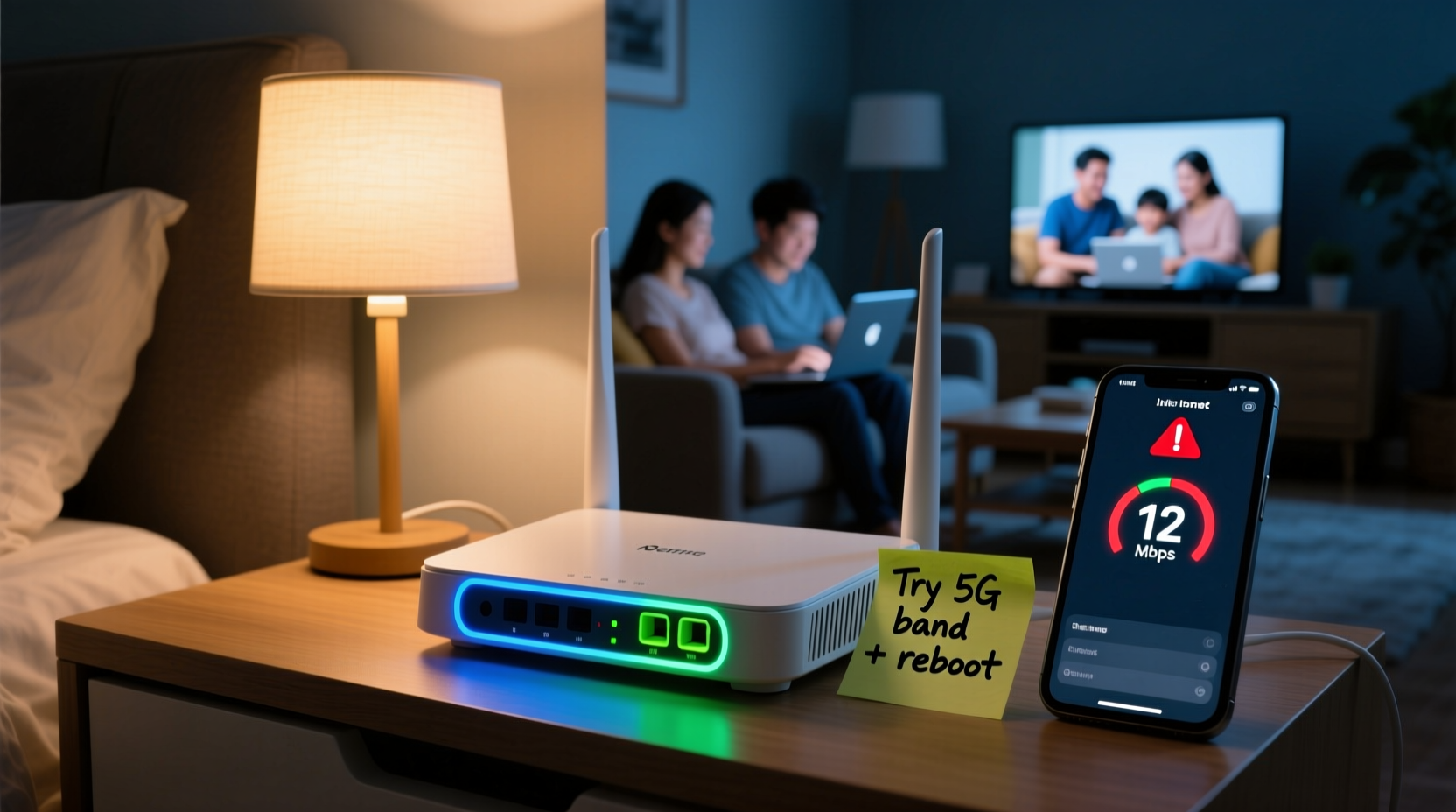
The drop in speed isn’t random. It follows predictable patterns tied to network congestion, device behavior, and signal interference. Understanding these root causes is the first step toward fixing them.
Network Congestion: During the day, most people are at work or school, so fewer devices are connected to neighborhood networks. But at night, everyone returns home and starts streaming, gaming, and browsing. This surge increases demand on both your home network and nearby Wi-Fi channels, especially in apartment complexes or dense neighborhoods.
Router Overload: Many routers aren't designed to handle 10, 15, or more simultaneous connections. When multiple phones, tablets, smart TVs, and IoT devices all connect at once, the router struggles to manage data flow efficiently, leading to latency and reduced throughput.
Interference from Neighboring Networks: Wi-Fi operates on shared radio frequencies (2.4 GHz and 5 GHz). In urban areas, dozens of nearby routers may be broadcasting on overlapping channels. At night, this interference peaks, degrading your signal quality.
Bandwidth-Hungry Activities: Streaming 4K video, online gaming, and large downloads consume significant bandwidth. If several household members engage in these activities simultaneously, your available speed gets divided — sometimes to unusable levels.
“Wi-Fi performance at night is less about your ISP and more about local network efficiency. Small changes in router placement and configuration can yield dramatic improvements.” — Dr. Alan Reyes, Network Engineer & IEEE Member
Optimize Your Router’s Channel Settings
One of the most effective yet overlooked tweaks is changing your Wi-Fi channel. Routers default to automatic settings, but those don’t always pick the least congested option.
The 2.4 GHz band has only three non-overlapping channels: 1, 6, and 11. If your neighbors’ routers are clustered on one channel (say, channel 6), switching to channel 1 or 11 can dramatically reduce interference.
The 5 GHz band offers more options — up to 25 non-overlapping channels — making it easier to find a clear frequency. However, many older devices don’t support 5 GHz, so balancing compatibility and performance is key.
How to Change Your Wi-Fi Channel
- Log into your router’s admin panel (usually via
192.168.1.1or192.168.0.1). - Navigate to Wireless Settings > Advanced.
- Select Manual for Channel Selection.
- For 2.4 GHz: Choose channel 1, 6, or 11 based on what’s least used.
- For 5 GHz: Pick a higher-numbered channel (e.g., 36–48 or 149–161) to avoid DFS interference.
- Save settings and reboot the router.
To identify the least crowded channels, use free tools like Wi-Fi Analyzer (Android) or NetSpot (Windows/Mac). These apps show real-time channel usage in your area.
Upgrade to Dual-Band or Tri-Band: Split the Load
If your router only supports 2.4 GHz, upgrading to a dual-band or tri-band model can solve nighttime slowdowns. Here’s how they help:
| Band Type | Speed | Range | Best For |
|---|---|---|---|
| 2.4 GHz | Slower (up to 150 Mbps) | Longer range, better wall penetration | Smart home devices, basic browsing |
| 5 GHz | Faster (up to 900 Mbps+) | Shorter range, weaker through walls | Streaming, gaming, HD video calls |
| 6 GHz (Wi-Fi 6E) | Fastest (multi-gigabit) | Shortest range | High-demand applications, low latency |
By assigning high-bandwidth tasks (like Netflix or Zoom) to the 5 GHz network and reserving 2.4 GHz for smart lights or thermostats, you prevent traffic jams.
Set Up Quality of Service (QoS) Rules
Quality of Service (QoS) lets you prioritize certain devices or activities over others. Without QoS, your router treats all data equally — meaning a background software update on a tablet could hog bandwidth needed for a critical work call.
Most modern routers include QoS settings in their admin interface. You can assign priority based on:
- Device (e.g., give your laptop top priority)
- Application (e.g., prioritize video conferencing over file downloads)
- Time of day (e.g., boost streaming during evening hours)
Step-by-Step: Enable QoS on Your Router
- Access your router’s dashboard using a web browser.
- Go to Advanced Settings > QoS or Traffic Control.
- Enable QoS and choose “Custom” or “Manual” mode.
- Add high-priority devices by MAC address or IP.
- Assign priority levels: High for work devices, Medium for streaming, Low for backups.
- Save and restart the router.
After setup, test your connection during peak hours. You should notice smoother video calls and faster page loads, even when others are using the network heavily.
Mini Case Study: The Martinez Family’s Evening Internet Fix
The Martinez family in Austin, Texas, struggled nightly with buffering YouTube videos and dropped Zoom calls. Their 2018 dual-band router was buried in a closet, and all devices defaulted to 2.4 GHz.
They took these steps:
- Moved the router to a central shelf.
- Changed the 2.4 GHz channel from auto (channel 6) to channel 1, reducing neighbor interference.
- Enabled QoS and prioritized their laptops and smart TV.
- Signed their kids’ tablets to the 5 GHz network for homework and streaming.
Within two days, their evening download speeds increased from 12 Mbps to 68 Mbps. Video calls stabilized, and no more mid-movie buffering.
“We didn’t pay for faster internet — we just made our existing setup smarter. The difference is night and day.” — Sofia Martinez, homeowner
Essential Router Maintenance Checklist
Many Wi-Fi issues stem from neglecting basic router care. Use this checklist weekly or monthly to maintain peak performance:
- ✅ Reboot the router every 2–4 weeks to clear memory leaks.
- ✅ Update firmware through the admin panel (check monthly).
- ✅ Rename SSIDs to distinguish between 2.4 GHz and 5 GHz bands.
- ✅ Disable WPS (Wi-Fi Protected Setup) — it’s a security risk and can slow connections.
- ✅ Limit connected devices; remove unknown or inactive ones.
- ✅ Position the router centrally, elevated, and away from metal objects or microwaves.
- ✅ Use Ethernet for stationary devices (TVs, desktops) to reduce Wi-Fi load.
FAQ: Common Nighttime Wi-Fi Questions
Can my neighbors really slow down my Wi-Fi?
Yes. If multiple nearby routers operate on the same channel, especially in the 2.4 GHz band, interference occurs. This doesn’t mean they’re stealing your bandwidth, but their signals compete with yours, reducing overall performance. Changing your channel or switching to 5 GHz helps avoid this.
Should I leave my router on all the time?
Yes, routers are designed to run continuously. However, regular reboots (every few weeks) improve stability and speed by clearing cached data and resetting connections. Consider using a smart plug to automate weekly restarts.
Does turning off Wi-Fi at night help speed during the day?
Not directly. Turning it off saves minimal energy and doesn’t improve daytime speed. Instead, focus on optimizing settings and managing device load. If security is a concern, use guest network scheduling or parental controls to limit access without disabling Wi-Fi entirely.
Conclusion: Take Control of Your Home Network
Slow Wi-Fi at night doesn’t have to be inevitable. By understanding the causes — from signal interference to device overload — and applying practical router tweaks, you can maintain strong, consistent speeds when you need them most. Simple actions like changing your Wi-Fi channel, enabling QoS, splitting bands, and maintaining your router can transform your internet experience.
You don’t need a new ISP or expensive hardware to see results. Often, the solution lies in smarter configuration, not faster infrastructure. Start with one tweak today — move your router, change a channel, or set up QoS — and measure the difference. Small changes compound into major gains.




 浙公网安备
33010002000092号
浙公网安备
33010002000092号 浙B2-20120091-4
Comments
No comments yet. Why don't you start the discussion?