
If your internet speeds plummet every evening just as you're trying to stream a movie, join a video call, or let the kids play online games, you're not alone. Millions of households experience degraded Wi-Fi performance during peak hours—typically between 6 PM and 10 PM. While it may feel like your router has suddenly turned against you, the truth is usually more complex. The slowdown isn’t always due to faulty equipment; instead, it's often the result of network congestion, bandwidth competition, and external factors that intensify when everyone gets home.
Understanding why this happens—and what you can do about it—is essential for maintaining reliable connectivity in today’s digital-first lifestyle. This guide breaks down the technical and environmental causes behind evening Wi-Fi lag and provides actionable solutions to restore speed and stability.
Understanding Peak Hour Network Congestion
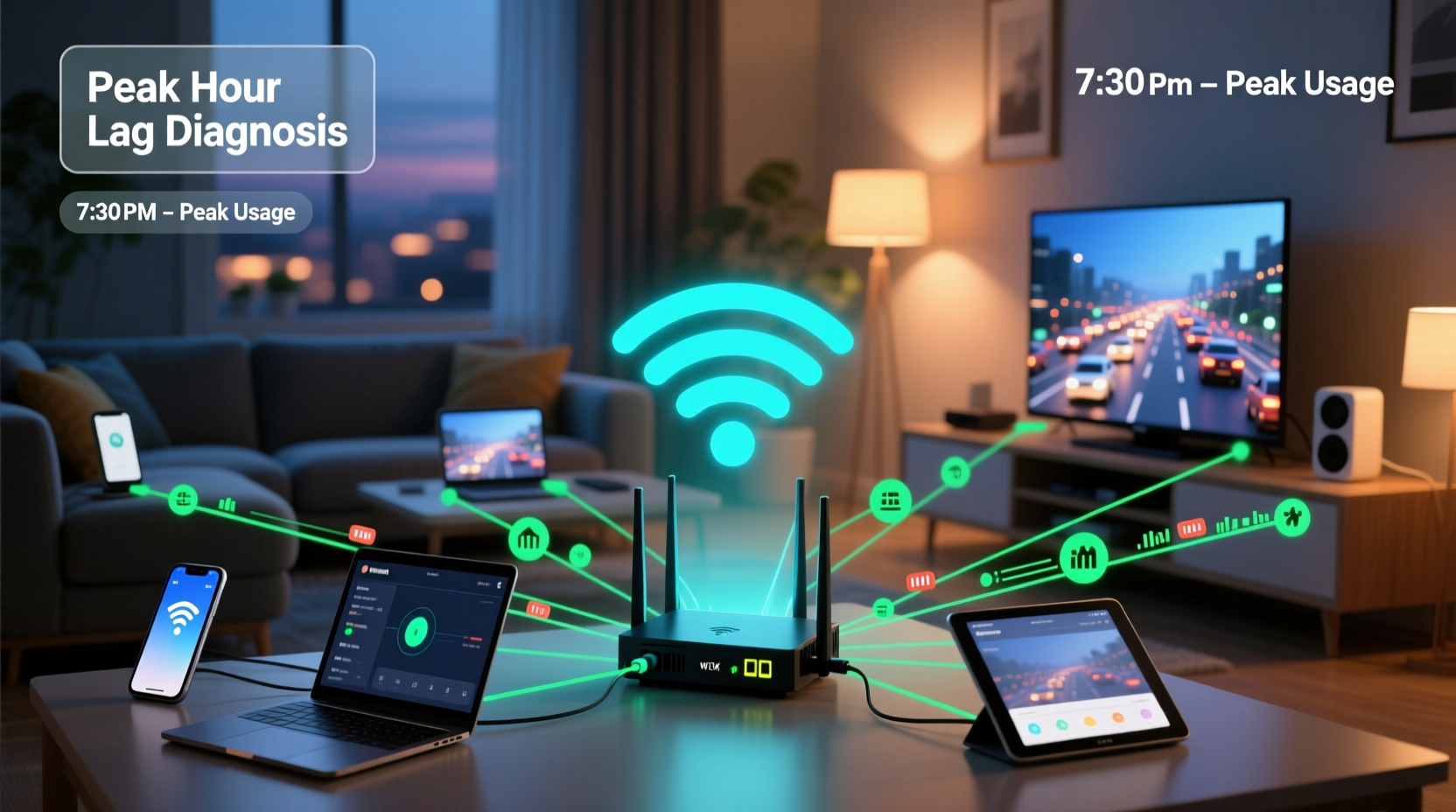
Evening slowdowns are primarily driven by increased demand on both your local network and your internet service provider’s (ISP) infrastructure. When schools end, workdays finish, and people return home, dozens of devices connect simultaneously: smartphones, tablets, smart TVs, gaming consoles, and voice assistants all compete for bandwidth.
This spike in usage affects two levels:
- Local Network Congestion: Too many devices using your home Wi-Fi at once can overwhelm your router, especially if it’s older or not designed for high-density environments.
- ISP-Level Congestion: Your neighborhood shares a connection node with other homes. During peak hours, heavy streaming, downloads, and cloud backups from multiple households can saturate that shared bandwidth, causing throttling or latency spikes.
According to data from the Federal Communications Commission (FCC), average broadband speeds drop by up to 30% during peak usage times in densely populated areas. This phenomenon, known as “network contention,” is normal but manageable with the right approach.
Common Causes of Evening Wi-Fi Slowdowns
Several interrelated factors contribute to sluggish evening performance. Identifying which ones apply to your situation is the first step toward resolution.
1. Bandwidth-Hungry Devices
Streaming 4K video uses approximately 15–25 Mbps per device. Online gaming requires stable low-latency connections, while video conferencing demands consistent upload speeds. If multiple family members engage in these activities simultaneously, even a 100 Mbps plan can become strained.
2. Outdated or Underpowered Router
Routers degrade over time. Models older than three to five years may lack support for modern standards like MU-MIMO (Multi-User, Multiple Input, Multiple Output) or beamforming, which help manage multiple devices efficiently. They also tend to have weaker processors and less RAM, making them prone to freezing under load.
3. Interference from Neighboring Networks
In apartment buildings or dense suburban neighborhoods, nearby Wi-Fi networks operating on the same channel create signal interference. The 2.4 GHz band is particularly vulnerable because it supports fewer non-overlapping channels (only three in most regions).
4. ISP Throttling or Data Caps
Some ISPs implement \"fair usage policies\" that throttle speeds after a certain data threshold is reached within a billing cycle. If your household streams heavily throughout the month, you might hit this cap by week three or four, leading to noticeable slowdowns—especially during peak hours.
5. Poor Router Placement
Placing your router in a closet, basement, or near metal appliances reduces signal strength. Walls, floors, and electronic devices (like microwaves and cordless phones) further degrade performance, particularly during high-traffic periods when every bit of signal integrity matters.
“Peak-time Wi-Fi issues are rarely about one single problem. It’s usually a combination of outdated hardware, poor placement, and neighborhood congestion.” — Dr. Alan Reyes, Network Infrastructure Analyst at Broadband Insights Group
Troubleshooting Steps to Restore Speed
Follow this structured approach to diagnose and resolve evening slowdowns.
Step 1: Test Your Actual Internet Speed
Use a trusted tool like Speedtest.net or FCC’s Measuring Broadband America platform. Run tests at different times:
- Morning (e.g., 8 AM)
- Afternoon (e.g., 2 PM)
- Evening (e.g., 7 PM)
Compare results. If speeds drop significantly only in the evening, the issue is likely related to congestion rather than a permanent line fault.
Step 2: Identify Active Devices
Log into your router’s admin interface (usually via 192.168.1.1 or 192.168.0.1). Check the connected devices list. Look for unknown entries or background users (e.g., smart thermostats updating firmware, security cameras uploading footage).
Step 3: Reboot Your Equipment
Power-cycle your modem and router nightly. Unplug both for 30 seconds, then restart the modem first, followed by the router. This clears memory leaks and resets unstable connections.
Step 4: Switch Wi-Fi Channels
Use a free app like Wi-Fi Analyzer (Android) or NetSpot (Windows/Mac) to scan nearby networks. On the 2.4 GHz band, choose channels 1, 6, or 11—the only non-overlapping options. For 5 GHz, pick a less crowded channel above 36.
Step 5: Enable Quality of Service (QoS)
QoS allows you to prioritize traffic. In your router settings, assign higher priority to critical applications (e.g., Zoom calls, gaming) or specific devices (e.g., your work laptop). This ensures important tasks get bandwidth even when others are streaming.
Optimization Checklist
Use this checklist weekly to maintain optimal Wi-Fi health:
- ✅ Reboot modem and router
- ✅ Run speed tests at peak and off-peak times
- ✅ Update router firmware
- ✅ Review connected devices for unauthorized access
- ✅ Adjust QoS settings based on current needs
- ✅ Move router to a central, elevated location
- ✅ Limit automatic backups and cloud syncs to nighttime
- ✅ Consider upgrading to a mesh system if coverage is weak
When Hardware Upgrades Make Sense
Sometimes, no amount of tweaking will overcome aging infrastructure. Consider upgrading if:
- Your router is more than 4 years old.
- You have more than 10 connected devices regularly.
- Your home is larger than 2,000 sq ft with dead zones.
- You subscribe to internet speeds above 200 Mbps but can’t achieve them wirelessly.
Modern dual-band or tri-band routers with Wi-Fi 6 (802.11ax) handle congestion far better than older models. Features like OFDMA (Orthogonal Frequency Division Multiple Access) allow a single transmission to serve multiple devices, reducing latency during busy periods.
For multi-story homes or large layouts, a mesh Wi-Fi system (e.g., Google Nest Wifi, Eero, TP-Link Deco) distributes signal evenly and eliminates bottlenecks caused by distance or physical obstructions.
| Router Type | Best For | Lifespan | Peak Hour Performance |
|---|---|---|---|
| Old Single-Band (802.11n) | Small apartments, light use | 2–3 years | Poor – struggles with >5 devices |
| Dual-Band AC (802.11ac) | Medium homes, moderate streaming | 4–5 years | Fair – depends on QoS setup |
| Wi-Fi 6 (802.11ax) | Large families, high-device density | 5–7 years | Excellent – handles congestion well |
| Mesh System (Wi-Fi 6) | Multi-floor homes, whole-home coverage | 5+ years | Superior – self-optimizing nodes |
Real-World Example: The Thompson Family Fix
The Thompsons, a family of five in suburban Chicago, complained of unbearable lag every night. Netflix buffering, frozen Zoom calls, and laggy Xbox gameplay made evenings frustrating. Their 3-year-old router struggled with 14 connected devices, including baby monitors and smart lights.
They began by running speed tests: 180 Mbps in the morning, but only 65 Mbps at 7 PM. Using their ISP’s app, they discovered they were on a congested neighborhood node. After contacting support, they were moved to a less crowded segment, improving baseline speeds.
Next, they upgraded to a Wi-Fi 6 mesh system and enabled QoS to prioritize work laptops and gaming consoles. They also scheduled iCloud and Google Photos backups to run after midnight. Within a week, evening speeds stabilized around 140 Mbps—even during simultaneous 4K streaming and online gaming.
Their total cost: $220 for new equipment. Result: restored peace and productivity in the household.
Frequently Asked Questions
Can my neighbors really slow down my Wi-Fi?
Yes. In close quarters (apartments, townhouses), overlapping Wi-Fi signals on the same channel cause interference. This forces your router to retransmit data, increasing latency. Use a Wi-Fi analyzer to find the least congested channel and switch to 5 GHz where possible.
Is it worth upgrading my internet plan?
Only if your current plan is insufficient for your household’s total needs. A 100 Mbps connection supporting four 4K streams will struggle. Upgrade to 300 Mbps or higher if you consistently exceed your bandwidth limits. However, if your ISP’s network is oversubscribed, even gigabit plans may slow down during peak times.
Why does my phone show full bars but still load slowly?
Signal strength (bars) indicates proximity to the router, not speed or available bandwidth. You can have strong signal but poor performance due to network congestion, interference, or backend throttling. Always test actual throughput using a speed test app.
Final Thoughts and Action Plan
Evening Wi-Fi slowdowns are a modern nuisance rooted in real technical limitations—but they’re not inevitable. By understanding the balance between personal usage habits, hardware capabilities, and external network pressures, you can take meaningful steps to reclaim your connection.
Start small: reboot your gear, analyze device usage, and optimize your router settings. Then consider longer-term upgrades like newer hardware or professional network assessments. Every adjustment compounds, leading to smoother, more reliable internet when you need it most.




 浙公网安备
33010002000092号
浙公网安备
33010002000092号 浙B2-20120091-4
Comments
No comments yet. Why don't you start the discussion?