
It’s a common frustration: you’re sitting in the same room, both your phone and laptop connected to the same Wi-Fi network, yet your phone struggles to load a video while your laptop streams in HD without a hitch. You check the signal bars—both show full strength—yet the performance gap is undeniable. This isn’t just in your head. There are real, technical reasons behind this disparity, ranging from hardware limitations to software behaviors and network prioritization.
Understanding why your phone lags behind your laptop on the same Wi-Fi network is the first step toward fixing it. Unlike laptops, smartphones are designed with compactness and battery efficiency in mind, which often means trade-offs in wireless performance. But that doesn’t mean you’re stuck with slow speeds. With the right knowledge and adjustments, you can significantly improve your phone’s Wi-Fi experience—sometimes instantly.
Hardware Differences Between Phones and Laptops
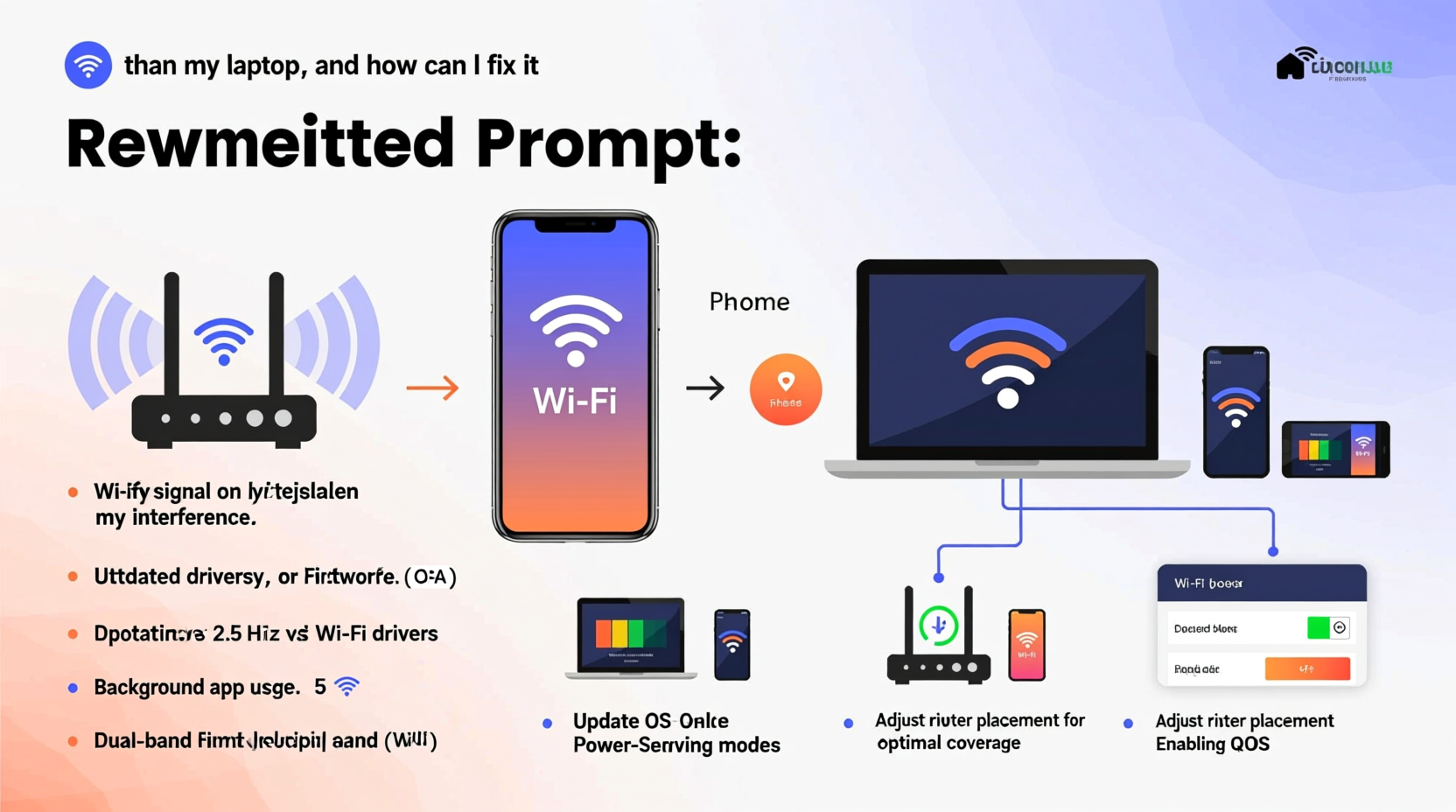
The most fundamental reason for the speed difference lies in hardware. Laptops typically come equipped with more powerful Wi-Fi antennas, better radio components, and support for advanced networking standards that phones may lack—especially older or budget models.
Modern laptops often support Wi-Fi 6 (802.11ax) or at least Wi-Fi 5 (802.11ac), with multiple spatial streams (MIMO technology) and dual-band capabilities (2.4 GHz and 5 GHz). Many also have external or internal antennas optimized for signal reception. In contrast, smartphones must fit all components into a slim chassis, limiting antenna size and power output. Even flagship phones may only support single or dual-stream MIMO, reducing peak throughput.
Additionally, laptops usually draw power from an outlet, allowing their Wi-Fi radios to operate at full capacity. Phones, however, throttle performance to conserve battery, especially when not charging. This means even if your phone supports fast Wi-Fi standards, it may not use them aggressively to extend battery life.
“Smartphones prioritize energy efficiency over raw performance. That’s why they often underperform laptops on the same network, even when physically close to the router.” — Dr. Alan Reyes, Network Engineer & IEEE Member
Wi-Fi Band and Signal Optimization
Not all Wi-Fi bands are created equal. Most routers today broadcast on two frequencies: 2.4 GHz and 5 GHz. Each has strengths and weaknesses:
| Band | Speed | Range | Interference | Best For |
|---|---|---|---|---|
| 2.4 GHz | Slower (up to 150 Mbps) | Longer range | High (microwaves, Bluetooth, neighbors) | Basic browsing, IoT devices |
| 5 GHz | Faster (up to 1 Gbps+) | Shorter range | Lower | Streaming, gaming, downloads |
Laptops often default to the 5 GHz band when available due to stronger drivers and antenna positioning. Phones, especially older models, may stick to 2.4 GHz for better battery life or because the 5 GHz signal weakens through walls. If your phone is connecting to 2.4 GHz while your laptop uses 5 GHz, that alone explains much of the speed gap.
Software and Background Activity
Your phone runs dozens of background processes that silently consume bandwidth. Apps like email clients, social media platforms, cloud backups, and operating system updates constantly sync data—even when you’re not actively using the device. These background tasks fragment available bandwidth, leading to slower perceived speeds during active use.
In contrast, laptops generally run fewer background services unless configured otherwise. On Windows or macOS, automatic updates can be scheduled or paused, but mobile OSes like iOS and Android push updates and syncing more aggressively to maintain real-time notifications and cloud consistency.
Moreover, mobile browsers are often less efficient than desktop counterparts. They render pages with lower priority, compress images, and sometimes route traffic through proprietary optimization engines (like Google’s Data Saver), which can introduce latency or reduce actual throughput.
- iOS and Android may throttle Wi-Fi during screen-off states to save power.
- Location services and app refresh features keep radios active, increasing contention.
- Ad-heavy mobile sites further strain limited processing power.
Mini Case Study: The Office Apartment Test
Consider Sarah, a remote worker living in a one-bedroom apartment. She uses her MacBook Pro for video calls and her iPhone 13 for messaging and calendar checks. Both devices connect to the same mesh Wi-Fi system. During a Zoom meeting, her laptop maintains stable 10 Mbps upload, but her phone struggles to load a simple webpage.
After investigation, she discovers her phone was on the 2.4 GHz band, buried under background app refresh from Instagram, Gmail, and iCloud syncing. By disabling auto-refresh for non-essential apps and forcing the 5 GHz connection via router settings, her phone’s responsiveness improved by over 70% in speed tests.
Step-by-Step Guide to Fix Slow Phone Wi-Fi
Follow this structured approach to diagnose and resolve your phone’s sluggish Wi-Fi performance:
- Verify the current Wi-Fi band: Check your router’s admin page or app to see which band your phone is using. If possible, rename your 5 GHz network separately so you can manually select it on your phone.
- Forget and rejoin the network: Go to Wi-Fi settings, forget the network, then reconnect. This clears outdated configurations and forces a fresh handshake with the router.
- Restart your phone and router: A reboot resets network stacks and clears temporary glitches affecting connectivity.
- Disable battery-saving modes: On Android, turn off Battery Saver; on iOS, disable Low Power Mode. These often limit CPU and radio performance.
- Limit background app refresh:
- iOS: Settings > General > Background App Refresh → Set to Wi-Fi Only or disable for non-critical apps.
- Android: Settings > Apps > [App Name] > Mobile Data & Wi-Fi → Disable background data.
- Update your phone’s OS and router firmware: Outdated software can cause compatibility issues with modern Wi-Fi standards.
- Test with a Wi-Fi analyzer app: Tools like NetAnalyzer (iOS) or Wi-Fi Analyzer (Android) show signal strength, channel congestion, and band info to help optimize placement.
- Reposition your phone: Metal cases, hands covering the bottom edge, or proximity to microwaves can block signals. Hold the phone away from obstructions during testing.
Checklist: Optimize Your Phone’s Wi-Fi Performance
Action Plan – Complete in 10 Minutes:
- ✅ Restart your phone and router
- ✅ Confirm connection to 5 GHz network
- ✅ Turn off Low Power/Battery Saver mode
- ✅ Disable background app refresh for heavy apps
- ✅ Move closer to the router for testing
- ✅ Run a speed test (use Fast.com or Speedtest.net)
- ✅ Update phone OS and router firmware if pending
Router-Level Factors Affecting Device Performance
Your router plays a pivotal role in how fairly bandwidth is distributed across devices. Some older or low-end routers use basic Quality of Service (QoS) algorithms that don’t differentiate well between high-performance and low-power clients. Others may deprioritize mobile devices due to weaker signal reports or inconsistent connections.
Advanced routers allow you to set device priorities. For example, you can assign higher bandwidth priority to your phone during streaming hours. Additionally, enabling features like MU-MIMO (Multi-User, Multiple Input, Multiple Output) allows the router to serve multiple devices simultaneously, rather than cycling through them—one reason laptops often feel faster in multi-device homes.
If your router is more than three years old, consider upgrading to a Wi-Fi 6 model. These support OFDMA (Orthogonal Frequency Division Multiple Access), which improves efficiency in dense environments and benefits both phones and laptops equally.
FAQ: Common Questions About Phone Wi-Fi Speed
Can a phone really be slower than a laptop on the same Wi-Fi?
Yes. Due to smaller antennas, power-saving modes, and background processes, phones often achieve lower real-world speeds than laptops—even on the same network and location.
Why does my phone show full bars but still have slow internet?
Signal strength (bars) reflects connection quality, not speed. Full bars mean your phone is connected, but interference, band congestion, or router throttling can still limit throughput. Use a speed test app to measure actual download/upload rates.
Should I use Wi-Fi extenders or mesh systems to fix this?
Multipoint mesh systems (like Eero, Google Nest Wi-Fi, or TP-Link Deco) are far more effective than single extenders. They provide seamless roaming and consistent band steering, helping phones stay on optimal channels. Avoid cheap repeaters, which often halve available bandwidth.
Conclusion: Take Control of Your Mobile Connectivity
The gap between your phone’s and laptop’s Wi-Fi performance isn’t inevitable—it’s the result of design trade-offs, software habits, and network conditions that can be corrected. By understanding the underlying causes, from hardware limitations to background app behavior, you gain the power to make meaningful improvements.
Start with the basics: ensure your phone is on the 5 GHz band, eliminate unnecessary background activity, and keep both your device and router updated. Small changes often yield dramatic results. Over time, consider investing in a modern mesh system if you frequently experience dead zones or inconsistent speeds.




 浙公网安备
33010002000092号
浙公网安备
33010002000092号 浙B2-20120091-4
Comments
No comments yet. Why don't you start the discussion?