
If you’ve ever settled into your favorite armchair for a movie night only to find the video buffering endlessly—or tried working from a home office where Zoom calls freeze every few seconds—you’re not alone. A frustratingly slow Wi-Fi connection in just one room is one of the most common complaints in modern households. The irony? Your router might be performing perfectly well elsewhere, yet that one stubborn corner remains a digital dead zone.
The root causes vary: thick walls, interference from appliances, outdated hardware, or simply poor router placement. But here’s the good news—most of these issues can be resolved without replacing your entire network setup. With a few smart adjustments and affordable tools, you can restore fast, reliable internet access to even the most remote parts of your home.
Understanding Why One Room Has Poor Wi-Fi
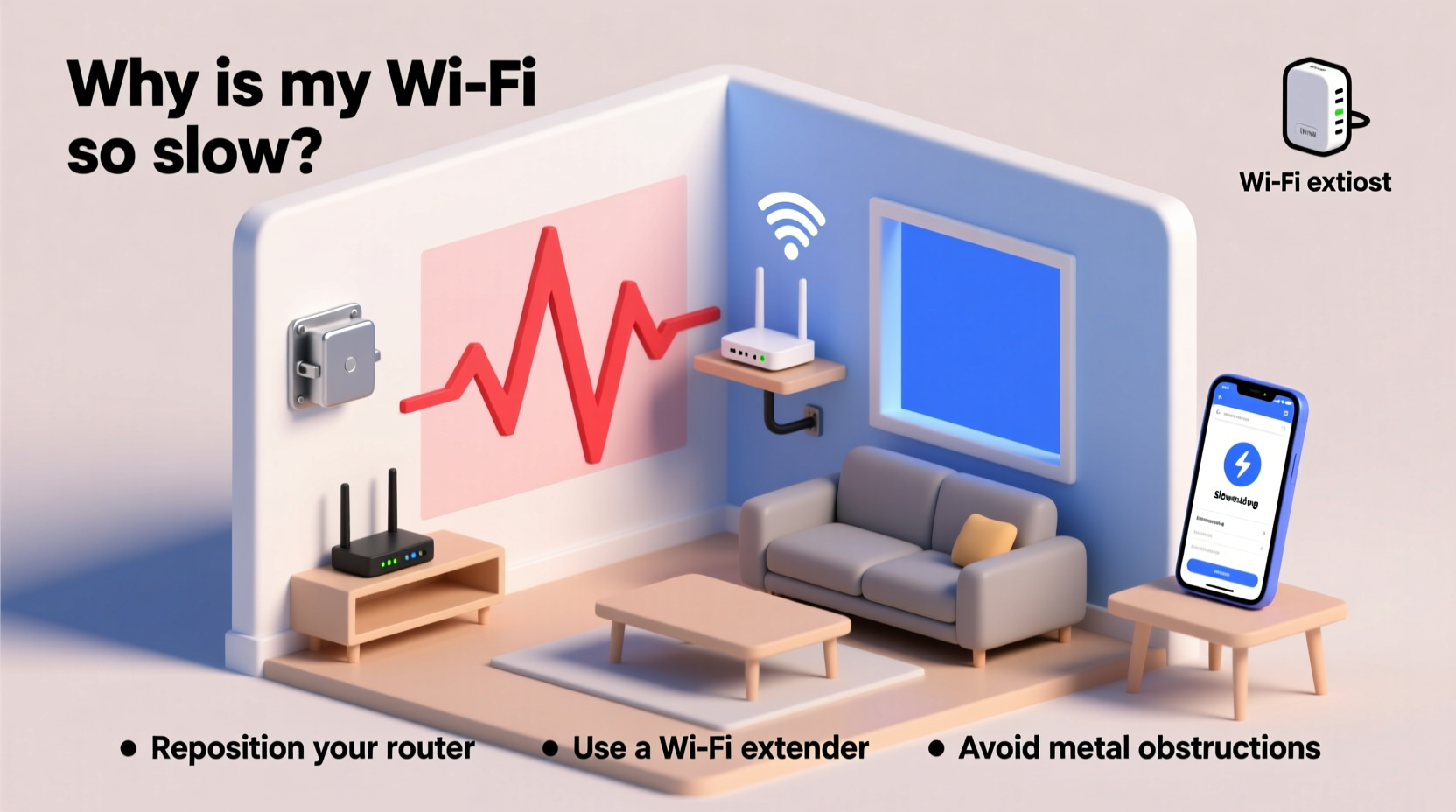
Wi-Fi signals are radio waves, much like FM radio or Bluetooth. They travel through the air but weaken when they encounter obstacles. The further the signal travels and the more barriers it faces, the weaker it becomes. This explains why your basement, attic, or back bedroom might suffer while the living room near the router stays strong.
Common culprits include:
- Distance from the router: Signal strength drops significantly with distance, especially beyond 30–50 feet.
- Physical obstructions: Concrete walls, brick, metal framing, mirrors, and large furniture absorb or reflect signals.
- Interference: Microwave ovens, cordless phones, baby monitors, and even neighboring Wi-Fi networks on the same channel can disrupt performance.
- Router age and specs: Older routers using 802.11b/g/n standards lack the speed and range of modern dual-band or tri-band models.
- Network congestion: Multiple devices streaming, gaming, or downloading simultaneously can overwhelm older routers.
“Wi-Fi isn’t magic—it follows physics. You can’t expect a signal to punch through a concrete wall like it’s not there.” — Dr. Alan Tran, Network Engineer at OpenSignal Labs
Simple Signal Boosting Tricks That Actually Work
You don’t need a networking degree or a six-figure budget to fix weak Wi-Fi. Many effective solutions are low-cost, easy to implement, and deliver noticeable improvements within minutes.
1. Optimize Router Placement
Where your router sits has a massive impact on signal distribution. Most people tuck it behind a TV cabinet or in a closet—places that block signals before they even leave the device.
For best results:
- Place the router in a central, elevated location (like a shelf).
- Avoid placing it near large metal objects, refrigerators, or microwaves.
- Keep it away from thick walls and floors between it and the problem room.
- Position antennas vertically (unless otherwise specified by the manufacturer).
2. Switch Wi-Fi Bands: Use 5 GHz vs. 2.4 GHz Wisely
Modern dual-band routers broadcast on two frequencies:
- 2.4 GHz: Longer range but slower and more prone to interference.
- 5 GHz: Faster speeds, less interference, but shorter range and worse penetration through walls.
In rooms far from the router, the 5 GHz signal may drop out entirely. Try connecting devices in the slow room to the 2.4 GHz network instead. While slower than 5 GHz, it’s often more stable over distance.
3. Update Firmware and Restart Regularly
Like any electronic device, routers benefit from updates. Manufacturers release firmware patches that improve stability, security, and performance.
Check your router’s admin page (usually accessible via 192.168.1.1 or 192.168.0.1) for firmware updates. Also, reboot your router every few weeks—many ISPs now offer routers with automatic restart schedules.
Step-by-Step Guide to Diagnose and Fix Slow Room Wi-Fi
Follow this logical sequence to identify and resolve your connectivity issue efficiently:
- Test Speeds in Multiple Locations: Use a speed test app (like Speedtest by Ookla) in the slow room and near the router. Compare results.
- Check for Interference: Is the room near a microwave, cordless phone, or smart home hub? Turn them off temporarily to test.
- Verify Device Performance: Try another device in the same room. If all devices are slow, it’s the network—not the gadget.
- Switch Wi-Fi Band: Connect to the 2.4 GHz network if available. See if stability improves.
- Reposition the Router: Move it closer to the problem area or to a more central spot.
- Add a Wi-Fi Extender or Mesh Node: If steps 1–5 don’t help, consider hardware upgrades (see below).
Hardware Solutions: Extenders, Mesh Systems, and Powerline Adapters
Sometimes, software tweaks aren’t enough. When physical limitations are too great, adding hardware can bridge the gap.
Wi-Fi Extenders (Repeaters)
These devices pick up your existing Wi-Fi signal and rebroadcast it, extending coverage. They’re inexpensive and easy to set up.
Pros: Low cost (~$30–60), plug-and-play setup.
Cons: Can halve bandwidth, create separate network names, and struggle with seamless roaming.
Mesh Wi-Fi Systems
Systems like Google Nest Wi-Fi, Eero, or TP-Link Deco use multiple nodes placed around your home to create a single, unified network.
Pros: Seamless roaming, consistent speeds, intuitive apps, excellent coverage.
Cons: Higher upfront cost ($150+ for a 2-pack), takes time to install.
Powerline Adapters
These use your home’s electrical wiring to transmit data. One adapter plugs near the router (connected via Ethernet), another in the slow room, providing Wi-Fi or an Ethernet port.
Pros: Bypasses walls entirely, reliable if your wiring is decent.
Cons: Performance varies by circuit; older homes may see inconsistent results.
| Solution | Best For | Cost Range | Setup Difficulty |
|---|---|---|---|
| Router Repositioning | Moderate signal loss due to layout | $0 | Easy |
| Wi-Fi Extender | One dead zone, tight budget | $30–$70 | Easy |
| Mesh Wi-Fi System | Whole-home coverage, multi-floor homes | $150–$300+ | Moderate |
| Powerline Adapter | Rooms on different floors, thick walls | $60–$120 | Easy to Moderate |
Real Example: Fixing the Basement Office
Take Mark, a freelance designer working from his basement office. His main floor had strong Wi-Fi, but downstairs, video uploads stalled and client calls dropped constantly. He tested speeds: 120 Mbps upstairs, 8 Mbps downstairs.
He tried moving his laptop closer to the ceiling vent—no change. Then he switched to the 2.4 GHz network; speeds improved slightly to 15 Mbps, but still unreliable.
After researching, he bought a $90 mesh Wi-Fi system. He placed one node upstairs (where the router was) and another in the basement. Within 20 minutes, setup was complete. His new basement speed? 95 Mbps. Calls stayed connected, and large file uploads completed smoothly.
Mark didn’t need a new internet plan or expensive cabling—just the right tool for the job.
Do’s and Don’ts of Wi-Fi Optimization
“Most Wi-Fi problems are environmental, not technical. Fix the space, and the signal follows.” — Lisa Chen, Senior Support Engineer at NetGear
| Do | Don’t |
|---|---|
| Place router centrally and elevated | Hide router in a cabinet or basement |
| Use 2.4 GHz for distant rooms | Force 5 GHz in weak-signal areas |
| Update router firmware monthly | Ignore firmware alerts or security notices |
| Label extenders/mesh nodes clearly | Leave default network names confusing devices |
| Test speeds after every change | Assume a fix worked without verification |
Frequently Asked Questions
Can I boost Wi-Fi without buying anything?
Yes. Start by repositioning your router, switching to the 2.4 GHz band, closing bandwidth-heavy apps, and restarting your router. These free fixes often yield significant improvements.
Will a Wi-Fi extender slow down my whole network?
It can. Most extenders reduce available bandwidth by 30–50% because they must receive and rebroadcast data on the same channel. For better performance, use a mesh system with dedicated backhaul or a powerline adapter.
Is Wi-Fi harmful if I add more devices like extenders?
No. Wi-Fi operates at very low power levels (typically under 1 watt). Adding extenders or mesh nodes does not pose health risks. The radiation emitted is non-ionizing and well below safety thresholds established by international guidelines.
Final Checklist: Quick Fixes to Try Tonight
- ✅ Run a speed test in the slow room and compare it to near the router.
- ✅ Move your router to a central, open, elevated location.
- ✅ Switch the affected device to the 2.4 GHz network.
- ✅ Reboot your router and modem.
- ✅ Check for firmware updates in your router settings.
- ✅ Eliminate nearby sources of interference (microwave, cordless phone).
- ✅ Consider a mesh Wi-Fi system if the room remains slow.
Conclusion: Take Control of Your Home Network
Slow Wi-Fi in one room doesn’t have to be a permanent frustration. Often, the solution lies not in upgrading your internet plan, but in understanding how signals behave and making small, strategic changes. Whether it’s relocating your router, switching bands, or investing in a mesh system, each step brings you closer to seamless connectivity throughout your home.
Start tonight with one adjustment—reposition your router or run a speed comparison. Small actions lead to big improvements. Share your experience, leave a comment, or pass this guide to someone struggling with their basement binge-watching. Better Wi-Fi is within reach.




 浙公网安备
33010002000092号
浙公网安备
33010002000092号 浙B2-20120091-4
Comments
No comments yet. Why don't you start the discussion?