
It’s a familiar frustration: your phone shows full bars of Wi-Fi, streaming videos without a hitch, while your laptop struggles to load a single webpage. Despite being in the same room, under the same network, the performance gap can be baffling. This inconsistency isn’t random—it stems from real technical differences between devices and their networking hardware. Understanding why this happens is the first step toward fixing it.
Wi-Fi strength isn't just about signal bars. It involves device compatibility, antenna design, driver health, and environmental factors. While smartphones are built for constant connectivity with optimized radios, laptops—especially older or budget models—may lack modern Wi-Fi capabilities. The good news? Most of these issues are fixable without replacing hardware or upgrading your internet plan.
Why Phones Often Outperform Laptops on Wi-Fi
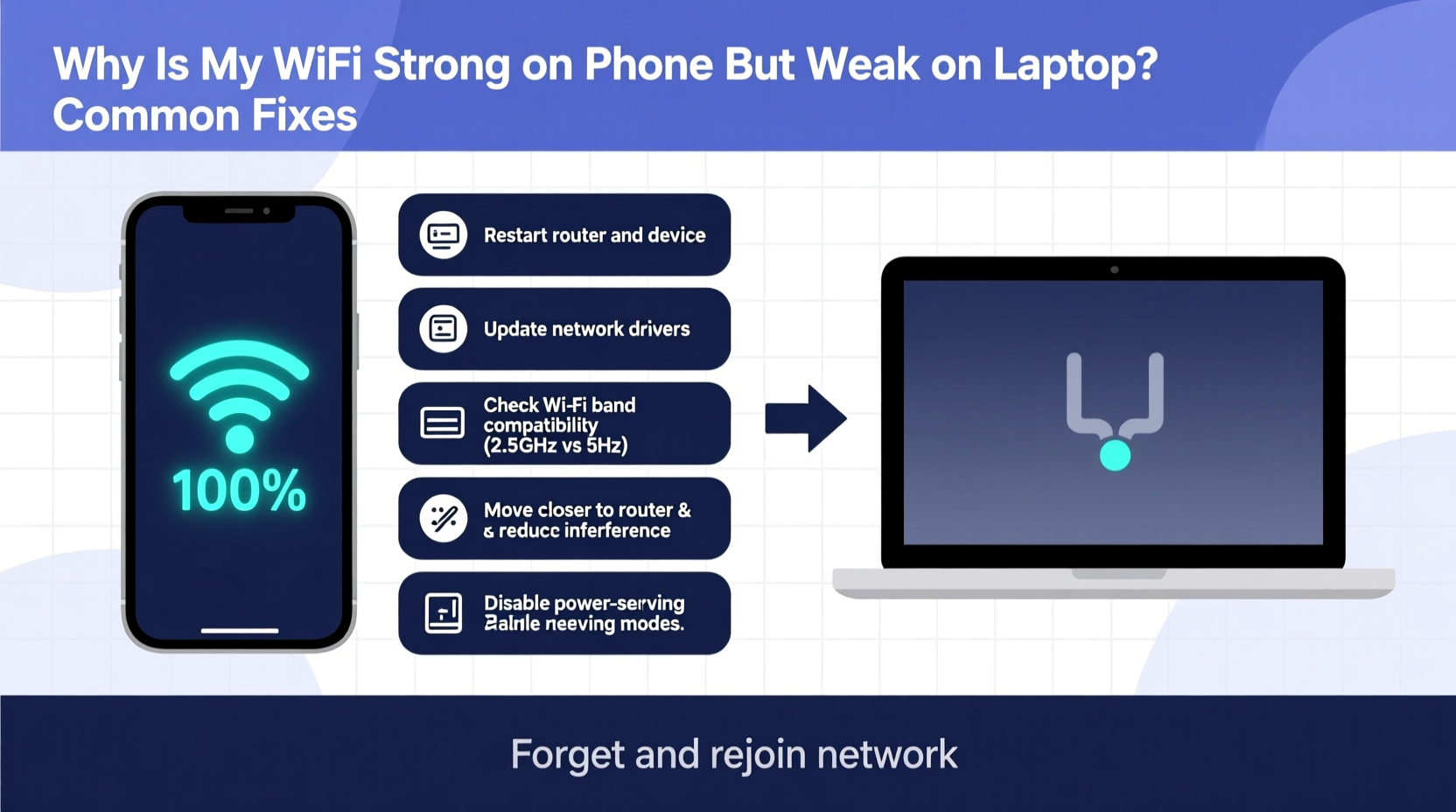
At first glance, it seems illogical that a smaller device like a smartphone could have better Wi-Fi reception than a larger laptop. But several key engineering and design decisions explain this disparity:
- Antenna placement and sensitivity: Smartphones are designed for mobility and consistent signal acquisition. Their compact size forces engineers to optimize internal antennas for maximum efficiency in various orientations. Laptops, especially budget or older models, may use lower-gain antennas or place them near interference sources like fans or USB ports.
- Wi-Fi standards and chipsets: Many modern phones support Wi-Fi 6 (802.11ax) and even Wi-Fi 6E, allowing faster speeds and better performance in congested areas. In contrast, some laptops—particularly those over three years old—may only support older standards like Wi-Fi 4 (802.11n), limiting speed and range.
- Power management: Laptops often throttle Wi-Fi adapters to save battery. This can reduce transmission power and responsiveness, leading to weaker perceived signal strength even when the actual signal is strong.
- Operating system handling: Mobile operating systems like iOS and Android prioritize background connectivity and roaming seamlessly between access points. Desktop OSes like Windows or macOS may not aggressively switch to stronger signals unless explicitly configured.
“Signal strength isn’t solely about proximity to the router. Device-specific factors like antenna quality and protocol support play an equal—if not greater—role.” — Dr. Lena Patel, Wireless Network Engineer at NetSignal Labs
Common Causes of Weak Laptop Wi-Fi (and How to Diagnose Them)
Before applying fixes, identify what’s actually causing the issue. Here’s a breakdown of frequent culprits and how to test for them:
Outdated or Faulty Wi-Fi Drivers
Drivers act as translators between your operating system and hardware. If outdated, corrupted, or incompatible, they can severely limit performance—even if the physical adapter is capable.
Hardware Limitations
Some laptops come with entry-level wireless cards that don’t support dual-band (2.4 GHz and 5 GHz) networks or beamforming technology. These limitations become apparent when compared to newer smartphones with advanced MIMO (Multiple Input, Multiple Output) systems.
Physical Obstructions and Interference
Even subtle barriers like walls, metal furniture, or appliances (microwaves, cordless phones) can degrade Wi-Fi signals. Laptops often sit flat on desks, positioning their internal antennas parallel to the floor, which may misalign with the router’s signal polarization.
Network Congestion
If multiple devices are connected, especially on the 2.4 GHz band, bandwidth contention occurs. Phones may handle congestion better due to optimized radio firmware, while laptops struggle with packet loss and latency spikes.
Power-Saving Settings
Windows and macOS include power plans that reduce Wi-Fi adapter activity during low usage. While helpful for battery life, these settings can cause disconnections or sluggish performance.
Step-by-Step Fixes to Improve Laptop Wi-Fi Strength
Follow this structured approach to diagnose and resolve poor Wi-Fi performance on your laptop:
- Check current signal strength: On Windows, open Command Prompt and type
wlan show interfaces. Look for “Signal” percentage. On macOS, hold Option and click the Wi-Fi icon to view RSSI (ideal: -50 dBm or higher). - Update Wi-Fi drivers: Go to Device Manager > Network Adapters, right-click your Wi-Fi adapter, and select \"Update driver.\" Alternatively, visit your laptop manufacturer’s website and download the latest version.
- Disable power-saving for Wi-Fi: In Device Manager, right-click the adapter > Properties > Power Management, then uncheck \"Allow the computer to turn off this device to save power.\"
- Switch Wi-Fi bands manually: If your router supports both 2.4 GHz and 5 GHz, try connecting to the less congested one. 5 GHz offers faster speeds but shorter range; 2.4 GHz travels farther but is more prone to interference.
- Reposition your laptop: Elevate it, rotate it slightly, or move closer to the router. Avoid placing it directly on metal surfaces or inside closed cabinets.
- Restart your router and modem: Unplug both for 30 seconds, then plug back in. This clears temporary glitches and resets channel selection.
- Change router channel: Use a free tool like Wi-Fi Analyzer (Android) or NetSpot (Windows/macOS) to see which channels are crowded. Log into your router settings and switch to a less busy one—preferably 1, 6, or 11 on 2.4 GHz.
- Reset network settings: On Windows, go to Settings > Network & Internet > Status > Network reset. On macOS, delete network preferences via System Settings > Network > Wi-Fi > Advanced, then rejoin the network.
Do’s and Don’ts: Best Practices for Stable Laptop Wi-Fi
| Do | Don’t |
|---|---|
| Keep your laptop within line of sight of the router when possible | Place your laptop behind large metal objects or thick walls |
| Use a wired Ethernet connection for critical tasks (video calls, downloads) | Rely solely on Wi-Fi for time-sensitive applications without testing stability |
| Install firmware updates for your router regularly | Ignore router update notifications—security and performance patches matter |
| Upgrade to a USB Wi-Fi 6 adapter if internal hardware is outdated | Spend money on signal boosters before diagnosing the root cause |
| Test Wi-Fi speed using fast.com or speedtest.net from both devices | Assume slow speeds are always due to ISP throttling |
Real-World Example: Fixing a Home Office Connection
Sarah, a freelance graphic designer working from her apartment, noticed her iPhone consistently showed full Wi-Fi bars while her 2018 MacBook Pro struggled during Zoom meetings. Video would freeze, and file uploads stalled. She tested speeds: phone got 85 Mbps down, laptop only 12 Mbps.
She followed the diagnostic steps: checked signal strength (only 45% on laptop), updated her Wi-Fi driver (Apple hadn’t pushed updates in two years), and disabled energy-saving mode for Wi-Fi. Still no improvement. Then she moved her laptop from the basement desk to the living room, near the router—speed jumped to 68 Mbps.
Further investigation revealed her router was set to auto-channel, which had landed on Channel 9—a crowded frequency shared by three neighbors. She switched to Channel 1 manually. Finally, she purchased a USB-C Wi-Fi 6 adapter ($25), bypassing the aging internal card. Her laptop now matches her phone’s performance, and client calls run smoothly.
When Hardware Upgrades Make Sense
Sometimes software tweaks aren’t enough. If your laptop uses an old Wi-Fi standard (like 802.11n or earlier), upgrading the adapter can yield dramatic improvements.
For desktop replacement laptops or older models, consider:
- USB Wi-Fi adapters: Plug-and-play solutions supporting Wi-Fi 5 or Wi-Fi 6. Look for brands like TP-Link, ASUS, or Anker with external antennas.
- Internal card replacement: For advanced users, replacing the mini PCIe or M.2 Wi-Fi card (e.g., upgrading to Intel AX200) can future-proof your machine.
- Moving to Ethernet: A simple $10 USB-to-Ethernet adapter eliminates wireless issues entirely, ideal for stationary setups.
Frequently Asked Questions
Can my laptop’s age affect Wi-Fi performance?
Yes. Laptops older than five years likely use Wi-Fi 4 (802.11n) or early Wi-Fi 5 chips without modern features like MU-MIMO or beamforming. These limitations reduce speed, range, and reliability compared to newer devices—even on the same network.
Why does my laptop disconnect randomly even with decent signal?
This often points to power management settings, outdated drivers, or interference. Disable automatic shutdown of the Wi-Fi adapter in Device Manager (Windows) or check for macOS updates. Also, ensure no large appliances are cycling nearby, as their electromagnetic noise can disrupt connections.
Will restarting my router help with laptop Wi-Fi issues?
Often, yes. Routers accumulate memory leaks and channel congestion over time. A reboot clears cached data, forces re-negotiation of device connections, and may switch to a cleaner channel automatically. Do this weekly for optimal performance.
Final Checklist: Quick Actions You Can Take Today
- ✅ Check Wi-Fi signal strength on your laptop using built-in tools
- ✅ Update your Wi-Fi adapter drivers from the manufacturer’s website
- ✅ Disable power-saving mode for the Wi-Fi adapter
- ✅ Move closer to the router or eliminate physical obstructions
- ✅ Switch between 2.4 GHz and 5 GHz bands to find the most stable option
- ✅ Restart your router and modem
- ✅ Test your internet speed on both phone and laptop for comparison
- ✅ Consider a USB Wi-Fi 6 adapter if internal hardware is outdated
Conclusion: Take Control of Your Connection
The imbalance between phone and laptop Wi-Fi isn’t magic—it’s mechanics. By understanding the underlying causes and applying targeted fixes, you can close the performance gap and make your laptop a reliable tool for work, entertainment, and communication. Don’t accept slow speeds as inevitable. With a few adjustments, your laptop can perform as well as your phone, giving you seamless connectivity across all your devices.




 浙公网安备
33010002000092号
浙公网安备
33010002000092号 浙B2-20120091-4
Comments
No comments yet. Why don't you start the discussion?