
It’s a common frustration: your Wi-Fi works flawlessly in the living room but drops to one bar in the bedroom or basement. You pay for high-speed internet, yet not every corner of your home gets the same performance. The culprit? Often, it's not your internet plan or outdated hardware—it’s where you’ve placed your router.
Wi-Fi signals behave like invisible waves radiating from a central source. Like light or sound, they can be blocked, reflected, or absorbed by materials in their path. Understanding how these signals travel—and how physical surroundings affect them—can help you optimize your router’s location without spending a dime on new equipment.
How Wi-Fi Signals Work (And Why They Fade)
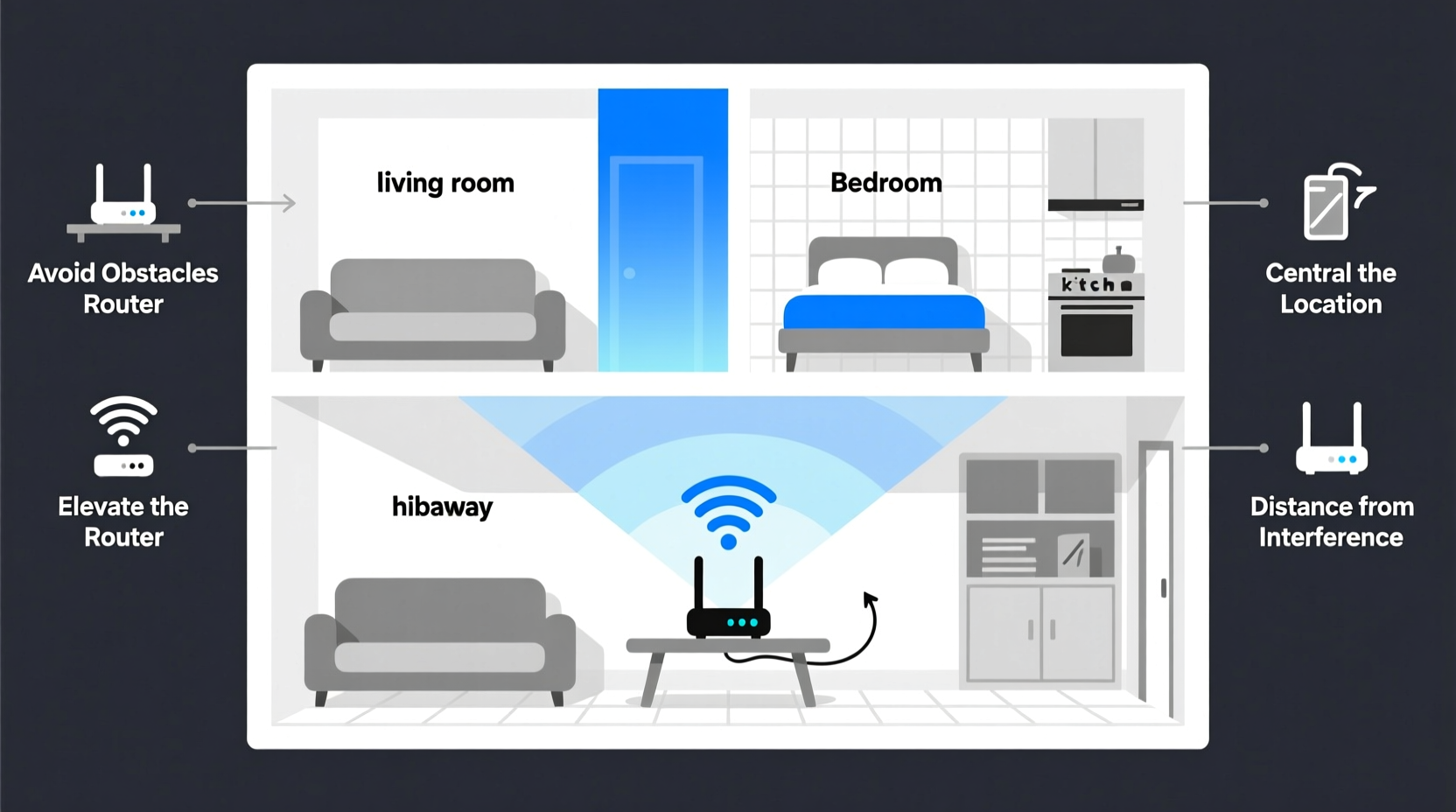
Wi-Fi uses radio frequencies—typically 2.4 GHz and 5 GHz—to transmit data between your router and connected devices. The 2.4 GHz band travels farther and penetrates walls better but is slower and more prone to interference. The 5 GHz band offers faster speeds but has a shorter range and struggles with obstacles.
Signals spread outward in all directions from your router, weakening as they encounter barriers. Materials like concrete, brick, metal, mirrors, and water (yes, even fish tanks) absorb or reflect radio waves. Large appliances such as refrigerators or microwaves emit electromagnetic noise that interferes with signals, especially on the crowded 2.4 GHz band.
This explains why a room directly adjacent to your router might have excellent reception while one just two doors down suffers from buffering and lag. It’s not magic—it’s physics.
“Router placement is often the most overlooked factor in home Wi-Fi performance. A few inches can mean the difference between full bars and no connection.” — Dr. Lena Patel, Network Engineer at HomeConnect Labs
The Hidden Obstacles in Your Home
Many everyday household items silently sabotage your Wi-Fi. While you may not think twice about where you place furniture or appliances, each decision impacts signal propagation.
- Walls and floors: Drywall is relatively transparent to Wi-Fi, but concrete, brick, and cinder block significantly weaken signals. Each wall your signal passes through reduces its strength.
- Mirrors and glass: Metallic backing in mirrors and energy-efficient windows with metallic coatings reflect Wi-Fi signals, creating dead zones.
- Water sources: Pipes, aquariums, and even large houseplants with high water content absorb 2.4 GHz signals.
- Appliances: Microwaves, cordless phones, baby monitors, and Bluetooth devices operate on similar frequencies and cause interference.
- Furniture: Bookshelves packed with books, metal filing cabinets, and large wooden dressers can block or scatter signals.
Router Placement Hacks That Actually Work
You don’t need a mesh system or signal booster to fix weak spots. Start with these proven, no-cost placement strategies.
1. Elevate Your Router
Place your router as high as possible—on a shelf, bookcase, or mounted on a wall. Wi-Fi signals spread downward and outward, so elevation improves horizontal reach. Avoid keeping it on the floor or tucked behind furniture.
2. Centralize the Location
The ideal spot is the geometric center of your home, especially if you use multiple rooms equally. If that’s not practical, aim for a central area on the main floor. This minimizes distance to all corners and reduces the number of walls signals must penetrate.
3. Keep It Away From Obstacles
Don’t tuck your router into a cabinet, closet, or behind a sofa. Even wood and fabric can degrade signal quality. Leave at least 1–2 feet of clearance on all sides, especially around the antennas.
4. Adjust the Antennas
If your router has external antennas, position them strategically. Set one vertically and one horizontally to broadcast signals in multiple planes. Devices held vertically (like smartphones) receive vertical signals better, while laptops benefit from horizontal polarization.
5. Avoid Interference Zones
Keep your router at least 3–5 feet away from cordless phones, microwaves, baby monitors, and large metal objects. These emit electromagnetic noise that competes with Wi-Fi signals.
6. Use Reflective Surfaces to Your Advantage
While metal and mirrors usually hurt signals, you can sometimes redirect them. For example, placing aluminum foil behind an antenna (in moderation) can reflect signals toward a weak zone. Just don’t overdo it—this can create interference elsewhere.
Step-by-Step Guide to Optimizing Router Placement
Follow this methodical process to find the best spot for your router:
- Map your home: Sketch a quick floor plan showing major rooms, walls, and existing router location.
- Identify usage zones: Mark where you use Wi-Fi most—home office, living room, bedroom, etc.
- Remove immediate obstructions: Take the router out of enclosed spaces and elevate it.
- Test baseline signal: Measure speed and signal strength in key areas using a mobile app or speed test website.
- Move to a central, elevated spot: Relocate the router to a high, open area near the center of your home.
- Adjust antennas: Position one up and one sideways for optimal coverage.
- Re-test all zones: Compare results before and after. Note improvements in dead zones.
- Iterate: Fine-tune location by moving a few feet at a time until balance is achieved.
Do’s and Don’ts of Router Placement
| Do’s | Don’ts |
|---|---|
| Place router in a central, elevated location | Hide it in a cabinet or closet |
| Keep it away from large metal objects | Put it next to the refrigerator or microwave |
| Leave space around the device for airflow | Stack books or electronics on or around it |
| Use both 2.4 GHz and 5 GHz bands appropriately | Assume higher frequency always means better performance |
| Update firmware regularly for optimal performance | Ignore software updates thinking only hardware matters |
Real-Life Example: Fixing a Two-Story Home’s Dead Zone
Sarah lives in a two-story colonial home with her router in the basement near the utility room. Her internet worked fine for streaming on the lower level, but upstairs—especially in the master bedroom—video calls constantly froze.
After reading about router placement, she moved the device to a shelf in the hallway on the first floor, midway between the front and back of the house. She elevated it, cleared surrounding clutter, and adjusted the antennas—one vertical, one horizontal.
The result? Signal strength in the bedroom improved from -78 dBm (poor) to -58 dBm (excellent). Video calls stabilized, and her smart home devices responded faster. All without upgrading her plan or buying new gear.
When Placement Isn’t Enough: Knowing the Limits
Even perfect placement has limits. Older homes with thick plaster walls, large open-concept spaces exceeding 2,500 sq ft, or multi-level layouts may require additional solutions beyond repositioning.
In such cases, consider:
- Mesh Wi-Fi systems: Multiple nodes extend coverage seamlessly across large areas.
- Wi-Fi extenders: Repeaters can amplify signals to distant rooms, though they may reduce overall speed.
- Powerline adapters: Use electrical wiring to deliver internet to remote outlets, then connect a secondary access point.
- Ethernet backhaul: For critical devices, run wired connections to eliminate reliance on wireless signals entirely.
But before investing in hardware, exhaust the free fixes. Proper placement resolves 70% of coverage issues.
Checklist: Optimize Your Router in 10 Minutes
Use this quick checklist to improve your Wi-Fi today:
- ☐ Move router off the floor and onto a shelf
- ☐ Relocate it away from metal objects and appliances
- ☐ Ensure it’s not inside a cabinet or behind furniture
- ☐ Position one antenna vertically, one horizontally
- ☐ Test signal strength in problem areas with a phone app
- ☐ Restart the router after repositioning
- ☐ Verify firmware is up to date
FAQ
Does router orientation really matter?
Yes. Routers emit directional signals, especially those with external antennas. Proper orientation ensures broader, more balanced coverage. Vertical antennas favor devices held upright (phones), while horizontal ones help laptops and tablets.
Can I use my ISP-provided router effectively?
Absolutely. Many ISP routers are capable devices. While third-party models offer advanced features, proper placement and configuration make the biggest difference regardless of brand.
Why is my Wi-Fi worse at night?
Congestion increases during peak hours. Neighbors’ networks, streaming, and video calls compete for bandwidth on the 2.4 GHz band. Switching devices to 5 GHz or using Quality of Service (QoS) settings can help prioritize traffic.
Conclusion: Small Changes, Big Results
Your Wi-Fi doesn’t have to be strong in only one room. With a clear understanding of how signals travel and a few strategic adjustments, you can achieve consistent, reliable coverage throughout your home. The solution isn’t always more money or newer tech—it’s smarter placement.
Take ten minutes today to reposition your router, clear obstructions, and test the results. You might be surprised how much better your existing internet performs when given the right environment. Don’t let poor placement hold you back from getting what you’re paying for.




 浙公网安备
33010002000092号
浙公网安备
33010002000092号 浙B2-20120091-4
Comments
No comments yet. Why don't you start the discussion?