
Valorant, Riot Games’ tactical first-person shooter, thrives on teamwork and real-time coordination. Voice chat is a critical tool that enables players to strategize, call out enemy positions, and react instantly during high-pressure rounds. When the voice chat stops working—whether you can’t hear teammates or your microphone isn’t transmitting—it disrupts gameplay and can cost matches. While frustrating, most voice chat issues in Valorant are fixable through systematic troubleshooting. This guide walks through the root causes of microphone problems and provides tested solutions to restore clear, reliable communication.
Understanding Common Causes of Voice Chat Failure
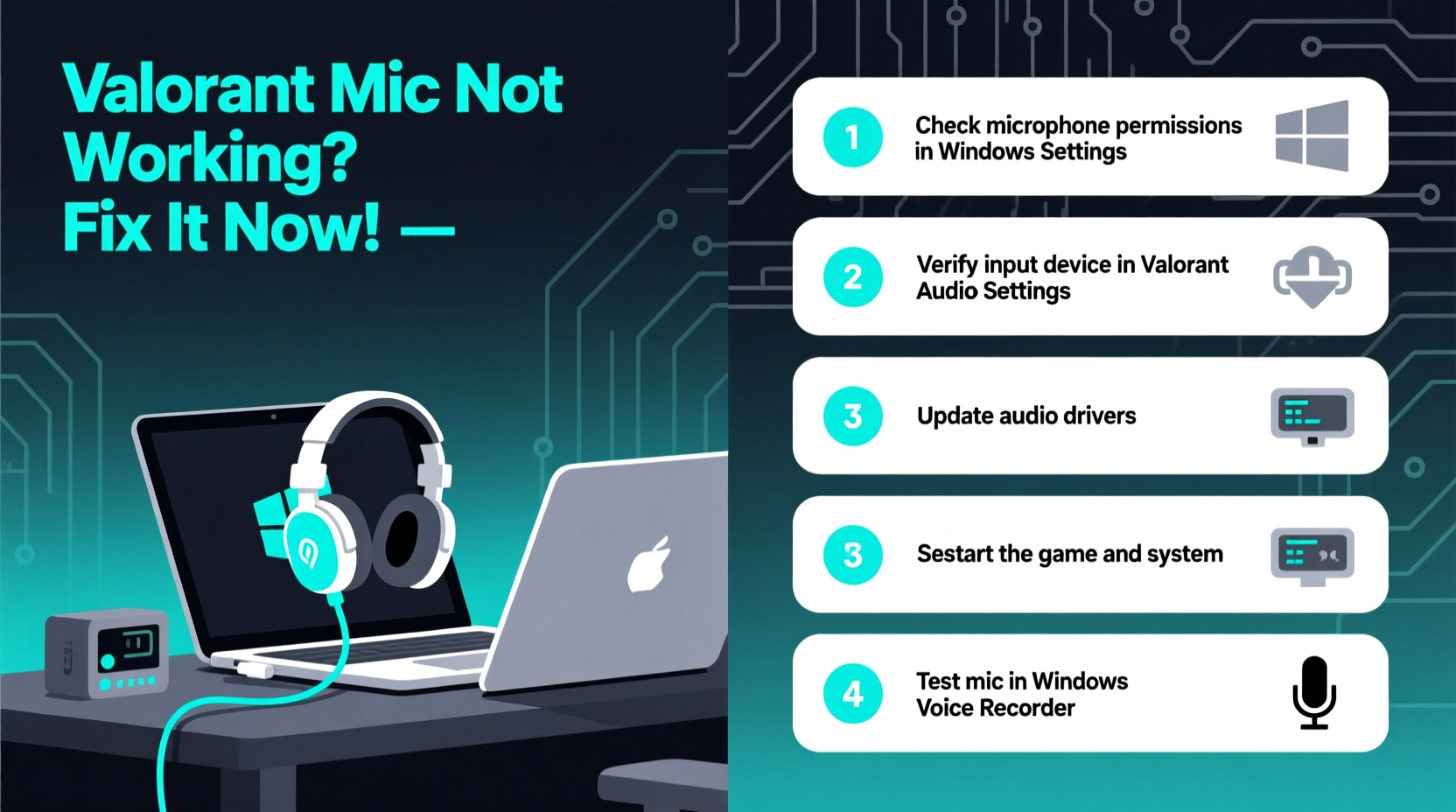
Voice chat issues in Valorant rarely stem from a single source. Instead, they often result from a combination of hardware misconfigurations, software conflicts, or in-game settings. Identifying the cause is the first step toward resolution.
Common culprits include:
- Incorrect input/output device selection – The game may be using the wrong microphone or speakers.
- Outdated or corrupted audio drivers – Audio hardware requires up-to-date drivers to function properly.
- Windows privacy permissions – If Windows blocks apps from accessing the microphone, Valorant won’t detect it.
- In-game push-to-talk or open mic misconfiguration – Settings may prevent automatic transmission.
- Third-party audio software interference – Tools like Voicemeeter, Discord, or audio enhancers can conflict with game audio.
- Riot client or game file corruption – Missing or damaged files can break core features like voice chat.
“Over 70% of reported voice chat issues in competitive shooters are resolved at the system or peripheral level—not within the game itself.” — Alex Tran, Senior Support Analyst at PC Gaming Alliance
Step-by-Step Troubleshooting Guide
Follow this structured approach to diagnose and fix voice chat problems efficiently. Start with basic checks and progress to deeper system-level fixes if needed.
1. Verify Microphone Hardware and Connections
Before diving into software settings, confirm your microphone is physically functional.
- Ensure the mic is securely plugged into the correct port (or connected via Bluetooth/USB).
- Test the microphone on another application (e.g., Windows Voice Recorder, Zoom, or Discord).
- If using a headset, check for mute switches or inline controls that may have been activated accidentally.
- Try a different USB port or audio jack to rule out port failure.
2. Confirm Windows Microphone Permissions
Even if your mic works elsewhere, Windows may block access to specific apps.
- Open Settings > Privacy & Security > Microphone.
- Ensure Microphone access is turned on.
- Scroll down and verify that Let apps access your microphone is enabled.
- Under Choose which apps can access your microphone, ensure Valorant (or the Riot Client) is toggled on.
3. Set the Correct Input Device in Windows
Misconfigured default devices are a frequent cause of silent mics.
- Right-click the speaker icon in the taskbar and select Sound settings.
- Under Input, confirm the correct microphone is selected.
- Click Device properties and test the microphone by speaking—the input level bar should respond.
- If no response, click Additional device properties and check if the device is disabled or has low volume.
4. Adjust In-Game Voice Chat Settings
Valorant’s audio settings must align with your hardware setup.
- Launch Valorant and go to Settings > Audio.
- Under Voice Input Device, select your active microphone from the dropdown.
- Set Voice Output Device to your preferred playback device (e.g., headset).
- Adjust Voice Chat Input Volume and Output Volume to optimal levels (start at 100%).
- Choose between Open Mic or Push to Talk. If using Push to Talk, assign a key and test it.
5. Restart Audio Services and Reboot
Sometimes, background audio services hang or fail to initialize properly.
- Press Win + R, type
services.msc, and press Enter. - Locate Windows Audio and Windows Audio Endpoint Builder.
- Right-click each and select Restart.
- Reboot your computer and relaunch Valorant.
Advanced Fixes for Persistent Issues
If basic troubleshooting fails, consider these deeper interventions.
Update or Reinstall Audio Drivers
Outdated drivers are a common but overlooked cause.
- Press Win + X and select Device Manager.
- Expand Audio inputs and outputs and Sound, video and game controllers.
- Right-click your audio device (e.g., Realtek, Intel SST, USB Audio Device) and choose Update driver.
- Select Search automatically for updated driver software.
- If no update is found, visit your motherboard or headset manufacturer’s website to download the latest driver manually.
If problems persist, uninstall the driver, restart your PC, and let Windows reinstall it automatically.
Run the Riot Repair Tool
Corrupted game files can disable voice functionality.
- Open the Riot Client.
- Click the gear icon next to Valorant in your game library.
- Select Repair and wait for the process to complete.
- This replaces missing or damaged files without reinstalling the entire game.
Disable Conflicting Audio Software
Third-party tools like Discord, NVIDIA Broadcast, or virtual audio mixers can hijack microphone access.
- Close Discord or Skype before launching Valorant.
- Temporarily disable any virtual audio drivers (e.g., VB-Audio, Voicemeeter).
- Avoid using multiple push-to-talk systems simultaneously.
Checklist: Fix Valorant Voice Chat in 7 Steps
Use this concise checklist to quickly resolve microphone issues:
| Step | Action | Status |
|---|---|---|
| 1 | Test microphone in another app (e.g., Windows Voice Recorder) | ☐ |
| 2 | Enable microphone access in Windows Privacy settings | ☐ |
| 3 | Set correct input/output devices in Windows Sound settings | ☐ |
| 4 | Select proper mic and output in Valorant Audio settings | ☐ |
| 5 | Update or reinstall audio drivers | ☐ |
| 6 | Repair Valorant via the Riot Client | ☐ |
| 7 | Close conflicting apps (Discord, Voicemeeter, etc.) | ☐ |
Real-World Example: Resolving Team Communication Breakdown
During a ranked match, Sarah noticed her team wasn’t responding to her calls. She could hear others, but her voice wasn’t transmitting. After checking her headset cable and testing the mic in Discord (which worked), she opened Valorant’s audio settings. There, she discovered the input device was set to “Default” instead of her actual headset. After manually selecting her device and increasing the input volume, her voice came through clearly. Later, she realized a recent Windows update had reset her default audio devices—a common side effect. By creating a system restore point after configuring her audio, she avoided future disruptions.
Frequently Asked Questions
Why can I hear teammates but they can’t hear me?
This usually indicates a microphone input issue. Check your selected input device in Valorant, ensure Windows microphone permissions are enabled, and verify that your mic is not muted or set to low volume in system settings.
Does Push to Talk affect voice quality?
No, Push to Talk only controls when your mic activates. It doesn’t impact sound quality. However, if the assigned key isn’t working or conflicts with other apps, it may seem like the mic is broken. Test the key binding in-game and avoid using system-reserved keys like Win or Alt+Tab.
Can antivirus software block Valorant’s voice chat?
Rarely, but some aggressive security suites may interfere with network or audio components. Temporarily disable your antivirus and test voice chat. If it works, add Valorant and the Riot Client to your antivirus’s exclusion list instead of leaving protection off.
Conclusion: Restore Communication, Regain Control
Voice chat is not a luxury in Valorant—it’s a necessity. When your microphone fails, you’re cut off from the heartbeat of the game. The good news is that most issues are solvable with methodical troubleshooting. From verifying hardware connections to fine-tuning system permissions and in-game settings, each step brings you closer to seamless communication. Don’t accept silence as inevitable. Apply these fixes, document what works for your setup, and play with confidence knowing your voice will be heard when it matters most.




 浙公网安备
33010002000092号
浙公网安备
33010002000092号 浙B2-20120091-4
Comments
No comments yet. Why don't you start the discussion?